
2 Click the Math Type tab to open
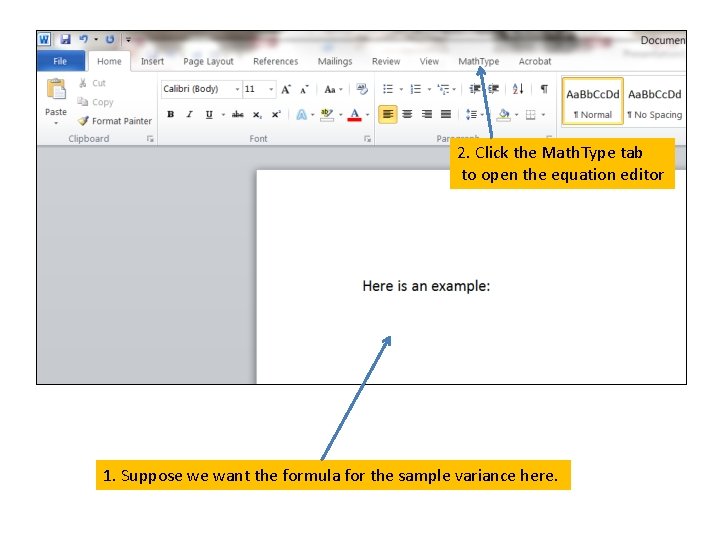
2. Click the Math. Type tab to open the equation editor 1. Suppose we want the formula for the sample variance here.
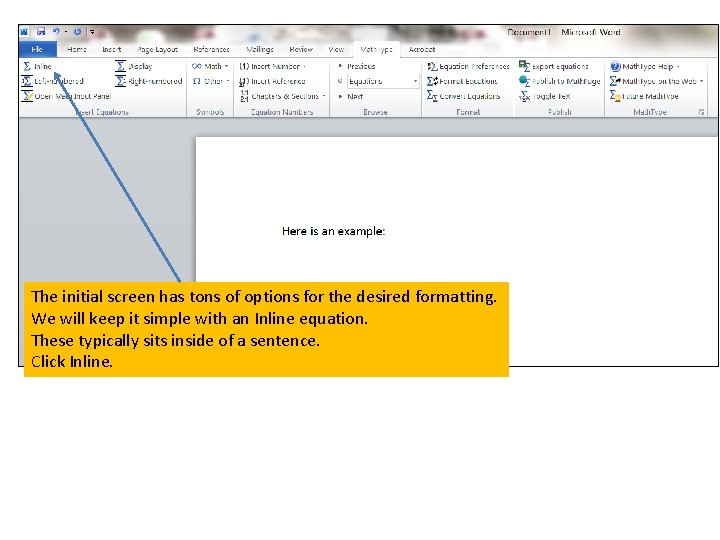
The initial screen has tons of options for the desired formatting. We will keep it simple with an Inline equation. These typically sits inside of a sentence. Click Inline.

The Math. Type editing window opens. Each small box contains a pallet of typing and formatting options.
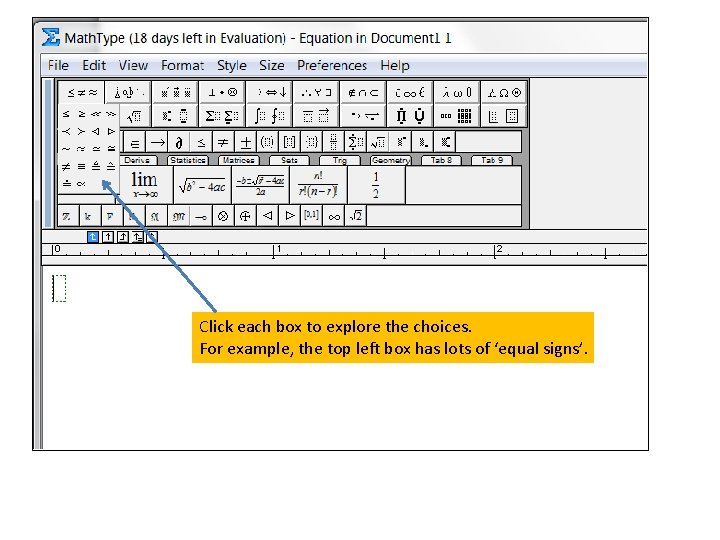
Click each box to explore the choices. For example, the top left box has lots of ‘equal signs’.
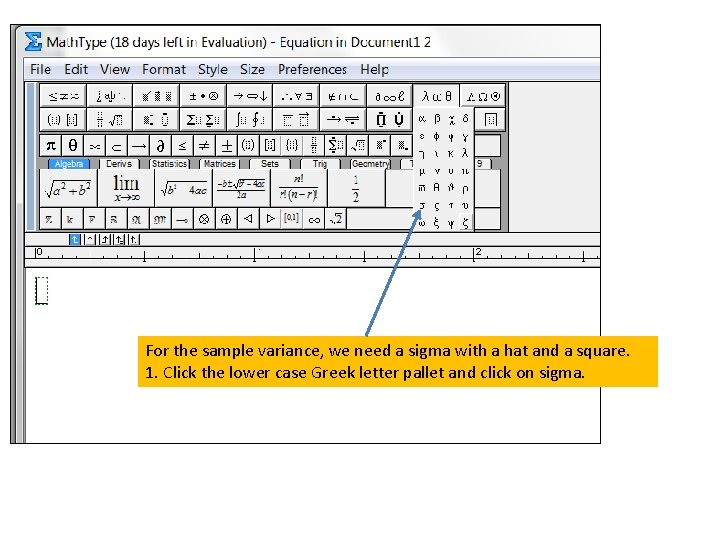
For the sample variance, we need a sigma with a hat and a square. 1. Click the lower case Greek letter pallet and click on sigma.
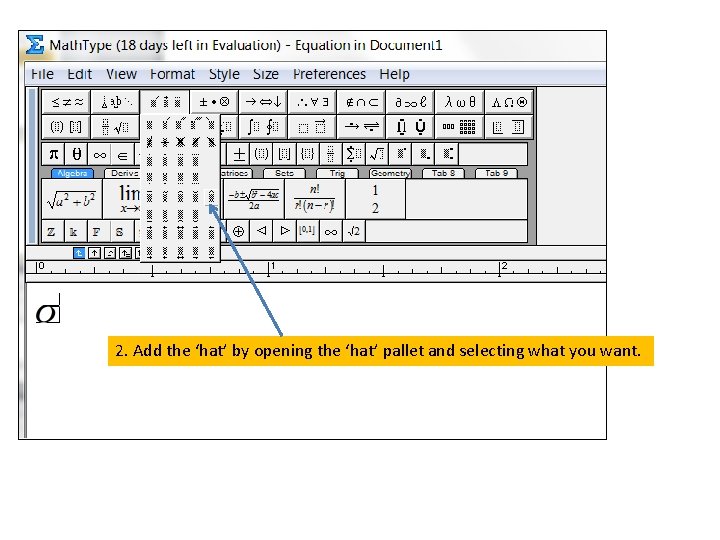
2. Add the ‘hat’ by opening the ‘hat’ pallet and selecting what you want.
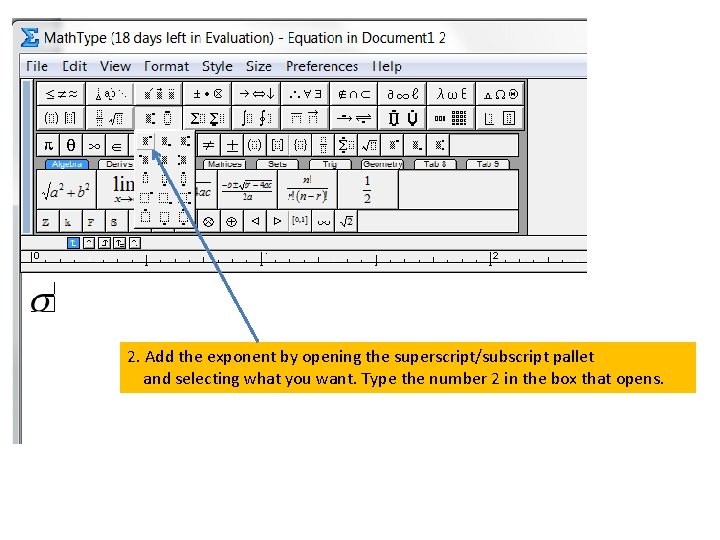
2. Add the exponent by opening the superscript/subscript pallet and selecting what you want. Type the number 2 in the box that opens.

To let Mathtype know you are finished with the exponent, hit the right arrow key on your keyboard. You can now type the ‘equal sign’ from your keyboard.
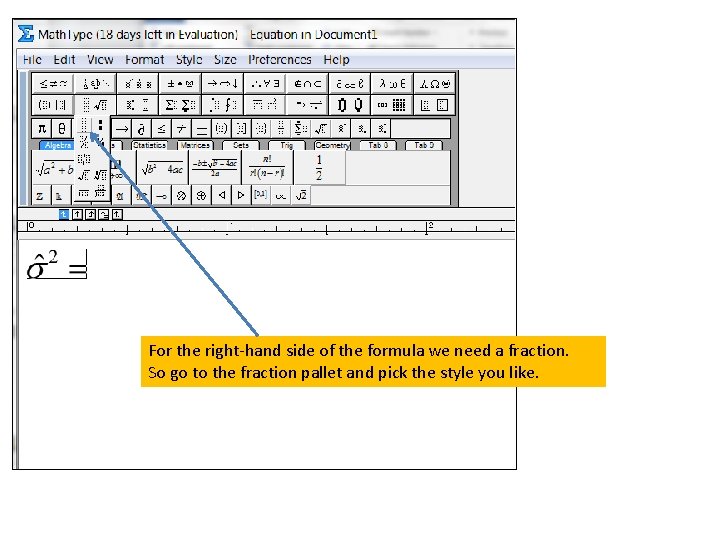
For the right-hand side of the formula we need a fraction. So go to the fraction pallet and pick the style you like.
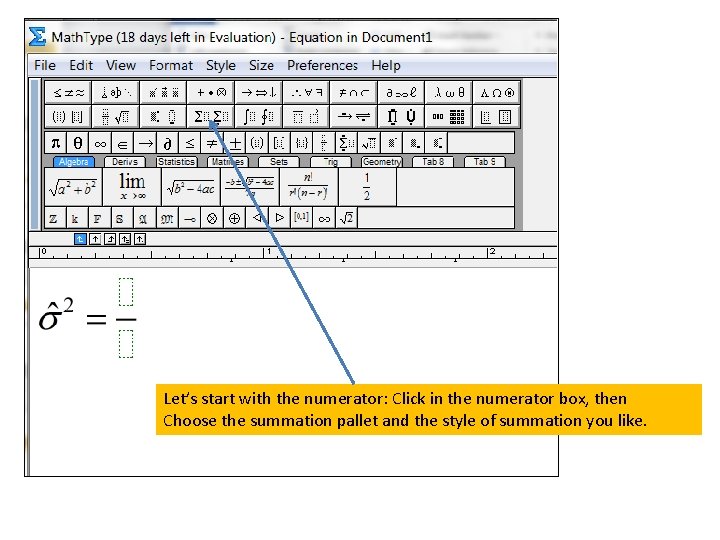
Let’s start with the numerator: Click in the numerator box, then Choose the summation pallet and the style of summation you like.
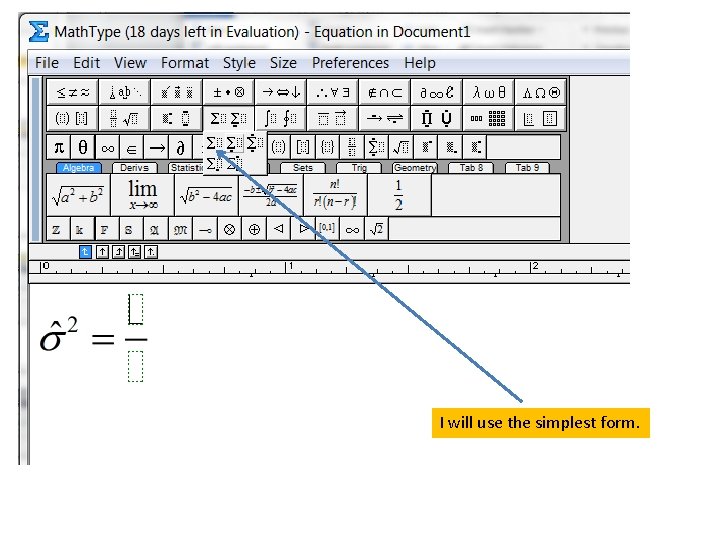
I will use the simplest form.
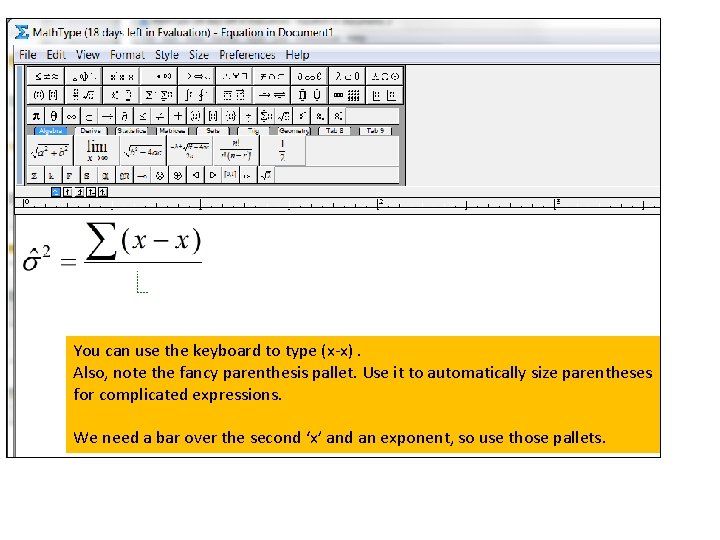
You can use the keyboard to type (x-x). Also, note the fancy parenthesis pallet. Use it to automatically size parentheses for complicated expressions. We need a bar over the second ‘x’ and an exponent, so use those pallets.
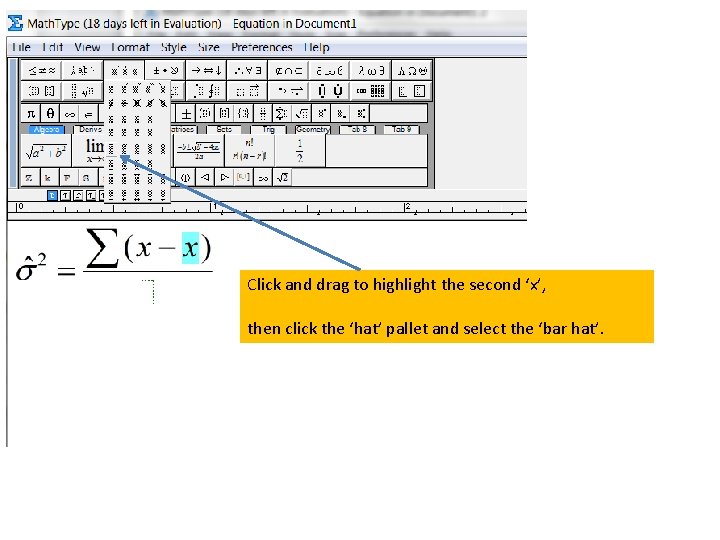
Click and drag to highlight the second ‘x’, then click the ‘hat’ pallet and select the ‘bar hat’.
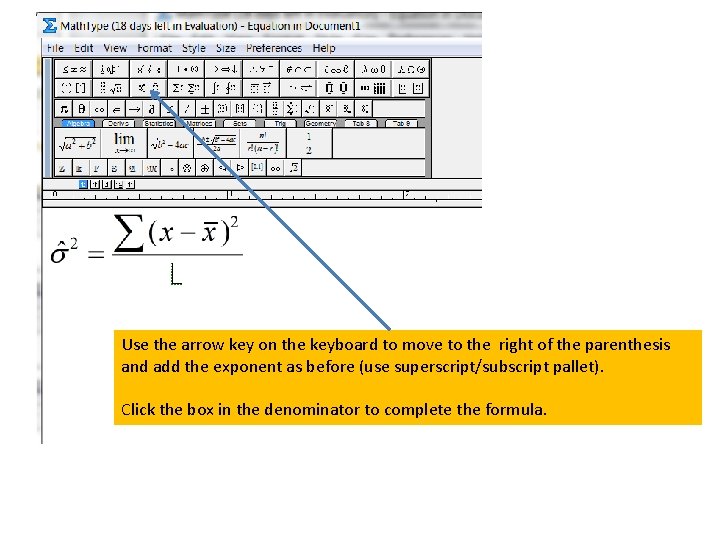
Use the arrow key on the keyboard to move to the right of the parenthesis and add the exponent as before (use superscript/subscript pallet). Click the box in the denominator to complete the formula.
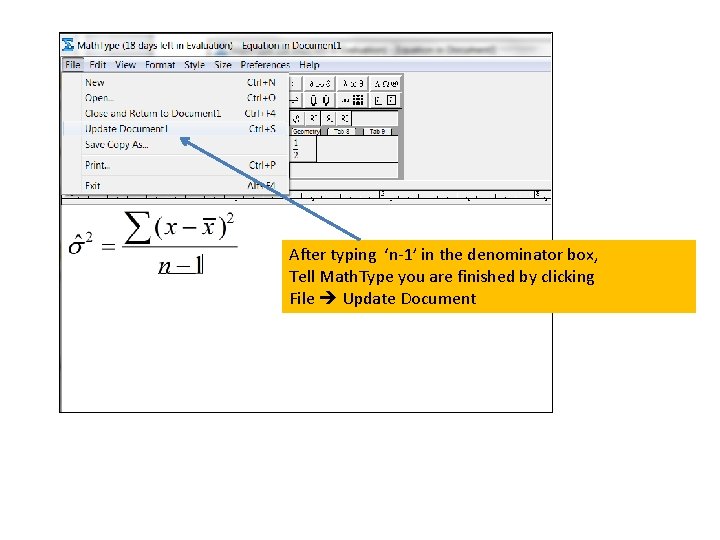
After typing ‘n-1’ in the denominator box, Tell Math. Type you are finished by clicking File Update Document
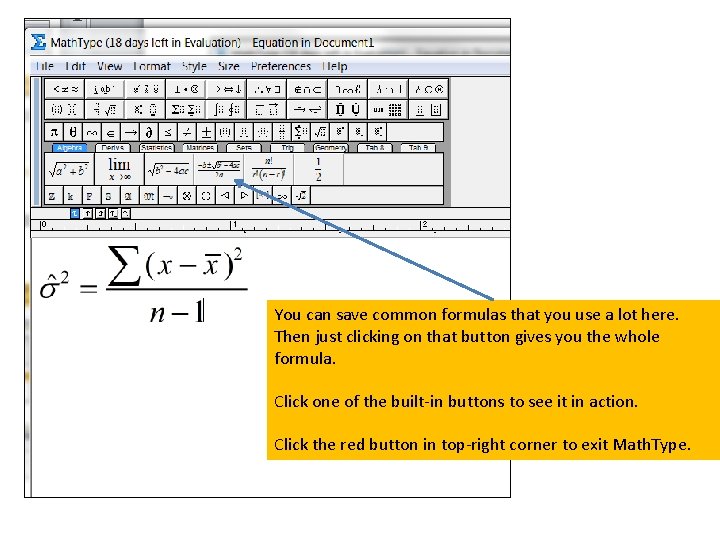
You can save common formulas that you use a lot here. Then just clicking on that button gives you the whole formula. Click one of the built-in buttons to see it in action. Click the red button in top-right corner to exit Math. Type.
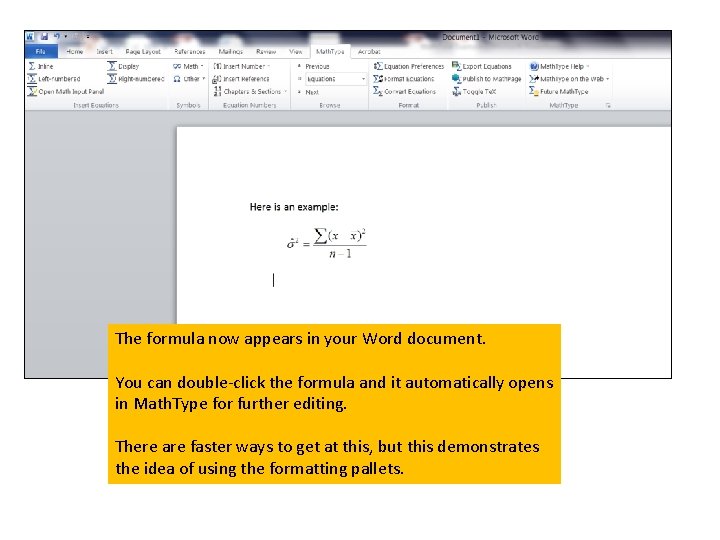
The formula now appears in your Word document. You can double-click the formula and it automatically opens in Math. Type for further editing. There are faster ways to get at this, but this demonstrates the idea of using the formatting pallets.
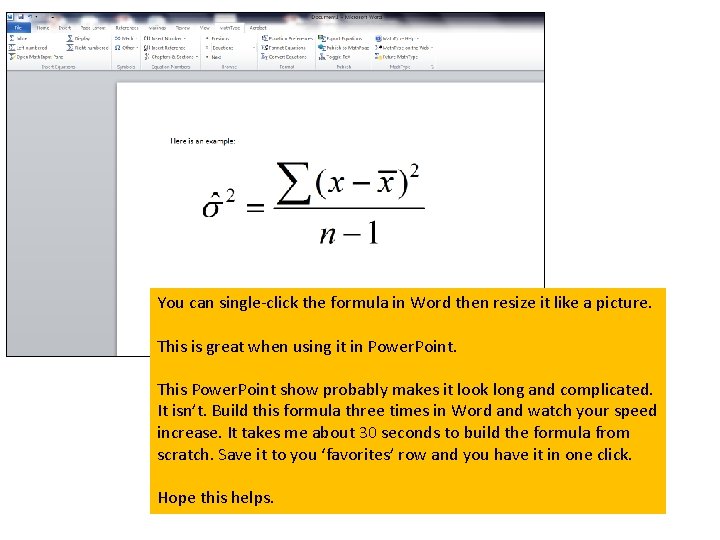
You can single-click the formula in Word then resize it like a picture. This is great when using it in Power. Point. This Power. Point show probably makes it look long and complicated. It isn’t. Build this formula three times in Word and watch your speed increase. It takes me about 30 seconds to build the formula from scratch. Save it to you ‘favorites’ row and you have it in one click. Hope this helps.
- Slides: 18