
2 1 RGB LED Control the color and

2. 1 RGB LED Control the color and brightness of an RGB LED with a Potentiometer
2. 1 Learning Objectives • Hardware: RGB LED, Potentiometer • Principles of Digital Output • Principles of Analog Input and Output • Serial Port Monitor • Number Mapping
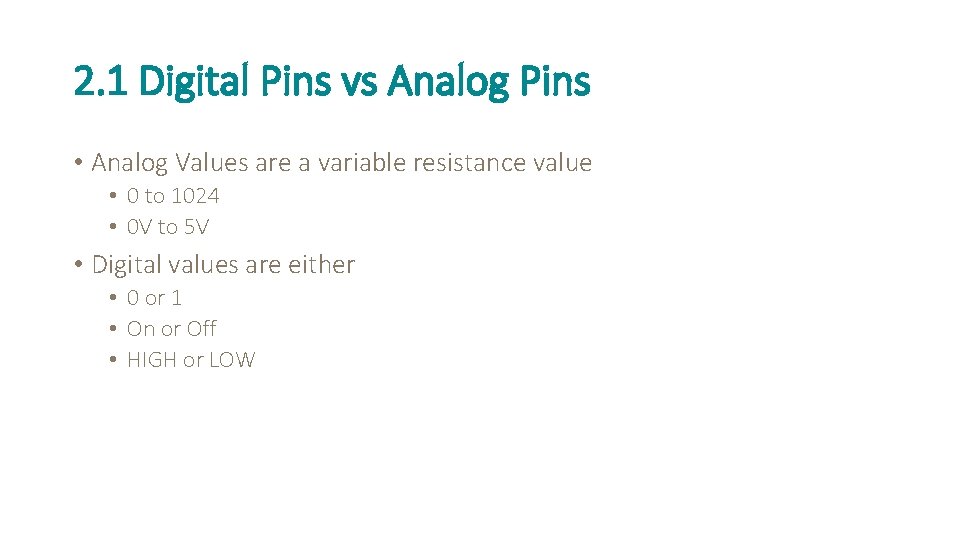
2. 1 Digital Pins vs Analog Pins • Analog Values are a variable resistance value • 0 to 1024 • 0 V to 5 V • Digital values are either • 0 or 1 • On or Off • HIGH or LOW

2. 1 Functions Serial. begin(); Serial. print(); pin. Mode(); digital. Write(); analog. Read(); map(); Start Serial Monitor Write to Serial Monitor Initialize Pin mode Write Digital Values Write Analog Values Read Analog Values Scale a range of numbers

2. 1 Breadboard Diagram Hardware: RGB LED 3 x 330 ohm Resistors Potentiometer Breadboard

2. 1 Variable Initialization Initialize the variables at the top of the program similarly to other C languages. #include <Software. Serial. h> // Initialize location (Pin Hole) for the Pins on the RGB LED const int RED_PIN = 9; const int GREEN_PIN = 10; const int BLUE_PIN = 11; // Initialize location (Pin Hole) for the Potentiometer const int POT_PIN = 0; int value = 0; CODE
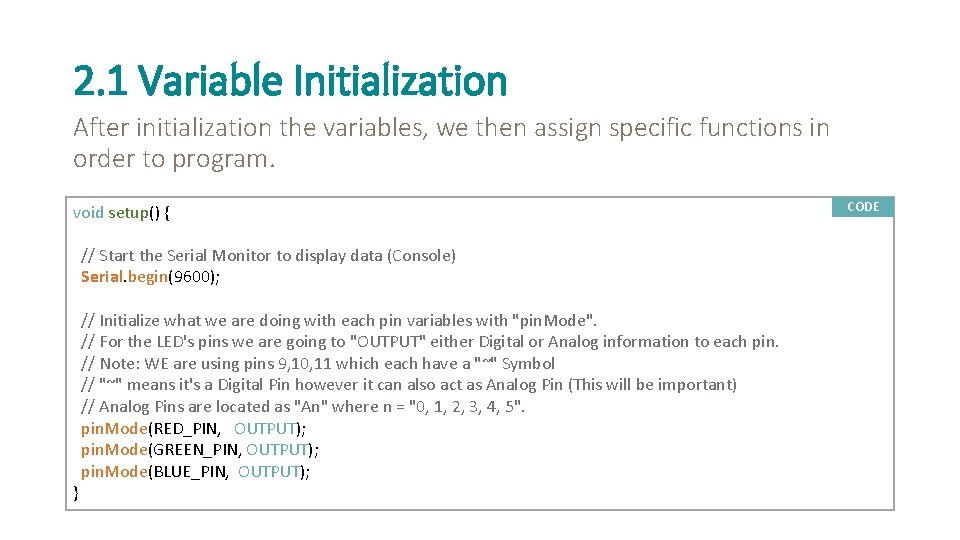
2. 1 Variable Initialization After initialization the variables, we then assign specific functions in order to program. void setup() { // Start the Serial Monitor to display data (Console) Serial. begin(9600); } // Initialize what we are doing with each pin variables with "pin. Mode". // For the LED's pins we are going to "OUTPUT" either Digital or Analog information to each pin. // Note: WE are using pins 9, 10, 11 which each have a "~" Symbol // "~" means it's a Digital Pin however it can also act as Analog Pin (This will be important) // Analog Pins are located as "An" where n = "0, 1, 2, 3, 4, 5". pin. Mode(RED_PIN, OUTPUT); pin. Mode(GREEN_PIN, OUTPUT); pin. Mode(BLUE_PIN, OUTPUT); CODE
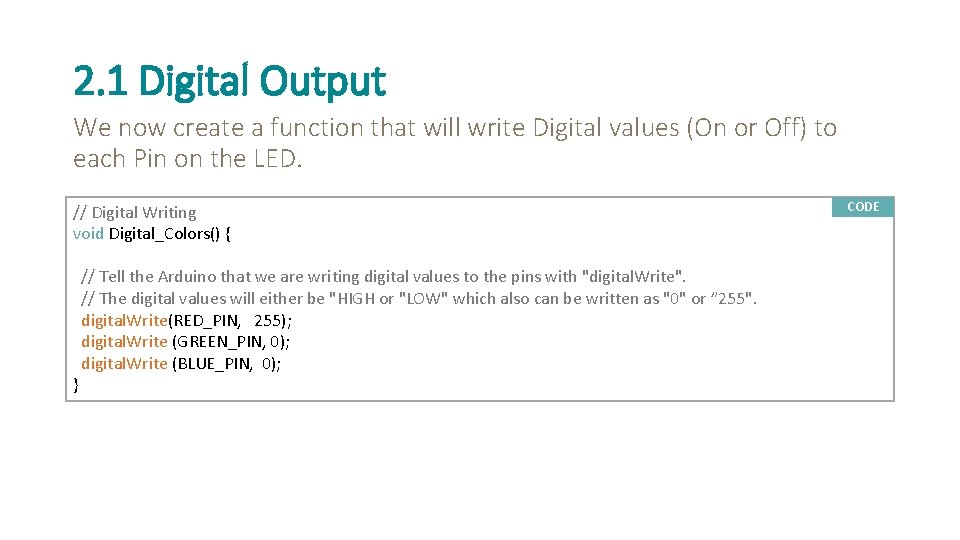
2. 1 Digital Output We now create a function that will write Digital values (On or Off) to each Pin on the LED. // Digital Writing void Digital_Colors() { } // Tell the Arduino that we are writing digital values to the pins with "digital. Write". // The digital values will either be "HIGH or "LOW" which also can be written as "0" or ” 255". digital. Write(RED_PIN, 255); digital. Write (GREEN_PIN, 0); digital. Write (BLUE_PIN, 0); CODE
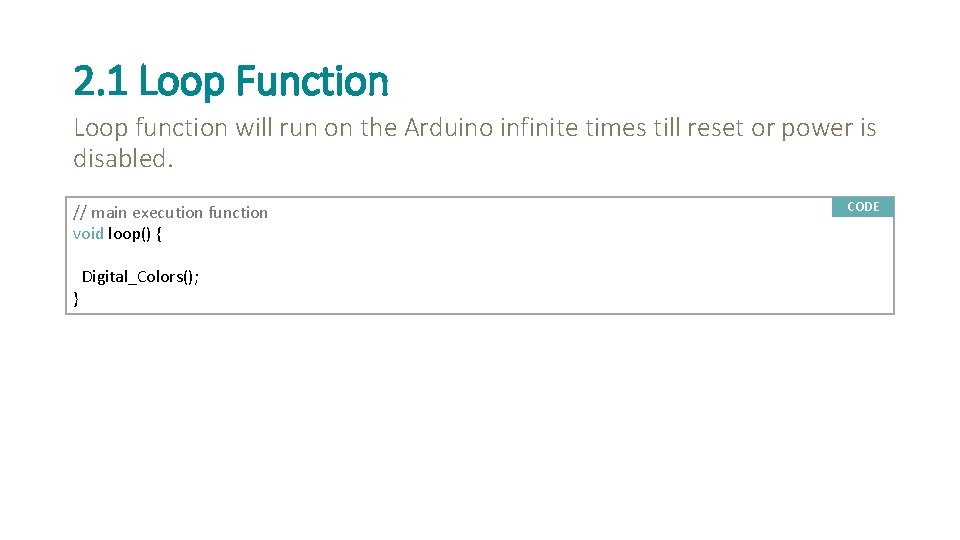
2. 1 Loop Function Loop function will run on the Arduino infinite times till reset or power is disabled. // main execution function void loop() { } Digital_Colors(); CODE
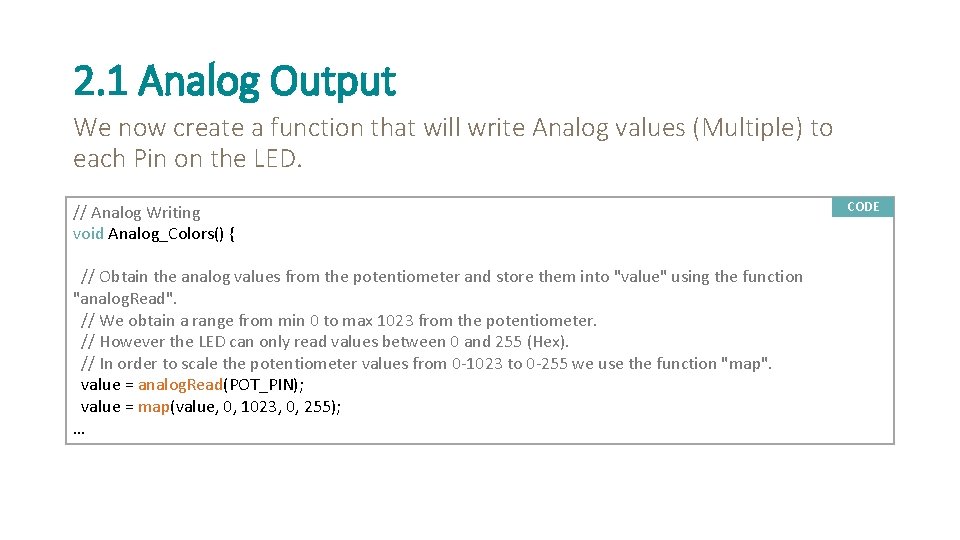
2. 1 Analog Output We now create a function that will write Analog values (Multiple) to each Pin on the LED. // Analog Writing void Analog_Colors() { // Obtain the analog values from the potentiometer and store them into "value" using the function "analog. Read". // We obtain a range from min 0 to max 1023 from the potentiometer. // However the LED can only read values between 0 and 255 (Hex). // In order to scale the potentiometer values from 0 -1023 to 0 -255 we use the function "map". value = analog. Read(POT_PIN); value = map(value, 0, 1023, 0, 255); … CODE
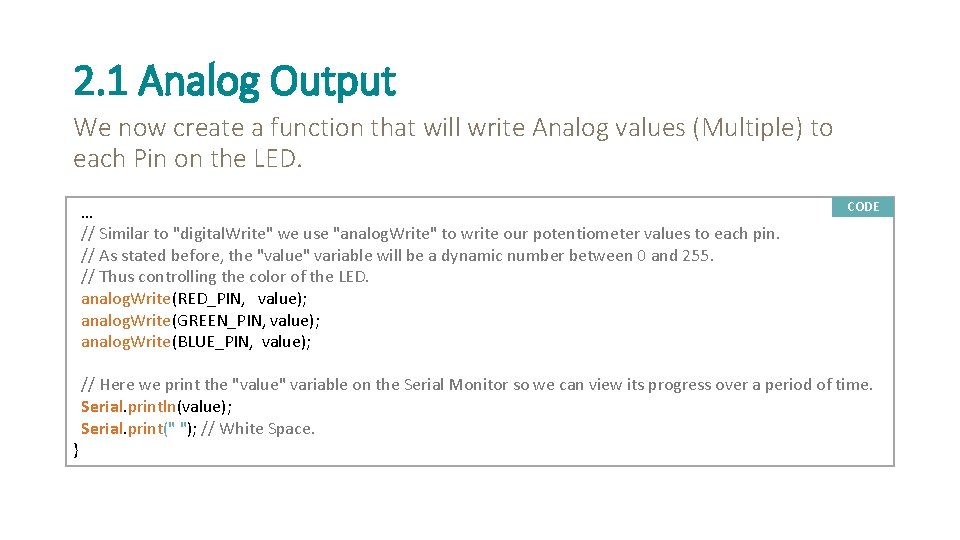
2. 1 Analog Output We now create a function that will write Analog values (Multiple) to each Pin on the LED. … // Similar to "digital. Write" we use "analog. Write" to write our potentiometer values to each pin. // As stated before, the "value" variable will be a dynamic number between 0 and 255. // Thus controlling the color of the LED. analog. Write(RED_PIN, value); analog. Write(GREEN_PIN, value); analog. Write(BLUE_PIN, value); } CODE // Here we print the "value" variable on the Serial Monitor so we can view its progress over a period of time. Serial. println(value); Serial. print(" "); // White Space.
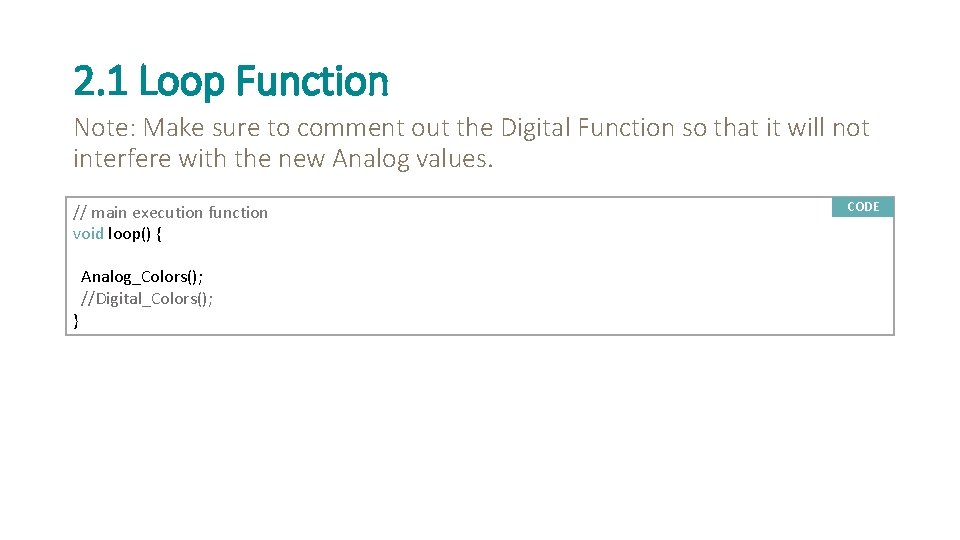
2. 1 Loop Function Note: Make sure to comment out the Digital Function so that it will not interfere with the new Analog values. // main execution function void loop() { } Analog_Colors(); //Digital_Colors(); CODE
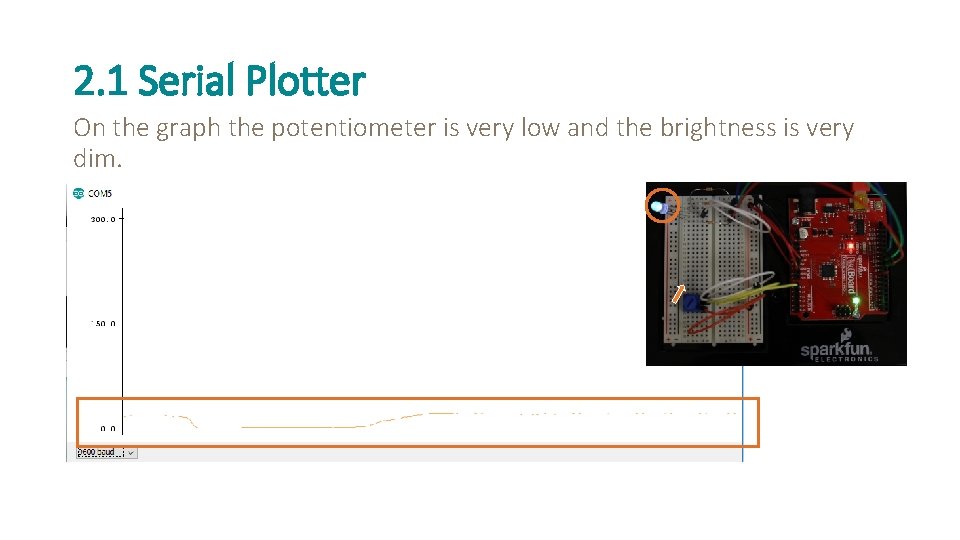
2. 1 Serial Plotter On the graph the potentiometer is very low and the brightness is very dim. v
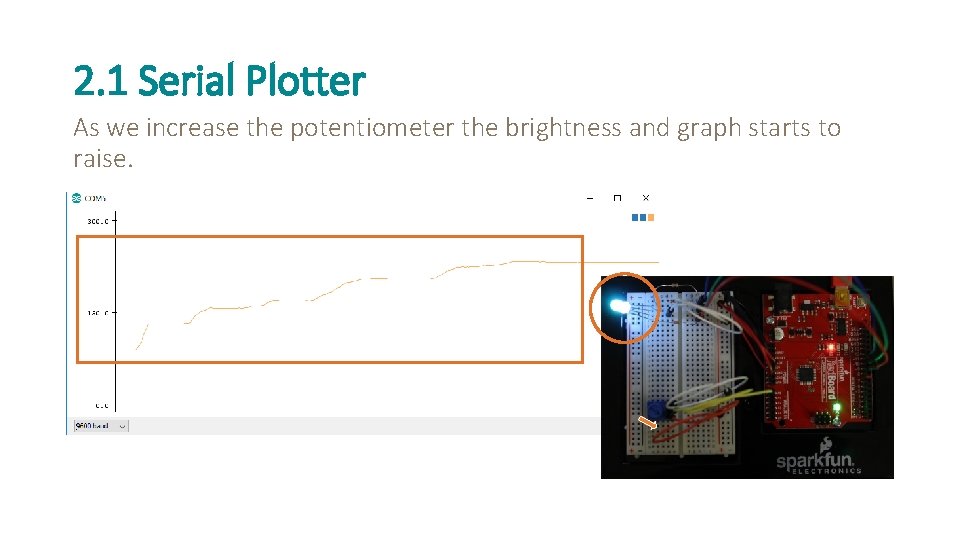
2. 1 Serial Plotter As we increase the potentiometer the brightness and graph starts to raise. v
2. 1 Extension 1. How will reversing the direction of current flow in the potentiometer affect the Serial Plotter Graph? 2. Monitor the initial “analog. Read(POT_PIN); ” function and the “value” variable. What relationships can you find?
- Slides: 15