
19 20 Willmar Public Schools Infinite Campus Teacher
19 -20 Willmar Public Schools Infinite Campus Teacher Tools Updates
Agenda: Student Info > General Student Summary redesign – new/classic toggle Student Schedule Tab – redesign New Parent/Student Portal Campus Instruction Control Center Updates Reports: Filter Favorites Schoology Feedback to Campus (SH/MS) Navigate Past/Future Terms Expected Students in class Attendance Screen Assignments Screen Uncategorized Assignments and Default Options Other Try the New Look to Campus Instruction Introducing Campus. Learning. com in the user menu
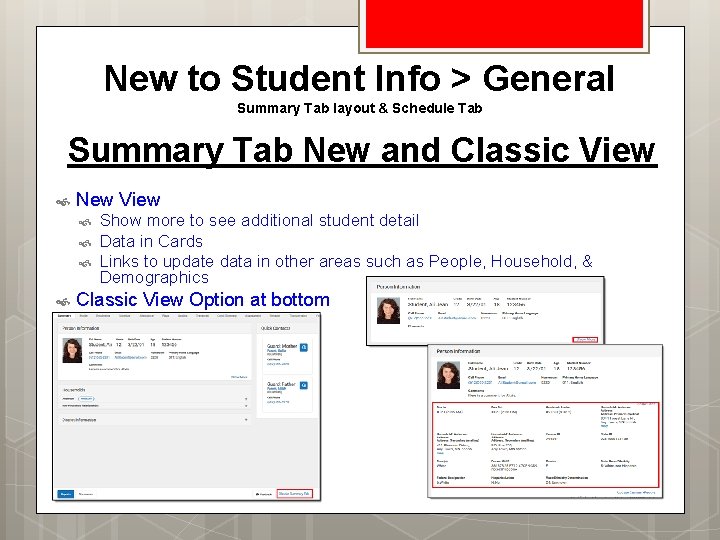
New to Student Info > General Summary Tab layout & Schedule Tab Summary Tab New and Classic View New View Show more to see additional student detail Data in Cards Links to update data in other areas such as People, Household, & Demographics Classic View Option at bottom
New to Student Info > General Summary Tab layout & Schedule Tab The Schedule tab now includes a Calendar view and a Term view. In the Calendar view, the student’s courses display in a Day, Week or Agenda layout. In the Term view, the student’s courses display for the selected term and period schedule, and can be filtered. Visuals to more clearly determine where a student is at the current time. Easier indication of when a student does not have a schedule course. Updated calendar navigation to choose a different date and see the courses the student has for that day. Login to Campus to Show different views (MS Calendar)
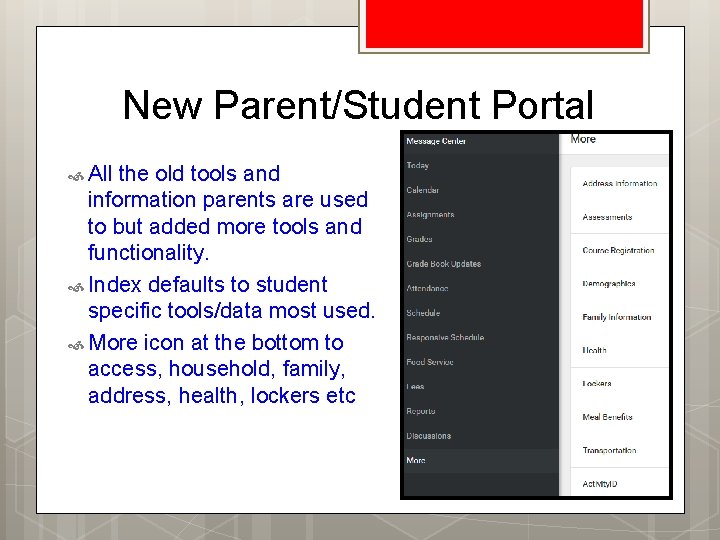
New Parent/Student Portal All the old tools and information parents are used to but added more tools and functionality. Index defaults to student specific tools/data most used. More icon at the bottom to access, household, family, address, health, lockers etc
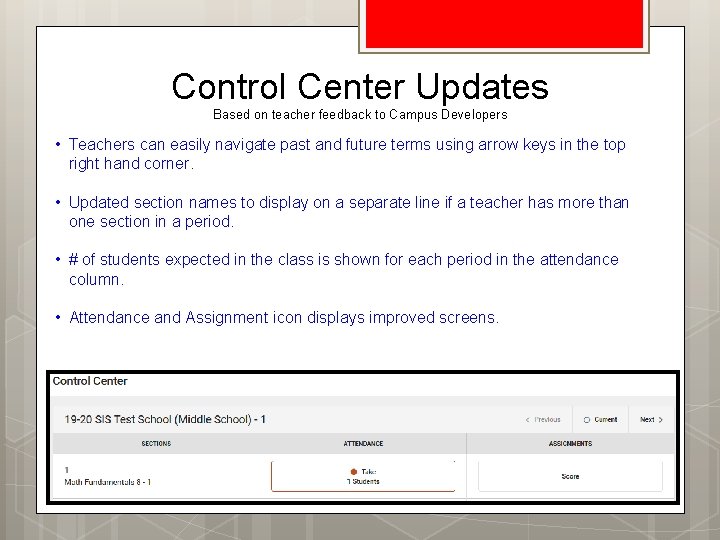
Control Center Updates Based on teacher feedback to Campus Developers • Teachers can easily navigate past and future terms using arrow keys in the top right hand corner. • Updated section names to display on a separate line if a teacher has more than one section in a period. • # of students expected in the class is shown for each period in the attendance column. • Attendance and Assignment icon displays improved screens.
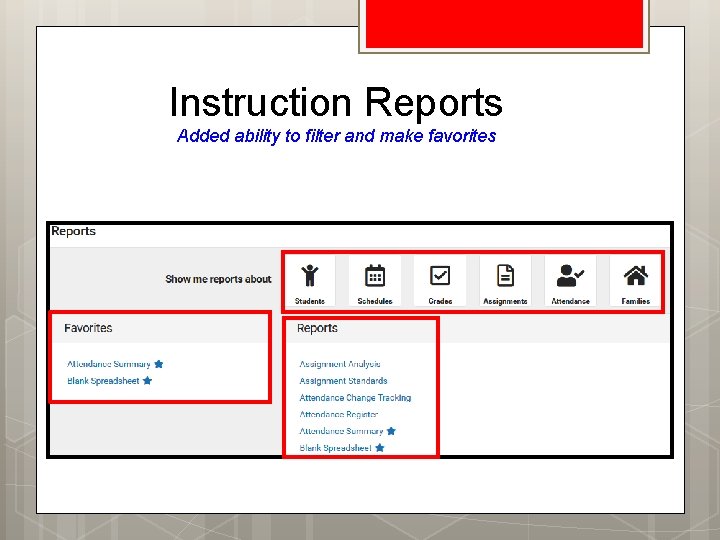
Instruction Reports Added ability to filter and make favorites
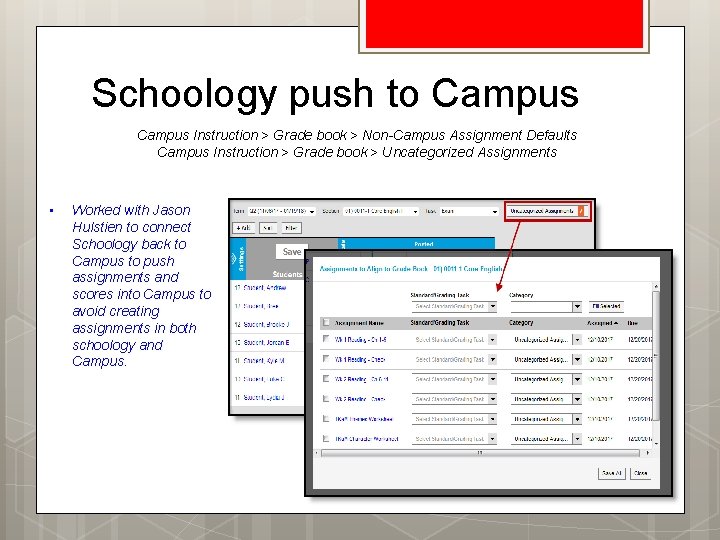
Schoology push to Campus Instruction > Grade book > Non-Campus Assignment Defaults Campus Instruction > Grade book > Uncategorized Assignments • Worked with Jason Hulstien to connect Schoology back to Campus to push assignments and scores into Campus to avoid creating assignments in both schoology and Campus.
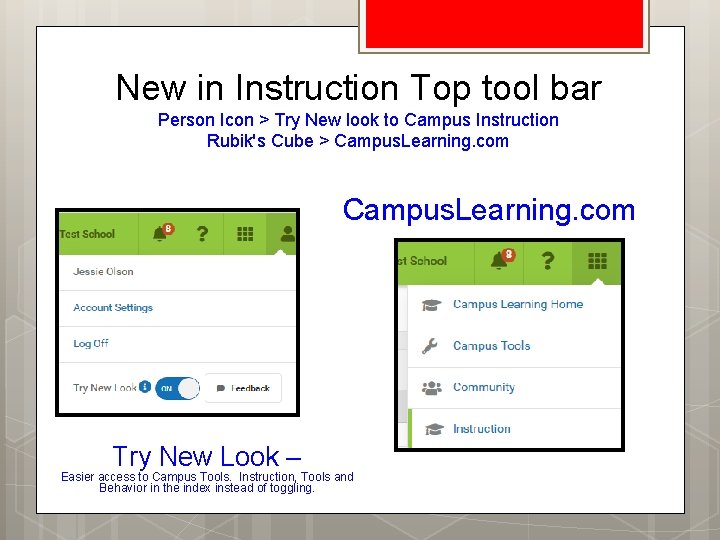
New in Instruction Top tool bar Person Icon > Try New look to Campus Instruction Rubik's Cube > Campus. Learning. com Try New Look – Easier access to Campus Tools. Instruction, Tools and Behavior in the index instead of toggling.
Reminders Always check your Year, School, Calendar and Section settings when entering Campus. Always LOG OFF to exit instead of X to close browser window to free server resources. save, End “? ” Save, SAVE! User Help: on top right hand corner of Campus Instruction Login to Campus Community Documentation on District Website
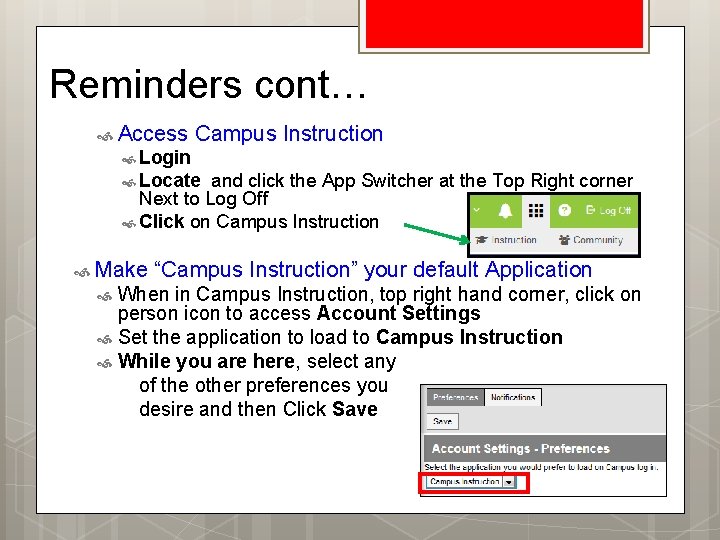
Reminders cont… Access Campus Instruction Login Locate and click the App Switcher at the Top Right corner Next to Log Off Click on Campus Instruction Make “Campus Instruction” your default Application When in Campus Instruction, top right hand corner, click on person icon to access Account Settings Set the application to load to Campus Instruction While you are here, select any of the other preferences you desire and then Click Save
Questions ? ? ? ============ Contact Info Questions, issues, contact me at: Jessie Olson olsonj@willmar. k 12. mn. us 320 -231 -8555
- Slides: 12