
16 UCT 502 COMPUTER INSTALLATION SERVICING By N
16 UCT 502 COMPUTER INSTALLATION & SERVICING By N. Sekar System Administrator Dr. SNS Rajalakshmi College of Arts & Science(Autonomous) 12/27/2021 DRSNSRCAS/CT DEPT/Computer Installation & Servicing/Unit V/Trouble shooting the mother board/N. Sekar 1
POST (Power-On Self-Test) 12/27/2021 DRSNSRCAS/CT DEPT/Computer Installation & Servicing/Unit V/Trouble shooting the mother board/N. Sekar 2
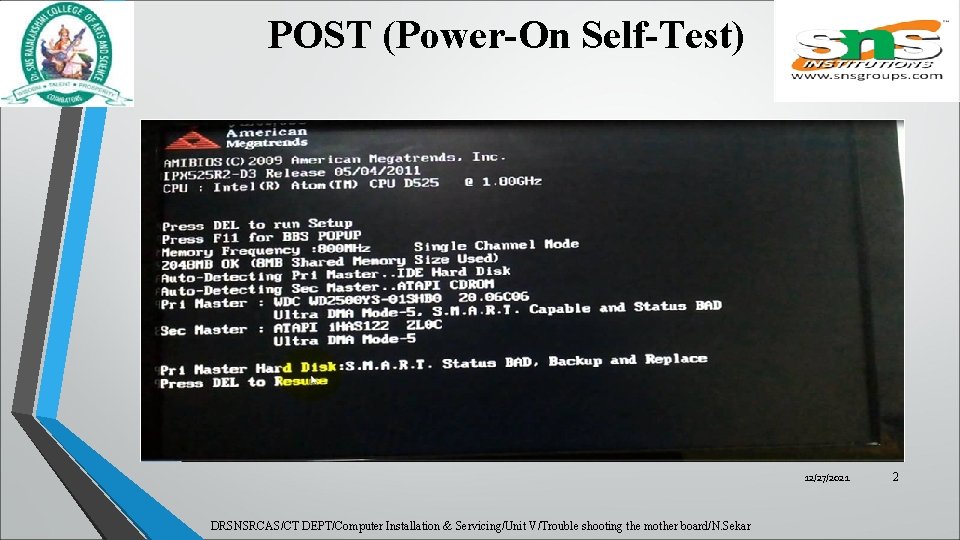
POST (Power- On Self-Test) • When power is turned on, POST (Power-On Self-Test) is the diagnostic testing sequence that a computer's basic input/output system (or "starting program") • Runs to determine if the computer keyboard, random access memory disk drives, and other hardware working correctly. • If the necessary hardware is detected and found to be operating properly, the computer begins to boot 12/27/2021 DRSNSRCAS/CT DEPT/Computer Installation & Servicing/Unit V/Trouble shooting the mother board/N. Sekar 3
POST (Power- On Self-Test) • If the hardware is not detected or is found not to be operating properly, • the BIOS issues an error message which may be text on the display screen and/or a series of coded beeps, depending on the nature of the problem. 12/27/2021 DRSNSRCAS/CT DEPT/Computer Installation & Servicing/Unit V/Trouble shooting the mother board/N. Sekar 4

POST (Power- On Self-Test) • Since POST runs before the computer's video card is activated, it may not be possible to progress to the display screen. • The pattern of beeps may be a variable numbers of short beeps or a mixture of long and short beeps, depending on what type of BIOS is installed. 12/27/2021 DRSNSRCAS/CT DEPT/Computer Installation & Servicing/Unit V/Trouble shooting the mother board/N. Sekar 5
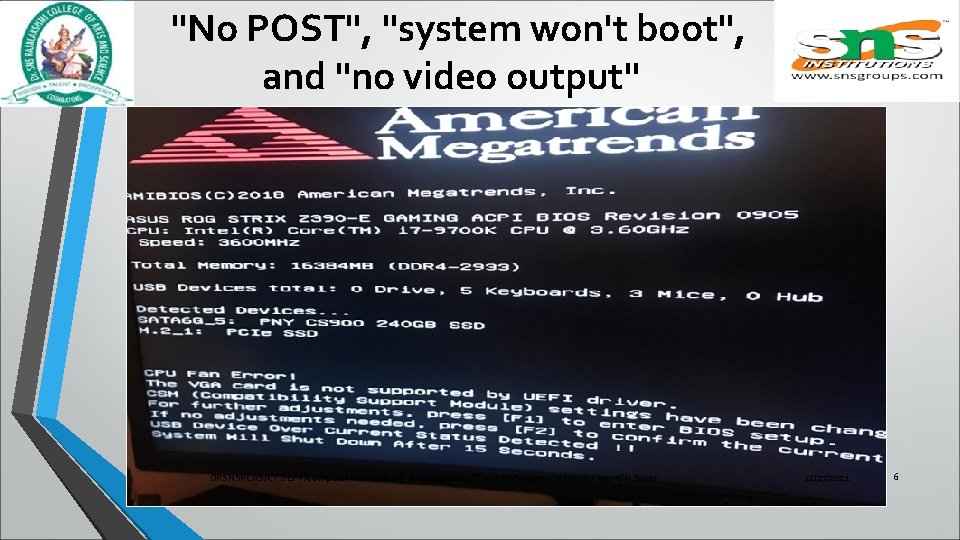
"No POST", "system won't boot", and "no video output" DRSNSRCAS/CT DEPT/Computer Installation & Servicing/Unit V/Trouble shooting the mother board/N. Sekar 12/27/2021 6
Troubleshooting the Motherboard When power button is turned on if there is no Display on the Monitor we should follow the below steps to troubleshoot : 1. Check the power supply 2. Check the CPU 3. Check the memory 12/27/2021 DRSNSRCAS/CT DEPT/Computer Installation & Servicing/Unit V/Trouble shooting the mother board/N. Sekar 7
Troubleshooting the Motherboard • 4. Check the graphic card • 5. Check the monitor • 6. Test if it can power on with the least external device 12/27/2021 DRSNSRCAS/CT DEPT/Computer Installation & Servicing/Unit V/Trouble shooting the mother board/N. Sekar 8
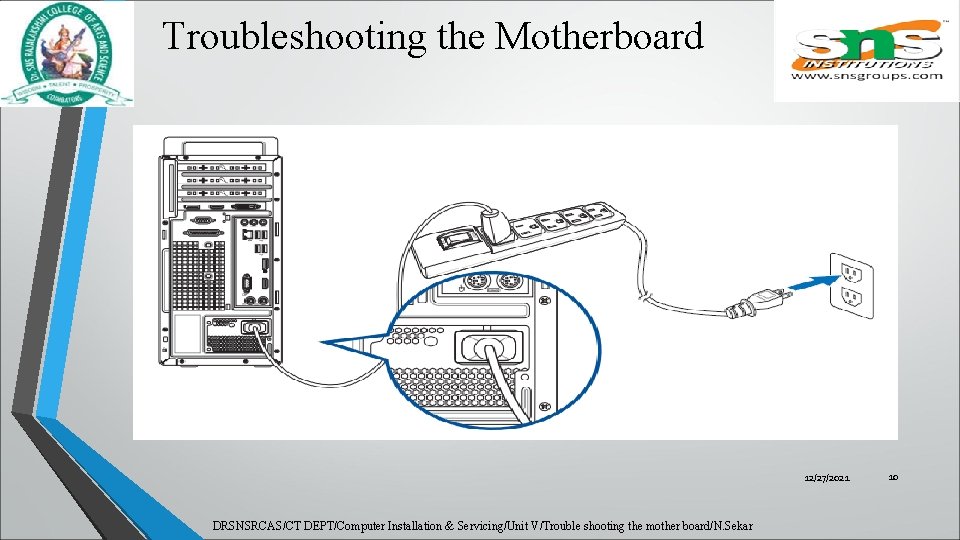
Troubleshooting the Motherboard • Check the power supply • check if the connection of the power cord and electric socket are well connected as shown below. • If there is a main power switch on the extension cord, please make sure it is switched on. • If it still can't power on, please replace the extension cord or electric socket. 12/27/2021 DRSNSRCAS/CT DEPT/Computer Installation & Servicing/Unit V/Trouble shooting the mother board/N. Sekar 9
Troubleshooting the Motherboard 12/27/2021 DRSNSRCAS/CT DEPT/Computer Installation & Servicing/Unit V/Trouble shooting the mother board/N. Sekar 10
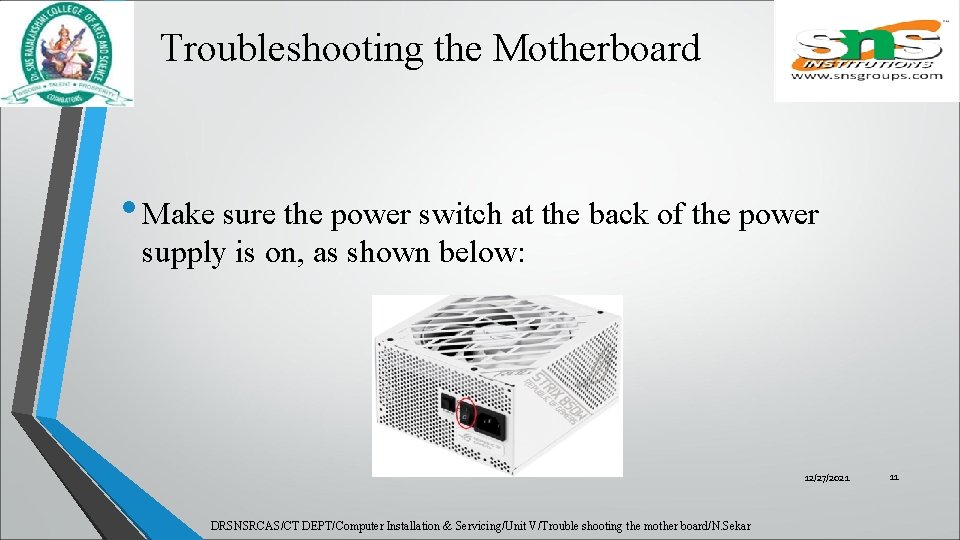
Troubleshooting the Motherboard • Make sure the power switch at the back of the power supply is on, as shown below: 12/27/2021 DRSNSRCAS/CT DEPT/Computer Installation & Servicing/Unit V/Trouble shooting the mother board/N. Sekar 11
Troubleshooting the Motherboard • Check the power cable of power supply is correctly connected to ATX power connectors. • Some motherboard may contain 8 -pin EATX 12 V_1, 4 -pin EATX 12 V_2 and 24 -pin EATXPWR, we suggest to connect all three connectors to the power supply. 12/27/2021 DRSNSRCAS/CT DEPT/Computer Installation & Servicing/Unit V/Trouble shooting the mother board/N. Sekar 12
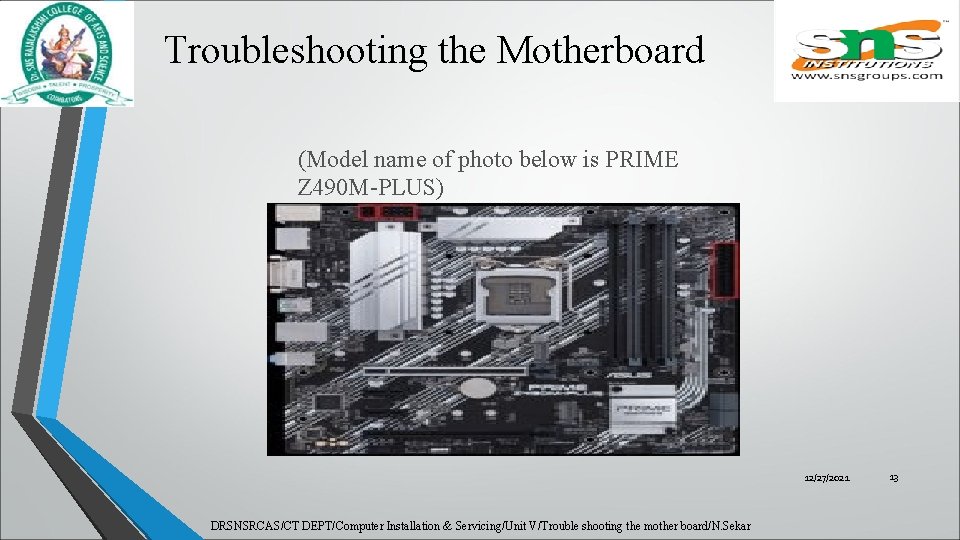
Troubleshooting the Motherboard (Model name of photo below is PRIME Z 490 M-PLUS) 12/27/2021 DRSNSRCAS/CT DEPT/Computer Installation & Servicing/Unit V/Trouble shooting the mother board/N. Sekar 13
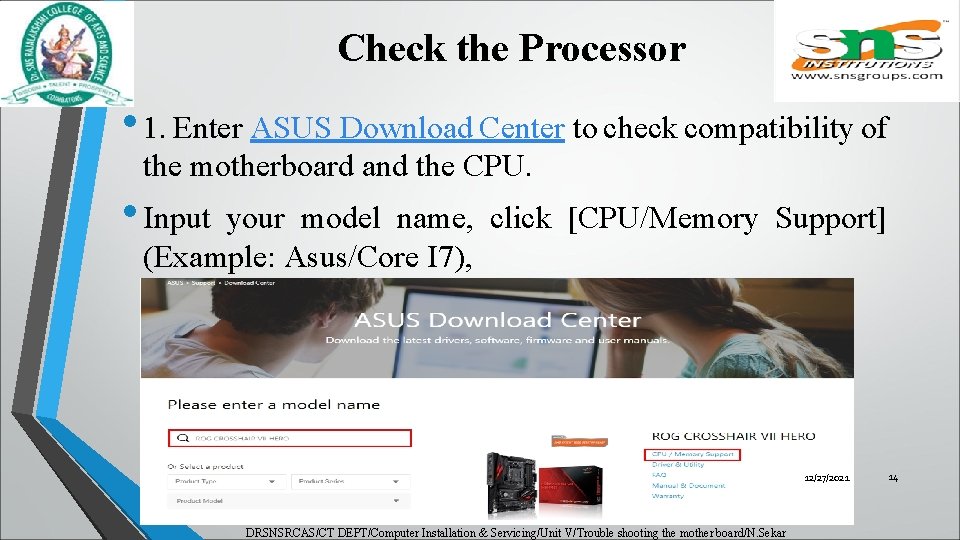
Check the Processor • 1. Enter ASUS Download Center to check compatibility of the motherboard and the CPU. • Input your model name, click [CPU/Memory Support] (Example: Asus/Core I 7), 12/27/2021 DRSNSRCAS/CT DEPT/Computer Installation & Servicing/Unit V/Trouble shooting the mother board/N. Sekar 14
![Check the Processor Click [CPU Support] and check if your CPU is in the](http://slidetodoc.com/presentation_image_h2/3552b54cf9c80e8407f7aec9110d4275/image-15.jpg "Check the Processor Click [CPU Support] and check if your CPU is in the")
Check the Processor Click [CPU Support] and check if your CPU is in the QVL list for compatibility as below, and check if the BIOS version is as the recommended one or the later version than recommended. 12/27/2021 DRSNSRCAS/CT DEPT/Computer Installation & Servicing/Unit V/Trouble shooting the mother board/N. Sekar 15
Check the Processor • b. If the display cable connects to the on-board display port, and still shows no display, please refer to official website of your CPU vendor AMD or Intel, to check if your installed CPU supports on-board graphics. • c. If you have confirmed your CPU supports on-board graphics, but still have no display, please try to re-install CPU and check if the CPU pin or CPU socket is dirty as below. If yes, please clean it and try again. 12/27/2021 DRSNSRCAS/CT DEPT/Computer Installation & Servicing/Unit V/Trouble shooting the mother board/N. Sekar 16
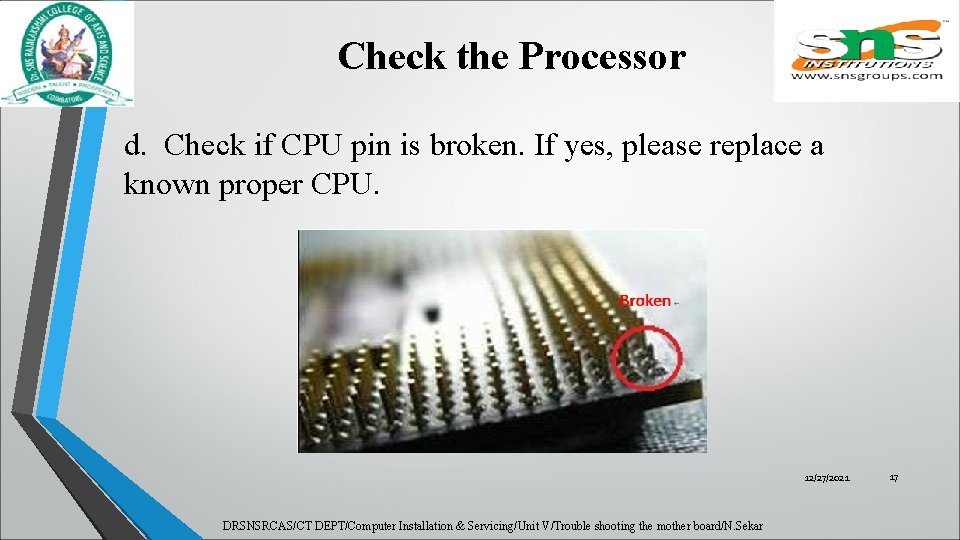
Check the Processor d. Check if CPU pin is broken. If yes, please replace a known proper CPU. 12/27/2021 DRSNSRCAS/CT DEPT/Computer Installation & Servicing/Unit V/Trouble shooting the mother board/N. Sekar 17
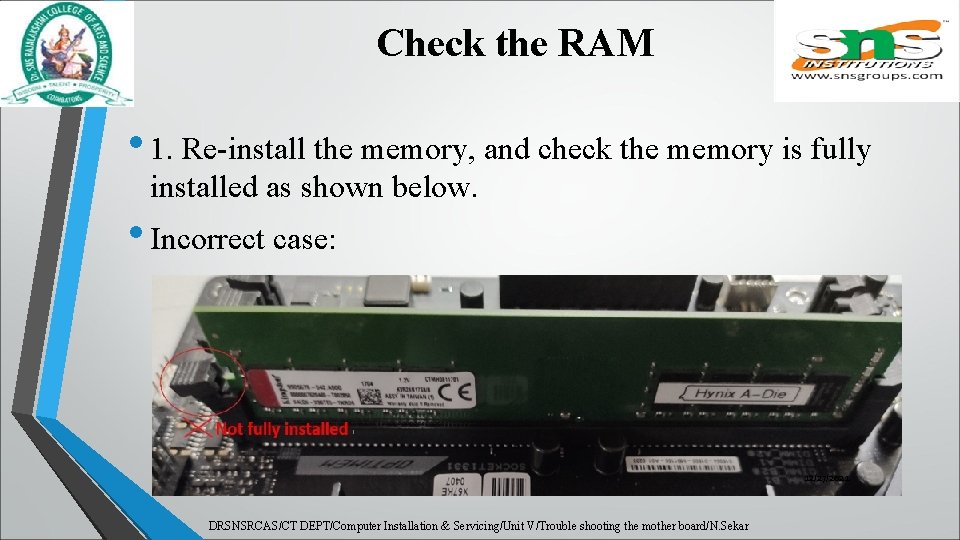
Check the RAM • 1. Re-install the memory, and check the memory is fully installed as shown below. • Incorrect case: 12/27/2021 DRSNSRCAS/CT DEPT/Computer Installation & Servicing/Unit V/Trouble shooting the mother board/N. Sekar 18
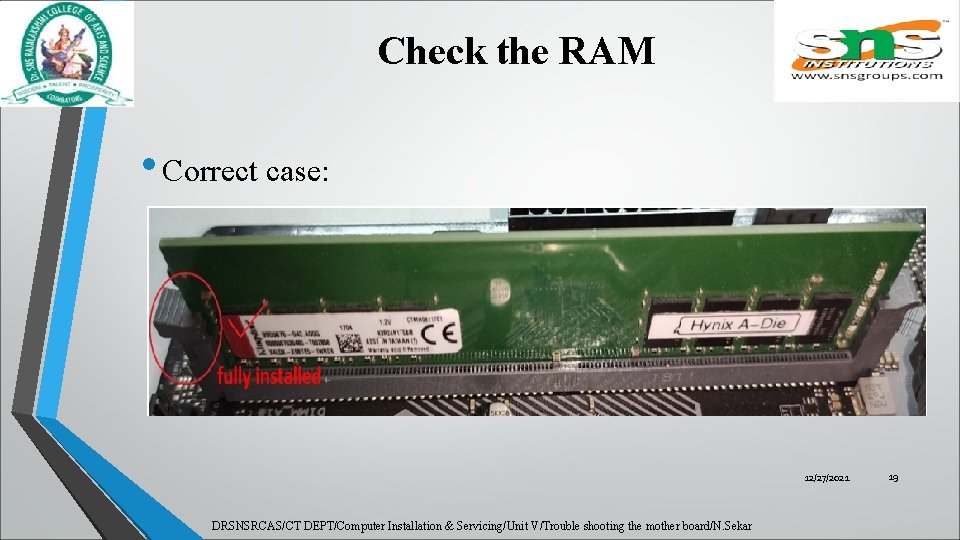
Check the RAM • Correct case: 12/27/2021 DRSNSRCAS/CT DEPT/Computer Installation & Servicing/Unit V/Trouble shooting the mother board/N. Sekar 19
Check the RAM • b. If it has no display when you install two or more memory, please check whether problem can be solved by installing only one memory. • Then try to install the other memory to eliminate memory problem. • c. try as [recommended memory configurations] in user manual of the motherboard: 12/27/2021 DRSNSRCAS/CT DEPT/Computer Installation & Servicing/Unit V/Trouble shooting the mother board/N. Sekar 20
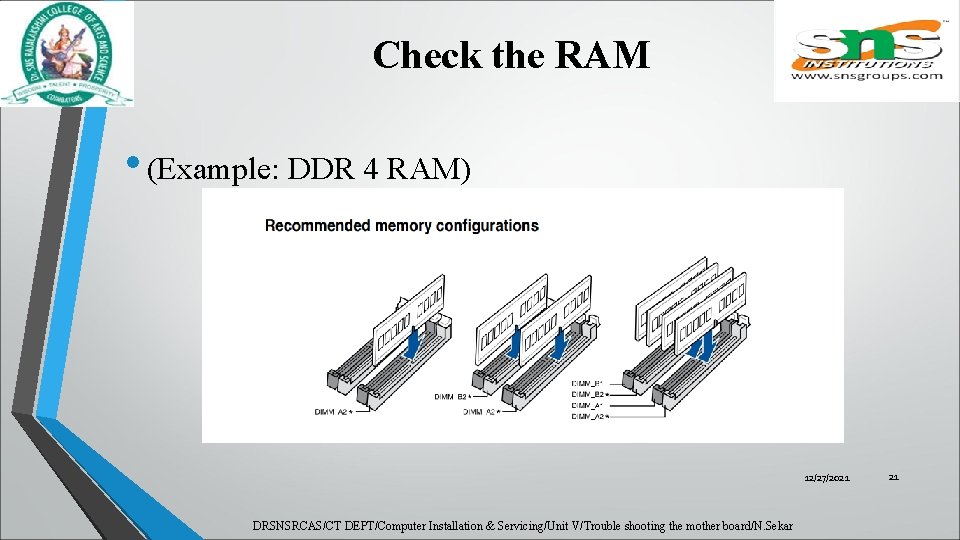
Check the RAM • (Example: DDR 4 RAM) 12/27/2021 DRSNSRCAS/CT DEPT/Computer Installation & Servicing/Unit V/Trouble shooting the mother board/N. Sekar 21
Check the graphic card • If the external graphics card is connected to the motherboard without any display, follow the below steps to troubleshoot • A try to re-install the external graphic card and confirm the display cable is correctly connected to the display output. • b. try to display from the integrated graphics of the motherboard (if CPU has no function of on-board graphics, please ignore this step). 12/27/2021 DRSNSRCAS/CT DEPT/Computer Installation & Servicing/Unit V/Trouble shooting the mother board/N. Sekar 22
Check the Graphic card • power off, then remove the external graphics card and connect the display cable to the integrated graphics output port, as indicated in below green marked. • If the integrated graphics port can display, it means that the external graphics card may have some issues, please replace a known good graphics card. 12/27/2021 DRSNSRCAS/CT DEPT/Computer Installation & Servicing/Unit V/Trouble shooting the mother board/N. Sekar 23
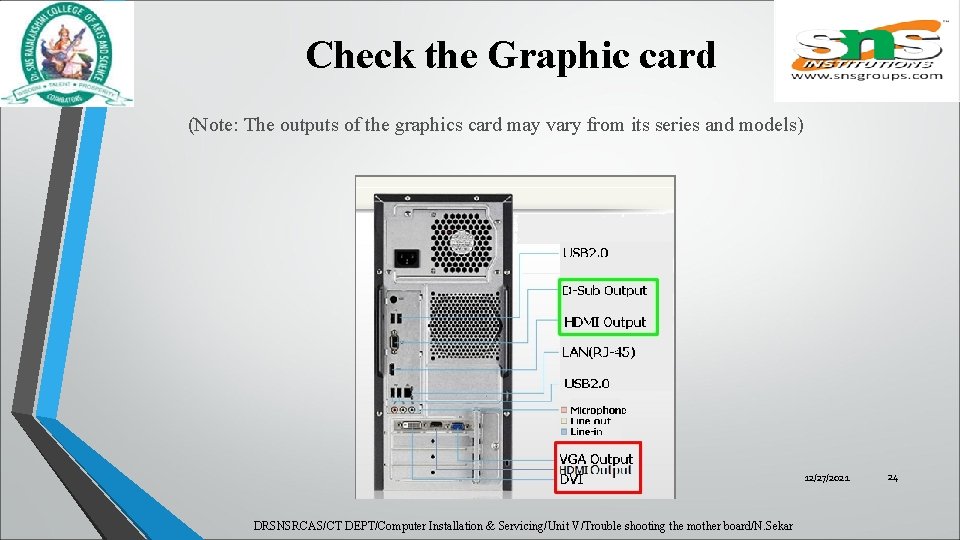
Check the Graphic card (Note: The outputs of the graphics card may vary from its series and models) 12/27/2021 DRSNSRCAS/CT DEPT/Computer Installation & Servicing/Unit V/Trouble shooting the mother board/N. Sekar 24
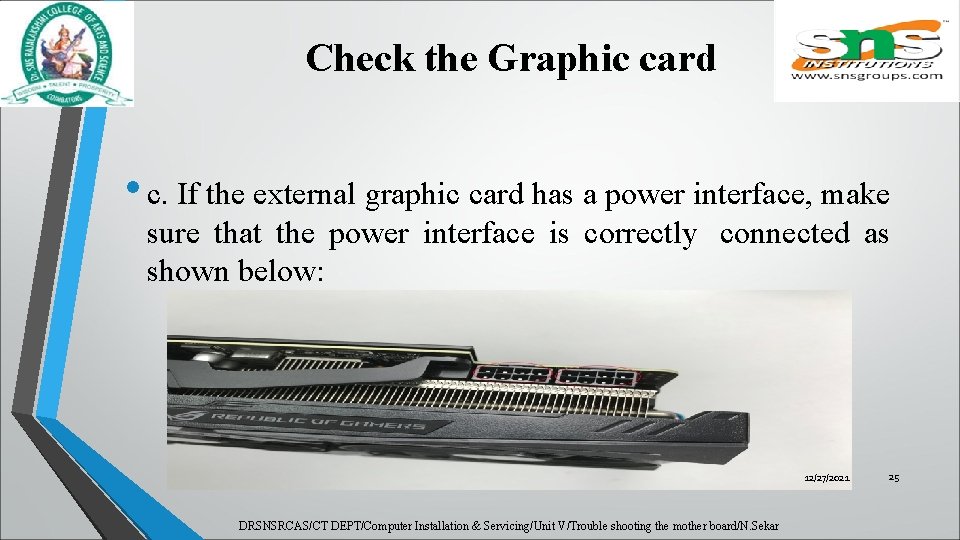
Check the Graphic card • c. If the external graphic card has a power interface, make sure that the power interface is correctly connected as shown below: 12/27/2021 DRSNSRCAS/CT DEPT/Computer Installation & Servicing/Unit V/Trouble shooting the mother board/N. Sekar 25
Check the monitor • a. Make sure monitor is powered on normally and check the indicator light of monitor is on to ensure the power cable of the monitor is connected correctly. • Make sure the external power cable is powered on normally as shown below. • try to switch off and switch on the power of the socket, check if monitor can display. 12/27/2021 DRSNSRCAS/CT DEPT/Computer Installation & Servicing/Unit V/Trouble shooting the mother board/N. Sekar 26
Check the Monitor • If you switch off and switch on the monitor, monitor shows ''no signal'', it indicates the monitor is powered on normally. 12/27/2021 DRSNSRCAS/CT DEPT/Computer Installation & Servicing/Unit V/Trouble shooting the mother board/N. Sekar 27
Check the Monitor b. Confirm that the signal cable(VGA/DVI/HDMI/Display. Port) is correctly connected to the monitor, also confirm that the other end of the signal cable is connected to the display output (graphics card) of the computer. Try to replug the two tops of the display cable and confirm that all pins are not bent. 12/27/2021 DRSNSRCAS/CT DEPT/Computer Installation & Servicing/Unit V/Trouble shooting the mother board/N. Sekar 28
Check the Monitor • c. Confirm that the display output of the monitor is correct. • For example, • if it currently connected to the computer via HDMI interface , you should choose the display output of the monitor as HDMI display output. 12/27/2021 DRSNSRCAS/CT DEPT/Computer Installation & Servicing/Unit V/Trouble shooting the mother board/N. Sekar 29
QUIZ – II Troubleshooting the Mother Board • https: //tinyurl. com/yxsw 5 va 6 DRSNSRCAS/CT DEPT/Computer Installation & Servicing/Unit V/Trouble shooting the mother board/N. Sekar 12/27/2021 30
- Slides: 30