
12 Kendall Kendall Systems Analysis and Design 9
- Slides: 42
12 Kendall & Kendall Systems Analysis and Design, 9 e Designing Effective Input Kendall & Kendall Copyright © 2014 Pearson Education, Inc. Publishing as Prentice Hall
Learning Objectives • Design functional input forms for users of business systems. • Design engaging input displays for users of information systems. • Design useful input forms for people interacting on the Web. • Design useful input pages for users of intranets, the Web, smartphones, and tablets. Kendall & Kendall Copyright © 2014 Pearson Education, Inc. Publishing as Prentice Hall 12 -2
Input Design Objectives • The quality of system input determines the quality of system output • Input design objectives: • • • Kendall & Kendall Effectiveness Accuracy Ease of use Consistency Simplicity Attractiveness Copyright © 2014 Pearson Education, Inc. Publishing as Prentice Hall 12 -3
Major Topics • • • Input design Form design Display design GUI screen design GUI controls Web design guidelines Kendall & Kendall Copyright © 2014 Pearson Education, Inc. Publishing as Prentice Hall 12 -4
Good Form Design • Make forms easy to fill in • Ensure that forms meet the purpose for which they are designed • Design forms to assure accurate completion • Keep forms attractive Kendall & Kendall Copyright © 2014 Pearson Education, Inc. Publishing as Prentice Hall 12 -5
Make Forms Easy to Fill in • Form flow • Seven sections of a form • Captioning Kendall & Kendall Copyright © 2014 Pearson Education, Inc. Publishing as Prentice Hall 12 -6
Form Flow • Can minimize the time and effort expended by employees in form completion • Should flow from left to right and top to bottom Kendall & Kendall Copyright © 2014 Pearson Education, Inc. Publishing as Prentice Hall 12 -7
Seven Sections of a Form • • Heading Identification and access Instructions Body Signature and verification Totals Comments Kendall & Kendall Copyright © 2014 Pearson Education, Inc. Publishing as Prentice Hall 12 -8
Meeting the Intended Purpose • Systems analysts may use different types of specialty forms for different purposes • Specialty forms • Multiple-part • Continuous-feed • Perforated Kendall & Kendall Copyright © 2014 Pearson Education, Inc. Publishing as Prentice Hall 12 -9
Computer-Assisted Form Design • Numerous form design packages are available for desktop systems—there are tools to set up: • • Kendall & Kendall Fields Check boxes Lines Boxes Copyright © 2014 Pearson Education, Inc. Publishing as Prentice Hall 12 -10
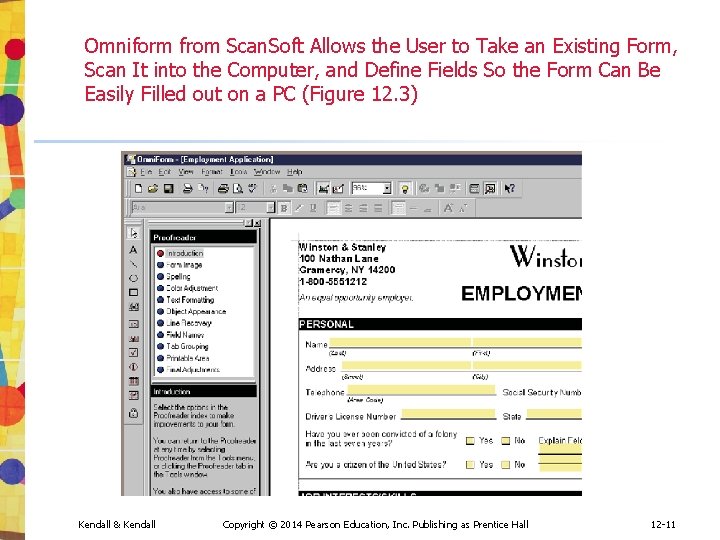
Omniform from Scan. Soft Allows the User to Take an Existing Form, Scan It into the Computer, and Define Fields So the Form Can Be Easily Filled out on a PC (Figure 12. 3) Kendall & Kendall Copyright © 2014 Pearson Education, Inc. Publishing as Prentice Hall 12 -11
Good Display and Web Forms Design • Keep the display simple • Keep the display presentation consistent • Facilitate user movement among display screens and pages • Create an attractive and pleasing display Kendall & Kendall Copyright © 2014 Pearson Education, Inc. Publishing as Prentice Hall 12 -12
Keeping the Display Simple • Heading • Body • Comments and instructions Kendall & Kendall Copyright © 2014 Pearson Education, Inc. Publishing as Prentice Hall 12 -13
Keeping the Display Consistent • Locate information in the same area each time a new display is accessed • Information that logically belongs together should be consistently grouped together • Information should not overlap from one group to another Kendall & Kendall Copyright © 2014 Pearson Education, Inc. Publishing as Prentice Hall 12 -14
Facilitating Movement • The three-clicks rule says that users should be able to get to the screens they need within three mouse or keyboard clicks • Movement among screens: • Scrolling by using arrows or Pg. Dn keys • Context-sensitive pop-up windows • Onscreen dialogue Kendall & Kendall Copyright © 2014 Pearson Education, Inc. Publishing as Prentice Hall 12 -15
Designing an Attractive and Pleasing Display • Should draw users into them and hold their attention • Use logical flows in the plan to your display pages • Color or shaded boxes and creating three-dimensional boxes and arrows Kendall & Kendall Copyright © 2014 Pearson Education, Inc. Publishing as Prentice Hall 12 -16
Graphical User Interface (GUI) Controls • • Text boxes Check boxes Option or radio buttons List and drop-down list boxes Sliders and spin buttons Image maps Text area Message boxes Kendall & Kendall Copyright © 2014 Pearson Education, Inc. Publishing as Prentice Hall 12 -17
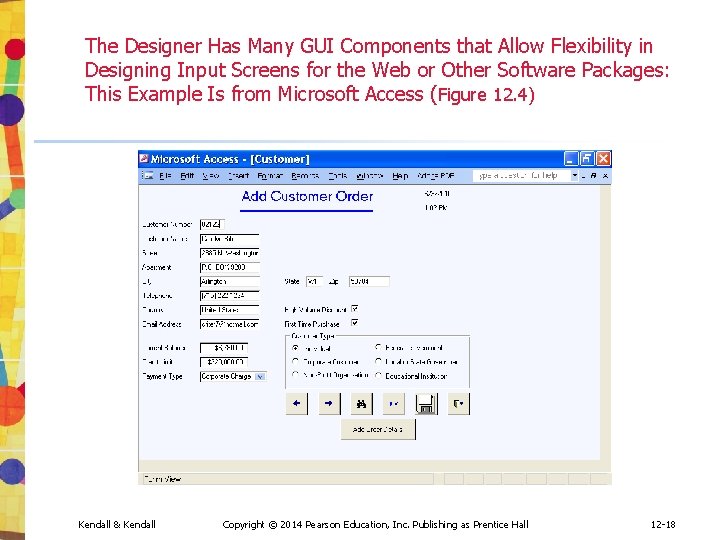
The Designer Has Many GUI Components that Allow Flexibility in Designing Input Screens for the Web or Other Software Packages: This Example Is from Microsoft Access (Figure 12. 4) Kendall & Kendall Copyright © 2014 Pearson Education, Inc. Publishing as Prentice Hall 12 -18
Text Boxes • Text boxes should be large enough to accommodate all the characters • Captions should be to the left of the text box • Character data is left-aligned within the box • Numeric data is right-aligned Kendall & Kendall Copyright © 2014 Pearson Education, Inc. Publishing as Prentice Hall 12 -19
HTML 5 Browsers Features • Placeholder puts a small amount of help text into a text box, displaying in a lighter color • When the cursor is placed in the field the text vanishes • New text boxes: • Email • Telephone • URL, a Web address Kendall & Kendall Copyright © 2014 Pearson Education, Inc. Publishing as Prentice Hall 12 -20
HTML 5 Browsers Features • A datalist displays a drop-down list of predefined suggestions to make entry easier for the user • As the user begins to type the first few letters, the datalist is displayed • The user can choose one of the items in the list to make a selection • This is used in the autocomplete function Kendall & Kendall Copyright © 2014 Pearson Education, Inc. Publishing as Prentice Hall 12 -21
HTML 5 Browsers Features • A calendar control to select a date, a date and time, or a local date and time • Selecting dates from a pop-up calendar is easier and less error-prone than entering text Kendall & Kendall Copyright © 2014 Pearson Education, Inc. Publishing as Prentice Hall 12 -22
Check Boxes • Check boxes are used for nonexclusive choices • Check box text or label is placed to the right of the check box • If there are more than ten check boxes, group together in a bordered box Kendall & Kendall Copyright © 2014 Pearson Education, Inc. Publishing as Prentice Hall 12 -23
Option Buttons • Option or radio buttons are used for exclusive choices • Choices are listed to the right of the button, in some sequence • Often they are placed in a rectangle called an option group • If more than six option buttons are used, a list box or drop-down list box should be implemented Kendall & Kendall Copyright © 2014 Pearson Education, Inc. Publishing as Prentice Hall 12 -24
List and Drop-Down List Boxes • Used when there is little room available on the page • If there is a commonly selected choice, it is usually displayed in the drop-down list by default Kendall & Kendall Copyright © 2014 Pearson Education, Inc. Publishing as Prentice Hall 12 -25
Tab Control Dialogue Boxes • Create a separate tab for each unique feature • Place the most commonly used tabs in front and display them first • Consider including three basic buttons in your design: • OK • Cancel • Help Kendall & Kendall Copyright © 2014 Pearson Education, Inc. Publishing as Prentice Hall 12 -26
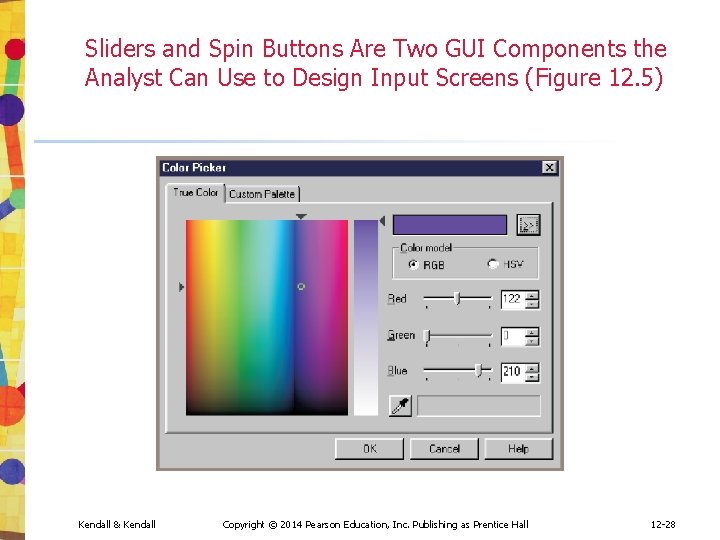
Sliders, Spin Buttons, and Image Maps • Sliders and spin buttons are used to change data that have a continuous range of values • Image map fields are used to select values within an image Kendall & Kendall Copyright © 2014 Pearson Education, Inc. Publishing as Prentice Hall 12 -27
Sliders and Spin Buttons Are Two GUI Components the Analyst Can Use to Design Input Screens (Figure 12. 5) Kendall & Kendall Copyright © 2014 Pearson Education, Inc. Publishing as Prentice Hall 12 -28
Text Area • A text area is used for entering a larger amount of text • Can view data larger then the box area • Handling text: • Hard return is used to force new lines • Use word wrap within the text area Kendall & Kendall Copyright © 2014 Pearson Education, Inc. Publishing as Prentice Hall 12 -29
Message Boxes and Command Buttons • Message boxes are used to warn users and provide feedback messages in a dialog box • Command buttons perform an action when the user selects it Kendall & Kendall Copyright © 2014 Pearson Education, Inc. Publishing as Prentice Hall 12 -30
Form Controls and Values • Each control in a GUI interface stores data associated with the control • Web pages use a name and value pair that are transmitted to the server or in an email sent along with the form Kendall & Kendall Copyright © 2014 Pearson Education, Inc. Publishing as Prentice Hall 12 -31
Hidden Fields • Not visible to the viewer • Do not take up any space on the web page • Can only contain a name and value • Used to store values sent from one Web form to the server Kendall & Kendall Copyright © 2014 Pearson Education, Inc. Publishing as Prentice Hall 12 -32
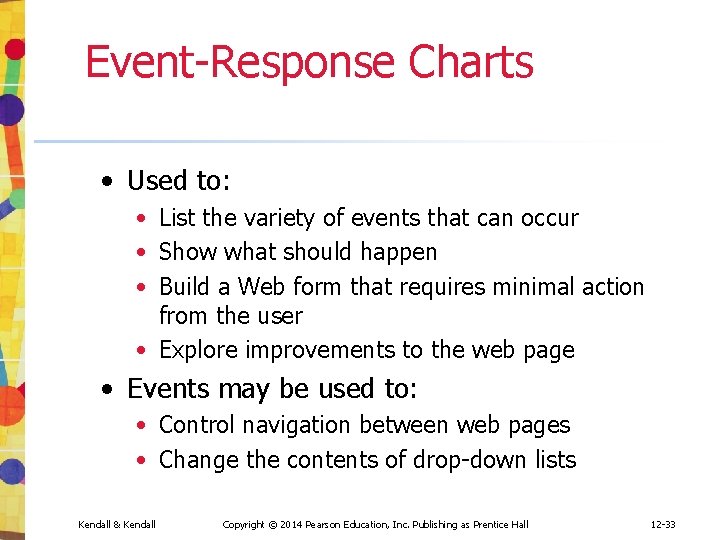
Event-Response Charts • Used to: • List the variety of events that can occur • Show what should happen • Build a Web form that requires minimal action from the user • Explore improvements to the web page • Events may be used to: • Control navigation between web pages • Change the contents of drop-down lists Kendall & Kendall Copyright © 2014 Pearson Education, Inc. Publishing as Prentice Hall 12 -33
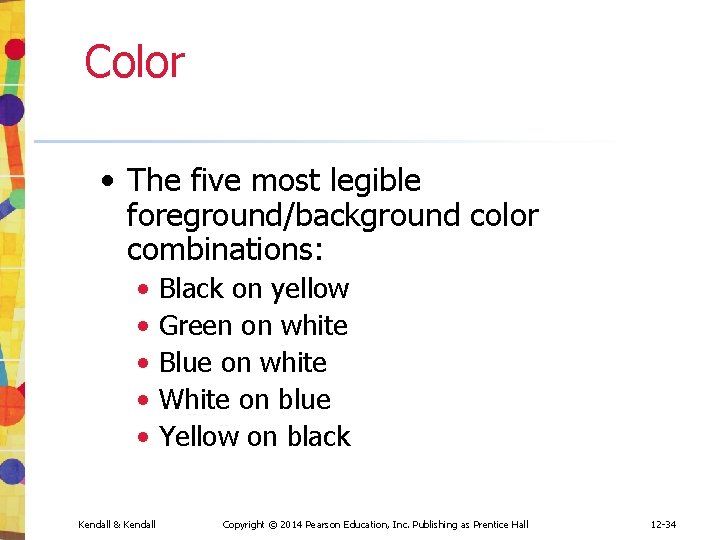
Color • The five most legible foreground/background color combinations: • • • Kendall & Kendall Black on yellow Green on white Blue on white White on blue Yellow on black Copyright © 2014 Pearson Education, Inc. Publishing as Prentice Hall 12 -34
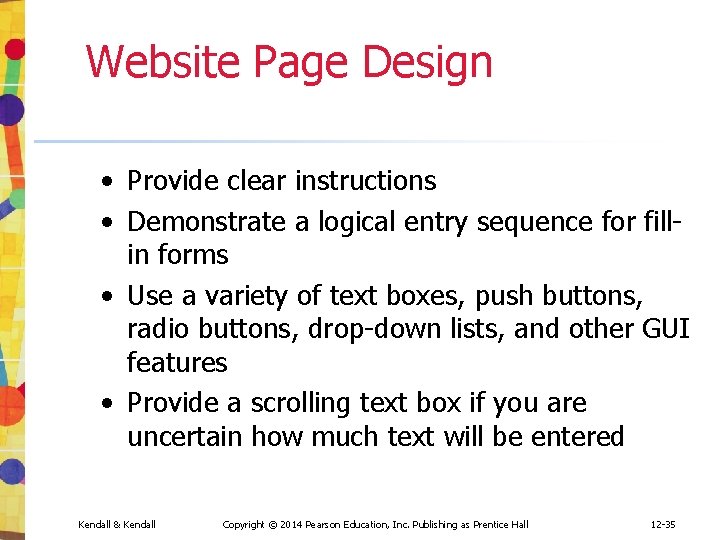
Website Page Design • Provide clear instructions • Demonstrate a logical entry sequence for fillin forms • Use a variety of text boxes, push buttons, radio buttons, drop-down lists, and other GUI features • Provide a scrolling text box if you are uncertain how much text will be entered Kendall & Kendall Copyright © 2014 Pearson Education, Inc. Publishing as Prentice Hall 12 -35
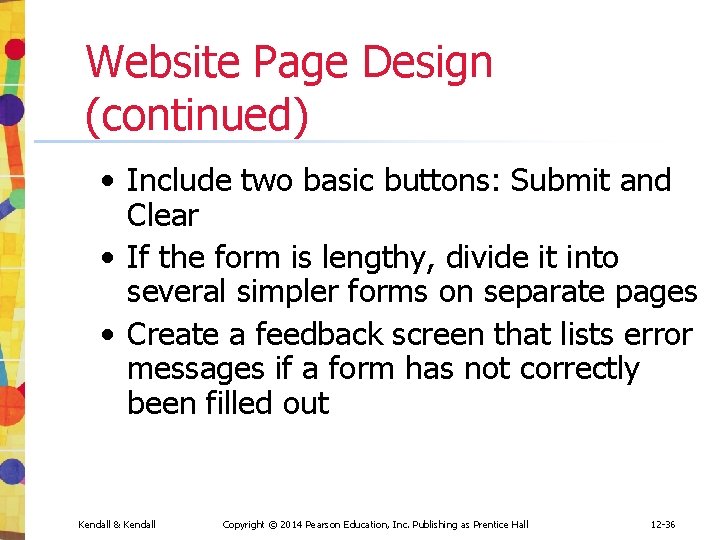
Website Page Design (continued) • Include two basic buttons: Submit and Clear • If the form is lengthy, divide it into several simpler forms on separate pages • Create a feedback screen that lists error messages if a form has not correctly been filled out Kendall & Kendall Copyright © 2014 Pearson Education, Inc. Publishing as Prentice Hall 12 -36
Ecommerce Applications • Ecommerce applications involve more than just good designs of websites. • Customers need to feel confident in the site • Shopping cart • Customer can edit the quantity of the item ordered or can remove the item entirely Kendall & Kendall Copyright © 2014 Pearson Education, Inc. Publishing as Prentice Hall 12 -37
Summary • Guidelines for well-designed input forms: • Forms must be easy to fill out • Forms must meet the purpose for which they are designed • Forms must be designed to ensure accurate completion • Forms must be pleasing and attractive Kendall & Kendall Copyright © 2014 Pearson Education, Inc. Publishing as Prentice Hall 12 -38
Summary (continued) • Guidelines for well-designed displays: • Displays must be kept simple • Displays must be consistent in presentation • Design must facilitate movement between pages • Displays must be attractive Kendall & Kendall Copyright © 2014 Pearson Education, Inc. Publishing as Prentice Hall 12 -39
Summary (continued) • Guidelines for Web fill-in forms: • Provide clear instructions • Demonstrate a logical entry sequence for fill-in forms • Use a variety of text boxes, push buttons, dropdown menus, check boxes, and radio buttons • Provide a scrolling text box if you are uncertain about how much space users will need to respond to a question Kendall & Kendall Copyright © 2014 Pearson Education, Inc. Publishing as Prentice Hall 12 -40
Summary (continued) • Guidelines for Web fill-in forms (continued): • Prepare two basic buttons on every Web fill-in form: Submit and Clear Form • If the form is lengthy and the users must scroll extensively, divide the form into several simpler forms on separate pages • Create a feedback screen that highlights errors in an appropriate color and refuses submission of the form until mandatory fields are correctly filled in Kendall & Kendall Copyright © 2014 Pearson Education, Inc. Publishing as Prentice Hall 12 -41
Copyright © 2014 Pearson Education, Inc. Publishing as Prentice Hall 12 -42