
10 Tips to a Great Power Point Presentation

- Slides: 11
10 Tips to a Great Power. Point Presentation By Megan Rees
Choose the Right Background • Avoid using obnoxious, loud, and overpowering backgrounds. • Use the same or similar colors for your backgrounds on each slide. • If using a picture background, use transparency options to lighten it up. But keep in mind that picture backgrounds can make your Power. Point look tacky. • Using the Power. Point textures can make your Power. Point look lazy.
2. Limit bullet points and text Do not bore the audience with too many bullets or too much information. A really good Power. Point is of less value without YOU to go with it. It should supplement your presentation, not BE the presentation. Do not turn your back to the audience to read a slide! Too many bullet points can be intimidating and make people not want to follow along. You can make your bullet points customized instead of using the standard black dot. If you have too many bullet points, you may need to split your slide up into more than one slide. You are obviously putting too much information on that one slide. Or, you could be basically turning Power. Point into a Word document by writing a report in Power. Point is not a report! It should only supplement what is in your head, not be a word for word explanation of everything you researched or eve though about the subject. Make sure the information on each bullet point is not too long. It should be no more than a few words. Having really detailed information on that bullet point is annoying and not the point of Power. Point. Give the basic idea. Consider also if this is a Power. Point you will be presenting to a group of people. In school settings, sometimes this is not the point. You make the Power. Point and turn it in and that’s it. But in real life settings, you may be using Power. Point to present an idea to your boss or co-workers. Don’t let the excessive bullet points detract from what you know. I’m going to stop making bullet points now. Wait…NOW I am.
3. Use Animations Properly • Animations should only be used if they have a purpose. Not just because it’s fun to pick one. • Animations should help the presentation be more effective, not detract from it. • Do not animate every single thing in your Power. Point • Pick one or two types and stick to it—don’t use a million different ones. • You can animate images as well, but again, only if it enhances the Power. Point. • Don’t be afraid to explore all four types of animation and know when best to use them—but don’t feel like you have to use all four!
4. Be careful with Transitions • Transitions can be fun to play with, but be careful—they can add unnecessary time to the Power. Point. You don’t need one on every slide, and if you do them on every slide, limit them to simple ones or the SAME one. • Use the “fancier” ones for the very opening slide and that’s it.
5. Use high-quality graphics • Avoid ugly, cheap-looking, or overused clipart • Clipart was removed from Office a few years ago—it’s kind of just not cool anymore. • Use photos from your own digital camera • Purchase stock photography • Use high-quality images available online • Pay attention to copyright in this case!
6. Have a visual theme, but avoid using Power. Point templates • If you use the Power. Point templates, at least change the color and font scheme. You can also download themes for free online, or pay money for really good ones. • Create your own backgrounds in Photoshop, Paint, or another program. • You can create your own templates, and save them as a Design Template, and it will appear with the Power. Point templates.
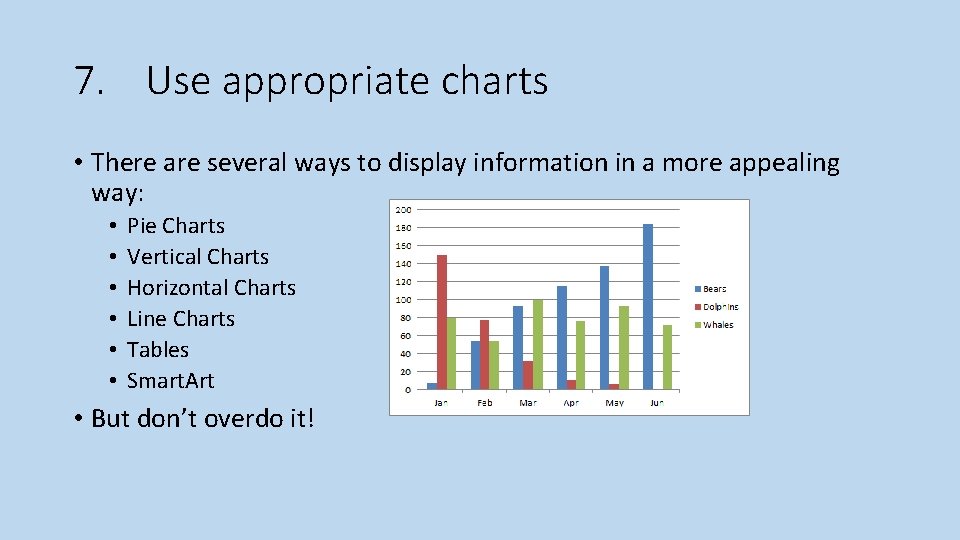
7. Use appropriate charts • There are several ways to display information in a more appealing way: • • • Pie Charts Vertical Charts Horizontal Charts Line Charts Tables Smart. Art • But don’t overdo it!
8. Use color well • Color evokes feelings. It can persuade and motivate. • Choose colors that work well with each other, and use them throughout the entire Power. Point. • Don’t just pick random colors for each slide! • An overuse of color can be overwhelming and unprofessional. • Make sure the contrast between your font and your background is not jarring and is easy to read. • Learn more about color here. http: //creativepro. com/learning-to-usecolor-your-web-site/
9. Choose your fonts well • Fonts communicate subtle messages in and of themselves. • Use the same font set throughout your entire slide presentation and no more than two complimentary fonts. • Serif Font • Sans-Serif Font • You can use Word. Art, but make it simple and use it the same throughout the whole Power. Point. If you do one title in Word. Art, ALL of them should be in Word. Art.
10. Use video or audio • Use video or audio where appropriate. Video clips promote active cognitive processing, which is the natural way people learn. • Audio clips are also a great way to add interest, however, avoid cheesy sound effects that are included with Power. Point. • Don’t add these effects to each bullet coming in—it can get annoying!