
1 Word Processing Part I 1 Overview n




- Slides: 55
1 Word Processing Part I 1
Overview n Definition of Word Processing n Advantages of Using a Word Processor n Word Processing Terminology 2
Definition of Word Processing n Manipulates text data to produce a letter, report, memo or any other type of correspondence n Grouping of related words, sentences and paragraphs is a document n Create, modify, store, retrieve and print all or part of document 3
Advantages of Using a Word Processor n It won’t improve your typing speed n Does make it easier to correct and modify the document n Word wrap eliminates concern about where to end a line n Particularly powerful for editing a document 4
Advantages of Using a Word Processor n Easy insertion and deletion of text n Ability to combine text from two or more documents n Additional support with spelling and grammar checkers n Easy to modify to the output formatting 5
Word Processing Terminology n Bold - produces dark or heavy print n Center - centering text evenly between the margins n Edit - change or modify the document n Font - type style and size 6
Word Processing Terminology n Format - defines how printed document will appear; e. g. underline, boldface, print size, margin settings, line spacing, etc. n Grammar checker - checks for grammar, phrasing, capitalization n Justified - text is evenly aligned on both left and right margin 7
Word Processing Terminology n Spelling checker - checks words or entire document for spelling n Text data - any number, letter or symbol you can type on the keyboard 8
Word Processing Terminology n Word wrap - automatic adjustment of the number of characters or words on a line; eliminates need to press Enter key 9
Loading Word 97 n Start, Programs, Microsoft Word or n Double-click on Word shortcut on the desktop n From the Microsoft Office Shortcut Bar, click on New Office Document, then Blank Document 10
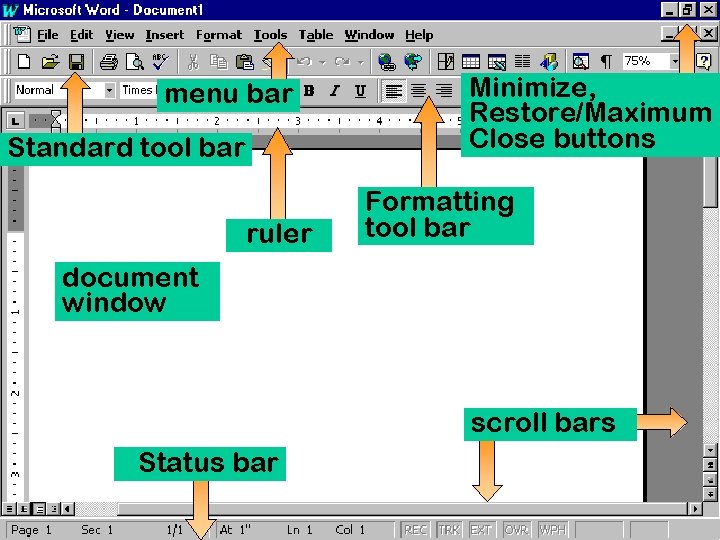
menu bar Standard tool bar ruler Minimize, Restore/Maximum Close buttons Formatting tool bar document window scroll bars Status bar
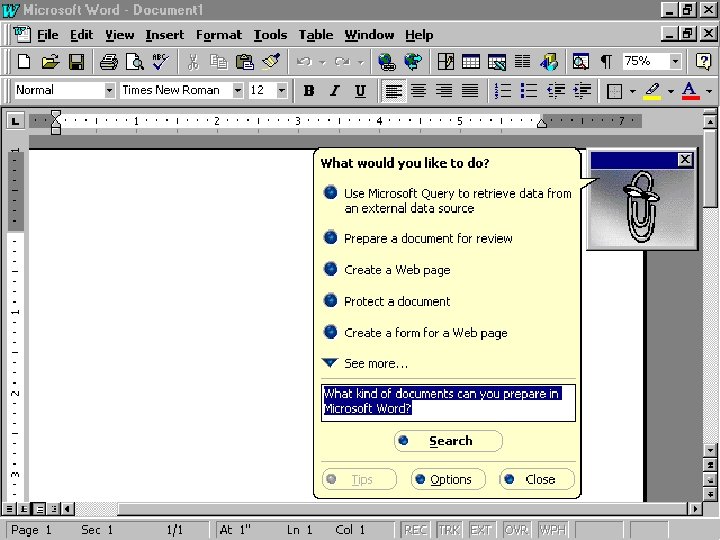
Using Office Assistant n Automatically suggests help topics as you work n Anticipates your actions and responds with suggestions on performing related tasks n Can activate the Office Assistant any time its needed 12
13
Creating a New Document n Planning - understand document’s purpose and what it will say n Entering - entering contents by typing into word processor n Editing - making changes to document, to correct errors and enhance content 14
Creating a New Document n Formatting - enhancing to make more readable and attractive, such as boldface text, italics and bullets n Previewing and Printing - displaying onscreen how document will look printed, allows for final changes before printing 15
Entering and Editing Text n New Word document like a blank piece of paper, but with many predefined or default settings n Default settings contained in the document template 16
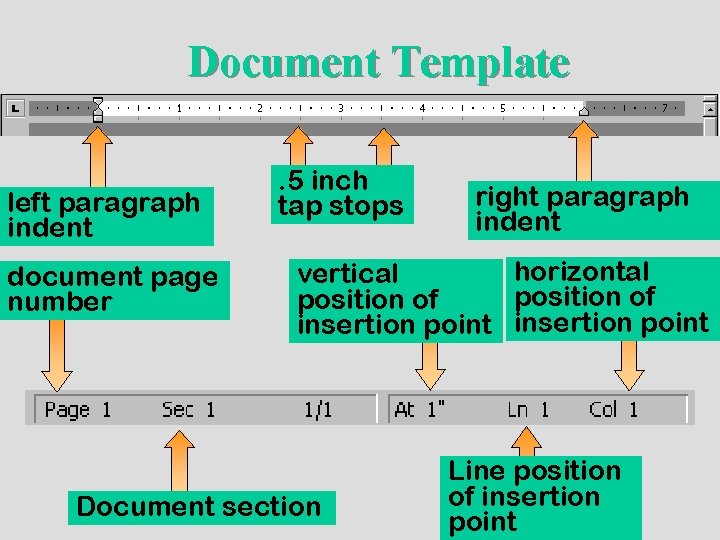
Document Template n Every Word document based on a document template n Settings are stored in the Blank document template n Other templates can be used to create different styles of memos, letters and reports 17
Document Template left paragraph indent document page number . 5 inch tap stops right paragraph indent horizontal vertical position of insertion point Document section Line position of insertion point
Auto. Correct n Part of Office 97 Intelli. Sense feature n Makes basic assumptions about text user is typing n Uses assumptions to automatically identify and correct an entry 19
Auto. Correct n Corrects for capitalization and spelling n Can prompt user by finishing common phrases 20
Spelling and Grammar Checkers n Automatically advises user of misspelled words or incorrect grammar n Spelling Checker compares typed words to those in a main dictionary n Those failing to match are identified as misspelled n User can then correct herself or choose from menu of suggested words 21
Spelling and Grammar Checkers n Grammar Checker looks for incorrect verb and tense agreements, verb forms, commonly confused words and others n Words and phrases identified with a wavy green line n User can then edit, or choose from a menu of suggested changes 22
Inserting and Deleting Blank Lines n If insertion point is on a line above another line, and at the beginning or end of the line, press Enter key to n Two ways of deleting a blank line n Pressing the delete key n Click on Edit, Clear 23
Inserting Characters n Move your cursor to the insert area n Type in the text desired n Add spaces if necessary 24
Deleting Words n Position your insertion cursor and press the Control Delete key 25
Word Wrap n Feature that automatically decides where to end a line n Text is “wrapped” to next line based on margin settings n Saves time - pressing Enter key only when starting new paragraph or inserting blank line 26
Moving Around the Document Window n Closing and Saving Files n Moving Through a Document 27
Opening, Closing and Saving Files n Closing n File, Close menu command n File Close button n Saving n File, Save and Save menu commands n Diskette file save icon 28
Moving Through a Document n Moving mouse n Pg. Up and Pg. Dn keys n Vertical scroll bar and buttons n Horizontal scroll bar and buttons 29
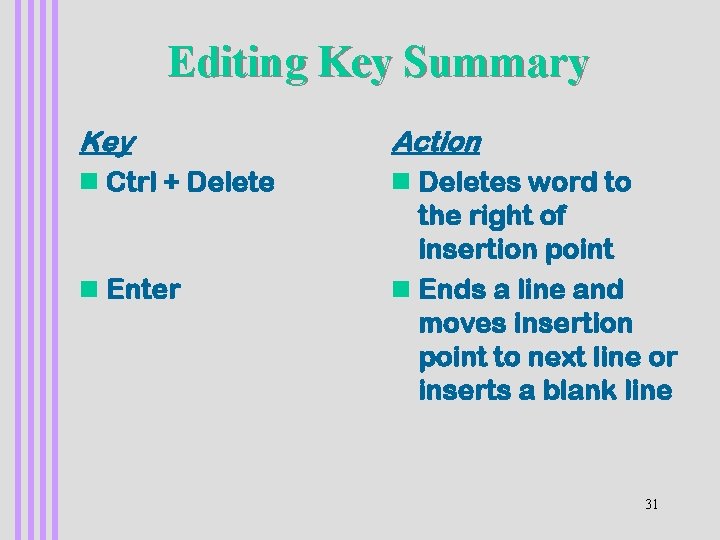
Editing Key Summary Key n Ctrl + Delete Action n Deletes word to the right of insertion point 30
Editing Key Summary Key n Ctrl + Delete Action n Deletes word to n Enter the right of insertion point n Ends a line and moves insertion point to next line or inserts a blank line 31
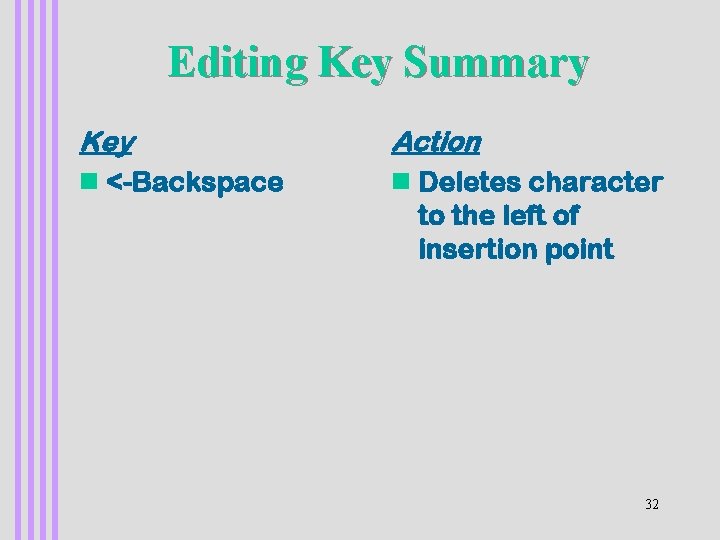
Editing Key Summary Key n <-Backspace Action n Deletes character to the left of insertion point 32
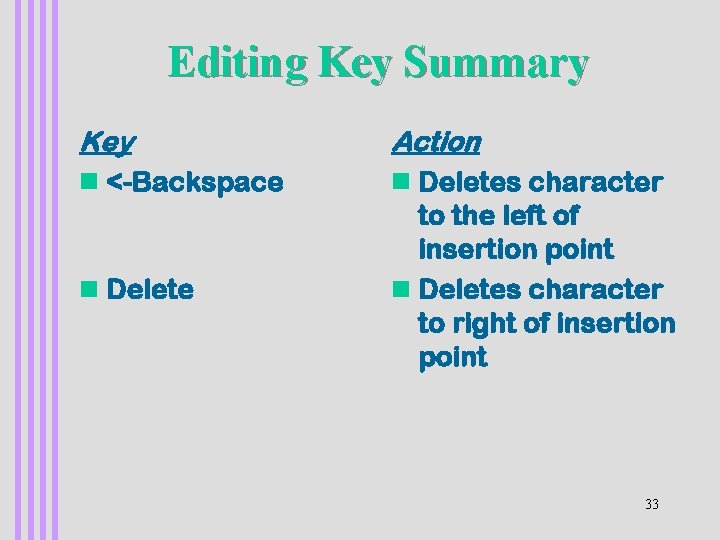
Editing Key Summary Key n <-Backspace Action n Deletes character n Delete to the left of insertion point n Deletes character to right of insertion point 33
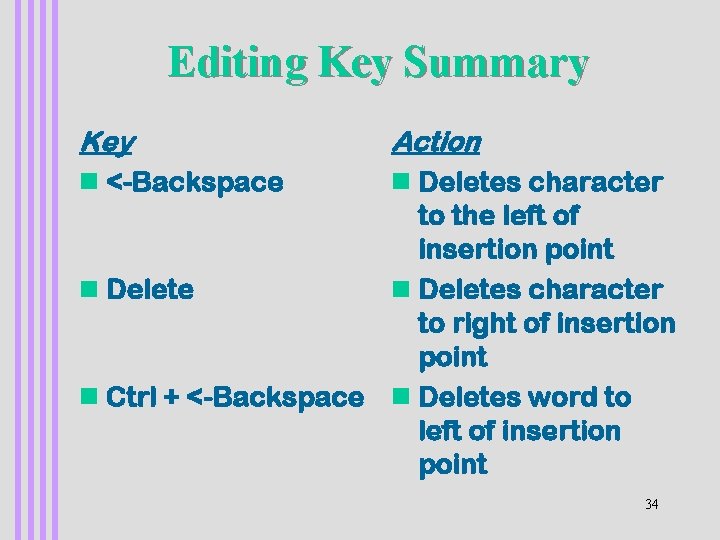
Editing Key Summary Key n <-Backspace Action n Deletes character to the left of insertion point n Deletes character to right of insertion point n Ctrl + <-Backspace n Deletes word to left of insertion point 34
Editing Key Summary Key n Edit, Undo Action n Reverses your last action or command 35
Editing Key Summary Key n Edit, Undo Action n Reverses your last n Edit, Redo action or command n Reverses the effects of Undo 36
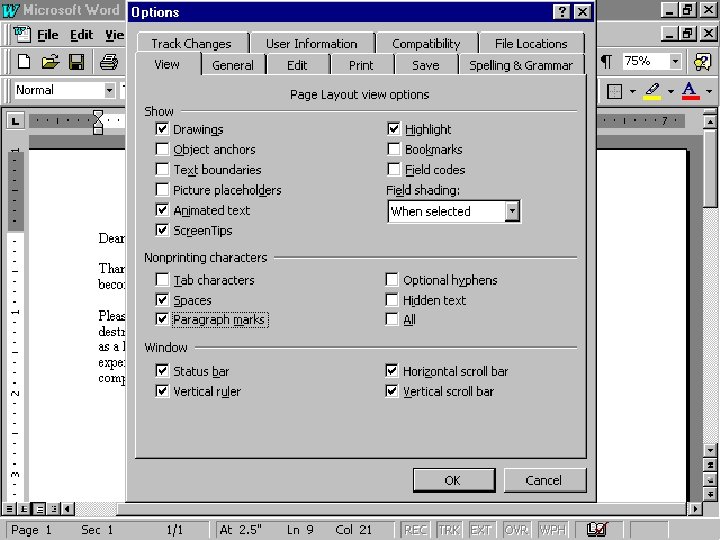
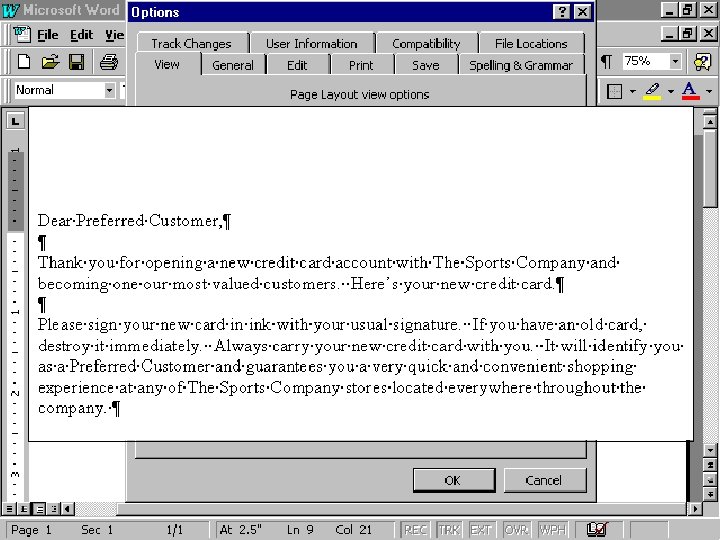
Displaying Special Characters n Normally hidden characters that display text characteristics n Examples n Paragraph symbol n Dots for spacebar 37
38
39
Selecting Text To select a word: Procedure: n Multiple paragraphs n Drag in the selection bar next to the paragraphs 40
Selecting Text To select a word: Procedure: n Multiple paragraphs n Drag in the selection bar next to the paragraphs n Document n Triple-click in the selection bar or press Ctrl and click in the selection bar 41
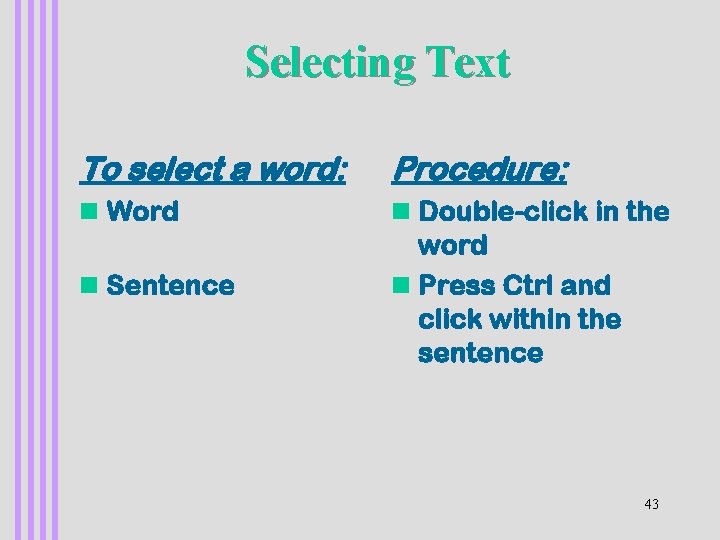
Selecting Text To select a word: Procedure: n Word n Double-click in the word 42
Selecting Text To select a word: Procedure: n Word n Double-click in the word n Press Ctrl and click within the sentence n Sentence 43
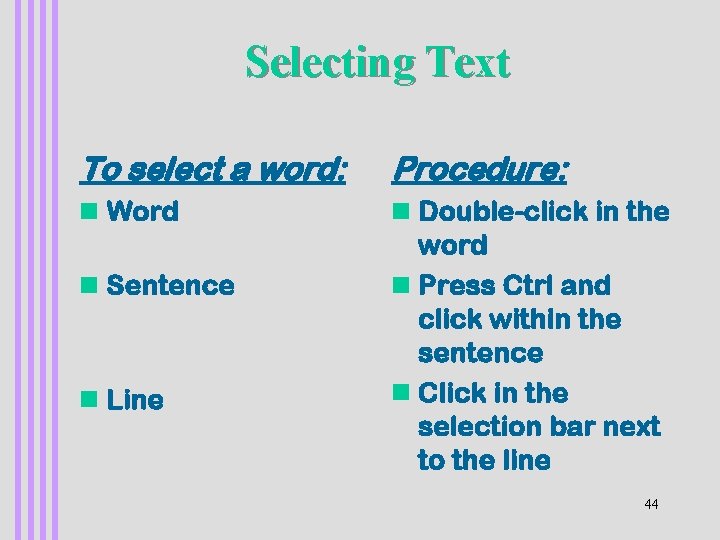
Selecting Text To select a word: Procedure: n Word n Double-click in the word n Press Ctrl and click within the sentence n Click in the selection bar next to the line n Sentence n Line 44
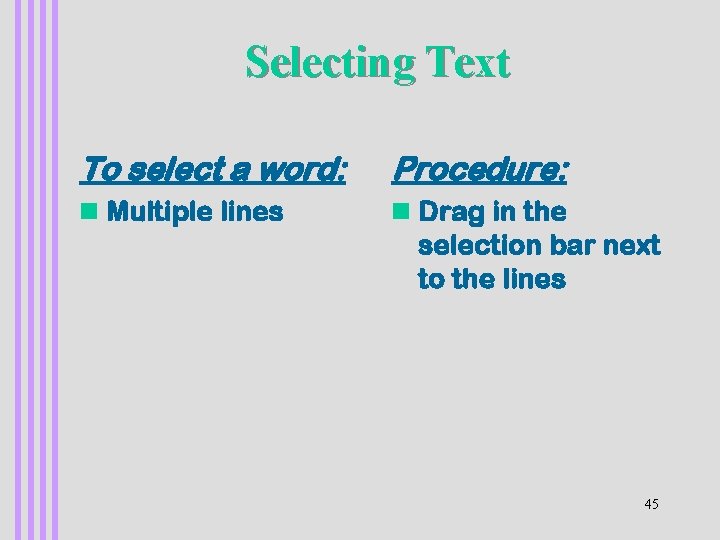
Selecting Text To select a word: Procedure: n Multiple lines n Drag in the selection bar next to the lines 45
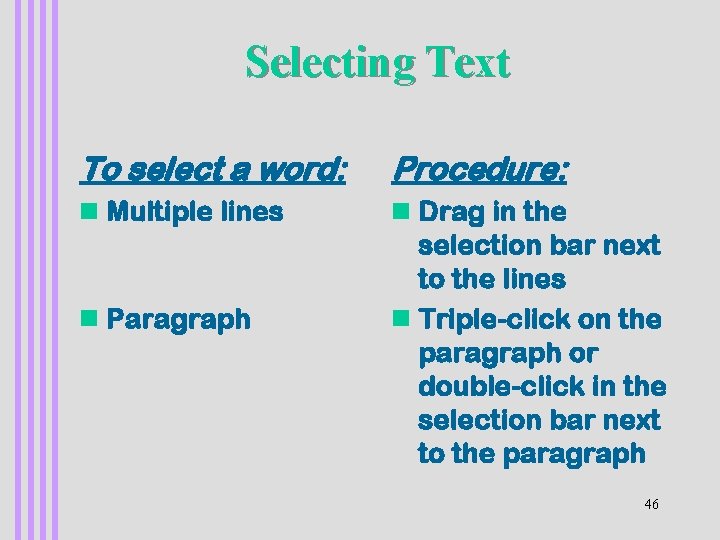
Selecting Text To select a word: Procedure: n Multiple lines n Drag in the selection bar next to the lines n Triple-click on the paragraph or double-click in the selection bar next to the paragraph n Paragraph 46
Undoing Editing Changes n Delete the change n Click on the Undo button n Click on the Edit, Undo menu 47
Documenting and Printing a Document n Documenting a File n Previewing and Printing a Document n Document Preview n Exiting Word 48
general document properties 49
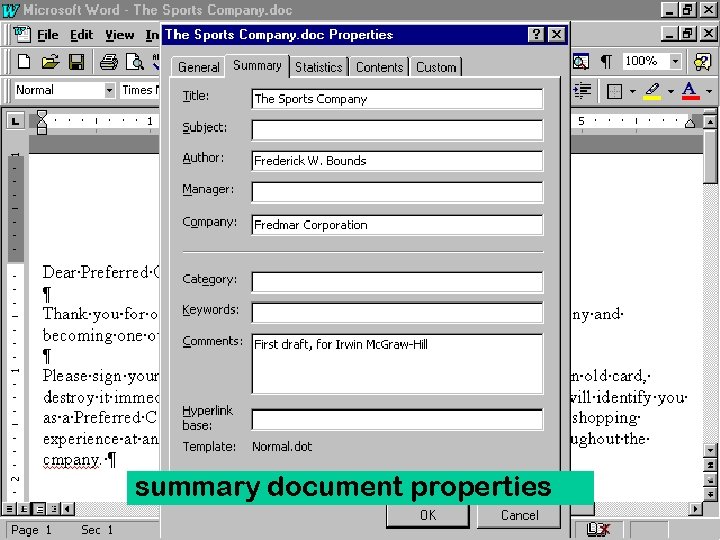
summary document properties 50
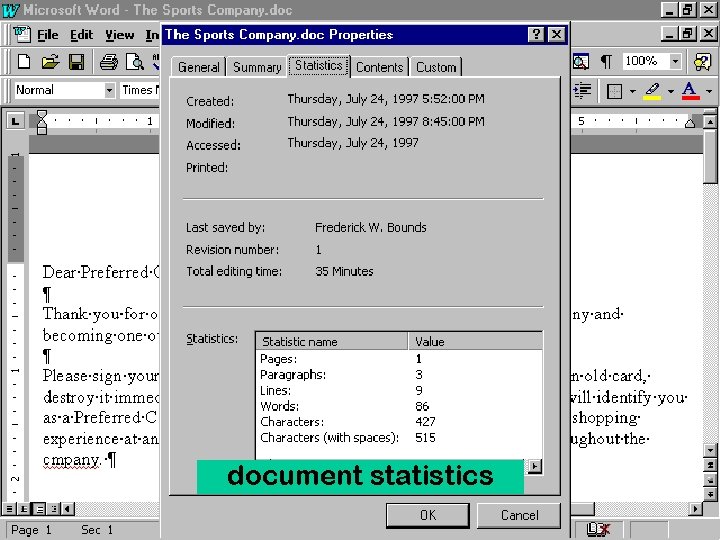
document statistics 51
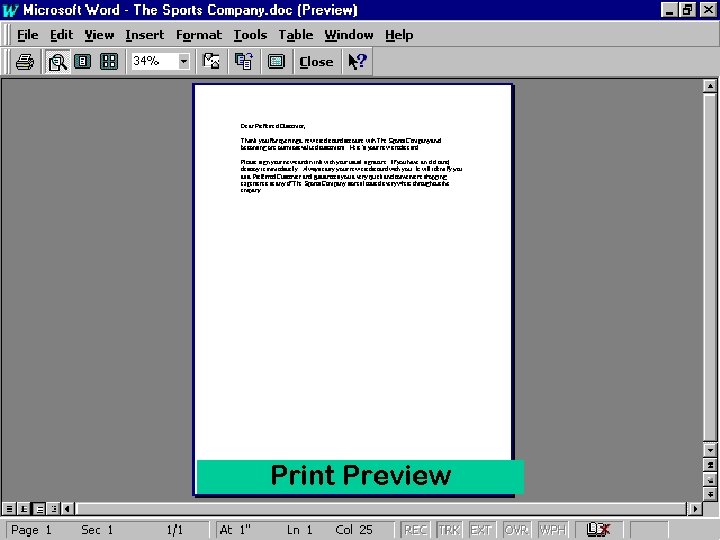
Previewing the Document n View onscreen how document will look printed out n Each page displayed in a reduced sized so that you can see the layout 52
Print Preview 53
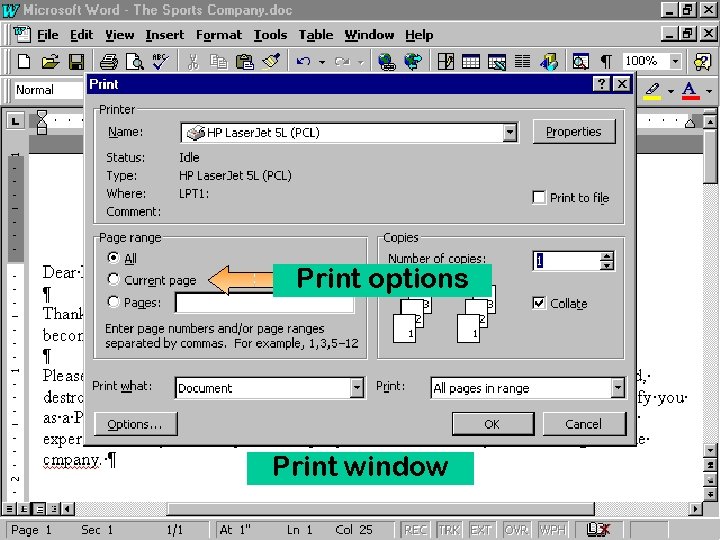
Print options Print window 54