
1 Windows Command Line Interface AKA DOS commands
- Slides: 107
1 Windows Command Line Interface (AKA DOS commands) Prof. Yitzchak Rosenthal
2 What I did uptown • • • help, help dir, dir /w, dir /? fullpath, relative path, dot, dot cd, md, rd /s, rd /s/q type what is a binary number ASCII files, binary files diff bet notepad, word, excel, copy, del notepad TODO –. exe files – batch files – dir /od, dir /o-d
What is the Windows Command Line Interface (CLI)? 3 • The windows command line interface (CLI) provides a way to control your computer by typing "English-like" commands instead of clicking on buttons, icons, menus, etc. • For example you can use the windows CLI to – – – – start a program create a folder remove a folder copy a file remove a file rename a file etc.
4 What is “DOS” • The Windows CLI commands are sometimes referred to as "DOS" commands. – DOS was the name of the operating system that predated Windows (it stands for Disk Operating System). – The only way to control DOS was to use these commands – The commands in the modern Windows Command Line interface are very similar to the original DOS commands, but there are some differences and some completely new commands.
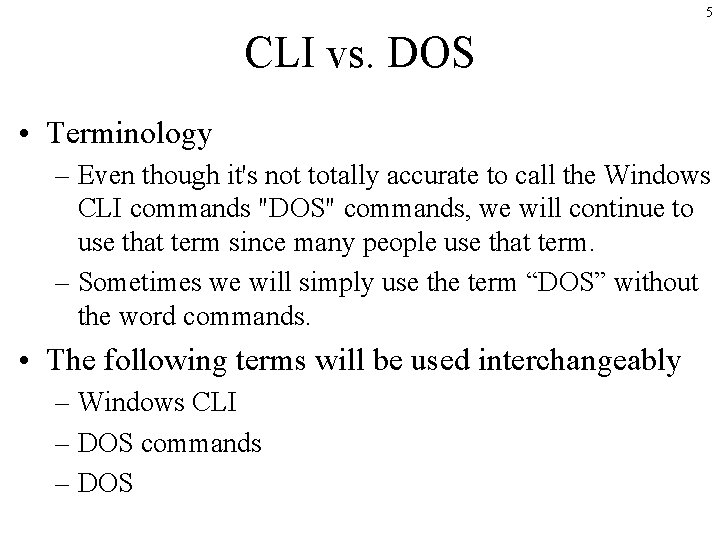
5 CLI vs. DOS • Terminology – Even though it's not totally accurate to call the Windows CLI commands "DOS" commands, we will continue to use that term since many people use that term. – Sometimes we will simply use the term “DOS” without the word commands. • The following terms will be used interchangeably – Windows CLI – DOS commands – DOS
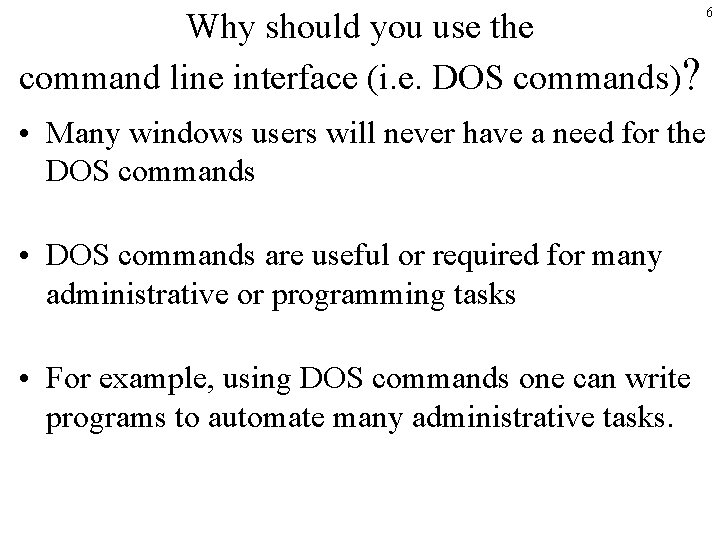
Why should you use the command line interface (i. e. DOS commands)? 6 • Many windows users will never have a need for the DOS commands • DOS commands are useful or required for many administrative or programming tasks • For example, using DOS commands one can write programs to automate many administrative tasks.
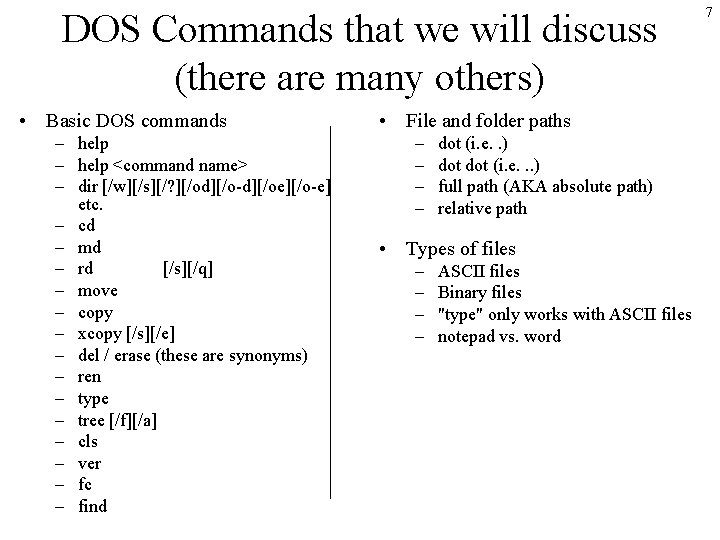
DOS Commands that we will discuss (there are many others) • Basic DOS commands – help <command name> – dir [/w][/s][/? ][/od][/o-d][/oe][/o-e] etc. – cd – md – rd [/s][/q] – move – copy – xcopy [/s][/e] – del / erase (these are synonyms) – ren – type – tree [/f][/a] – cls – ver – fc – find • File and folder paths – – dot (i. e. . ) dot (i. e. . . ) full path (AKA absolute path) relative path • Types of files – – ASCII files Binary files "type" only works with ASCII files notepad vs. word 7
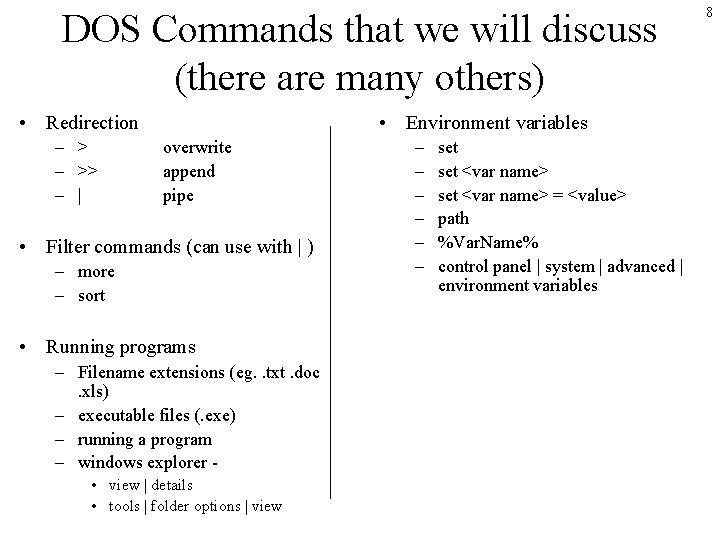
DOS Commands that we will discuss (there are many others) • Redirection – >> – | • Environment variables overwrite append pipe • Filter commands (can use with | ) – more – sort • Running programs – Filename extensions (eg. . txt. doc. xls) – executable files (. exe) – running a program – windows explorer • view | details • tools | folder options | view – – – set <var name> = <value> path %Var. Name% control panel | system | advanced | environment variables 8
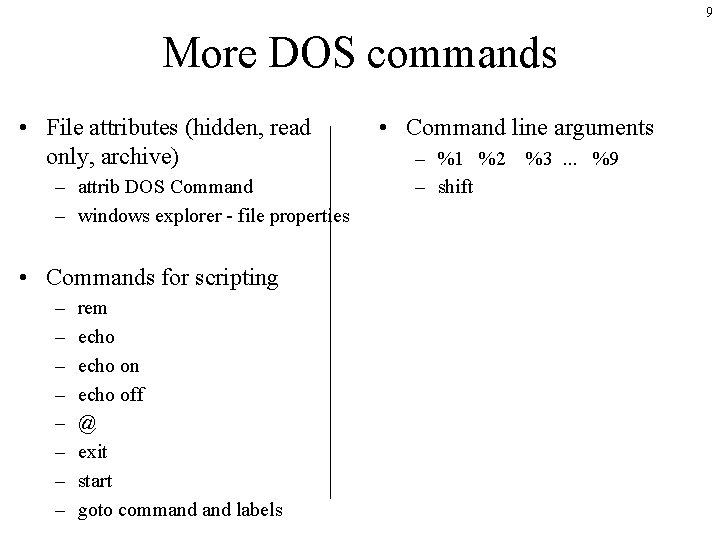
9 More DOS commands • File attributes (hidden, read only, archive) – attrib DOS Command – windows explorer - file properties • Commands for scripting – – – – rem echo on echo off @ exit start goto command labels • Command line arguments – %1 %2 %3. . . %9 – shift
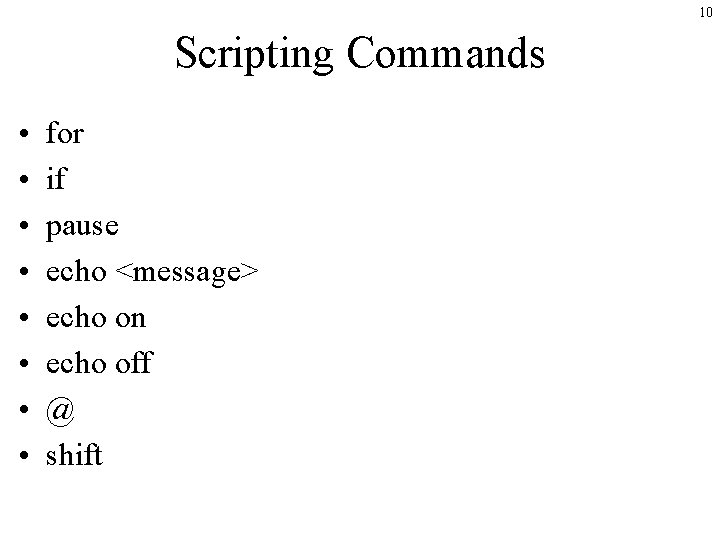
10 Scripting Commands • • for if pause echo <message> echo on echo off @ shift
11 Programs (AKA “external” DOS commands) • notepad • cmd • regedit
12 running / executing • starting a program or DOS command is known as “running” the program/command OR “executing” the program/command
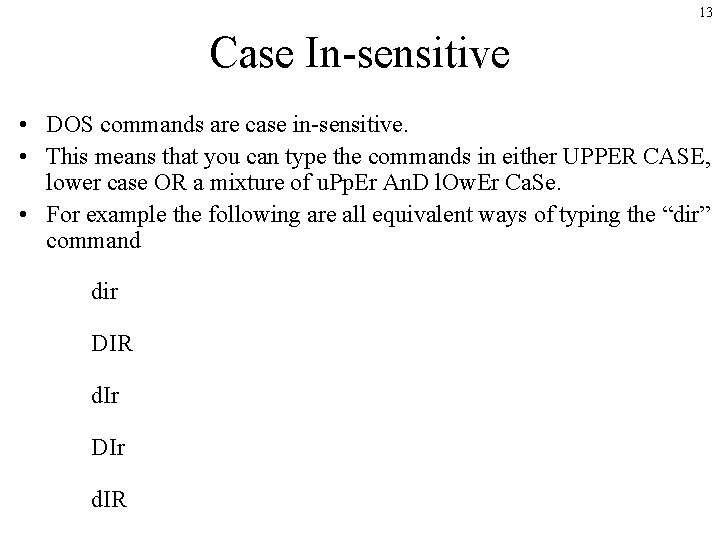
13 Case In-sensitive • DOS commands are case in-sensitive. • This means that you can type the commands in either UPPER CASE, lower case OR a mixture of u. Pp. Er An. D l. Ow. Er Ca. Se. • For example the following are all equivalent ways of typing the “dir” command dir DIR d. Ir DIr d. IR
14 Type ENTER • You must press the ENTER key after typing any DOS command for it to actually do anything.
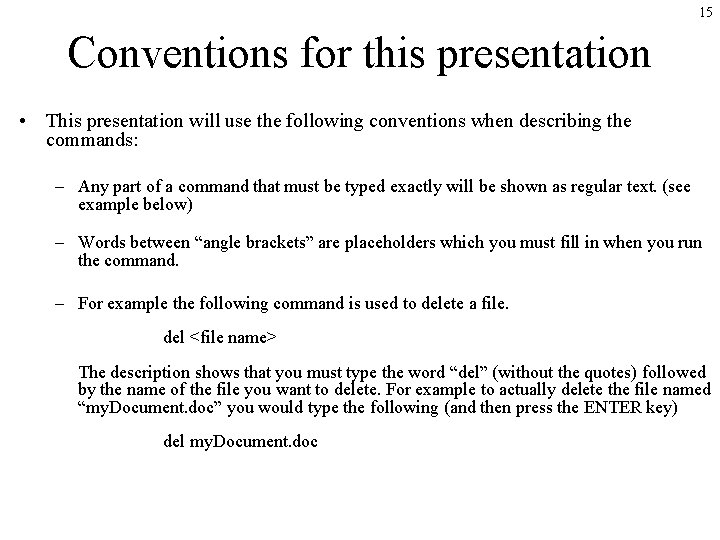
15 Conventions for this presentation • This presentation will use the following conventions when describing the commands: – Any part of a command that must be typed exactly will be shown as regular text. (see example below) – Words between “angle brackets” are placeholders which you must fill in when you run the command. – For example the following command is used to delete a file. del <file name> The description shows that you must type the word “del” (without the quotes) followed by the name of the file you want to delete. For example to actually delete the file named “my. Document. doc” you would type the following (and then press the ENTER key) del my. Document. doc
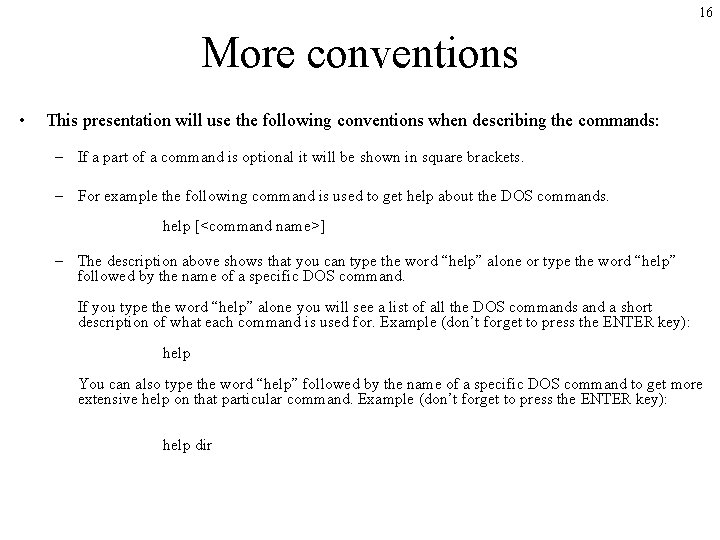
16 More conventions • This presentation will use the following conventions when describing the commands: – If a part of a command is optional it will be shown in square brackets. – For example the following command is used to get help about the DOS commands. help [<command name>] – The description above shows that you can type the word “help” alone or type the word “help” followed by the name of a specific DOS command. If you type the word “help” alone you will see a list of all the DOS commands and a short description of what each command is used for. Example (don’t forget to press the ENTER key): help You can also type the word “help” followed by the name of a specific DOS command to get more extensive help on that particular command. Example (don’t forget to press the ENTER key): help dir
17 THE COMMAND PROMPT WINDOW
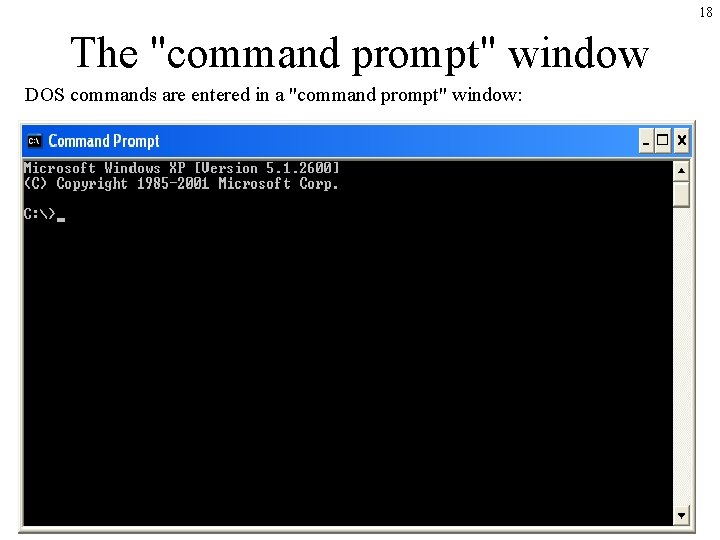
18 The "command prompt" window DOS commands are entered in a "command prompt" window:
19 Starting the command prompt window • To start a command window from "Windows XP -Home" choose the following menu choice from the start menu: start | All Programs | Accessories | Command Prompt
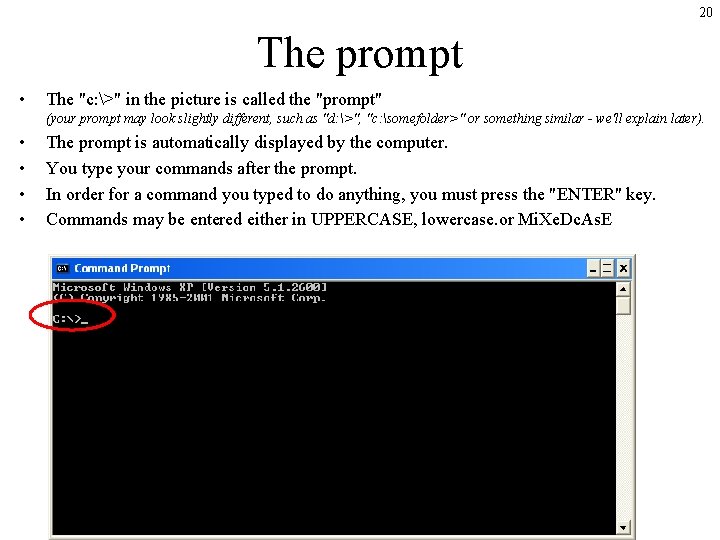
20 The prompt • The "c: >" in the picture is called the "prompt" (your prompt may look slightly different, such as "d: >", "c: somefolder>" or something similar - we'll explain later). • • The prompt is automatically displayed by the computer. You type your commands after the prompt. In order for a command you typed to do anything, you must press the "ENTER" key. Commands may be entered either in UPPERCASE, lowercase. or Mi. Xe. Dc. As. E
21 THE HELP COMMAND
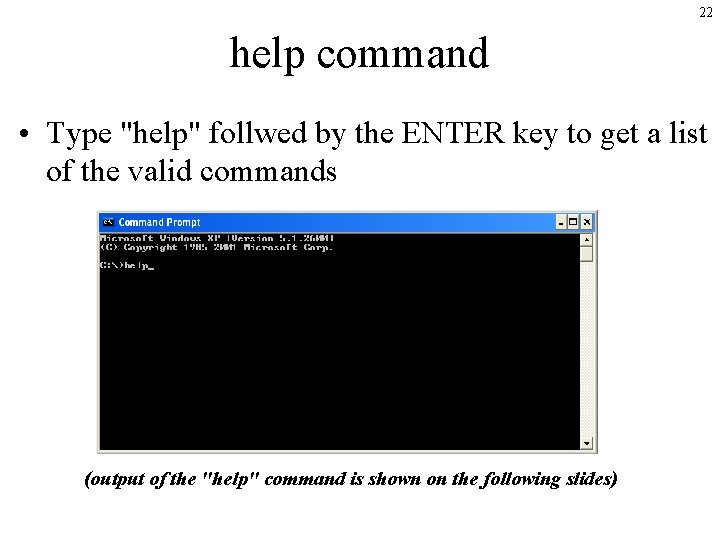
22 help command • Type "help" follwed by the ENTER key to get a list of the valid commands (output of the "help" command is shown on the following slides)
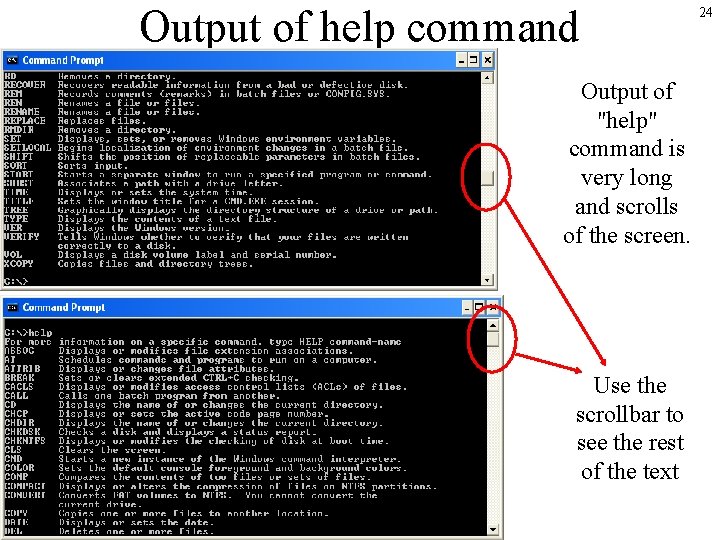
23 Output of help command • The help command prints a lot of text to the command window. • Some of the text will scroll off the screen. • use the scroll bar to view text that has scrolled off of the screen. • (see next slide for example).
Output of help command Output of "help" command is very long and scrolls of the screen. Use the scrollbar to see the rest of the text 24
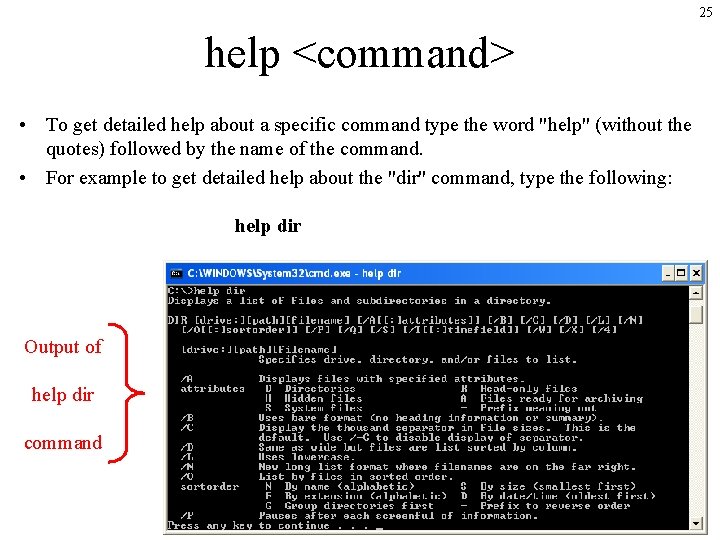
25 help <command> • To get detailed help about a specific command type the word "help" (without the quotes) followed by the name of the command. • For example to get detailed help about the "dir" command, type the following: help dir Output of help dir command
26 | MORE
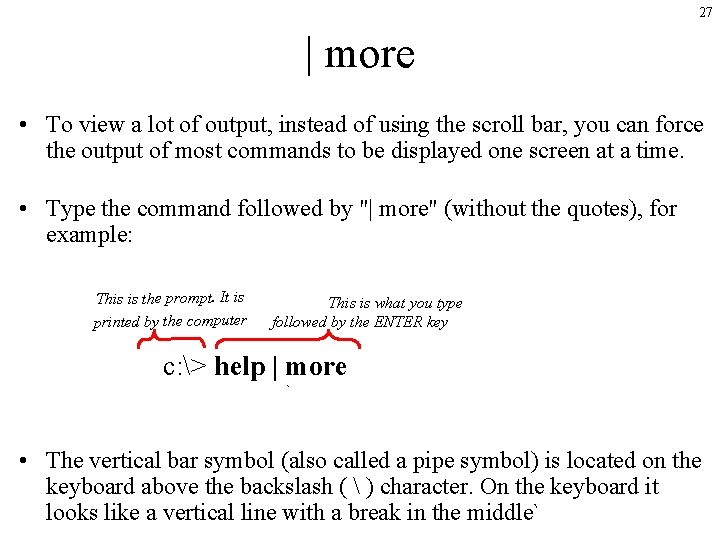
27 | more • To view a lot of output, instead of using the scroll bar, you can force the output of most commands to be displayed one screen at a time. • Type the command followed by "| more" (without the quotes), for example: This is the prompt. It is printed by the computer This is what you type followed by the ENTER key c: > help | more ` • The vertical bar symbol (also called a pipe symbol) is located on the keyboard above the backslash ( ) character. On the keyboard it looks like a vertical line with a break in the middle`
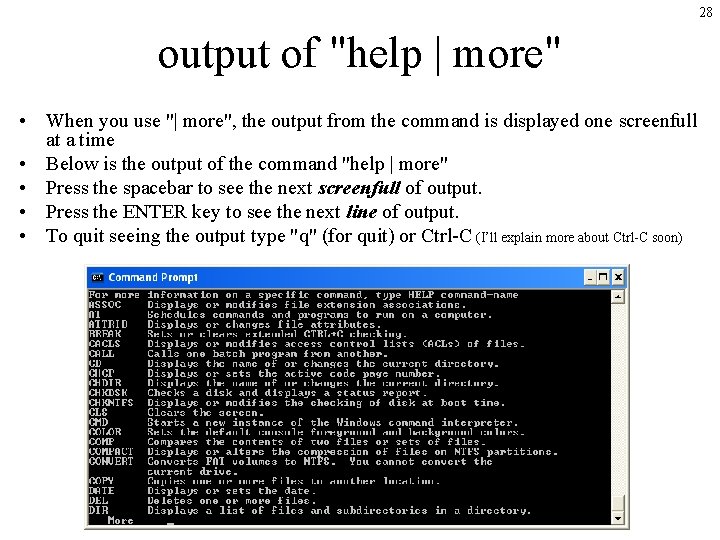
28 output of "help | more" • When you use "| more", the output from the command is displayed one screenfull at a time • Below is the output of the command "help | more" • Press the spacebar to see the next screenfull of output. • Press the ENTER key to see the next line of output. • To quit seeing the output type "q" (for quit) or Ctrl-C (I’ll explain more about Ctrl-C soon)
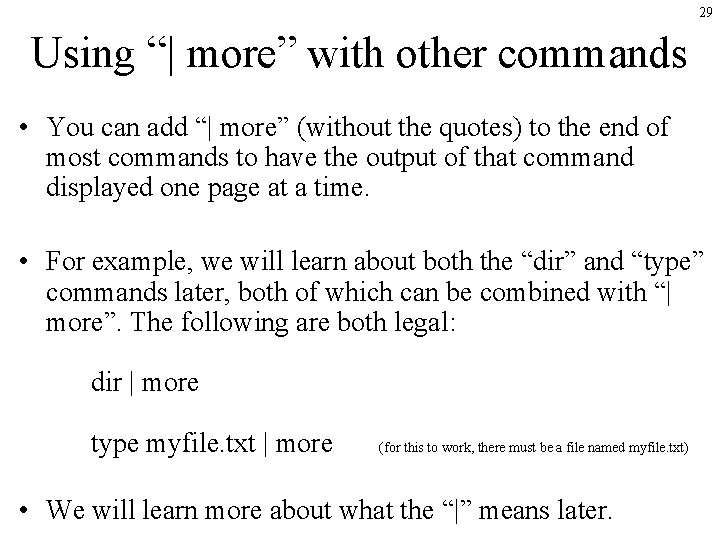
29 Using “| more” with other commands • You can add “| more” (without the quotes) to the end of most commands to have the output of that command displayed one page at a time. • For example, we will learn about both the “dir” and “type” commands later, both of which can be combined with “| more”. The following are both legal: dir | more type myfile. txt | more (for this to work, there must be a file named myfile. txt) • We will learn more about what the “|” means later.
30 "CTRL-C" (i. e. CONTROL-C)
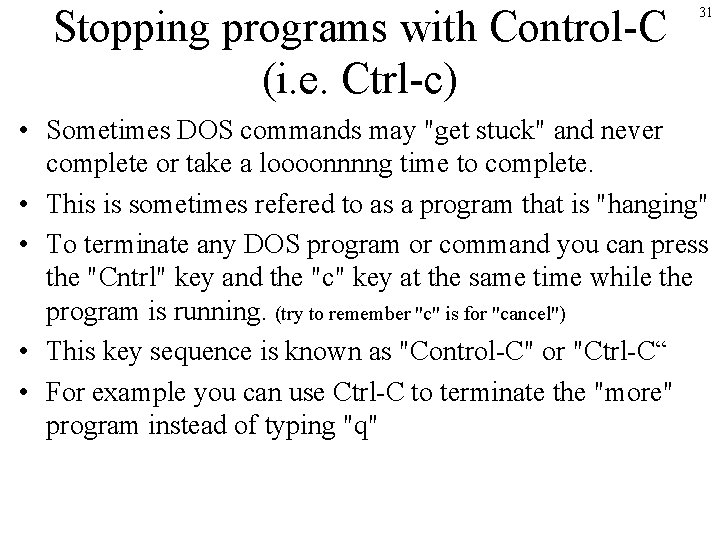
Stopping programs with Control-C (i. e. Ctrl-c) 31 • Sometimes DOS commands may "get stuck" and never complete or take a loooonnnng time to complete. • This is sometimes refered to as a program that is "hanging" • To terminate any DOS program or command you can press the "Cntrl" key and the "c" key at the same time while the program is running. (try to remember "c" is for "cancel") • This key sequence is known as "Control-C" or "Ctrl-C“ • For example you can use Ctrl-C to terminate the "more" program instead of typing "q"
32 INCREASE THE SIZE OF THE COMMAND WINDOW
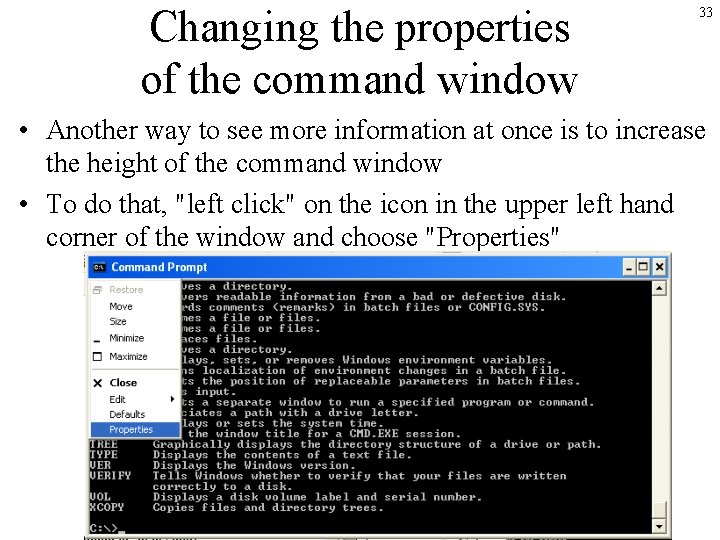
Changing the properties of the command window 33 • Another way to see more information at once is to increase the height of the command window • To do that, "left click" on the icon in the upper left hand corner of the window and choose "Properties"
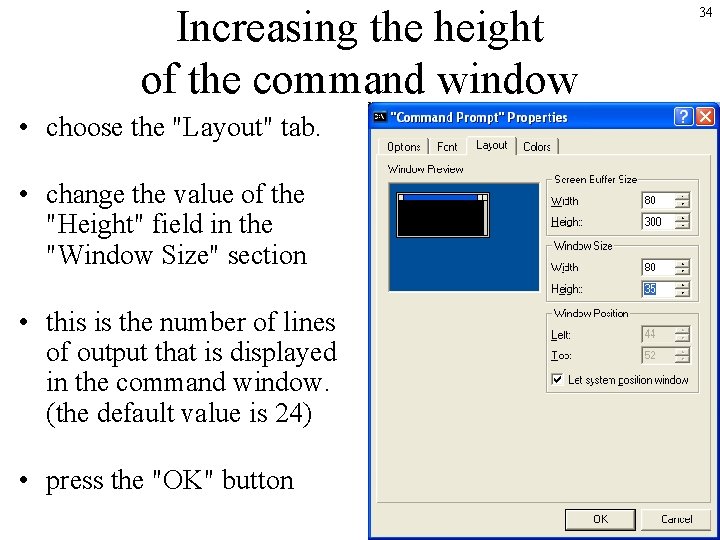
Increasing the height of the command window • choose the "Layout" tab. • change the value of the "Height" field in the "Window Size" section • this is the number of lines of output that is displayed in the command window. (the default value is 24) • press the "OK" button 34
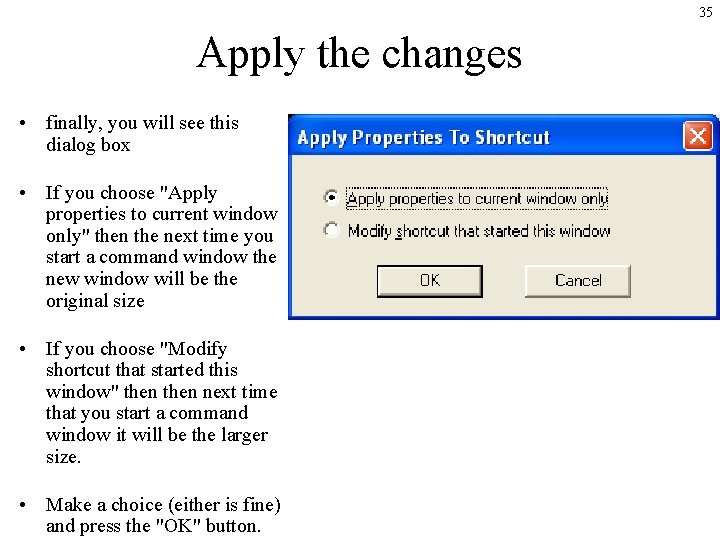
35 Apply the changes • finally, you will see this dialog box • If you choose "Apply properties to current window only" then the next time you start a command window the new window will be the original size • If you choose "Modify shortcut that started this window" then next time that you start a command window it will be the larger size. • Make a choice (either is fine) and press the "OK" button.
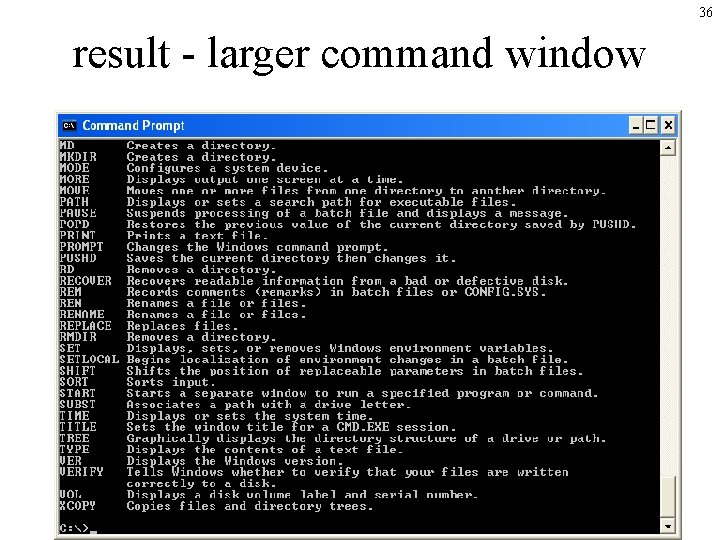
36 result - larger command window
37 BASIC COMMANDS (DIR, MD, CD, RD)
38 Directories (AKA Folders) • In DOS, a "folder" is called a "directory" • A folder and a directory are exactly the same thing - the words are interchangeable.
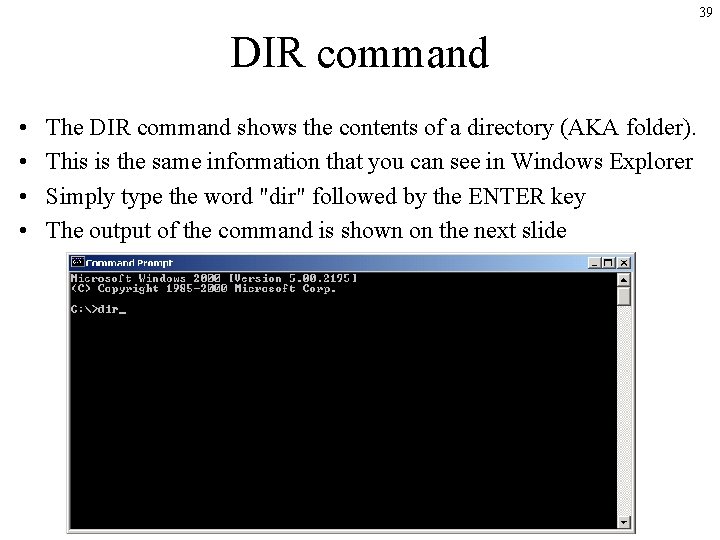
39 DIR command • • The DIR command shows the contents of a directory (AKA folder). This is the same information that you can see in Windows Explorer Simply type the word "dir" followed by the ENTER key The output of the command is shown on the next slide
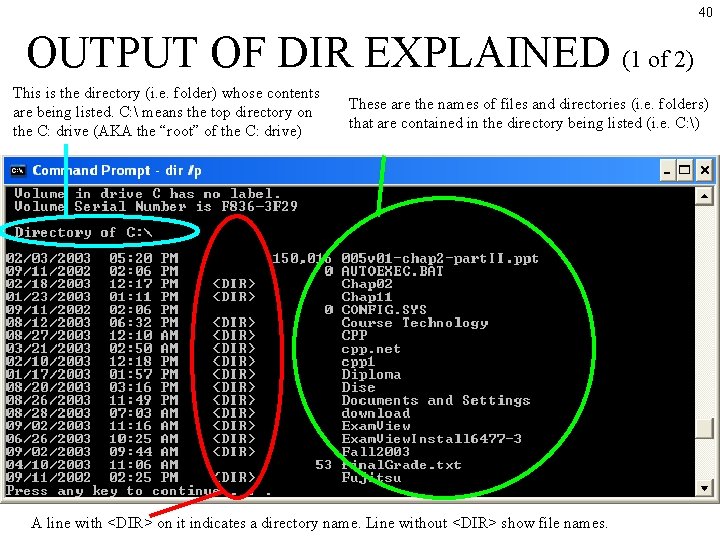
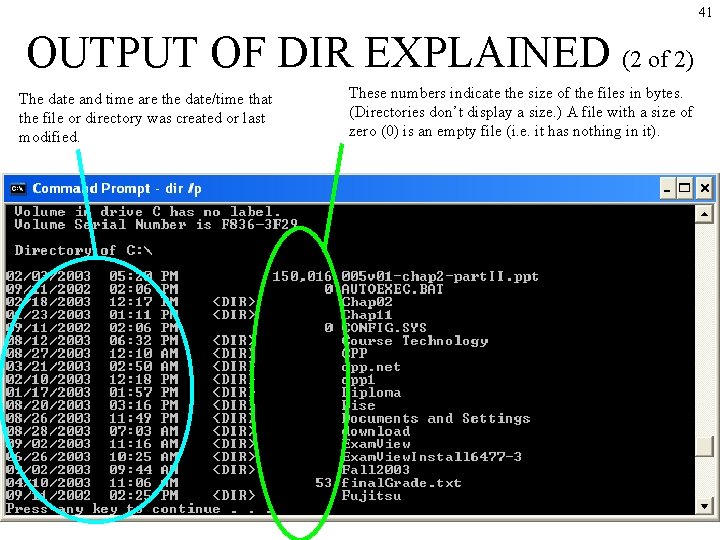
40 OUTPUT OF DIR EXPLAINED (1 of 2) This is the directory (i. e. folder) whose contents are being listed. C: means the top directory on the C: drive (AKA the “root” of the C: drive) These are the names of files and directories (i. e. folders) that are contained in the directory being listed (i. e. C: ) A line with <DIR> on it indicates a directory name. Line without <DIR> show file names.
41 OUTPUT OF DIR EXPLAINED (2 of 2) The date and time are the date/time that the file or directory was created or last modified. These numbers indicate the size of the files in bytes. (Directories don’t display a size. ) A file with a size of zero (0) is an empty file (i. e. it has nothing in it).
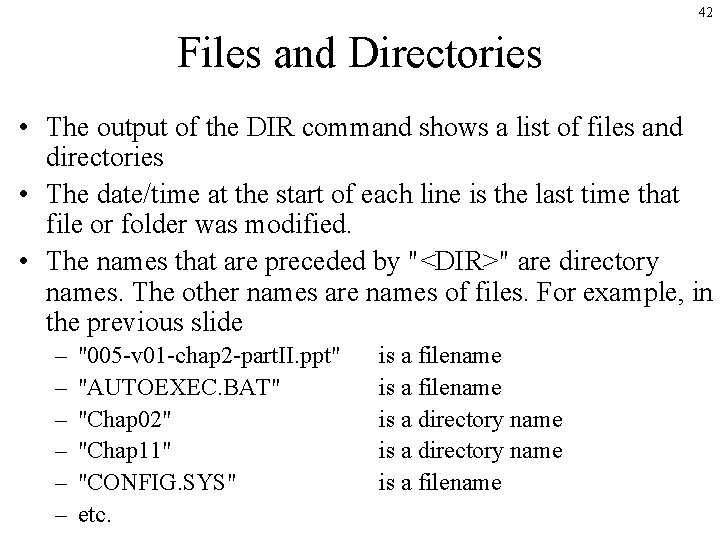
42 Files and Directories • The output of the DIR command shows a list of files and directories • The date/time at the start of each line is the last time that file or folder was modified. • The names that are preceded by "<DIR>" are directory names. The other names are names of files. For example, in the previous slide – – – "005 -v 01 -chap 2 -part. II. ppt" "AUTOEXEC. BAT" "Chap 02" "Chap 11" "CONFIG. SYS" etc. is a filename is a directory name is a filename
43 One directory (i. e. folder) at a time • It is important to understand that the DIR command shows the contents of only one directory (i. e. folder) at a time. • The output shown above shows the contents of the highest level folder (also known as the “root”) of the C: drive. • You can see the same information in “Windows Explorer” (we’ll show you the output of the dir command compared with what you see with windows explorer)
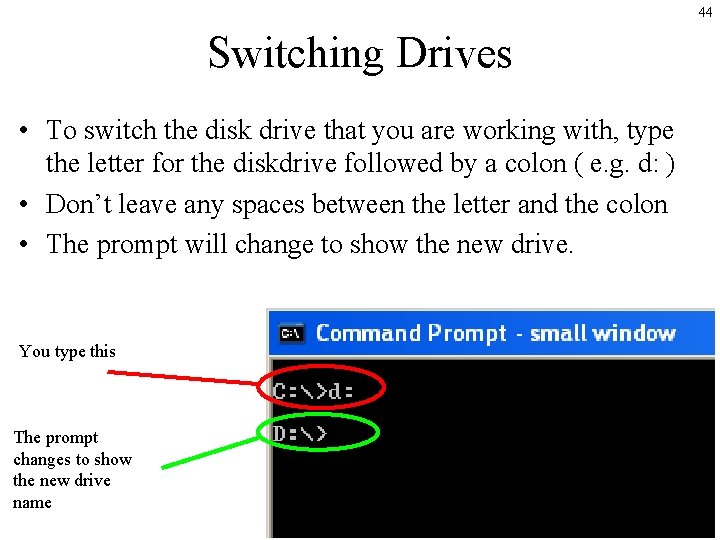
44 Switching Drives • To switch the disk drive that you are working with, type the letter for the diskdrive followed by a colon ( e. g. d: ) • Don’t leave any spaces between the letter and the colon • The prompt will change to show the new drive. You type this The prompt changes to show the new drive name
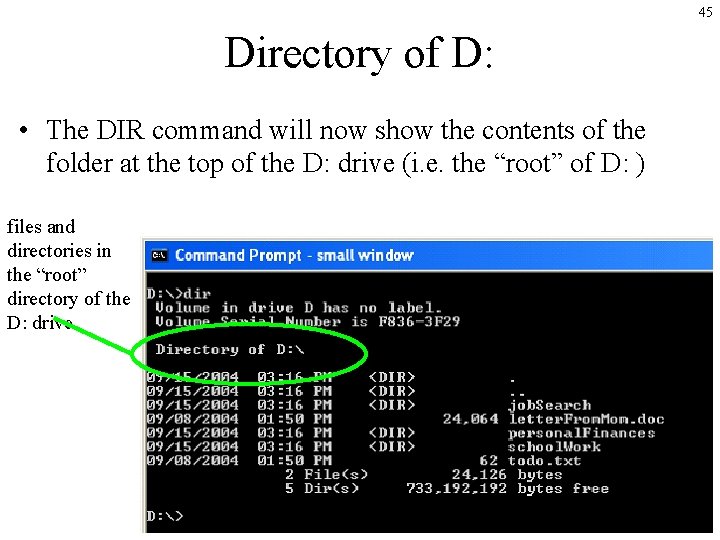
45 Directory of D: • The DIR command will now show the contents of the folder at the top of the D: drive (i. e. the “root” of D: ) files and directories in the “root” directory of the D: drive
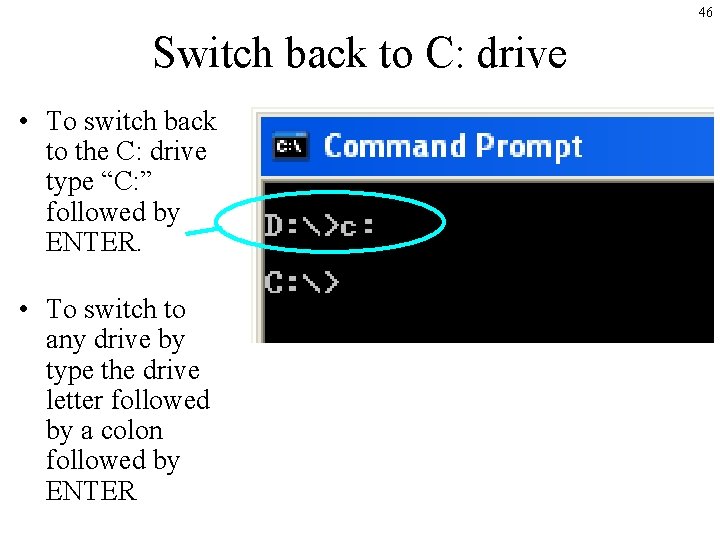
46 Switch back to C: drive • To switch back to the C: drive type “C: ” followed by ENTER. • To switch to any drive by type the drive letter followed by a colon followed by ENTER
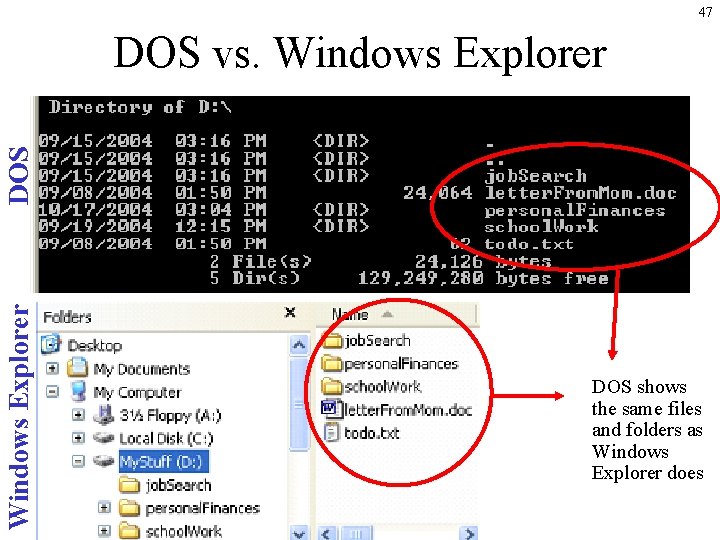
47 Windows Explorer DOS vs. Windows Explorer DOS shows the same files and folders as Windows Explorer does
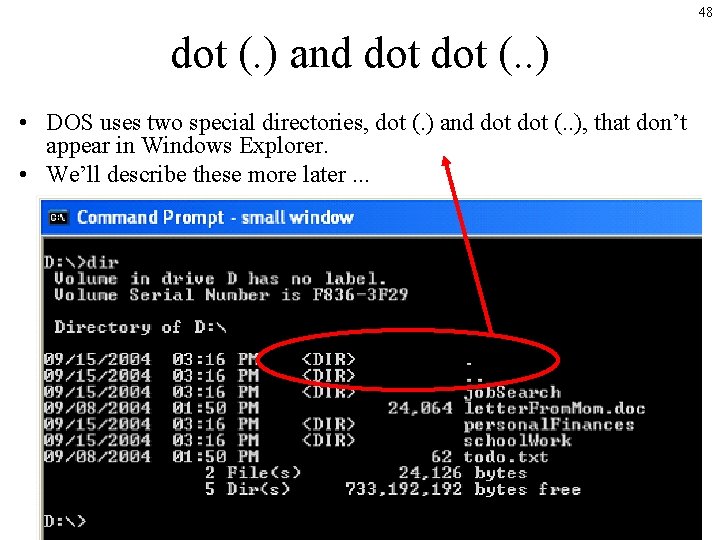
48 dot (. ) and dot (. . ) • DOS uses two special directories, dot (. ) and dot (. . ), that don’t appear in Windows Explorer. • We’ll describe these more later. . .
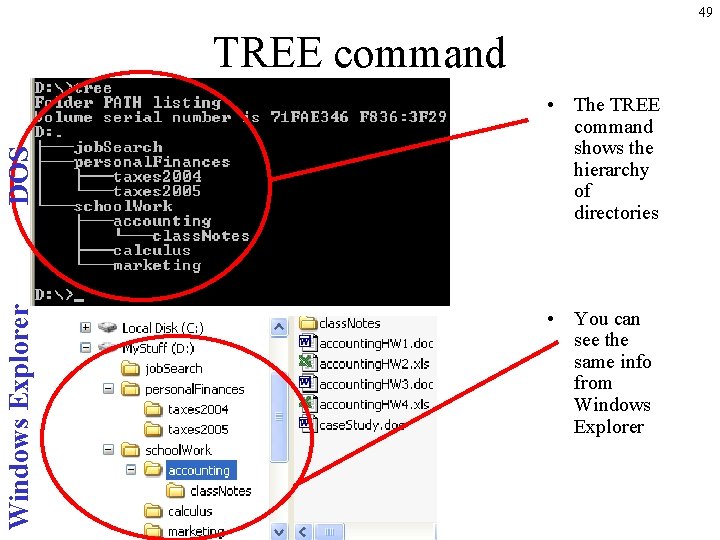
49 Windows Explorer DOS TREE command • The TREE command shows the hierarchy of directories • You can see the same info from Windows Explorer
50 NAMING DISK DRIVES, DIRECTORIES (AKA folders), AND FILES
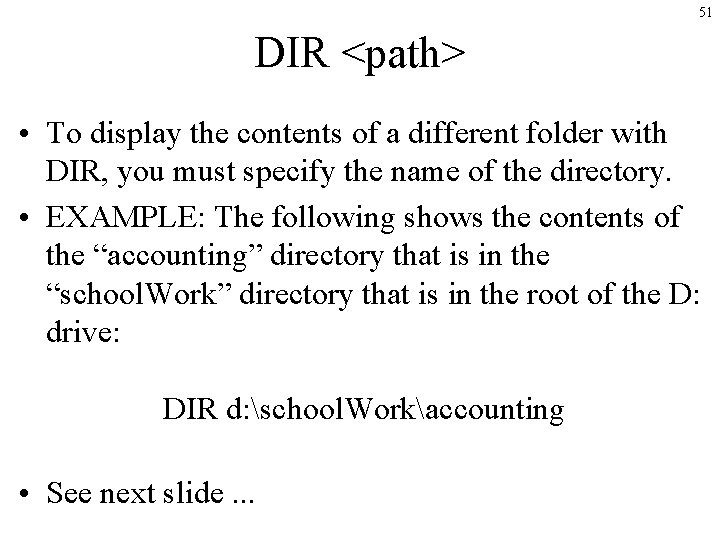
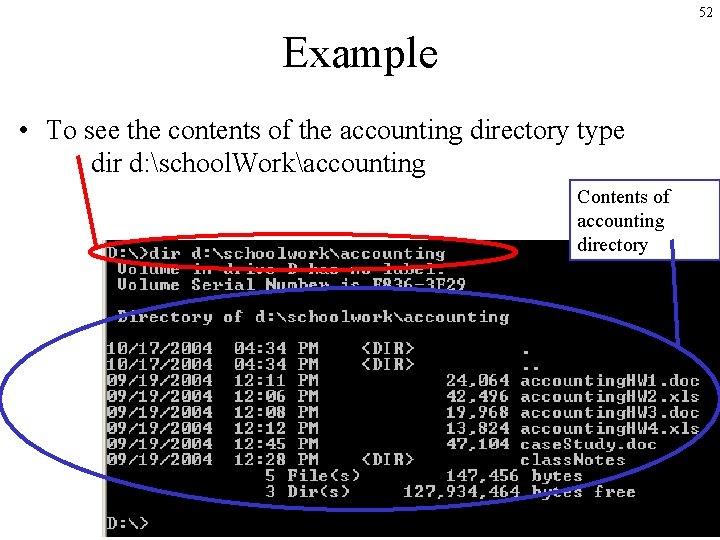
51 DIR <path> • To display the contents of a different folder with DIR, you must specify the name of the directory. • EXAMPLE: The following shows the contents of the “accounting” directory that is in the “school. Work” directory that is in the root of the D: drive: DIR d: school. Workaccounting • See next slide. . .
52 Example • To see the contents of the accounting directory type dir d: school. Workaccounting Contents of accounting directory
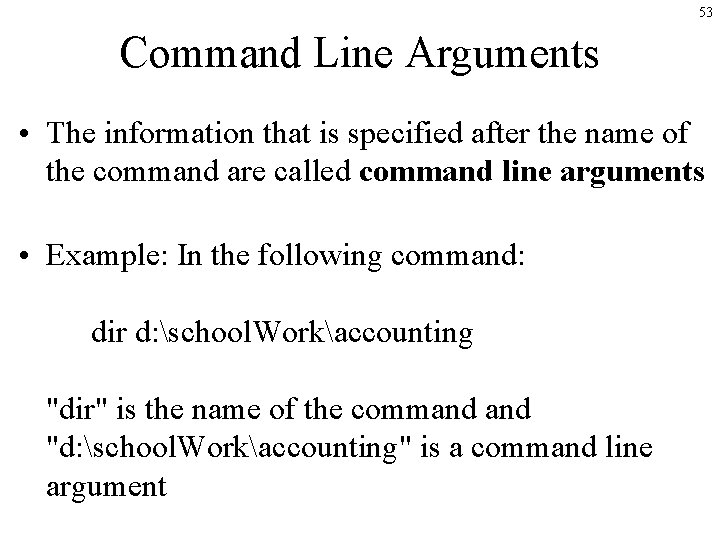
53 Command Line Arguments • The information that is specified after the name of the command are called command line arguments • Example: In the following command: dir d: school. Workaccounting "dir" is the name of the command "d: school. Workaccounting" is a command line argument
54 Accessing the hierarchy from DOS • The hierarchy of disk drives, folders and files that is accessible from Windows Explorer is also accessible from DOS • However you must how to name the following from DOS – disk drives – directories – files
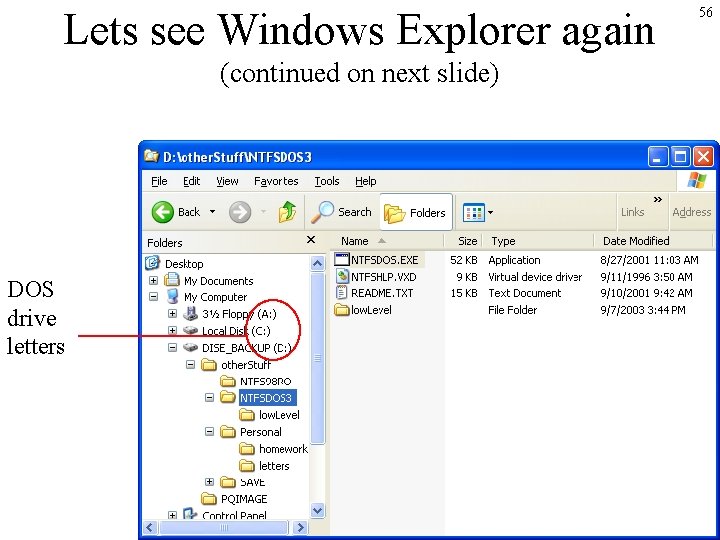
55 Disk drive names • DOS uses a single letter followed by a colon to name each disk drive. • These are the same names that Windows Explorer shows in parentheses (see next slide). – A: is usually reserved for the floppy drive – C: is usually reserved for a local hard drive – Other drive letters are either for • other local hard drives • drives that are on another computer but which are accessible over the network • Other types of drives such as CD-ROM or DVD drives.
Lets see Windows Explorer again (continued on next slide) DOS drive letters 56
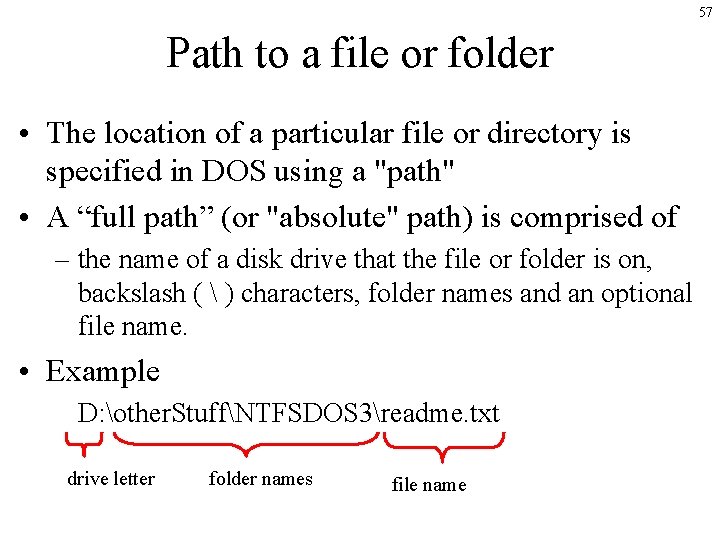
57 Path to a file or folder • The location of a particular file or directory is specified in DOS using a "path" • A “full path” (or "absolute" path) is comprised of – the name of a disk drive that the file or folder is on, backslash ( ) characters, folder names and an optional file name. • Example D: other. StuffNTFSDOS 3readme. txt drive letter folder names file name
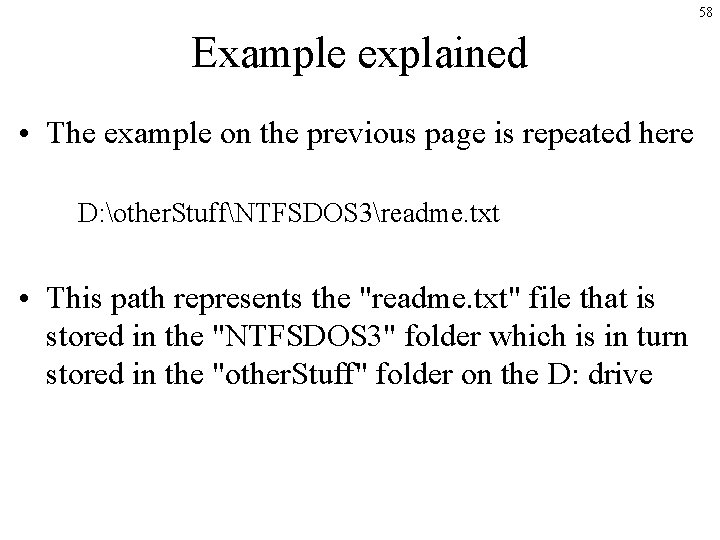
58 Example explained • The example on the previous page is repeated here D: other. StuffNTFSDOS 3readme. txt • This path represents the "readme. txt" file that is stored in the "NTFSDOS 3" folder which is in turn stored in the "other. Stuff" folder on the D: drive
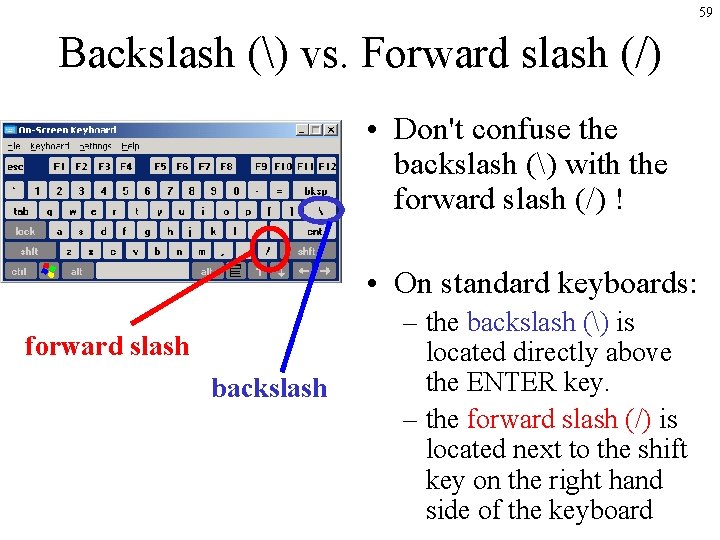
59 Backslash () vs. Forward slash (/) • Don't confuse the backslash () with the forward slash (/) ! • On standard keyboards: forward slash backslash – the backslash () is located directly above the ENTER key. – the forward slash (/) is located next to the shift key on the right hand side of the keyboard
backslash in filenames forward slash for command options • backslash is used for naming files and directories • forward slash is used to provide options to DOS commands (we'll cover this later) 60
61 spaces in filenames • If any folder or filename in a path contains spaces, you must surround the entire path with quotes when using it in a DOS command. • Example dir "c: my foldermy file. txt"
62 The root • The top level of any disk drive is called the "root" of the disk drive. • The root is indicated by a single backslash ("") character. For example: – the root of the C: drive is C: – the root of the A: drive is A: – the root of the D: drive is D: – etc.
63 Trees, root, parent, child
The "current directory“ or “working directory” 64 • Windows – As noted above, the right hand pane of Windows Explorer shows the files that are in the folder which is currently selected in the left hand pane. – You can think of the currently selected folder as the "current folder" or "current directory". – From the snapshot on the previous slide, "NTFSDOS 3" is the "current folder" • DOS – In a similar way DOS uses the concept of a currently selected directory otherwise known as "the current directory" (sometimes the "current directory" is called the "working directory").
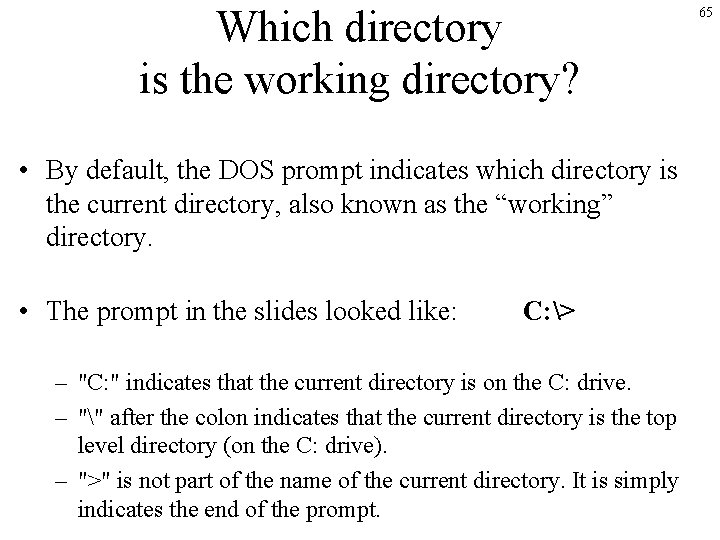
Which directory is the working directory? • By default, the DOS prompt indicates which directory is the current directory, also known as the “working” directory. • The prompt in the slides looked like: C: > – "C: " indicates that the current directory is on the C: drive. – "" after the colon indicates that the current directory is the top level directory (on the C: drive). – ">" is not part of the name of the current directory. It is simply indicates the end of the prompt. 65
66 DOS command options and switches • Most DOS commands can be run in different ways by specifying “options” (also known as “switches”). • You specify an option by typing a forward slash (/) after the command name followed by one or more letters or characters that specify which option you want to use. • See example on next slide
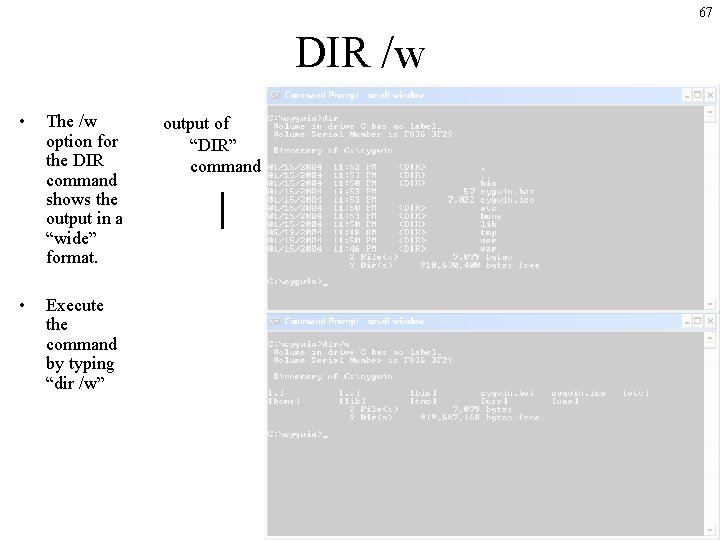
67 DIR /w • The /w option for the DIR command shows the output in a “wide” format. • Execute the command by typing “dir /w” output of “DIR” command
68 DIR /?
69 DIR /on
70 DIR /o-n
71 DIR /od
72 DIR /o-d
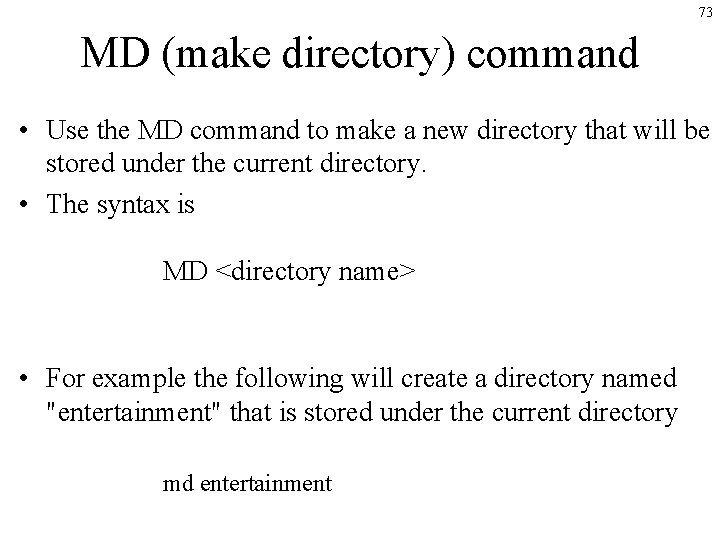
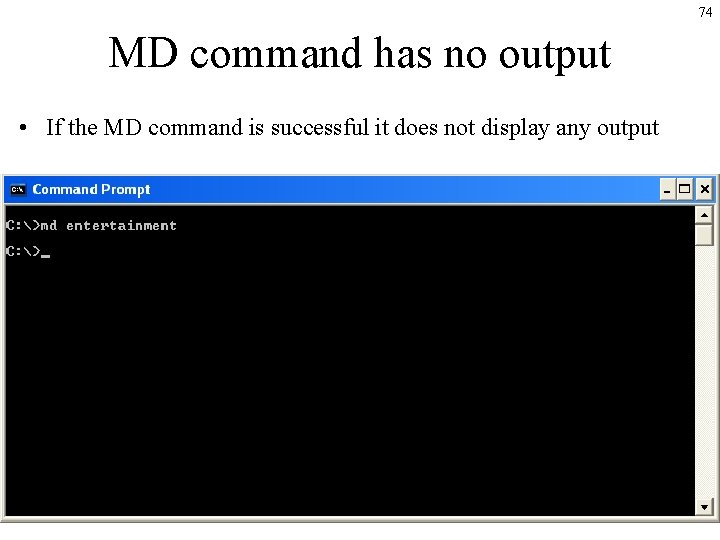
73 MD (make directory) command • Use the MD command to make a new directory that will be stored under the current directory. • The syntax is MD <directory name> • For example the following will create a directory named "entertainment" that is stored under the current directory md entertainment
74 MD command has no output • If the MD command is successful it does not display any output
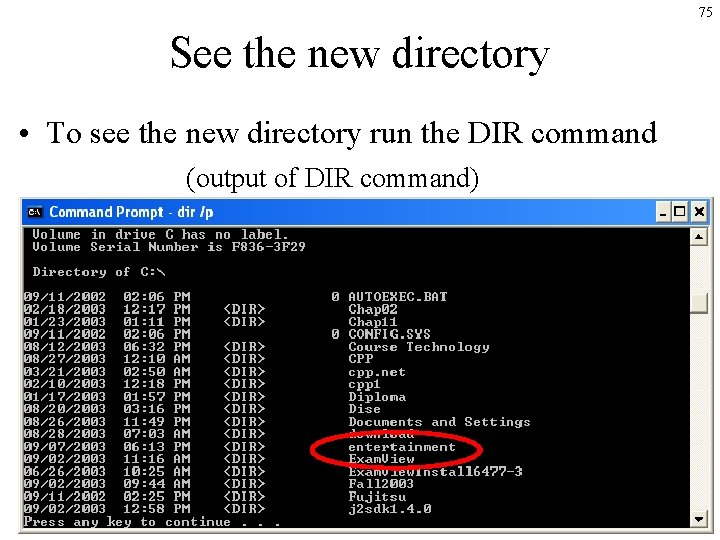
75 See the new directory • To see the new directory run the DIR command (output of DIR command)
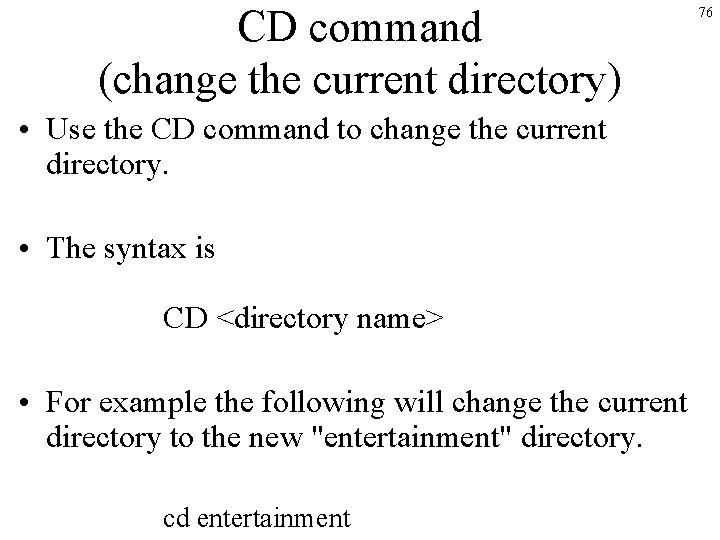
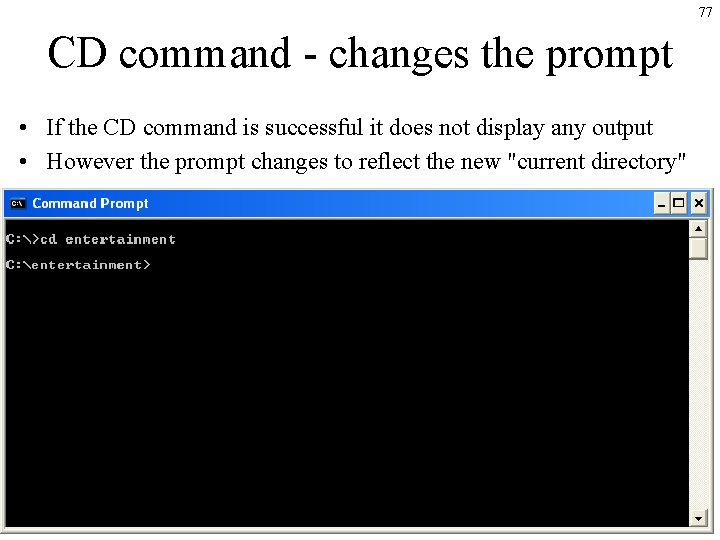
CD command (change the current directory) • Use the CD command to change the current directory. • The syntax is CD <directory name> • For example the following will change the current directory to the new "entertainment" directory. cd entertainment 76
77 CD command - changes the prompt • If the CD command is successful it does not display any output • However the prompt changes to reflect the new "current directory"
78 CD to a full path
79 CD to a longer full path
80 CD to a folder “below” the current folder
81 CD to the parent directory
82 CD to the parent of the parent directory
83 The contents of an “empty” directory
84 CD to a sibling directory by way of parent
85 “Full path” vs. “relative path”
86 drive letter
<drive letter>: (change drive command) 87
88 CD to a folder on a different drive
89 Each drive remembers its working directory
Making a directory (MD) using a full path or a relative path 90
91 OTHER COMMANDS
92 CLS Command • Type the CLS command followed by ENTER to clear the screen.
93 Type
94 ASCII files vs. Binary Files
95 Difference between Notepad and Word
96 TODO • tree hierarchy – parent, child, root, leaf • help dir – options / switches – optional parts of command
97 • • • wildcards * and ? dir with wildcards Files, extensions copy del vs, rd. exe files path rd ren set cmd /k
98 APPENDICES
99 MORE ABOUT DISK DRIVES
100 Fixed drives vs Removable Media drives • There are two types of drives – Fixed Drives • for example a hard drive – Removable media drives • for example a floppy disk drive, CDROM drive or DVD drive
101 Removable media drives
102 Disk Drives and Media • Examples of Disk Drives – Hard Disk drive – Floppy disk drive – CDROM drive – DVD drive • Examples of Disk Drive Media – floppy disk – CDROM disc – DVD disc
103 COMPARING FILES date/time stamps and files sizes FC command
104 Date/time stamps and file sizes • If two files have the same date/time and the same exact file size, then they probably contain the same exact information. However, it is possible that they contain different information • The FC (file compare) command compares two files to see if they are exactly the same. This will tell you if two files are the same even if they have different date/time stamps. • Example: FC file 1. txt file 2. txt For complete information on the FC command run FC /? or HELP FC
105 CONTROL CHARACTERS
106 Control characters • Control-C is an example of a “control character” • There are 26 control characters, one for each letter. • There is no distinction between capital and lowercase letters: Ctrl-C (capital “C”) is the same as Ctrl-c (lowercase “c”) • Some control characters have special meaning. For example: – Ctrl-H is another way of typing a backspace character (try it out in a command window) – Ctrl-M is another way of typing the ENTER key (try typing “dir” followed by ctrl-M) • Sometimes control characters are shown with a ^ character followed by the letter. For example control-A can be shown as ^A
107 Control characters and ASCII • The 26 control characters correspond to the first 26 numbers in the ASCII table. • TODO: talk about ASCII