
1 Week 4 February 15 LOV List of
1 Week 4 February 15 • LOV: List of Values • Dealing with Errors and Problems • OLE: Object Linking and Embedding R. Ching, Ph. D. • MIS Area • California State University, Sacramento
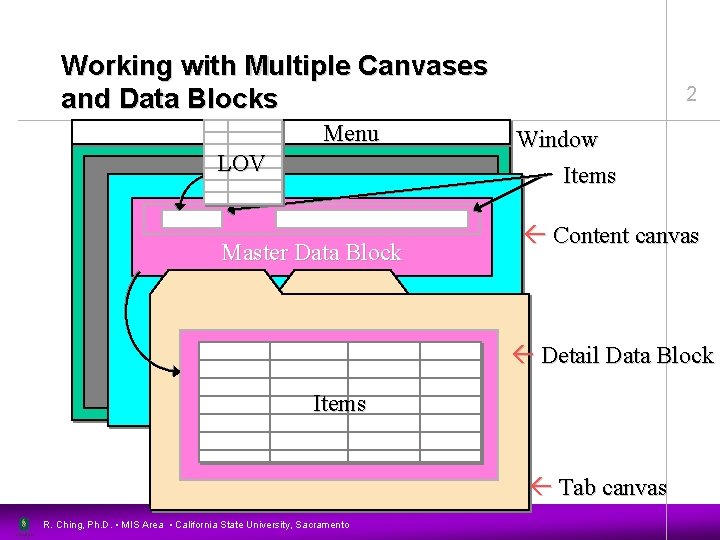
Working with Multiple Canvases and Data Blocks Menu LOV Master Data Block 2 Window Items Content canvas Detail Data Block Items Tab canvas R. Ching, Ph. D. • MIS Area • California State University, Sacramento
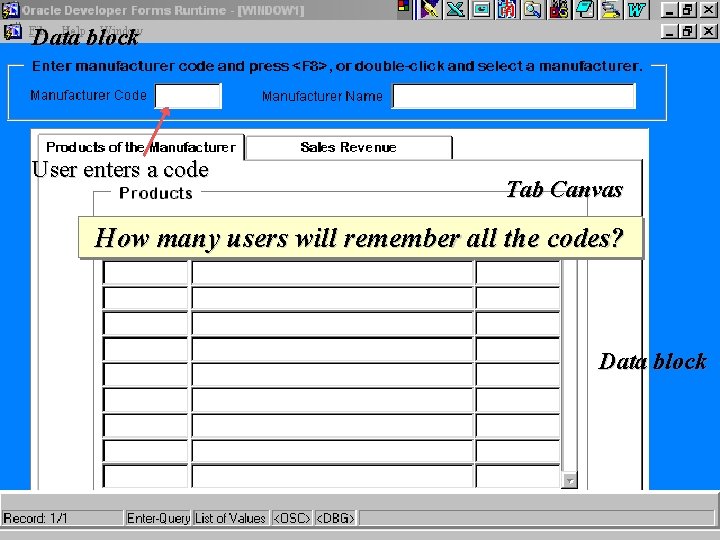
Data block 3 User enters a code Tab Canvas How many users will remember all the codes? Data block R. Ching, Ph. D. • MIS Area • California State University, Sacramento
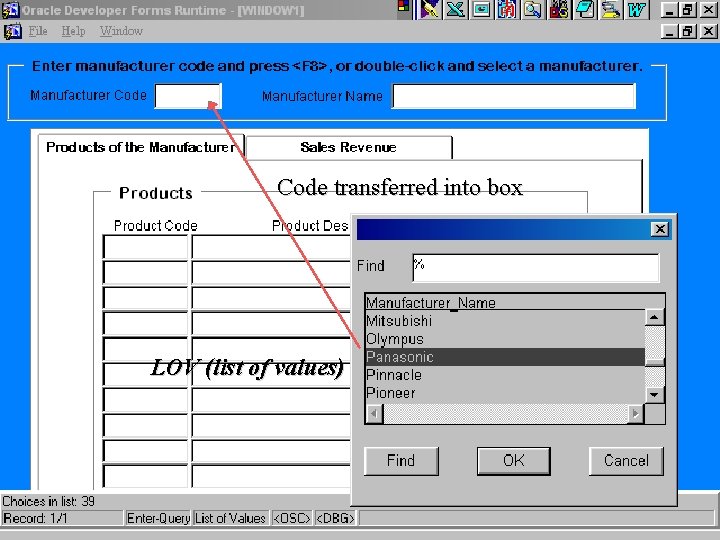
4 Code transferred into box LOV (list of values) R. Ching, Ph. D. • MIS Area • California State University, Sacramento
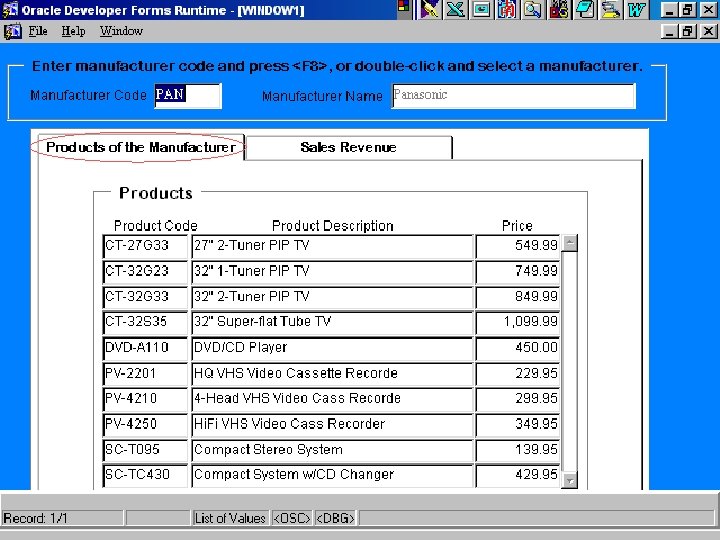
5 R. Ching, Ph. D. • MIS Area • California State University, Sacramento
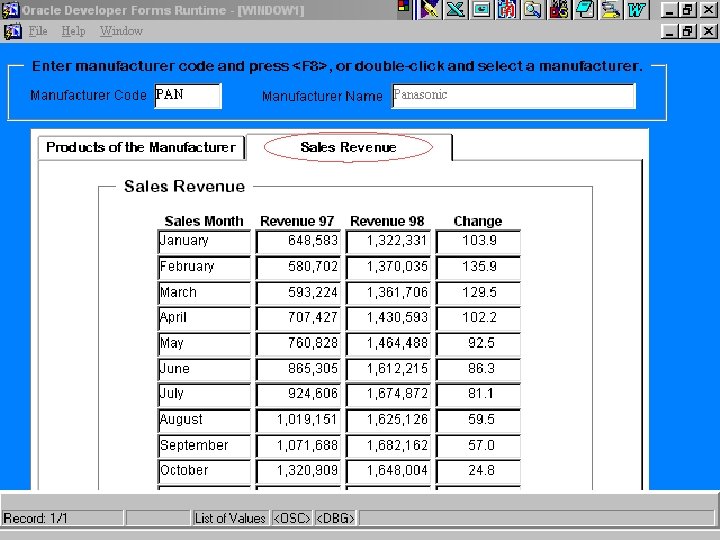
6 R. Ching, Ph. D. • MIS Area • California State University, Sacramento
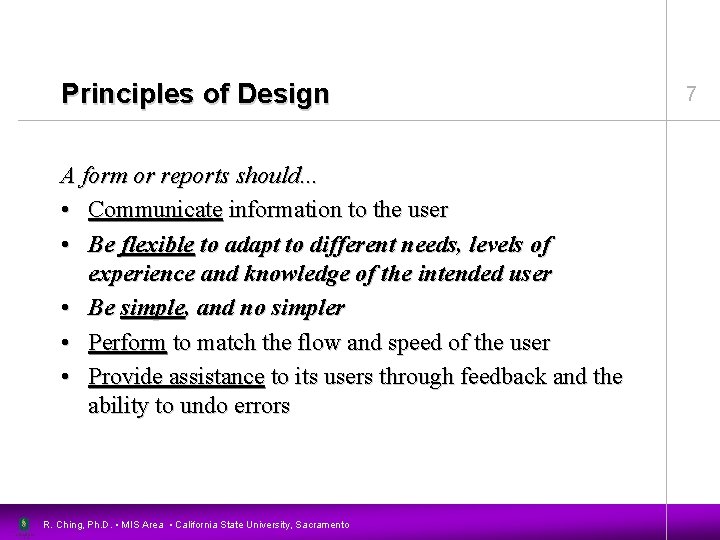
Principles of Design A form or reports should. . . • Communicate information to the user • Be flexible to adapt to different needs, levels of experience and knowledge of the intended user • Be simple, and no simpler • Perform to match the flow and speed of the user • Provide assistance to its users through feedback and the ability to undo errors R. Ching, Ph. D. • MIS Area • California State University, Sacramento 7
Flexibility • Flexibility: The degree to which users can adapt the application to their intended use – Provide different paths for different levels of experience R. Ching, Ph. D. • MIS Area • California State University, Sacramento 8
Simplicity • • Hide levels of complexity Simplify the common tasks Limit the number of interface elements Make interface element consistent and cohesive – Frequency, sequence, importance and function • Minimize redundancy and complexity of paths • Use standards to guide users • Automate data entry to improve reliability – Default values, list of values, triggers R. Ching, Ph. D. • MIS Area • California State University, Sacramento 9
Sequence of Events. . . • Create the content canvas – Add the master data block – Program the triggers • Create the tab canvas – Add the detail data block • Create and attach the LOV (list of values) • Menu added through inheritance (i. e. , call_form) • Fine tune the form module R. Ching, Ph. D. • MIS Area • California State University, Sacramento 10
11 LOV: List of Values R. Ching, Ph. D. • MIS Area • California State University, Sacramento
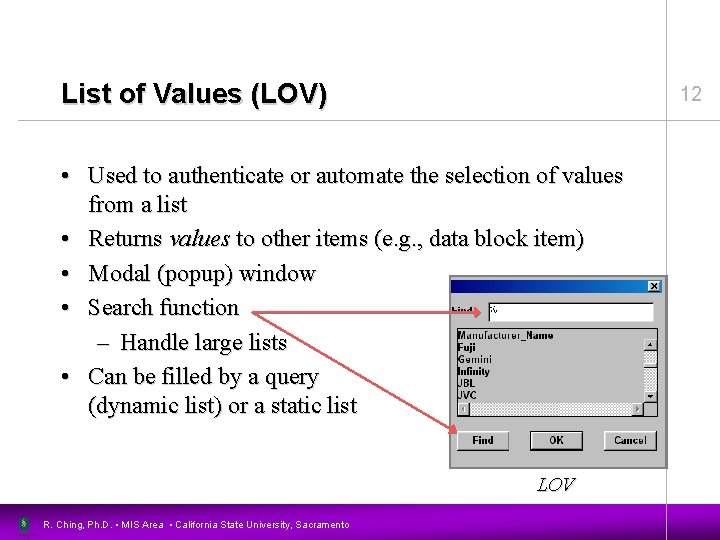
List of Values (LOV) 12 • Used to authenticate or automate the selection of values from a list • Returns values to other items (e. g. , data block item) • Modal (popup) window • Search function – Handle large lists • Can be filled by a query (dynamic list) or a static list LOV R. Ching, Ph. D. • MIS Area • California State University, Sacramento
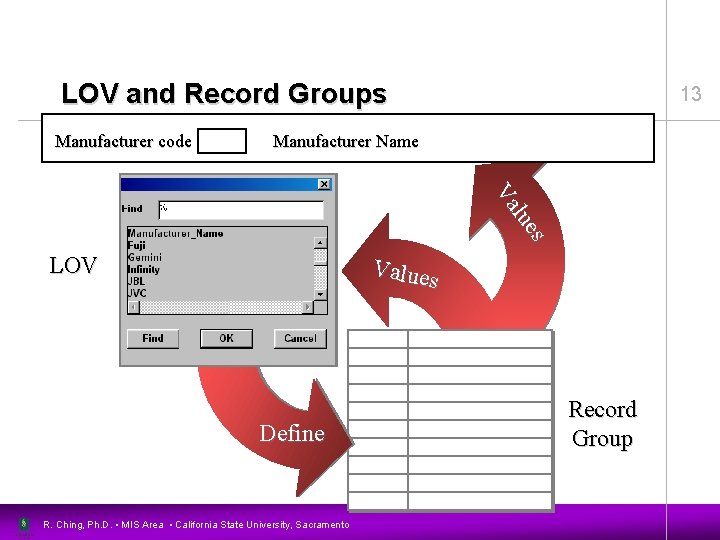
LOV and Record Groups Manufacturer code 13 Manufacturer Name s lue Va LOV Values Define R. Ching, Ph. D. • MIS Area • California State University, Sacramento Record Group
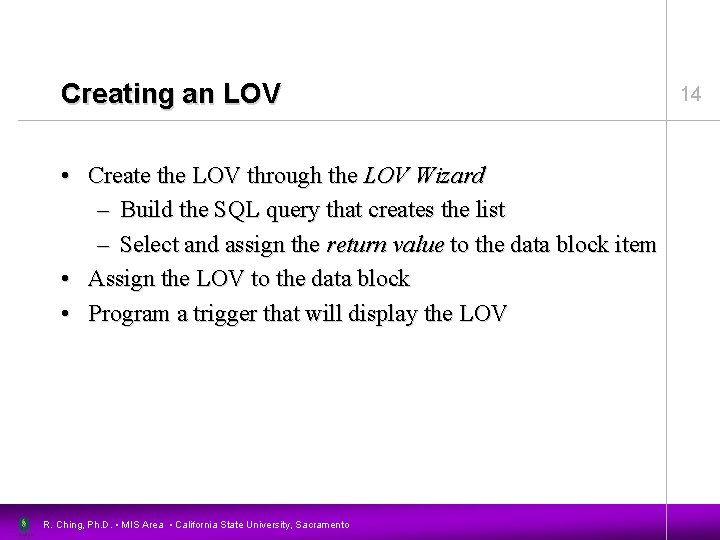
Creating an LOV • Create the LOV through the LOV Wizard – Build the SQL query that creates the list – Select and assign the return value to the data block item • Assign the LOV to the data block • Program a trigger that will display the LOV R. Ching, Ph. D. • MIS Area • California State University, Sacramento 14
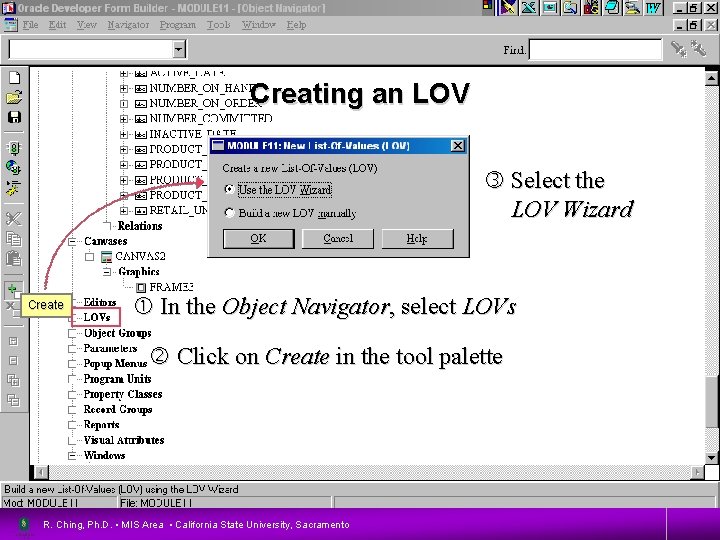
Creating an LOV 15 Select the LOV Wizard Create In the Object Navigator, select LOVs Click on Create in the tool palette R. Ching, Ph. D. • MIS Area • California State University, Sacramento
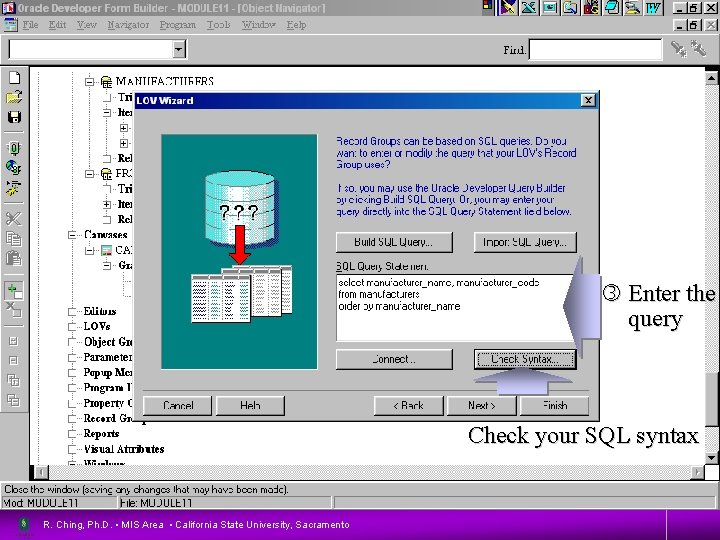
16 Enter the query Check your SQL syntax R. Ching, Ph. D. • MIS Area • California State University, Sacramento
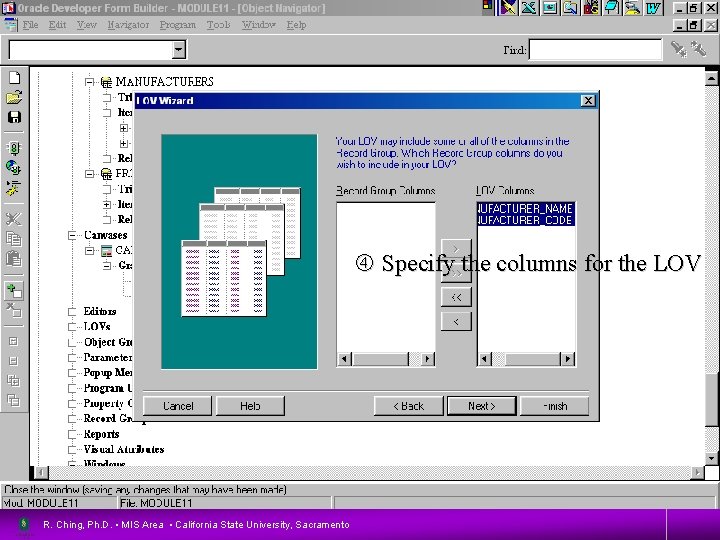
17 Specify the columns for the LOV R. Ching, Ph. D. • MIS Area • California State University, Sacramento
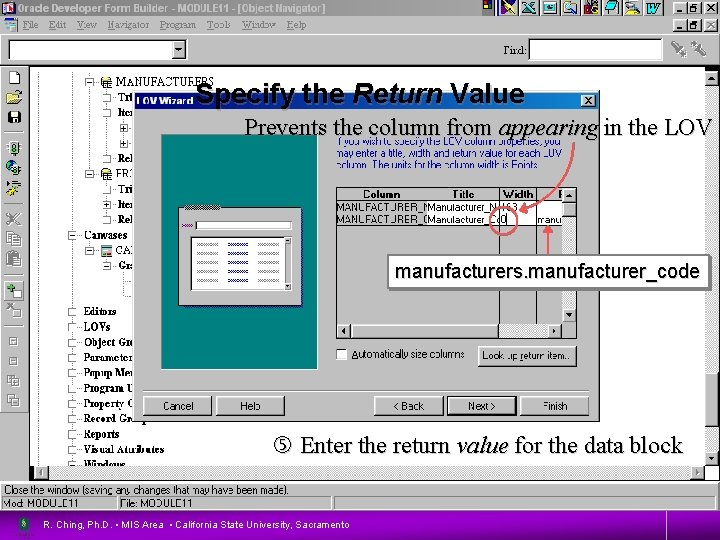
Specify the Return Value 18 Prevents the column from appearing in the LOV manufacturers. manufacturer_code Enter the return value for the data block R. Ching, Ph. D. • MIS Area • California State University, Sacramento
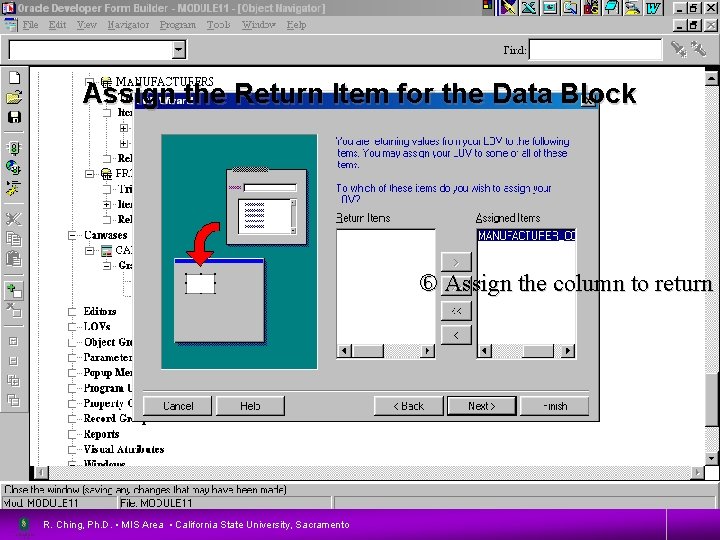
Assign the Return Item for the Data Block 19 Assign the column to return R. Ching, Ph. D. • MIS Area • California State University, Sacramento
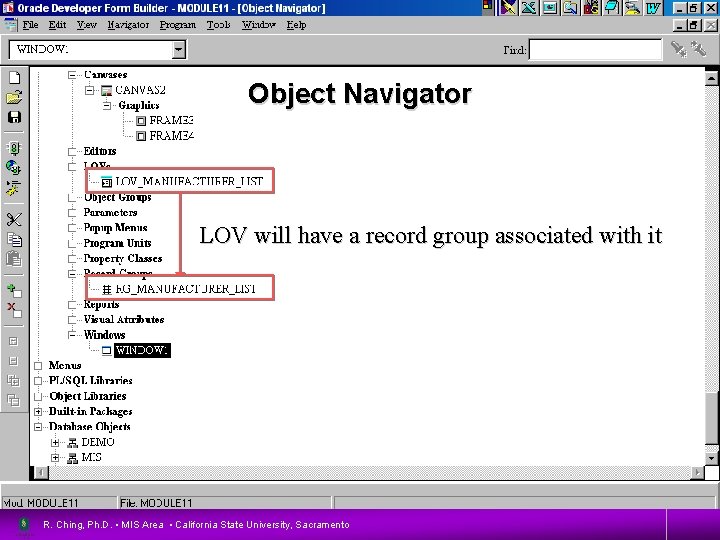
Object Navigator LOV will have a record group associated with it R. Ching, Ph. D. • MIS Area • California State University, Sacramento 20
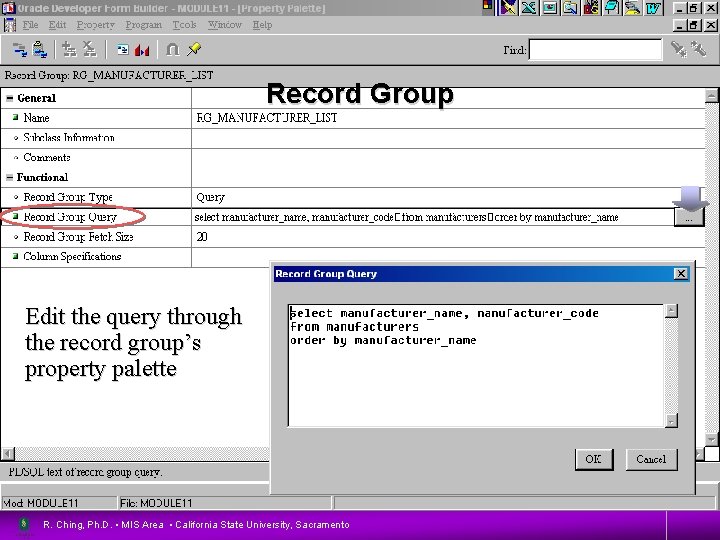
Record Group Edit the query through the record group’s property palette R. Ching, Ph. D. • MIS Area • California State University, Sacramento 21
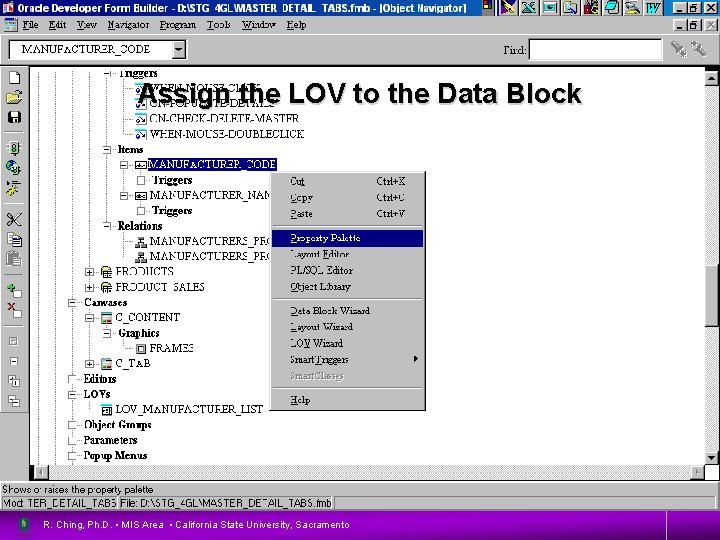
Assign the LOV to the Data Block R. Ching, Ph. D. • MIS Area • California State University, Sacramento 22
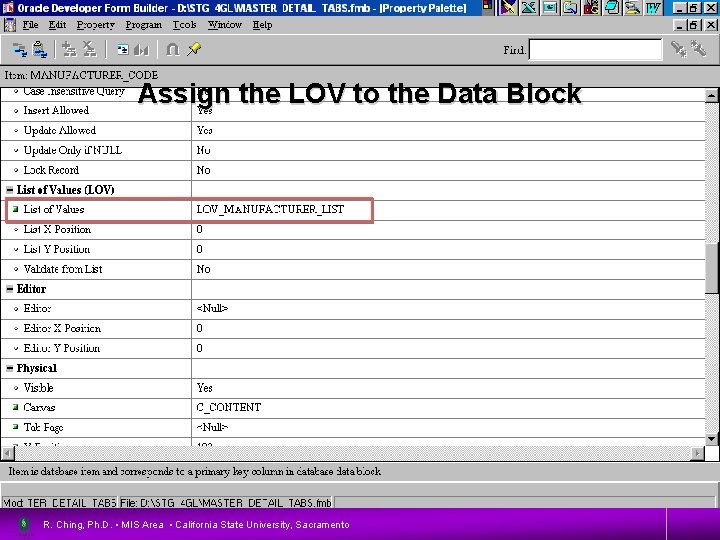
Assign the LOV to the Data Block R. Ching, Ph. D. • MIS Area • California State University, Sacramento 23
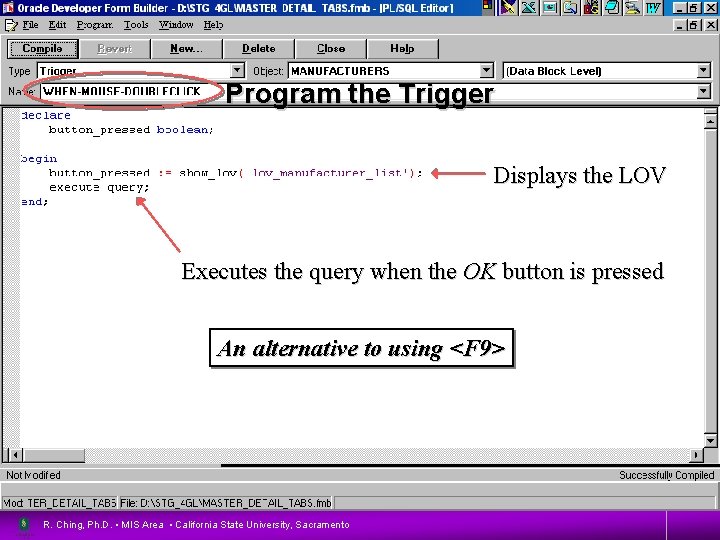
Program the Trigger Displays the LOV Executes the query when the OK button is pressed An alternative to using <F 9> R. Ching, Ph. D. • MIS Area • California State University, Sacramento 24
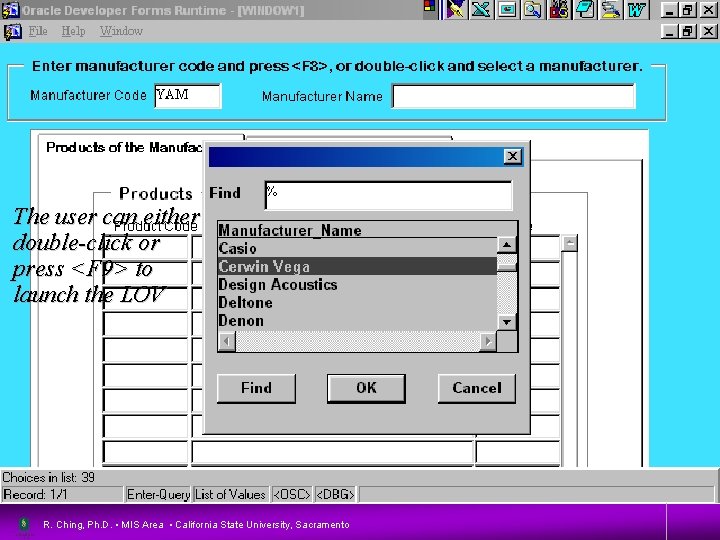
25 The user can either double-click or press <F 9> to launch the LOV R. Ching, Ph. D. • MIS Area • California State University, Sacramento
26 Dealing with Errors and Problems R. Ching, Ph. D. • MIS Area • California State University, Sacramento
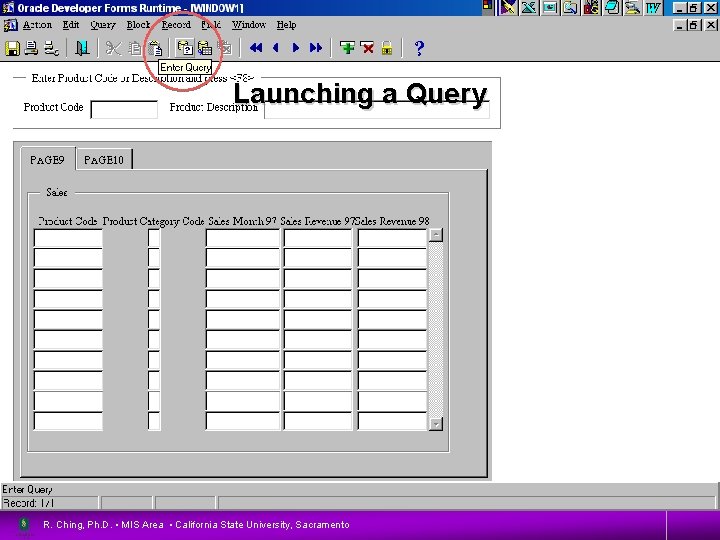
Launching a Query R. Ching, Ph. D. • MIS Area • California State University, Sacramento 27
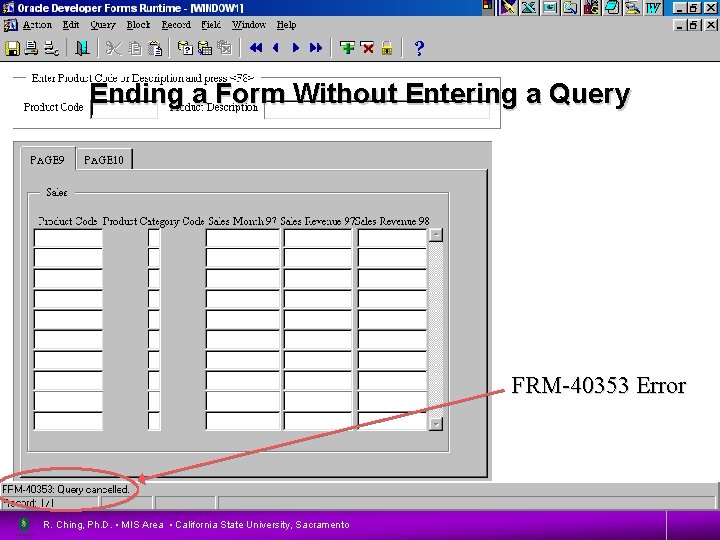
Ending a Form Without Entering a Query 28 FRM-40353 Error R. Ching, Ph. D. • MIS Area • California State University, Sacramento
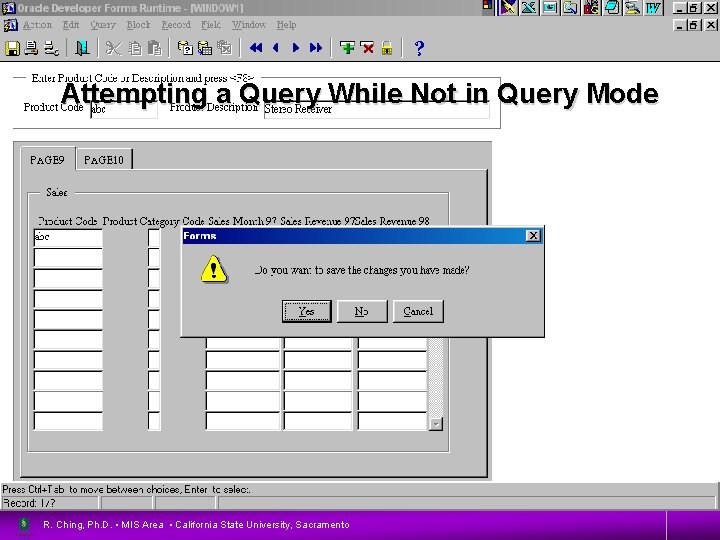
Attempting a Query While Not in Query Mode R. Ching, Ph. D. • MIS Area • California State University, Sacramento 29
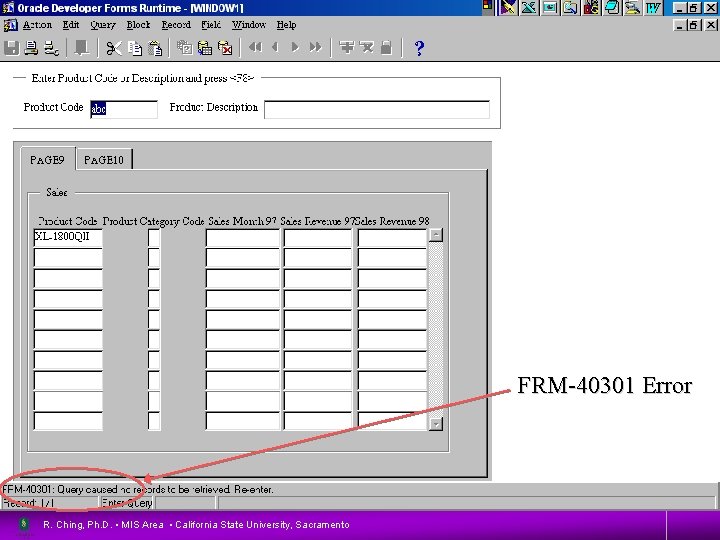
30 FRM-40301 Error R. Ching, Ph. D. • MIS Area • California State University, Sacramento
Overcoming Problems with Triggers • • Maximize the MDI and form module windows Enter query mode when the form is launched Re-enter query mode after every query Cancel the query if no query is entered when exiting the form • Suppress system alerts and messages R. Ching, Ph. D. • MIS Area • California State University, Sacramento 31
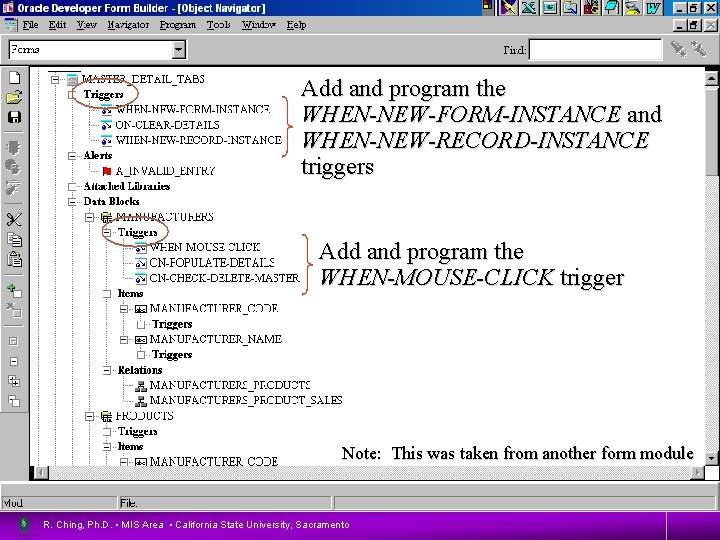
Add and program the 32 WHEN-NEW-FORM-INSTANCE and WHEN-NEW-RECORD-INSTANCE triggers Add and program the WHEN-MOUSE-CLICK trigger Note: This was taken from another form module R. Ching, Ph. D. • MIS Area • California State University, Sacramento
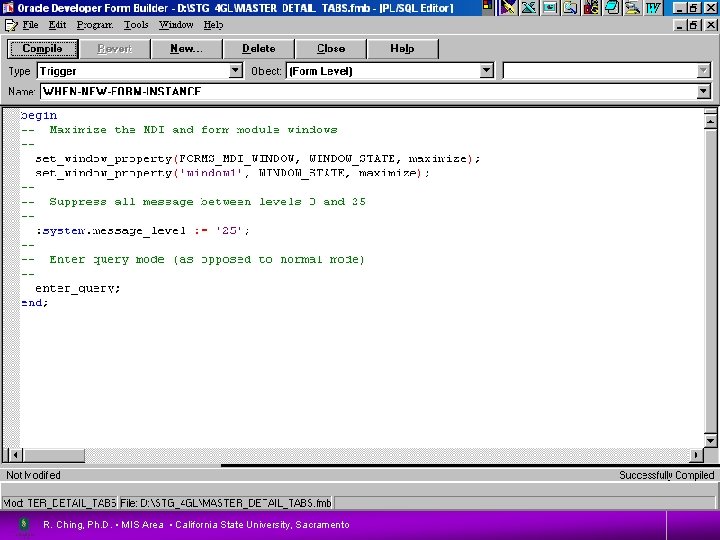
33 R. Ching, Ph. D. • MIS Area • California State University, Sacramento
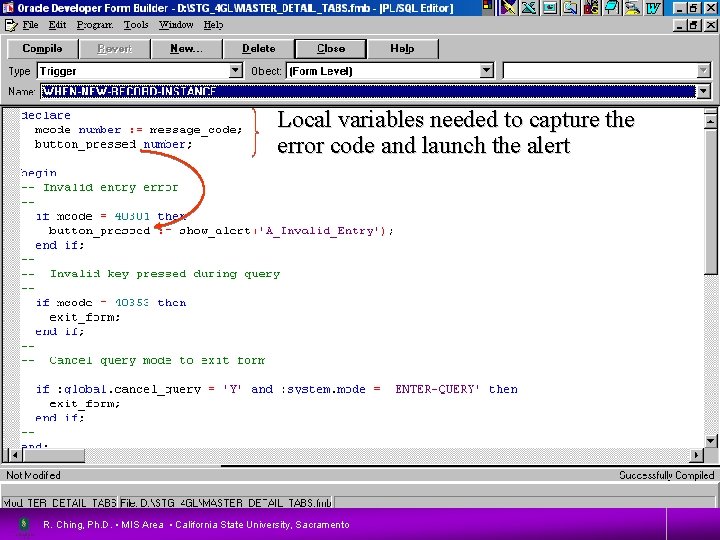
34 Local variables needed to capture the error code and launch the alert R. Ching, Ph. D. • MIS Area • California State University, Sacramento
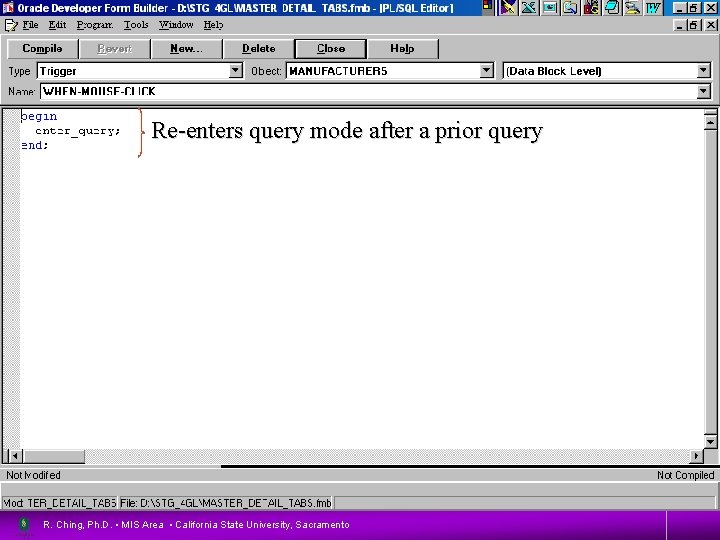
35 Re-enters query mode after a prior query R. Ching, Ph. D. • MIS Area • California State University, Sacramento
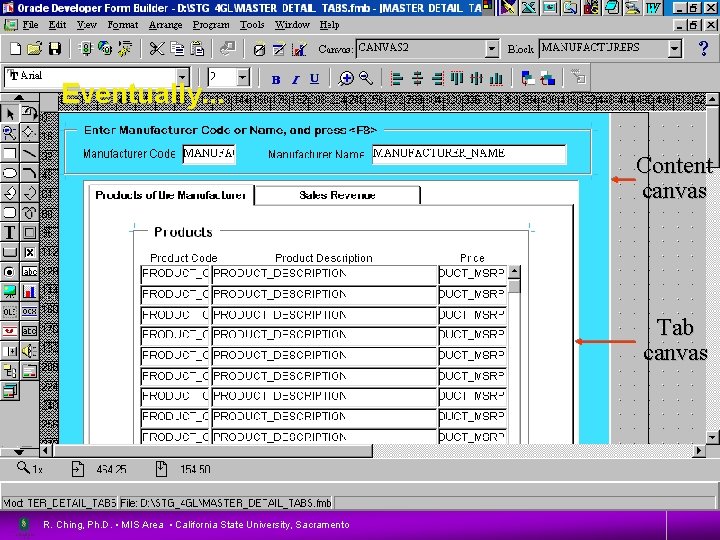
Eventually. . . 36 Content canvas Tab canvas R. Ching, Ph. D. • MIS Area • California State University, Sacramento
37 OLE: Object Linking and Embedding R. Ching, Ph. D. • MIS Area • California State University, Sacramento
Object Linking and Embedding (OLE) • Allows the developer to link or embed objects within other files objects – An object can be a document, spreadsheet, graphic (GIF, TIF, JPEG, etc. ), etc. R. Ching, Ph. D. • MIS Area • California State University, Sacramento 38
OLE Architecture • Divides tools into OLE servers and containers – Server - an application that creates and serves OLE objects in other applications – Container - an application that provides facilities for creation, manipulation and storage of OLE objects R. Ching, Ph. D. • MIS Area • California State University, Sacramento 39
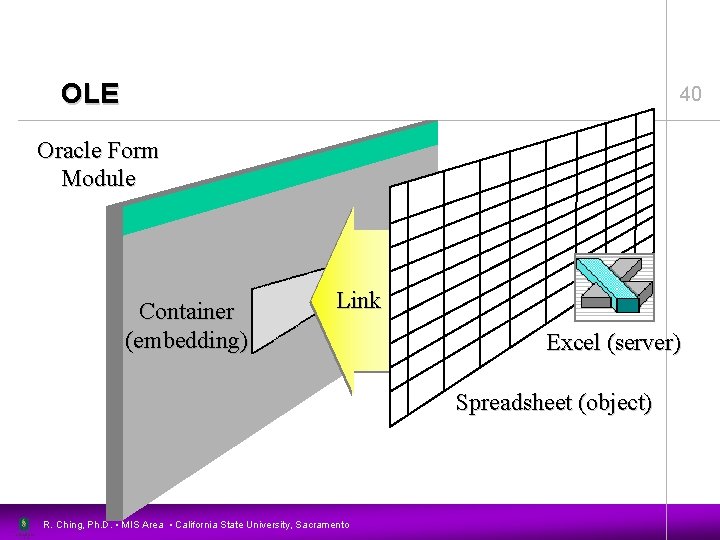
OLE 40 Oracle Form Module Container (embedding) Link Excel (server) Spreadsheet (object) R. Ching, Ph. D. • MIS Area • California State University, Sacramento

Access • Activation - connecting to the server application and using its features to manipulate and display the object – In-place Activation • Activates within the container application • Focus on the object – External Activation (default) • Activates within the server application • Object updated upon close R. Ching, Ph. D. • MIS Area • California State University, Sacramento 41
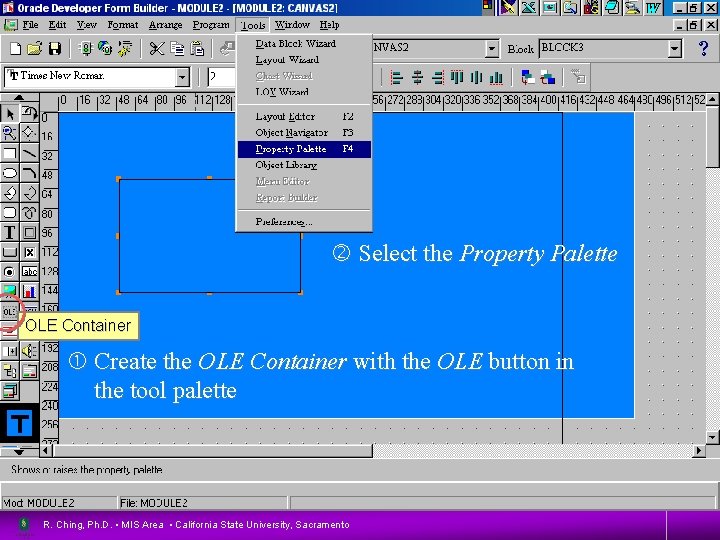
Create the OLE Container Select the Property Palette OLE Container Create the OLE Container with the OLE button in the tool palette R. Ching, Ph. D. • MIS Area • California State University, Sacramento 42
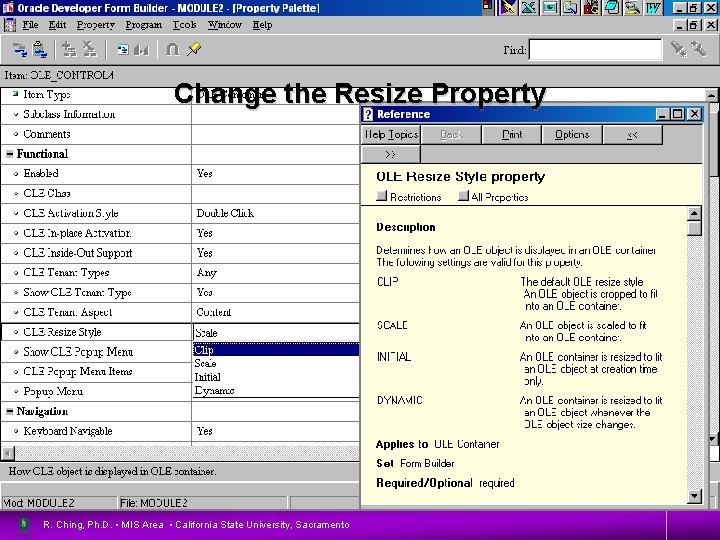
Change the Resize Property R. Ching, Ph. D. • MIS Area • California State University, Sacramento 43
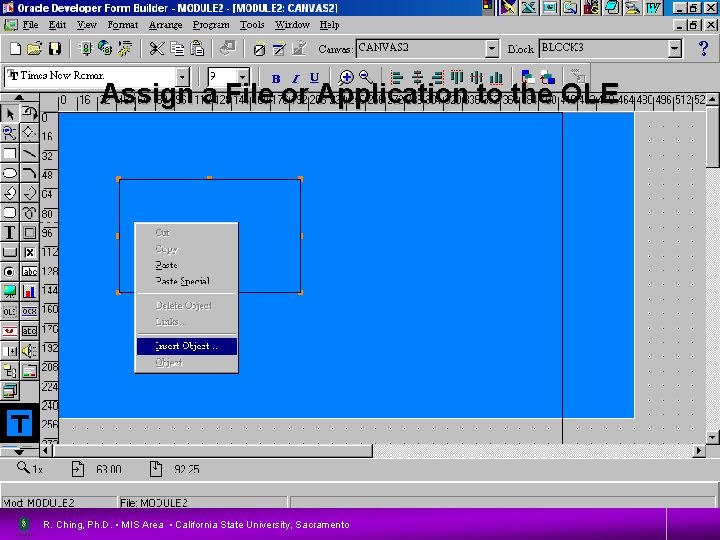
Assign a File or Application to the OLE R. Ching, Ph. D. • MIS Area • California State University, Sacramento 44
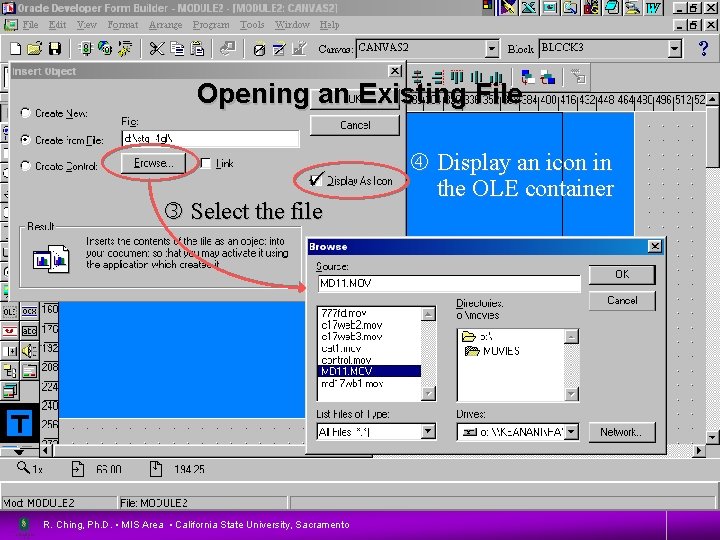
Opening an Existing File Select the file R. Ching, Ph. D. • MIS Area • California State University, Sacramento Display an icon in the OLE container 45
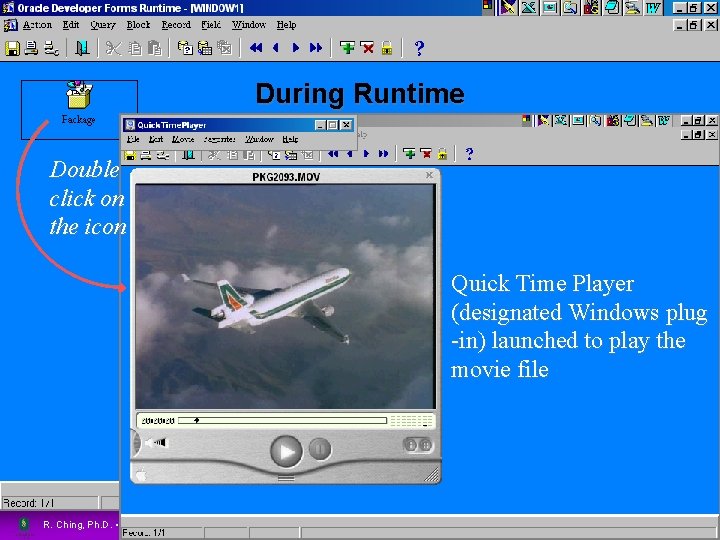
During Runtime 46 Double click on the icon Quick Time Player (designated Windows plug -in) launched to play the movie file R. Ching, Ph. D. • MIS Area • California State University, Sacramento
47 R. Ching, Ph. D. • MIS Area • California State University, Sacramento
- Slides: 47