
1 Tutorial 4 Designing the Inventory Application Introducing
- Slides: 37
1 Tutorial 4 – Designing the Inventory Application Introducing Text. Boxes and Buttons Outline 4. 1 4. 2 4. 3 4. 4 Test-Driving the Inventory Application Constructing the Inventory Application Adding Labels to the Inventory Application Adding Text. Boxes and a Button to the Form Wrap-Up 2003 Prentice Hall, Inc. All rights reserved.
2 Objectives • In this tutorial, you will learn to: – – Visually program, using GUI design guidelines. Rename the Form and set the Form as the startup object. Add Labels, Text. Boxes and a Button to the Form. Use the Text. Align and Border. Style properties for Labels. 2003 Prentice Hall, Inc. All rights reserved.
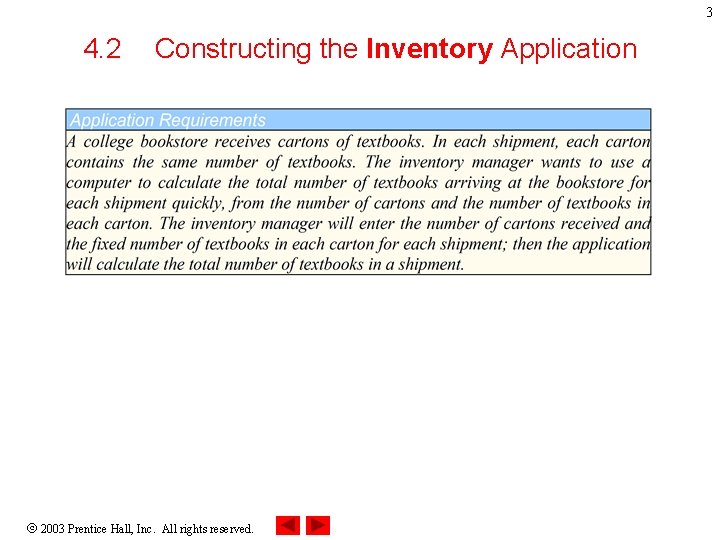
3 4. 2 Constructing the Inventory Application 2003 Prentice Hall, Inc. All rights reserved.
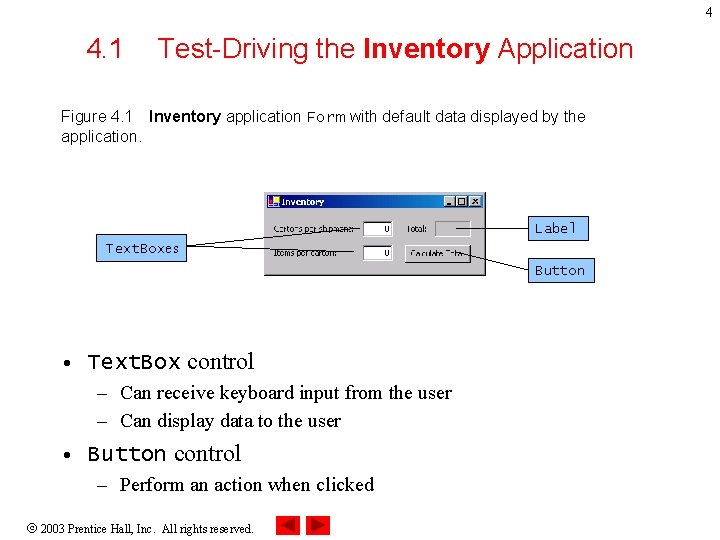
4 4. 1 Test-Driving the Inventory Application Figure 4. 1 Inventory application Form with default data displayed by the application. Label Text. Boxes Button • Text. Box control – Can receive keyboard input from the user – Can display data to the user • Button control – Perform an action when clicked 2003 Prentice Hall, Inc. All rights reserved.
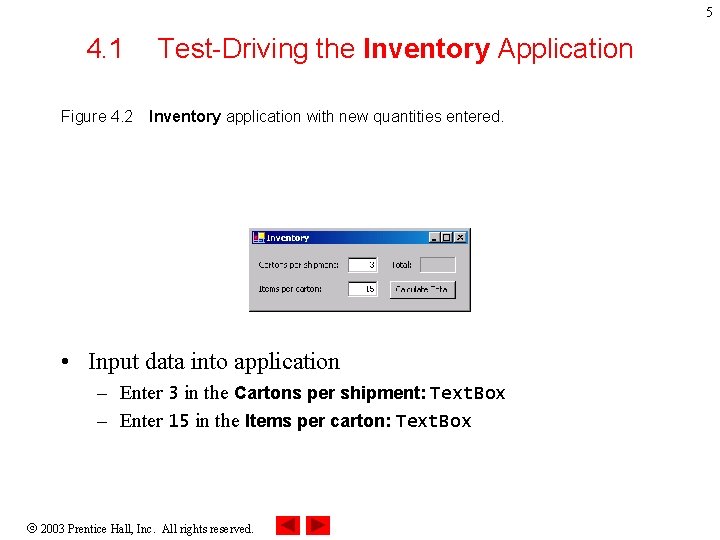
5 4. 1 Figure 4. 2 Test-Driving the Inventory Application Inventory application with new quantities entered. • Input data into application – Enter 3 in the Cartons per shipment: Text. Box – Enter 15 in the Items per carton: Text. Box 2003 Prentice Hall, Inc. All rights reserved.
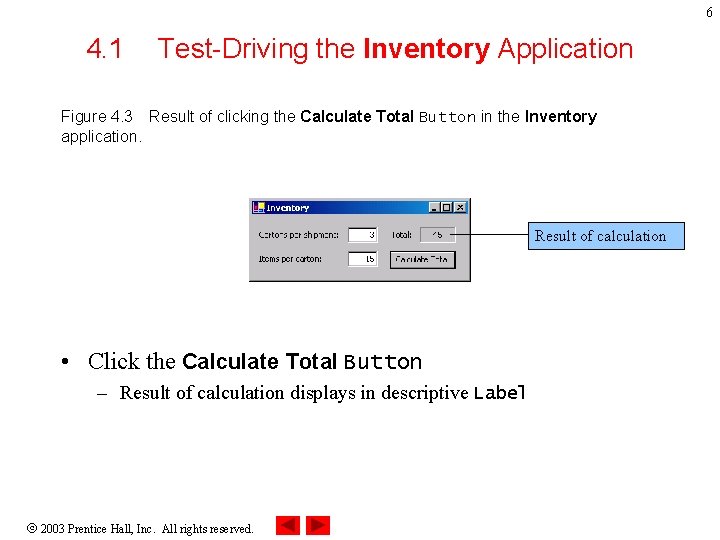
6 4. 1 Test-Driving the Inventory Application Figure 4. 3 Result of clicking the Calculate Total Button in the Inventory application. Result of calculation • Click the Calculate Total Button – Result of calculation displays in descriptive Label 2003 Prentice Hall, Inc. All rights reserved.
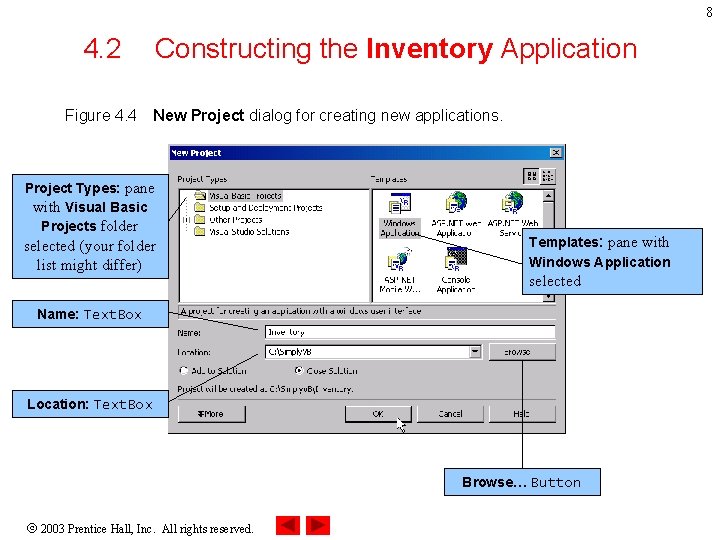
7 4. 2 Constructing the Inventory Application • Creating a new project – – – Select File > New > Project… Specify a name in the Name: Text. Box Specify the location in the Location: Textbox Specify the project type Specify the template to use 2003 Prentice Hall, Inc. All rights reserved.
8 4. 2 Figure 4. 4 Constructing the Inventory Application New Project dialog for creating new applications. Project Types: pane with Visual Basic Projects folder selected (your folder list might differ) Templates: pane with Windows Application selected Name: Text. Box Location: Text. Box Browse… Button 2003 Prentice Hall, Inc. All rights reserved.
9 4. 2 Constructing the Inventory Application • Storing the project – Specify folder in Project Location dialog 2003 Prentice Hall, Inc. All rights reserved.
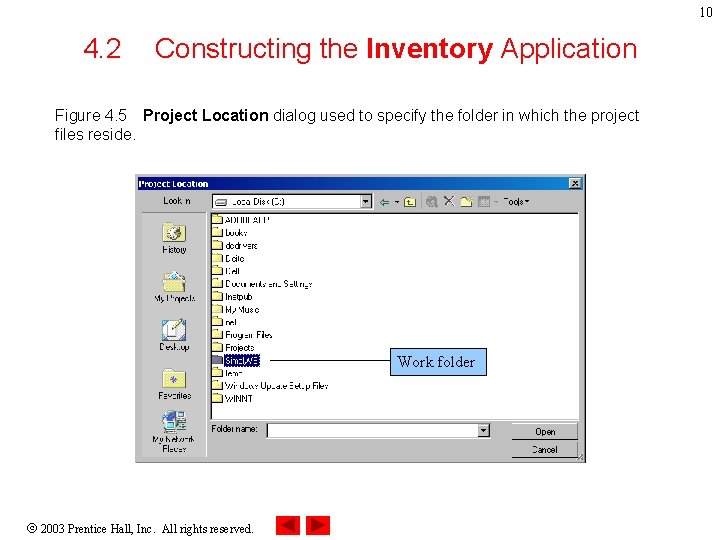
10 4. 2 Constructing the Inventory Application Figure 4. 5 Project Location dialog used to specify the folder in which the project files reside. Work folder 2003 Prentice Hall, Inc. All rights reserved.
11 4. 2 Constructing the Inventory Application • The Integrated Development Environment – The Form • Renaming the project – Solution Explorer – File Name property 2003 Prentice Hall, Inc. All rights reserved.
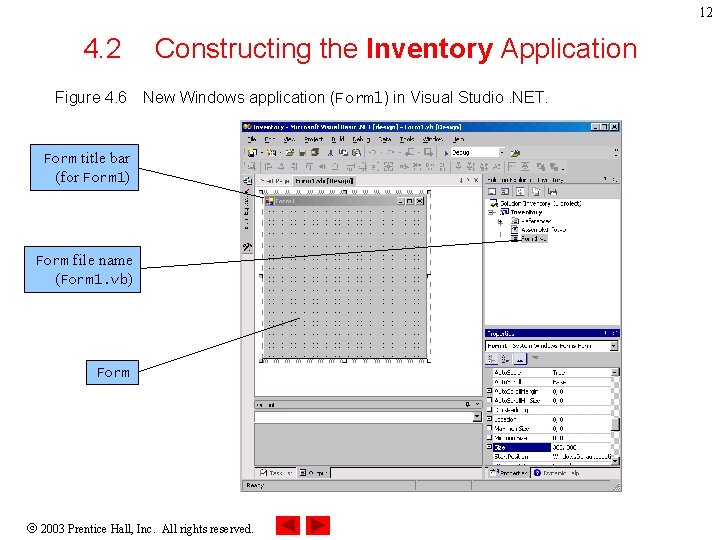
12 4. 2 Figure 4. 6 Constructing the Inventory Application New Windows application (Form 1) in Visual Studio. NET. Form title bar (for Form 1) Form file name (Form 1. vb) Form 2003 Prentice Hall, Inc. All rights reserved.
13 4. 2 Constructing the Inventory Application • Accessing project properties – The Properties icon – Context menu 2003 Prentice Hall, Inc. All rights reserved.
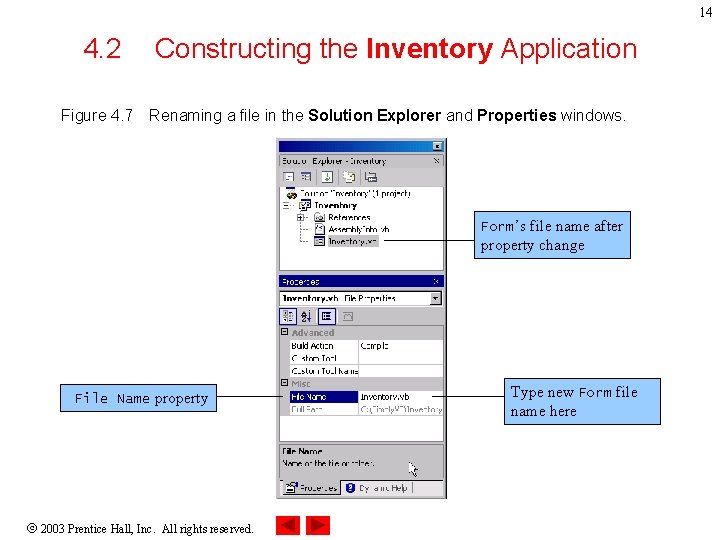
14 4. 2 Figure 4. 7 Constructing the Inventory Application Renaming a file in the Solution Explorer and Properties windows. Form’s file name after property change File Name property 2003 Prentice Hall, Inc. All rights reserved. Type new Form file name here
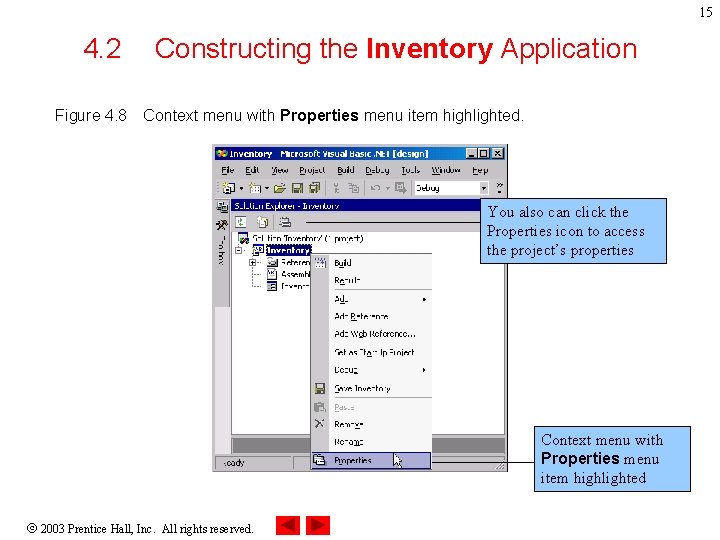
15 4. 2 Figure 4. 8 Constructing the Inventory Application Context menu with Properties menu item highlighted. You also can click the Properties icon to access the project’s properties Context menu with Properties menu item highlighted 2003 Prentice Hall, Inc. All rights reserved.
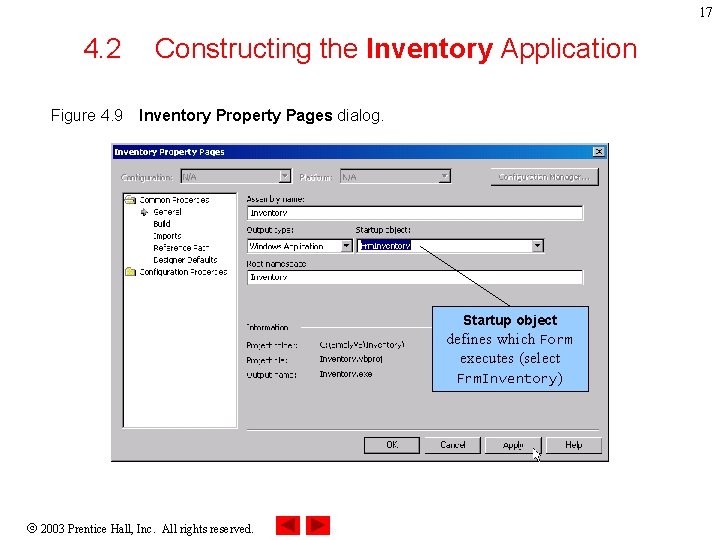
16 4. 2 Constructing the Inventory Application • Inventory Property Pages dialog – Specify the Startup object 2003 Prentice Hall, Inc. All rights reserved.
17 4. 2 Figure 4. 9 Constructing the Inventory Application Inventory Property Pages dialog. Startup object defines which Form executes (select Frm. Inventory) 2003 Prentice Hall, Inc. All rights reserved.
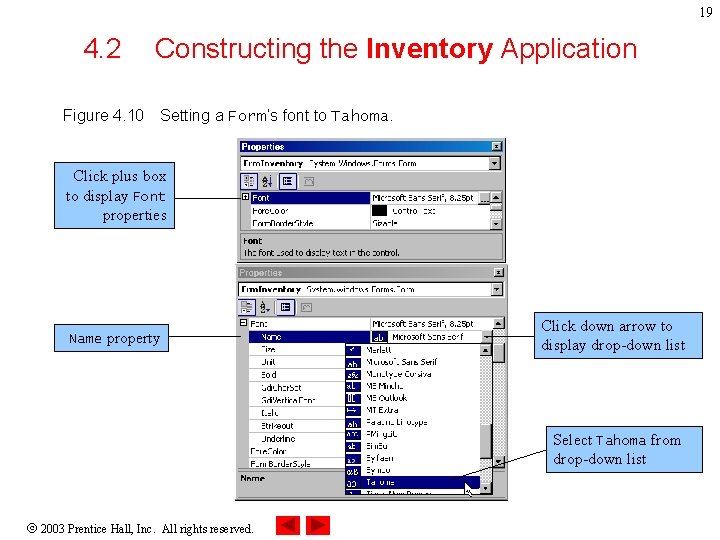
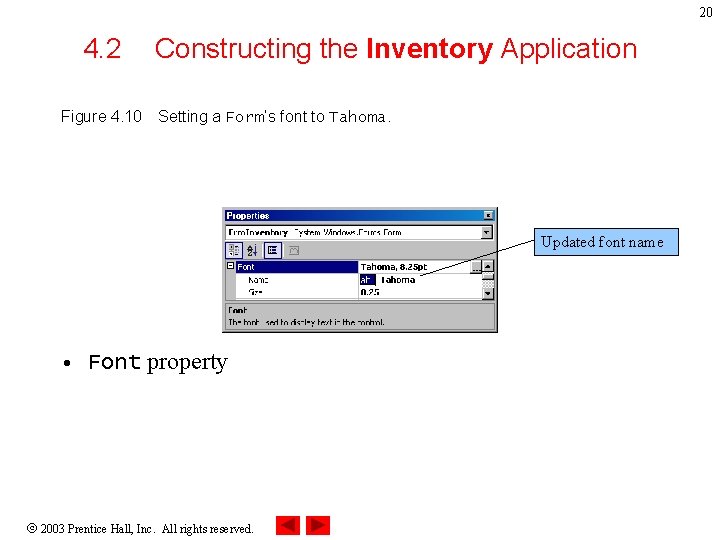
18 4. 2 Constructing the Inventory Application • Font property – Accessing the menu – Changing the Font name 2003 Prentice Hall, Inc. All rights reserved.
19 4. 2 Figure 4. 10 Constructing the Inventory Application Setting a Form’s font to Tahoma. Click plus box to display Font properties Name property Click down arrow to display drop-down list Select Tahoma from drop-down list 2003 Prentice Hall, Inc. All rights reserved.
20 4. 2 Figure 4. 10 Constructing the Inventory Application Setting a Form’s font to Tahoma. Updated font name • Font property 2003 Prentice Hall, Inc. All rights reserved.
21 4. 2 Constructing the Inventory Application • Text property – Changing the Text property 2003 Prentice Hall, Inc. All rights reserved.
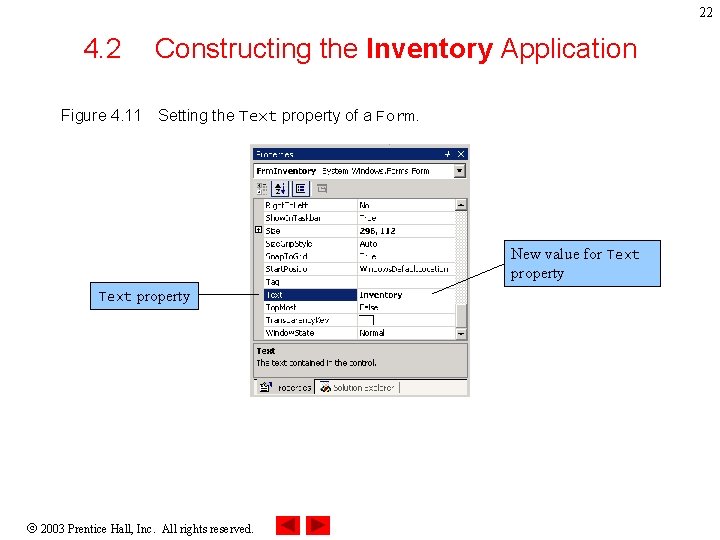
22 4. 2 Figure 4. 11 Constructing the Inventory Application Setting the Text property of a Form. New value for Text property 2003 Prentice Hall, Inc. All rights reserved.
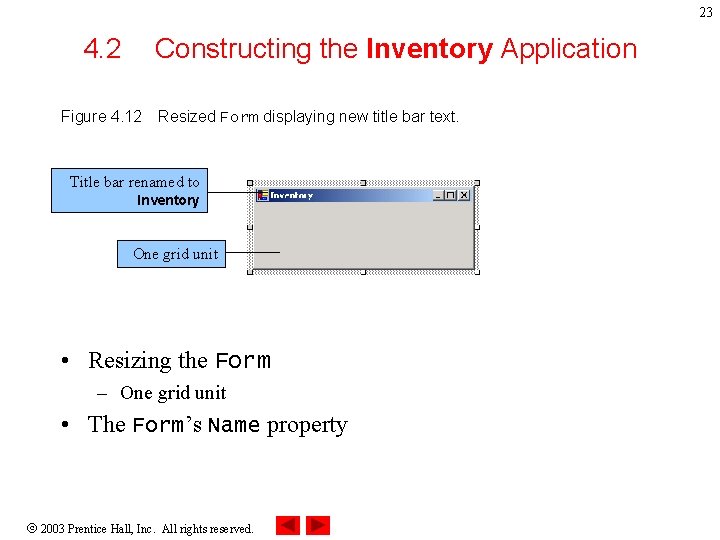
23 4. 2 Constructing the Inventory Application Figure 4. 12 Resized Form displaying new title bar text. Title bar renamed to Inventory One grid unit • Resizing the Form – One grid unit • The Form’s Name property 2003 Prentice Hall, Inc. All rights reserved.
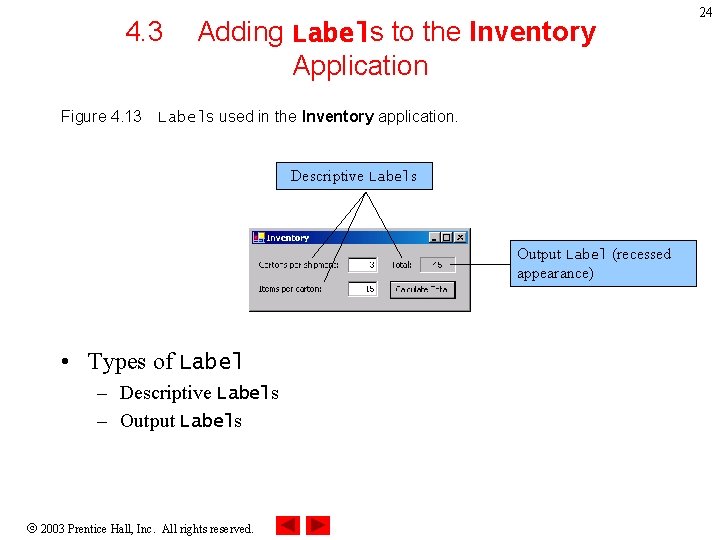
4. 3 Figure 4. 13 Adding Labels to the Inventory Application Labels used in the Inventory application. Descriptive Labels Output Label (recessed appearance) • Types of Label – Descriptive Labels – Output Labels 2003 Prentice Hall, Inc. All rights reserved. 24
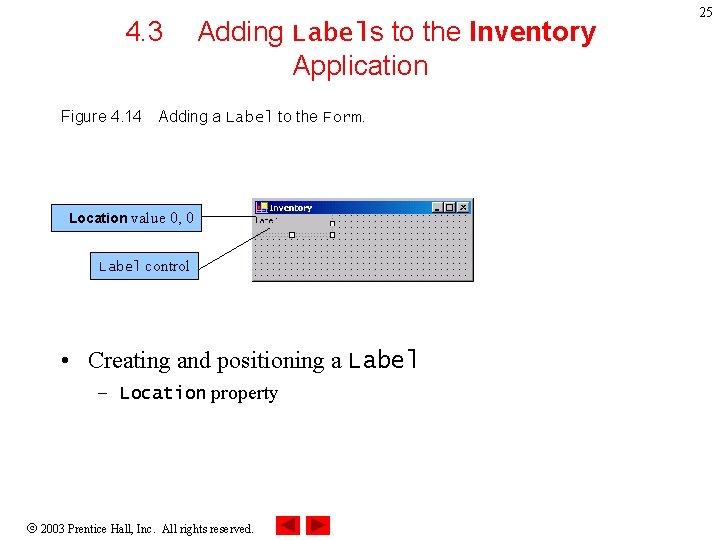
4. 3 Figure 4. 14 Adding Labels to the Inventory Application Adding a Label to the Form. Location value 0, 0 Label control • Creating and positioning a Label – Location property 2003 Prentice Hall, Inc. All rights reserved. 25
4. 3 Adding Labels to the Inventory Application • Formatting text – Text alignment 2003 Prentice Hall, Inc. All rights reserved. 26
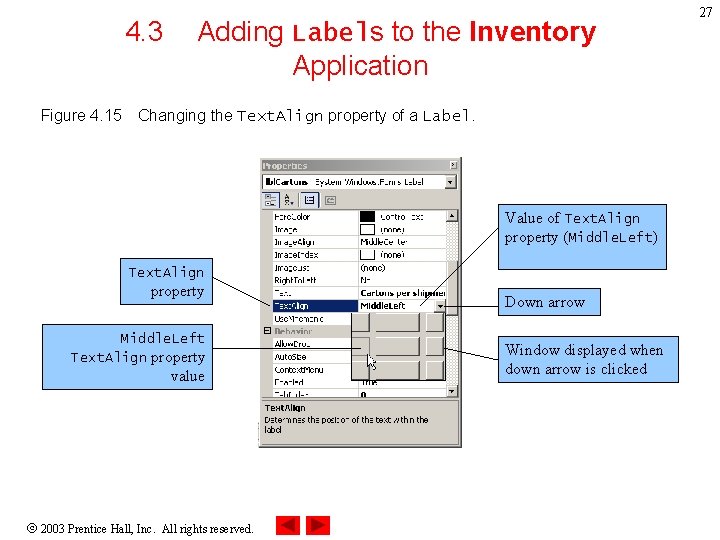
4. 3 Figure 4. 15 Adding Labels to the Inventory Application Changing the Text. Align property of a Label. Value of Text. Align property (Middle. Left) Text. Align property Middle. Left Text. Align property value 2003 Prentice Hall, Inc. All rights reserved. Down arrow Window displayed when down arrow is clicked 27
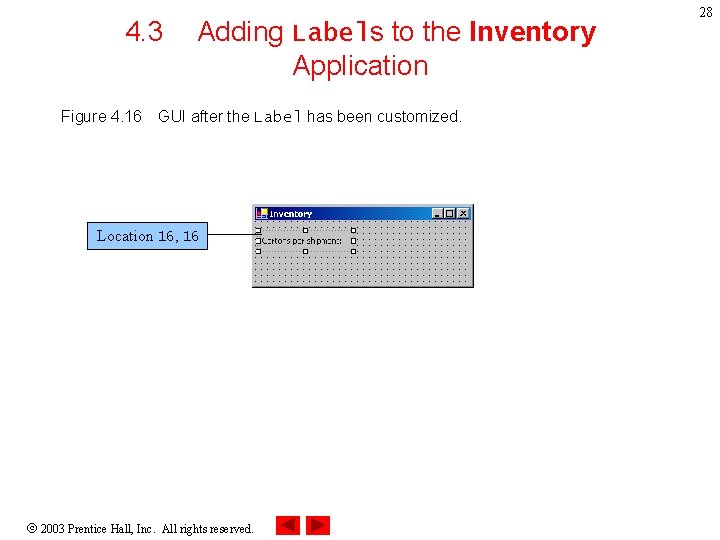
4. 3 Figure 4. 16 Adding Labels to the Inventory Application GUI after the Label has been customized. Location 16, 16 2003 Prentice Hall, Inc. All rights reserved. 28
4. 3 Adding Labels to the Inventory Application • Descriptive Labels – Middle. Center alignment 2003 Prentice Hall, Inc. All rights reserved. 29
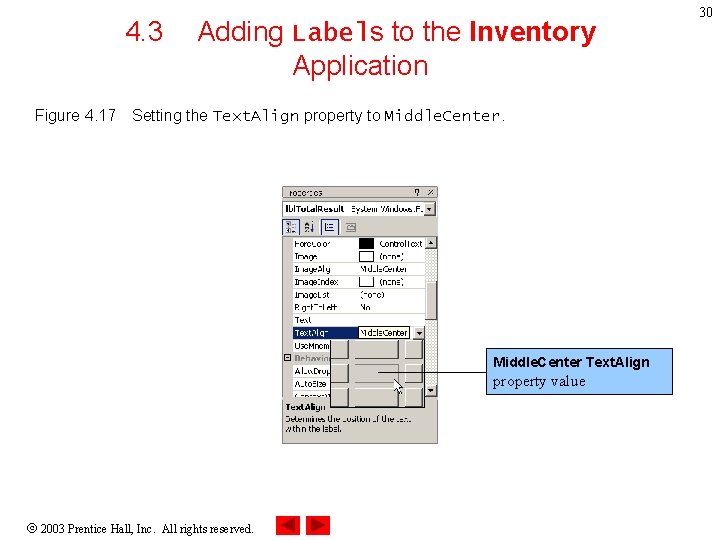
4. 3 Figure 4. 17 Adding Labels to the Inventory Application Setting the Text. Align property to Middle. Center Text. Align property value 2003 Prentice Hall, Inc. All rights reserved. 30
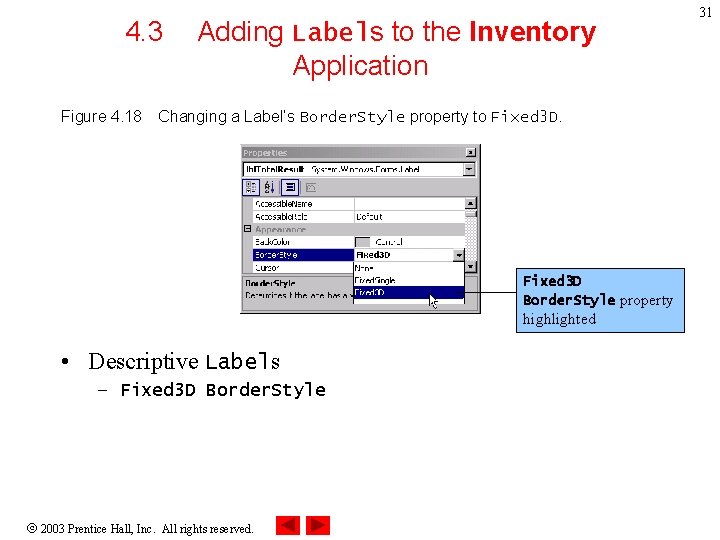
4. 3 Figure 4. 18 Adding Labels to the Inventory Application Changing a Label’s Border. Style property to Fixed 3 D Border. Style property highlighted • Descriptive Labels – Fixed 3 D Border. Style 2003 Prentice Hall, Inc. All rights reserved. 31
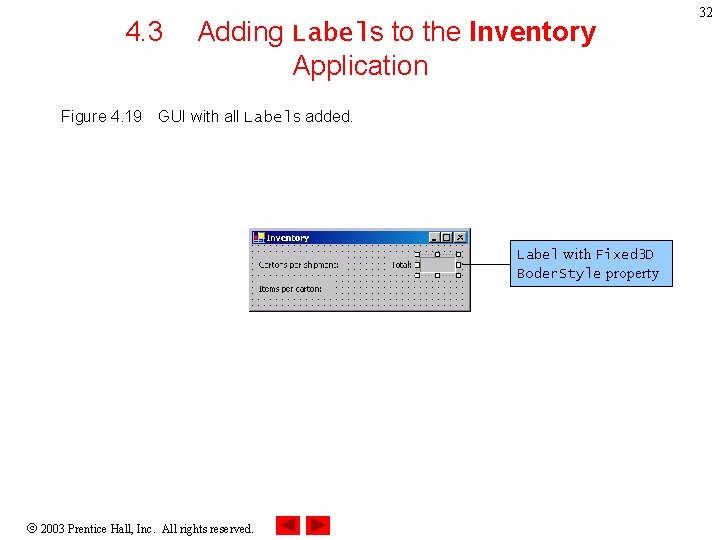
4. 3 Figure 4. 19 Adding Labels to the Inventory Application GUI with all Labels added. Label with Fixed 3 D Boder. Style property 2003 Prentice Hall, Inc. All rights reserved. 32
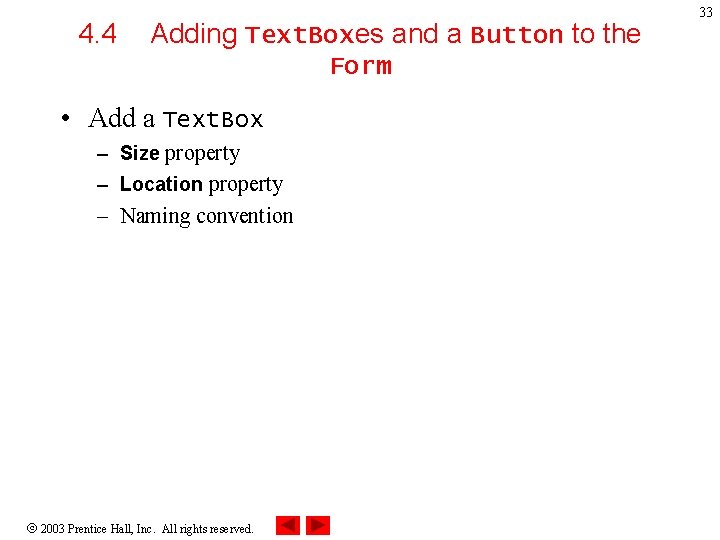
4. 4 Adding Text. Boxes and a Button to the Form • Add a Text. Box – Size property – Location property – Naming convention 2003 Prentice Hall, Inc. All rights reserved. 33
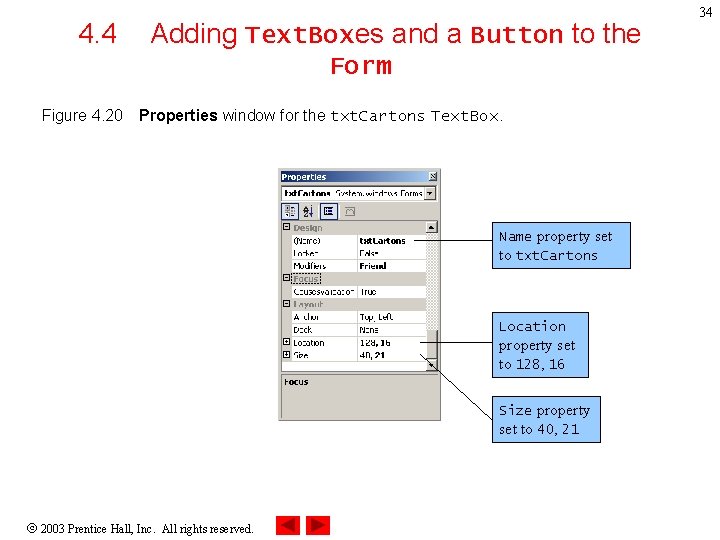
4. 4 Adding Text. Boxes and a Button to the Form Figure 4. 20 Properties window for the txt. Cartons Text. Box. Name property set to txt. Cartons Location property set to 128, 16 Size property set to 40, 21 2003 Prentice Hall, Inc. All rights reserved. 34
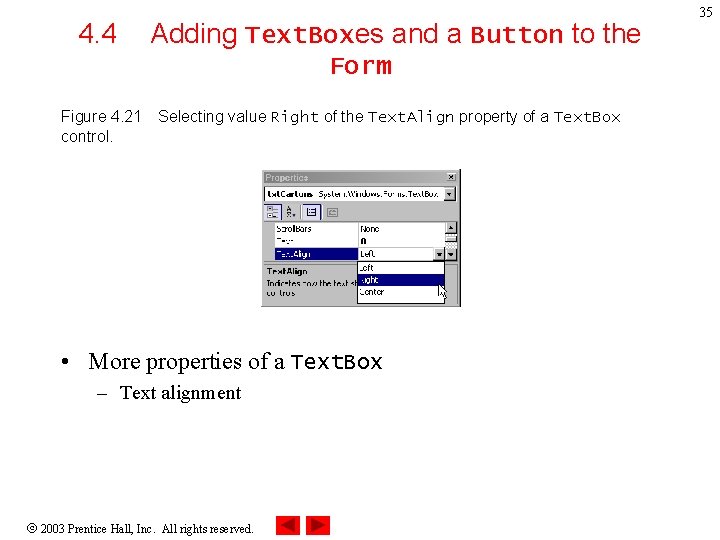
4. 4 Adding Text. Boxes and a Button to the Form Figure 4. 21 control. Selecting value Right of the Text. Align property of a Text. Box • More properties of a Text. Box – Text alignment 2003 Prentice Hall, Inc. All rights reserved. 35
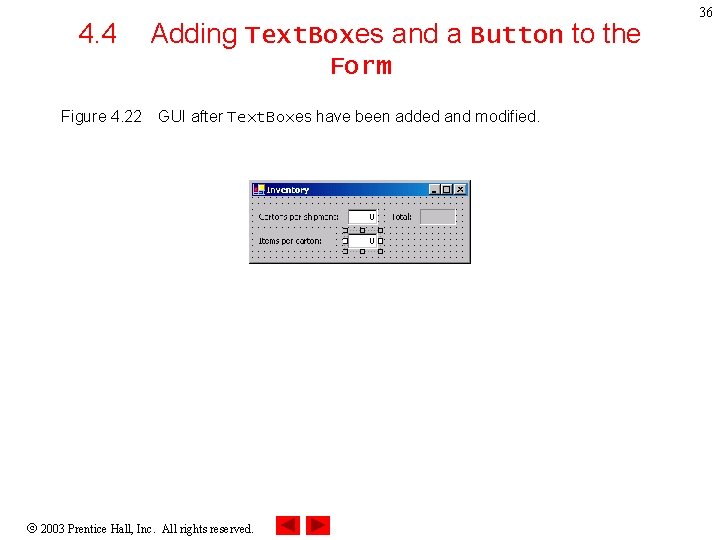
4. 4 Adding Text. Boxes and a Button to the Form Figure 4. 22 GUI after Text. Boxes have been added and modified. 2003 Prentice Hall, Inc. All rights reserved. 36
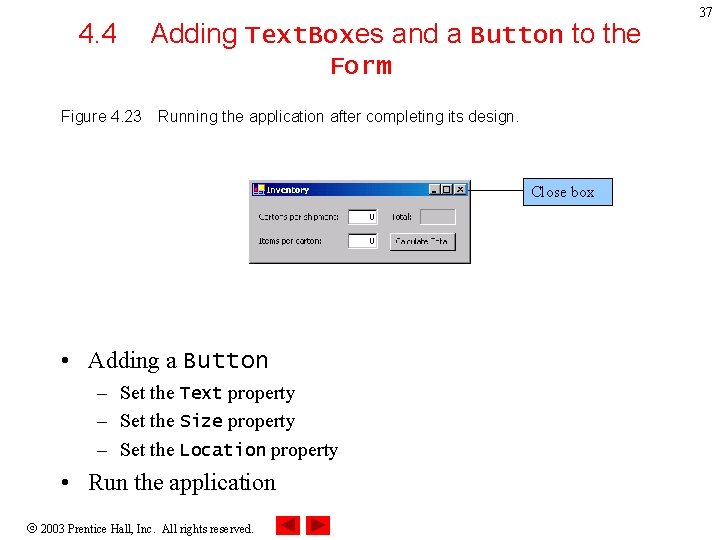
4. 4 Adding Text. Boxes and a Button to the Form Figure 4. 23 Running the application after completing its design. Close box • Adding a Button – Set the Text property – Set the Size property – Set the Location property • Run the application 2003 Prentice Hall, Inc. All rights reserved. 37