
1 Technology for Integration and Continuity Orientation for




- Slides: 78
1
Technology for Integration and Continuity Orientation for Primary Care Clinics Using TELUS PS Suite EMR Version: September 2020
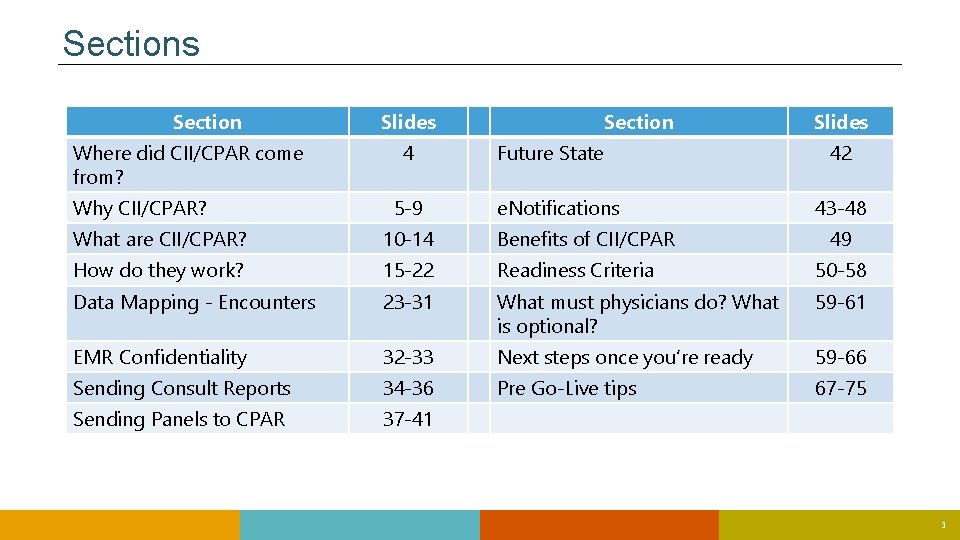
Sections Section Where did CII/CPAR come from? Why CII/CPAR? Slides 4 5 -9 Section Future State e. Notifications Slides 42 43 -48 What are CII/CPAR? 10 -14 Benefits of CII/CPAR 49 How do they work? 15 -22 Readiness Criteria 50 -58 Data Mapping - Encounters 23 -31 What must physicians do? What is optional? 59 -61 EMR Confidentiality 32 -33 Next steps once you’re ready 59 -66 Sending Consult Reports 34 -36 Pre Go-Live tips 67 -75 Sending Panels to CPAR 37 -41 3
CII and CPAR were at the Request of Physicians The Central Patient Attachment Registry was at the request of Family Medicine (SGP at the time). A commitment was made to build this tool for primary care. Alberta’s community specialists requested technology to submit consult reports to Netcare (CII) at AMA Rep Forum. Partners 4
Why Technology for Integration & Continuity? 5 5
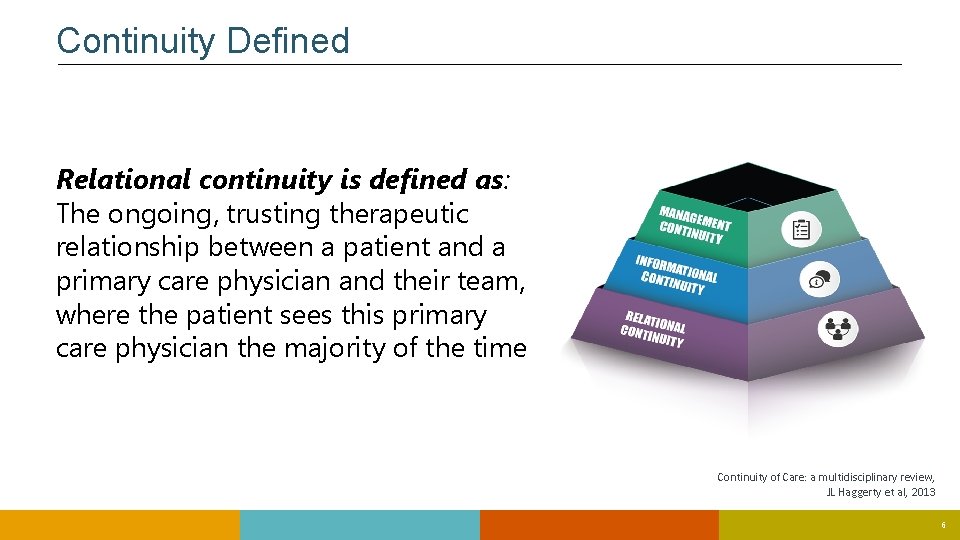
Continuity Defined Relational continuity is defined as: The ongoing, trusting therapeutic relationship between a patient and a primary care physician and their team, where the patient sees this primary care physician the majority of the time Continuity of Care: a multidisciplinary review, JL Haggerty et al, 2013 6
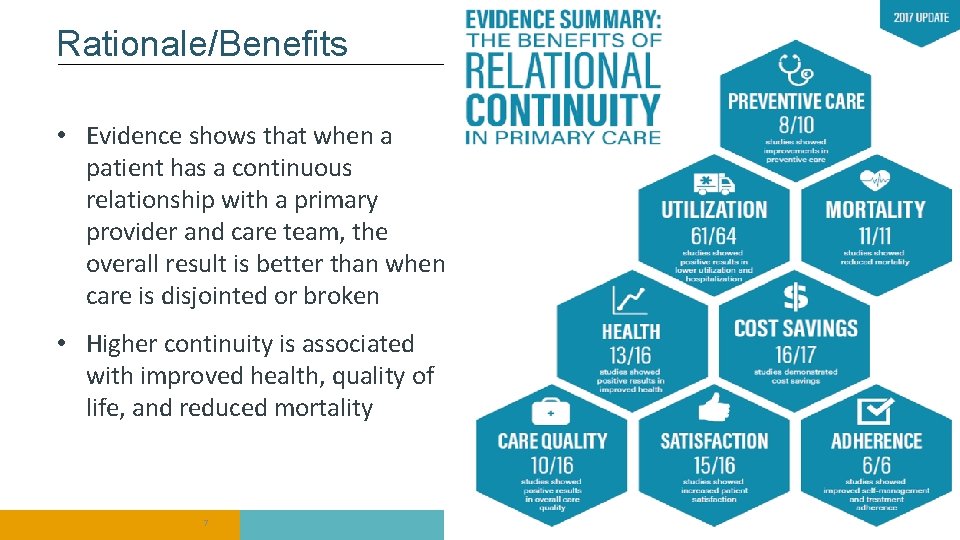
Rationale/Benefits • Evidence shows that when a patient has a continuous relationship with a primary provider and care team, the overall result is better than when care is disjointed or broken • Higher continuity is associated with improved health, quality of life, and reduced mortality 7 7
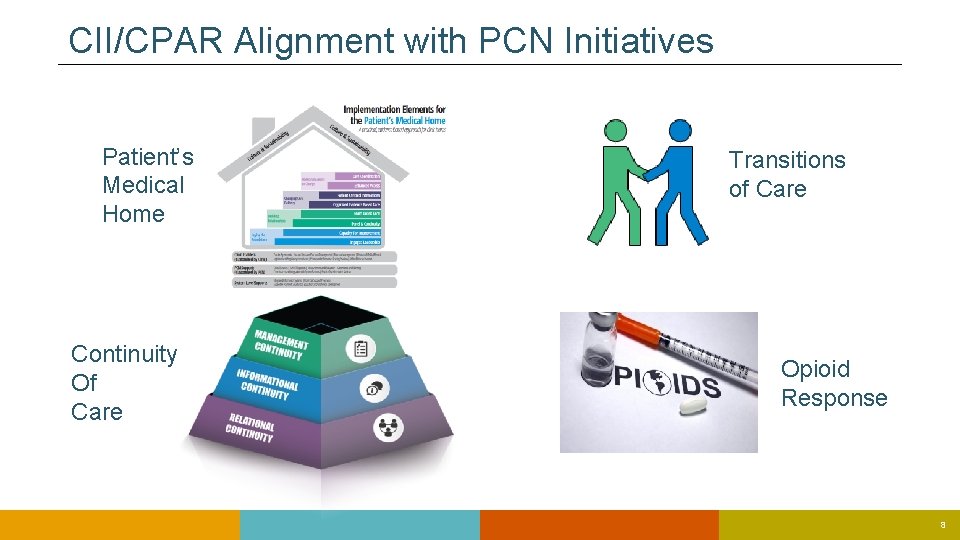
CII/CPAR Alignment with PCN Initiatives Patient’s Medical Home Continuity Of Care Transitions of Care Opioid Response 8
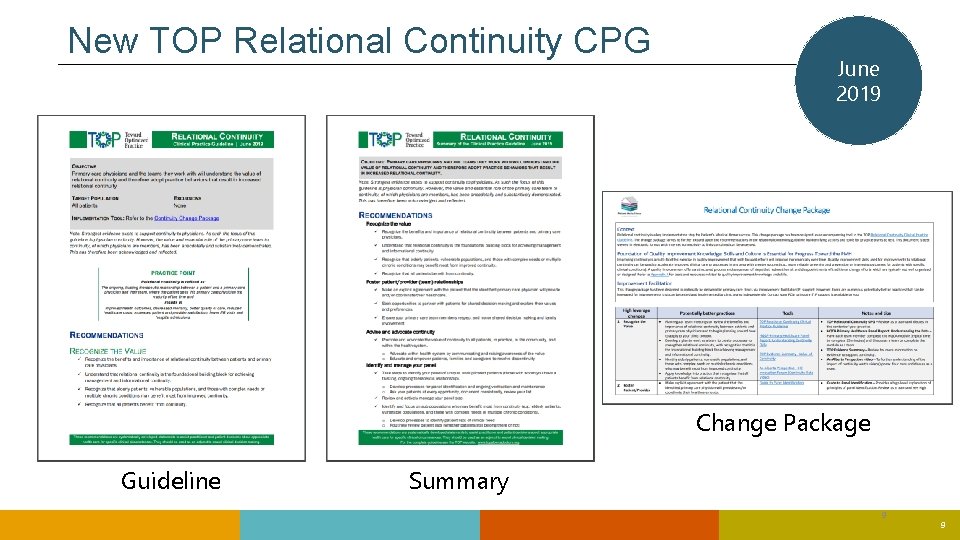
New TOP Relational Continuity CPG June 2019 Change Package Guideline Summary 9 9
What are CII and CPAR? 10 10
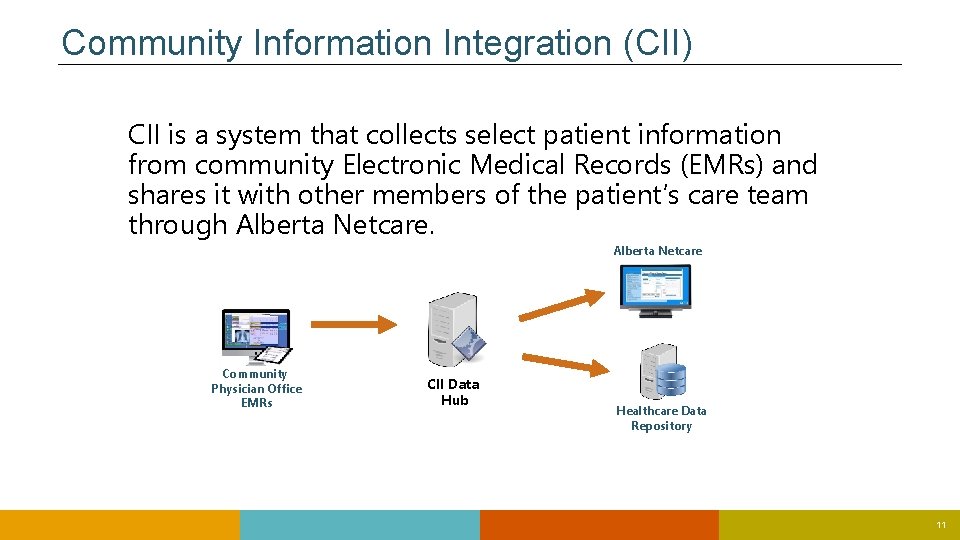
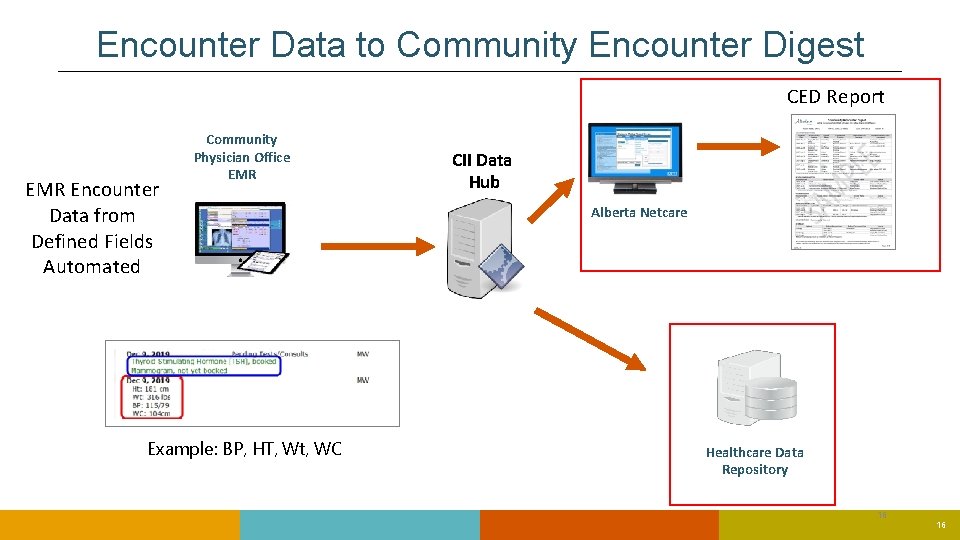
Community Information Integration (CII) CII is a system that collects select patient information from community Electronic Medical Records (EMRs) and shares it with other members of the patient’s care team through Alberta Netcare Community Physician Office EMRs CII Data Hub Healthcare Data Repository 11
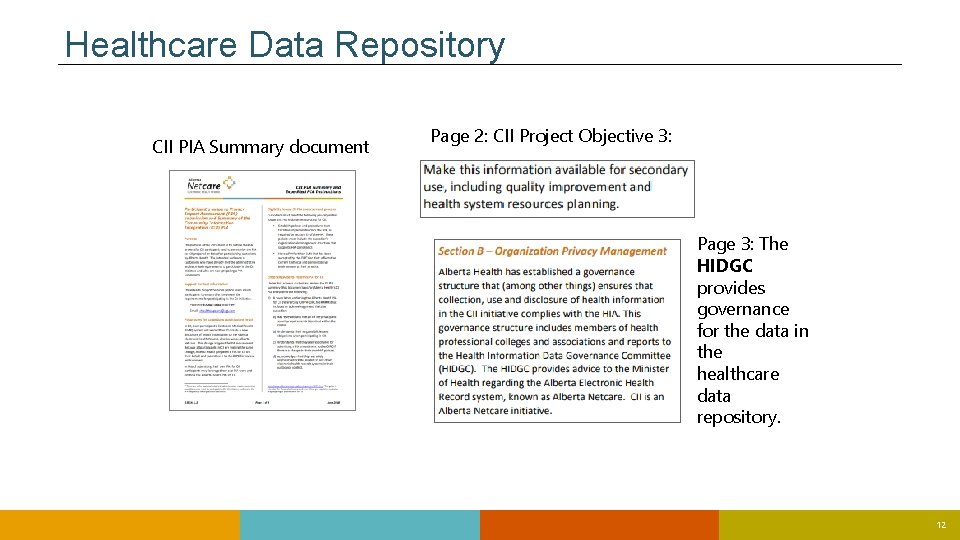
Healthcare Data Repository CII PIA Summary document Page 2: CII Project Objective 3: Page 3: The HIDGC provides governance for the data in the healthcare data repository. 12
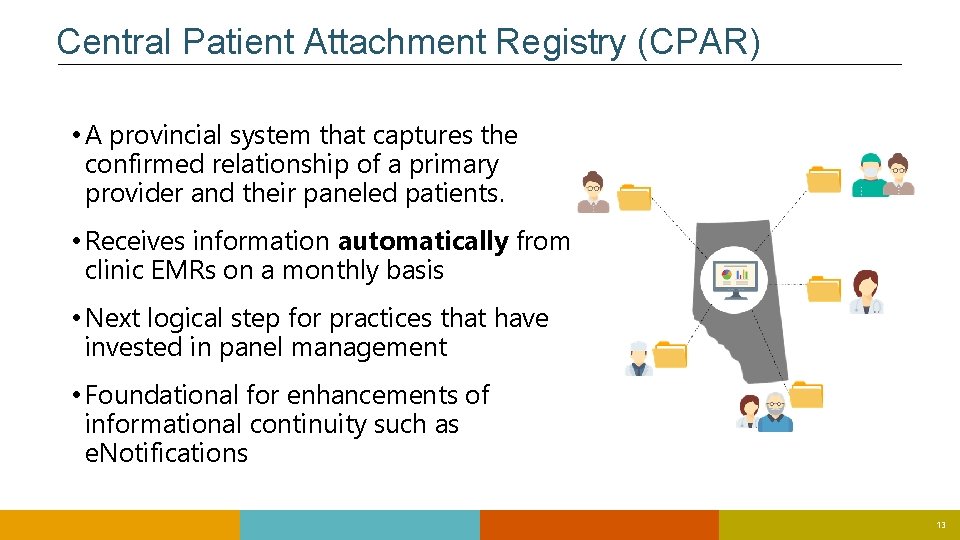
Central Patient Attachment Registry (CPAR) • A provincial system that captures the confirmed relationship of a primary provider and their paneled patients. • Receives information automatically from clinic EMRs on a monthly basis • Next logical step for practices that have invested in panel management • Foundational for enhancements of informational continuity such as e. Notifications 13
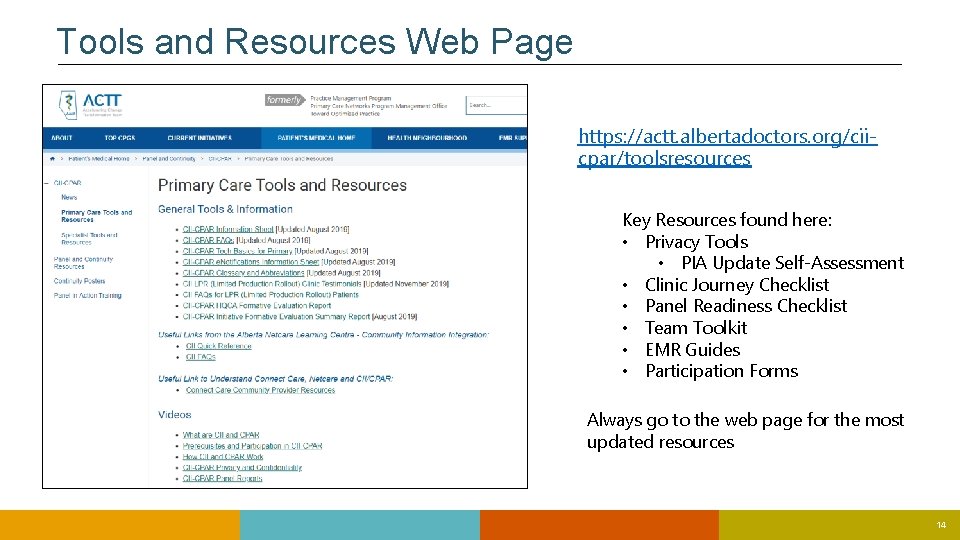
Tools and Resources Web Page https: //actt. albertadoctors. org/ciicpar/toolsresources Key Resources found here: • Privacy Tools • PIA Update Self-Assessment • Clinic Journey Checklist • Panel Readiness Checklist • Team Toolkit • EMR Guides • Participation Forms Always go to the web page for the most updated resources 14
How Does CII/CPAR Work? 15 15
Encounter Data to Community Encounter Digest CED Report EMR Encounter Data from Defined Fields Automated Community Physician Office EMR Example: BP, HT, Wt, WC CII Data Hub Alberta Netcare Healthcare Data Repository 16 16
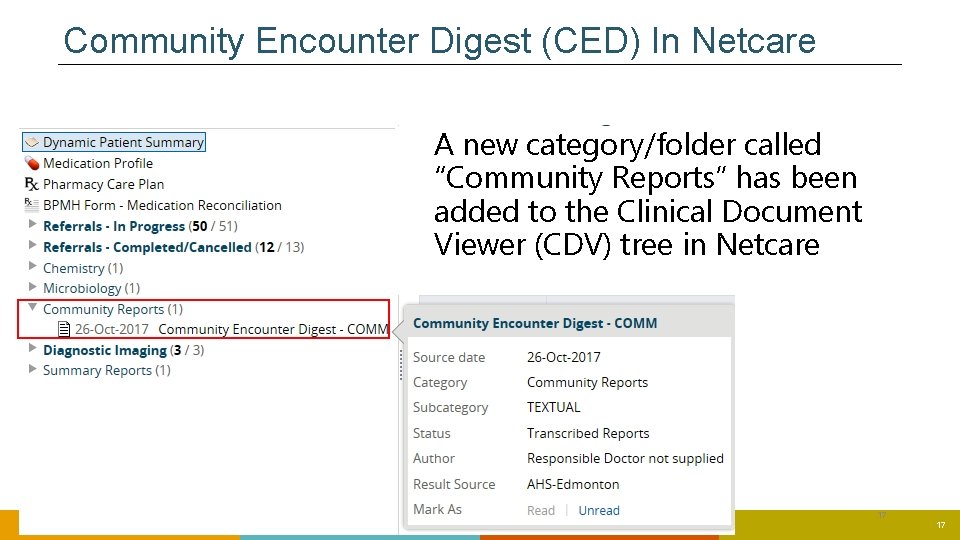
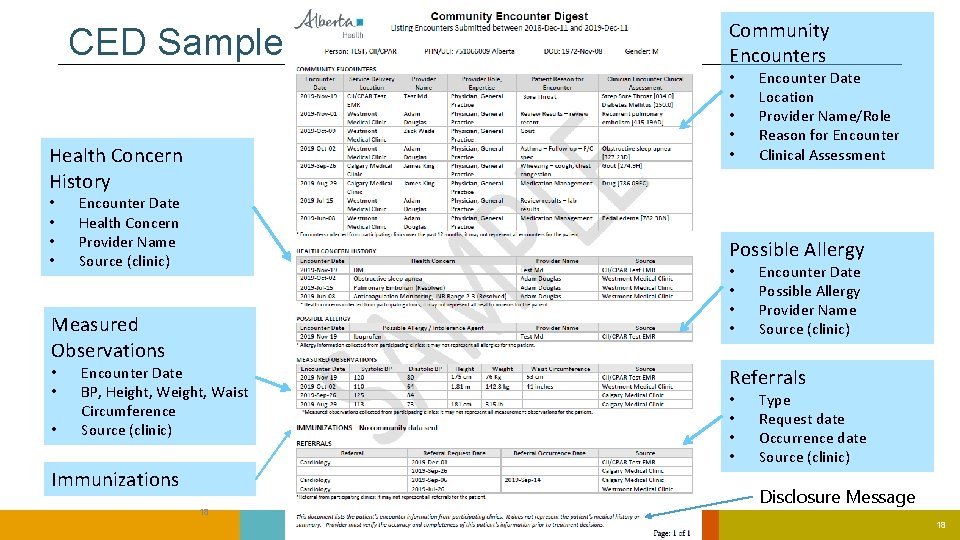
Community Encounter Digest (CED) In Netcare A new category/folder called “Community Reports” has been added to the Clinical Document Viewer (CDV) tree in Netcare 17 17
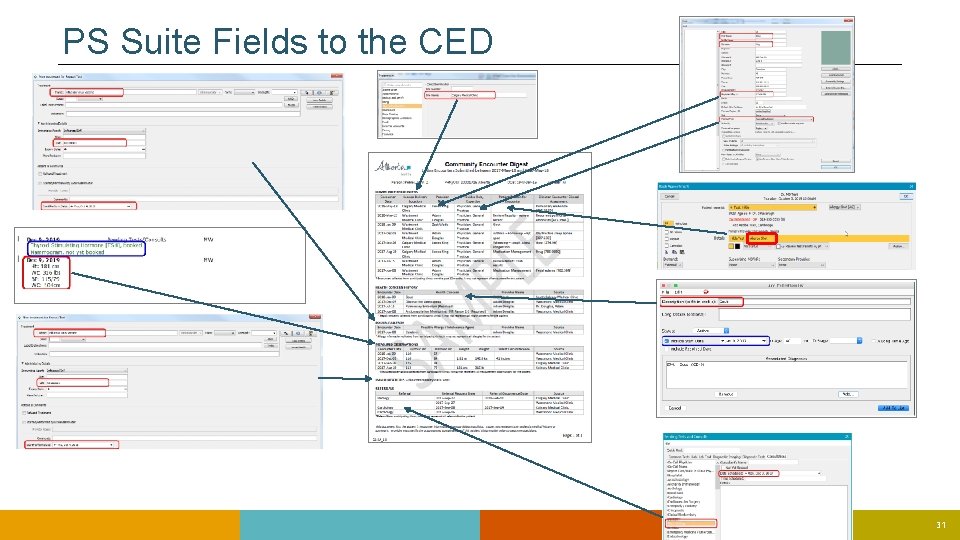
CED Sample • • • Health Concern History • • Encounter Date Health Concern Provider Name Source (clinic) • Encounter Date Location Provider Name/Role Reason for Encounter Clinical Assessment Possible Allergy • • Measured Observations • • Community Encounters Encounter Date BP, Height, Waist Circumference Source (clinic) Immunizations 18 Encounter Date Possible Allergy Provider Name Source (clinic) Referrals • • Type Request date Occurrence date Source (clinic) Disclosure Message 18
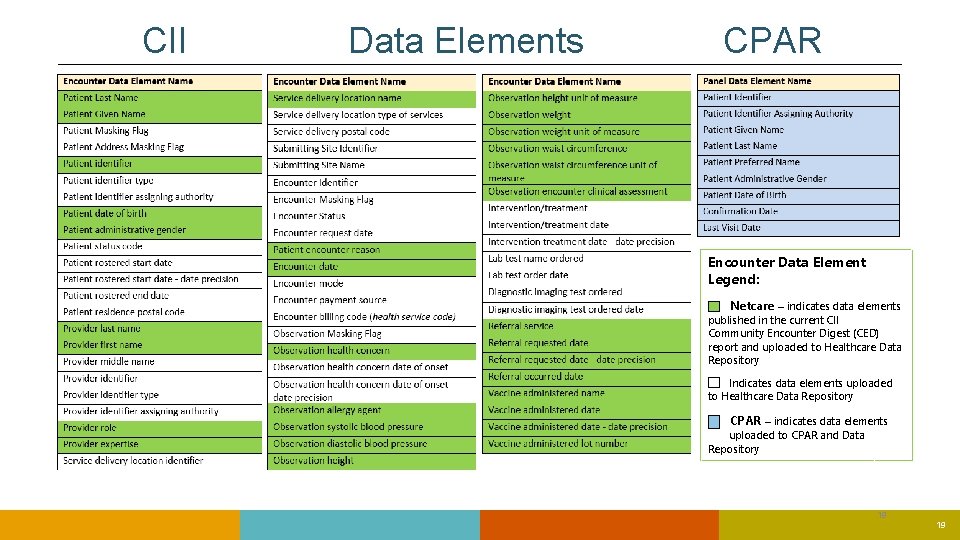
CII Data Elements CPAR Encounter Data Element Legend: Netcare – indicates data elements published in the current CII Community Encounter Digest (CED) report and uploaded to Healthcare Data Repository Indicates data elements uploaded to Healthcare Data Repository CPAR – indicates data elements uploaded to CPAR and Data Repository 19 19
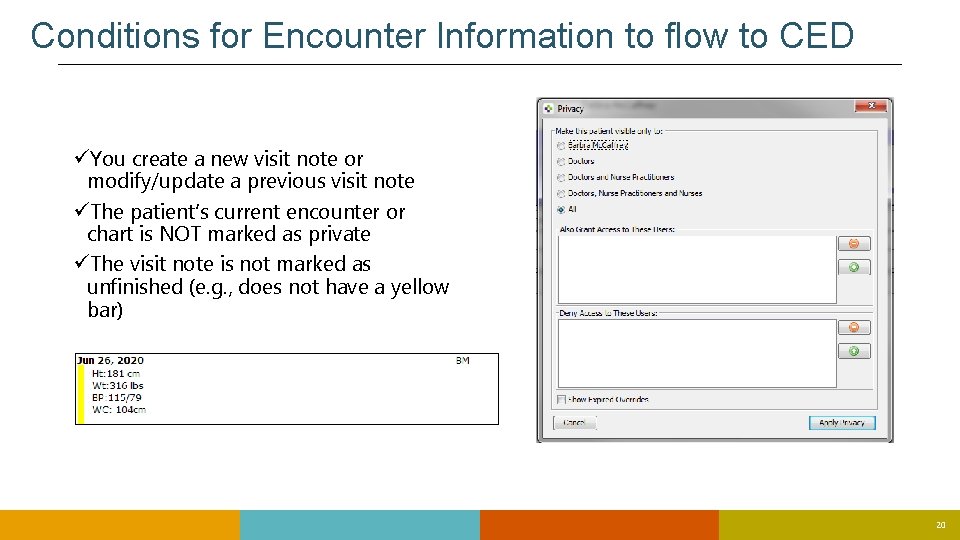
Conditions for Encounter Information to flow to CED üYou create a new visit note or modify/update a previous visit note üThe patient’s current encounter or chart is NOT marked as private üThe visit note is not marked as unfinished (e. g. , does not have a yellow bar) 20
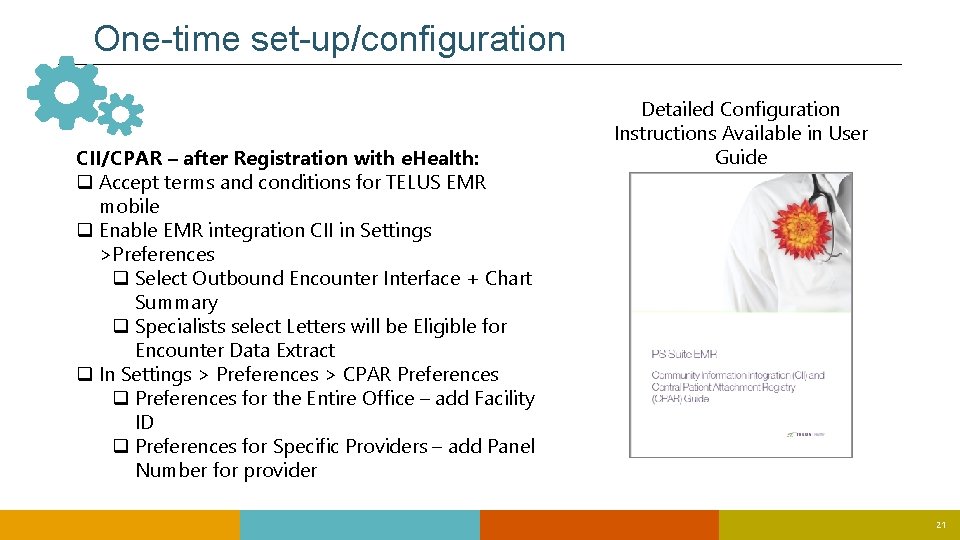
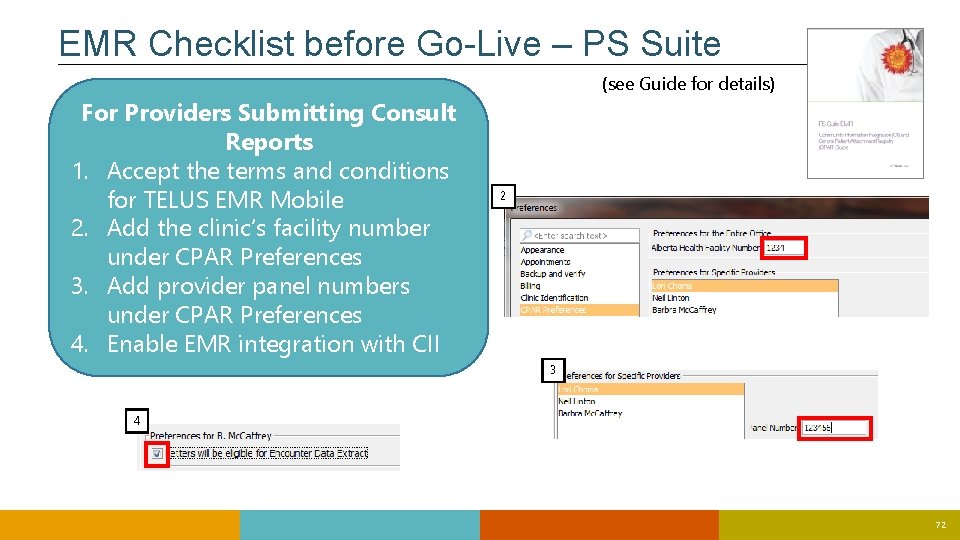
One-time set-up/configuration CII/CPAR – after Registration with e. Health: q Accept terms and conditions for TELUS EMR mobile q Enable EMR integration CII in Settings >Preferences q Select Outbound Encounter Interface + Chart Summary q Specialists select Letters will be Eligible for Encounter Data Extract q In Settings > Preferences > CPAR Preferences q Preferences for the Entire Office – add Facility ID q Preferences for Specific Providers – add Panel Number for provider Detailed Configuration Instructions Available in User Guide 21
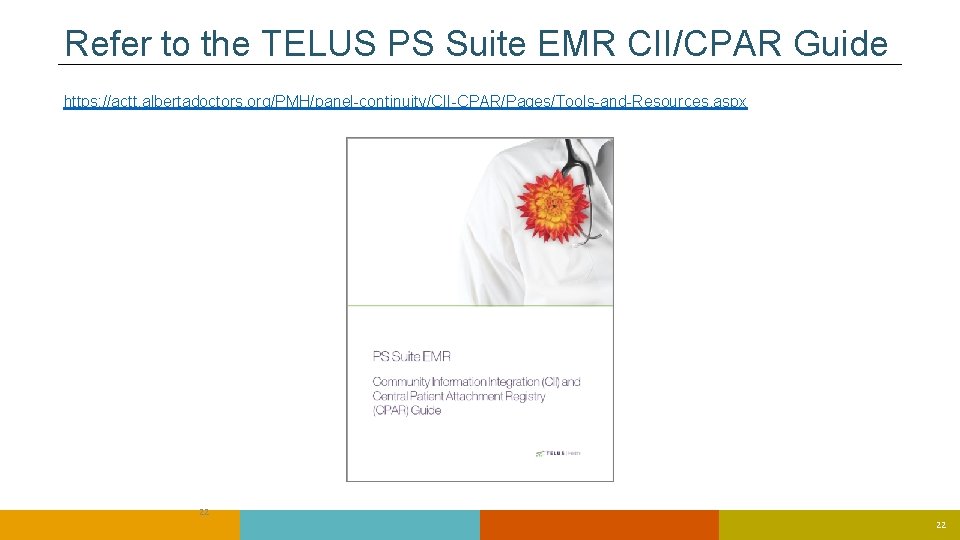
Refer to the TELUS PS Suite EMR CII/CPAR Guide https: //actt. albertadoctors. org/PMH/panel-continuity/CII-CPAR/Pages/Tools-and-Resources. aspx 22 22
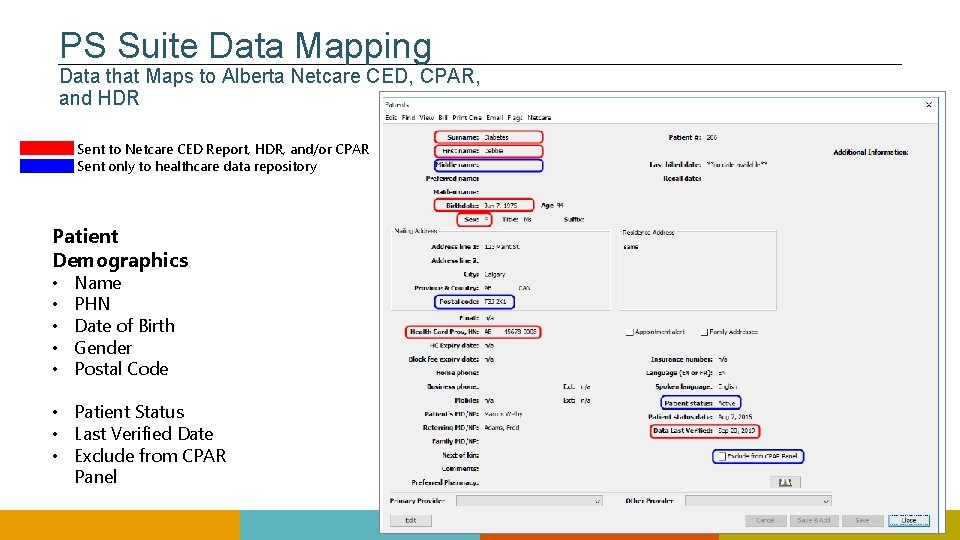
PS Suite Data Mapping Data that Maps to Alberta Netcare and CPAR 23
PS Suite Data Mapping Data that Maps to Alberta Netcare CED, CPAR, and HDR Sent to Netcare CED Report, HDR, and/or CPAR Sent only to healthcare data repository Patient Demographics • • • Name PHN Date of Birth Gender Postal Code • Patient Status • Last Verified Date • Exclude from CPAR Panel 24
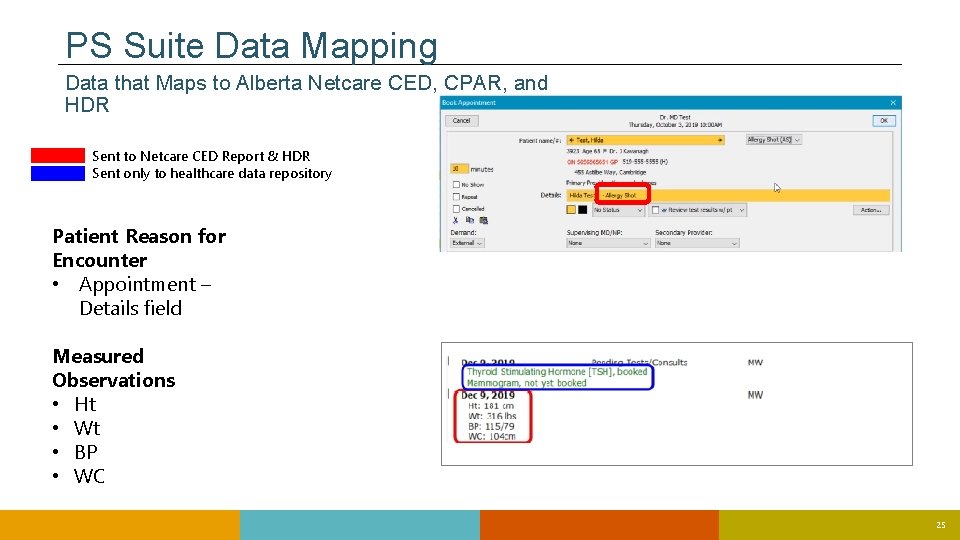
PS Suite Data Mapping Data that Maps to Alberta Netcare CED, CPAR, and HDR Sent to Netcare CED Report & HDR Sent only to healthcare data repository Patient Reason for Encounter • Appointment – Details field Measured Observations • Ht • Wt • BP • WC 25
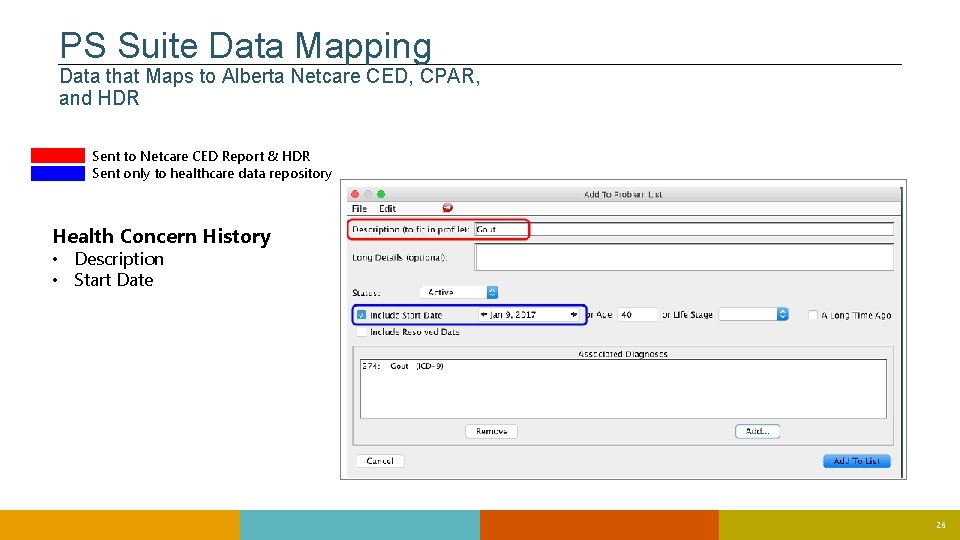
PS Suite Data Mapping Data that Maps to Alberta Netcare CED, CPAR, and HDR Sent to Netcare CED Report & HDR Sent only to healthcare data repository Health Concern History • Description • Start Date 26
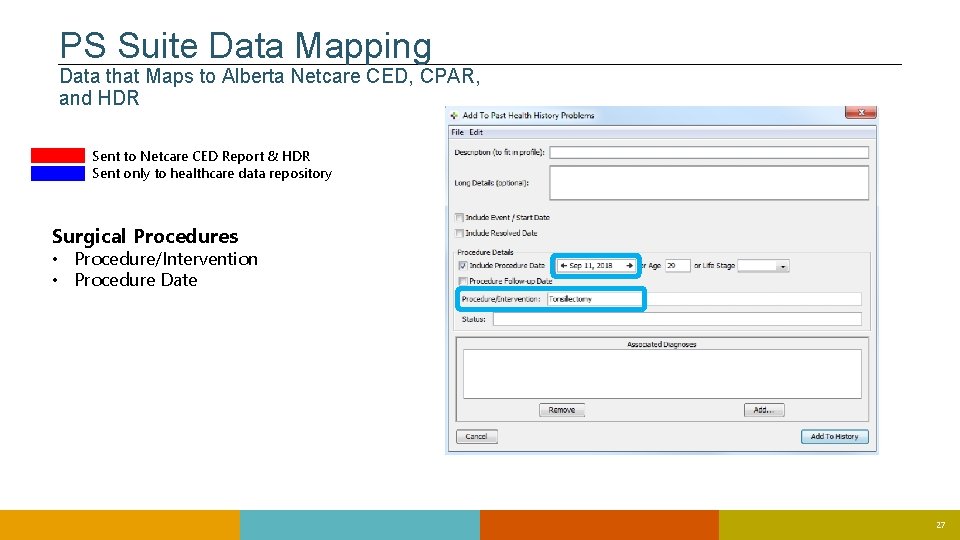
PS Suite Data Mapping Data that Maps to Alberta Netcare CED, CPAR, and HDR Sent to Netcare CED Report & HDR Sent only to healthcare data repository Surgical Procedures • Procedure/Intervention • Procedure Date 27
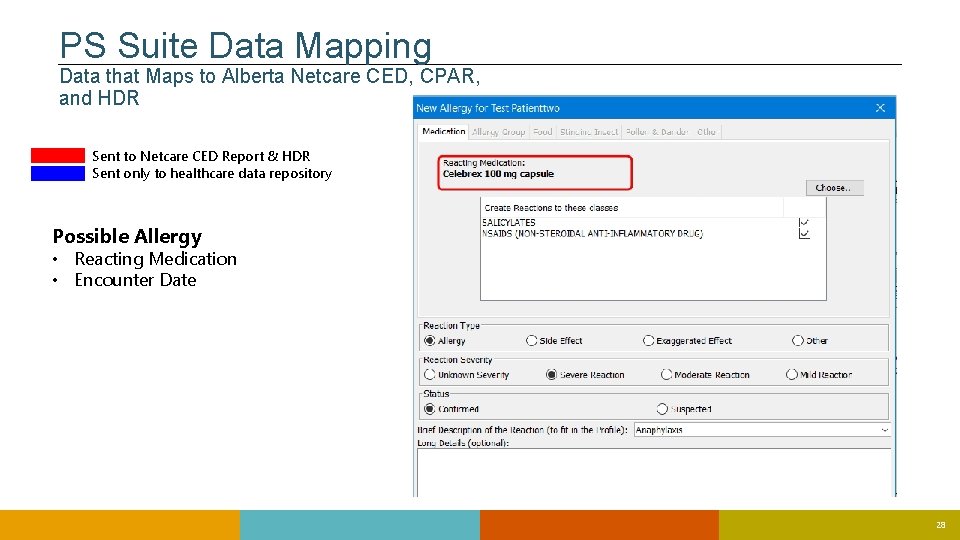
PS Suite Data Mapping Data that Maps to Alberta Netcare CED, CPAR, and HDR Sent to Netcare CED Report & HDR Sent only to healthcare data repository Possible Allergy • Reacting Medication • Encounter Date 28
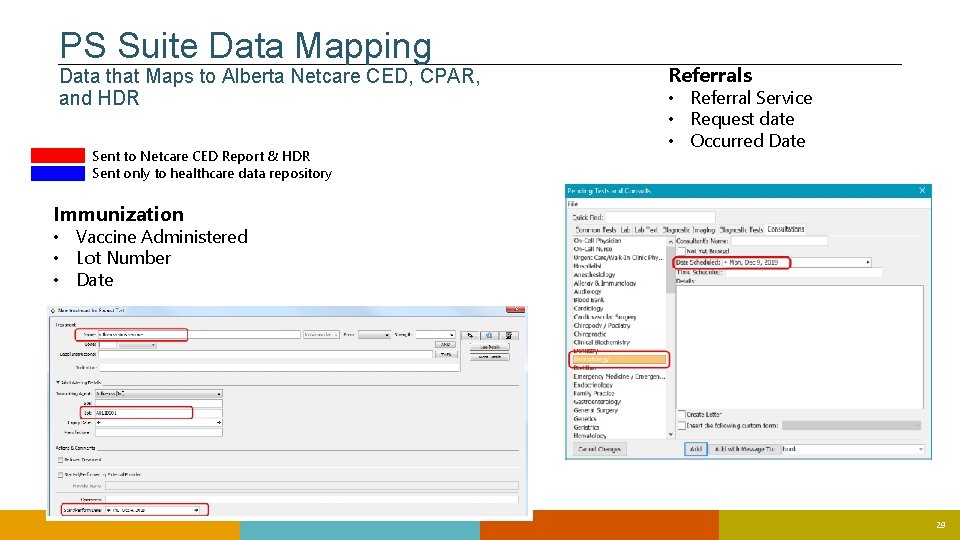
PS Suite Data Mapping Data that Maps to Alberta Netcare CED, CPAR, and HDR Sent to Netcare CED Report & HDR Sent only to healthcare data repository Referrals • Referral Service • Request date • Occurred Date Immunization • Vaccine Administered • Lot Number • Date 29
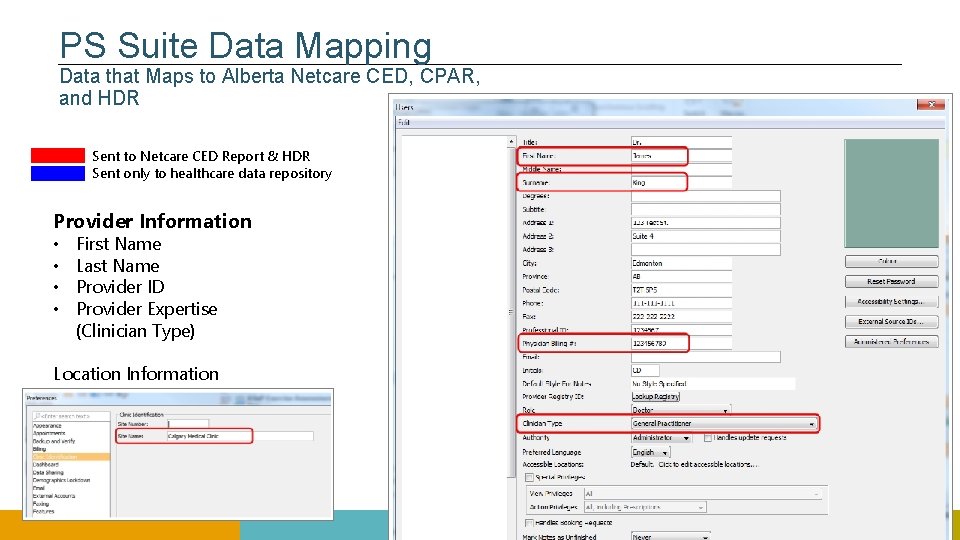
PS Suite Data Mapping Data that Maps to Alberta Netcare CED, CPAR, and HDR Sent to Netcare CED Report & HDR Sent only to healthcare data repository Provider Information • • First Name Last Name Provider ID Provider Expertise (Clinician Type) Location Information 30
PS Suite Fields to the CED 31
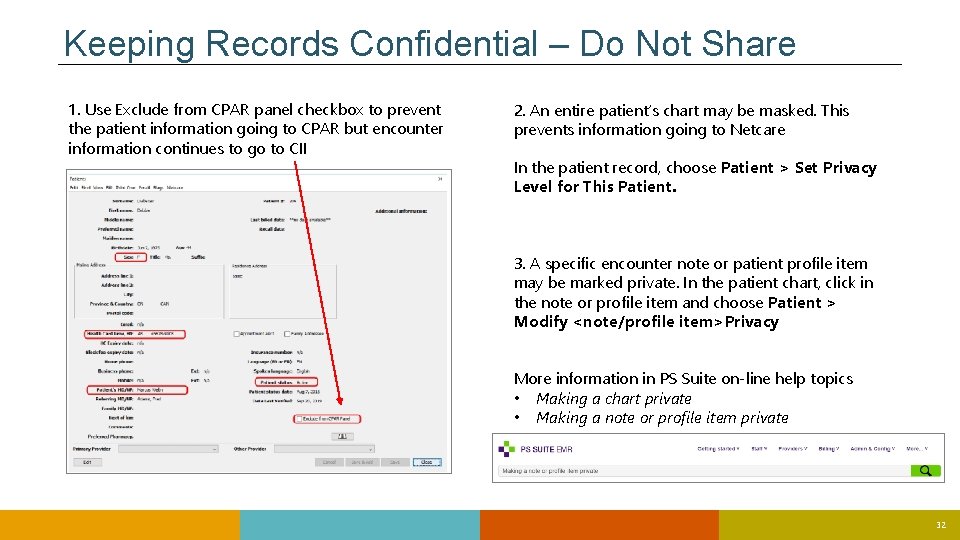
Keeping Records Confidential – Do Not Share 1. Use Exclude from CPAR panel checkbox to prevent the patient information going to CPAR but encounter information continues to go to CII 2. An entire patient’s chart may be masked. This prevents information going to Netcare In the patient record, choose Patient > Set Privacy Level for This Patient. 3. A specific encounter note or patient profile item may be marked private. In the patient chart, click in the note or profile item and choose Patient > Modify <note/profile item>Privacy More information in PS Suite on-line help topics • Making a chart private • Making a note or profile item private 32
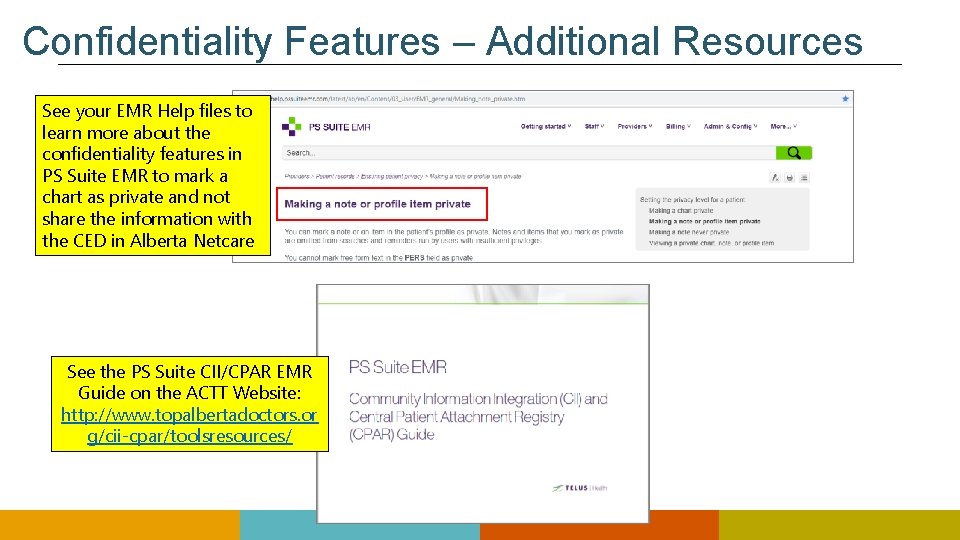
Confidentiality Features – Additional Resources See your EMR Help files to learn more about the confidentiality features in PS Suite EMR to mark a chart as private and not share the information with the CED in Alberta Netcare See the PS Suite CII/CPAR EMR Guide on the ACTT Website: http: //www. topalbertadoctors. or g/cii-cpar/toolsresources/ 33
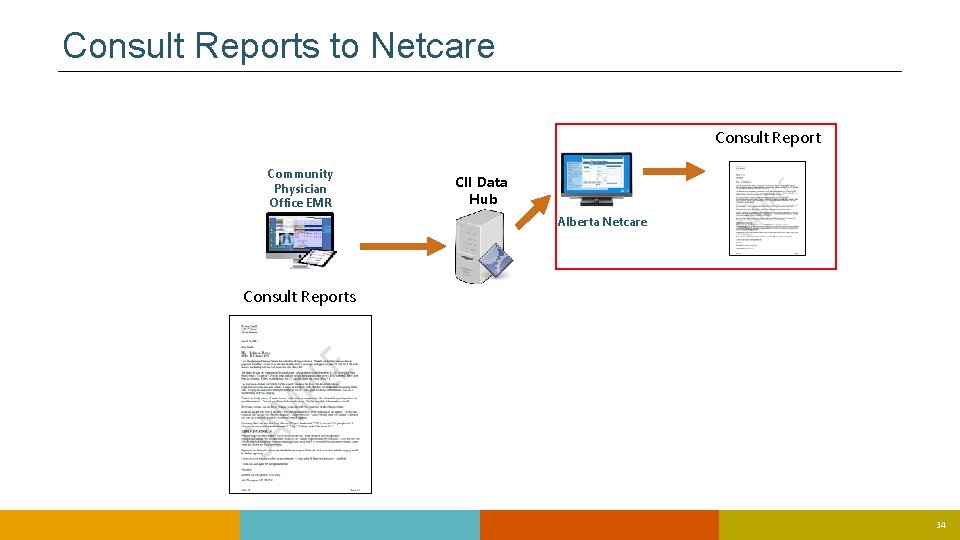
Consult Reports to Netcare Consult Report Community Physician Office EMR CII Data Hub Alberta Netcare Consult Reports 34
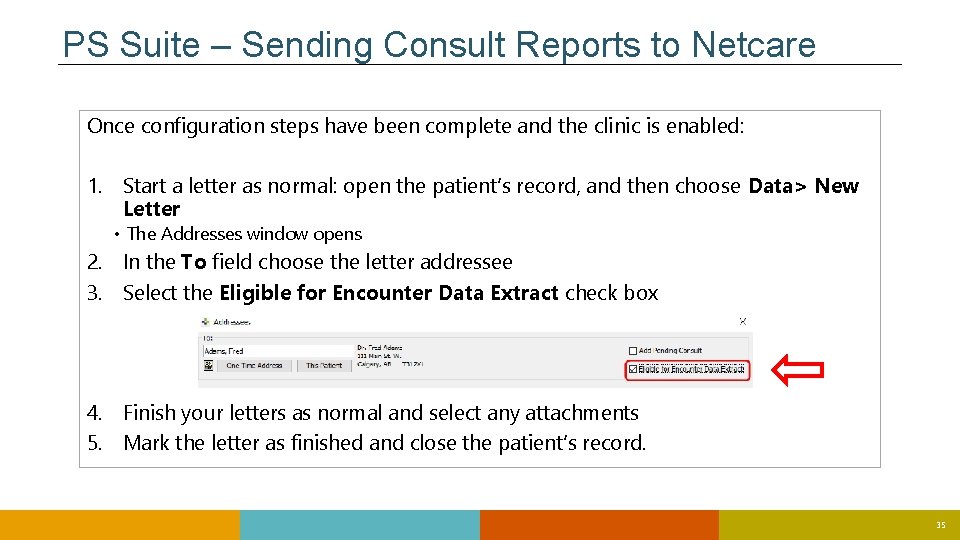
PS Suite – Sending Consult Reports to Netcare Once configuration steps have been complete and the clinic is enabled: 1. Start a letter as normal: open the patient’s record, and then choose Data> New Letter • The Addresses window opens 2. In the To field choose the letter addressee 3. Select the Eligible for Encounter Data Extract check box 4. Finish your letters as normal and select any attachments 5. Mark the letter as finished and close the patient’s record. 35
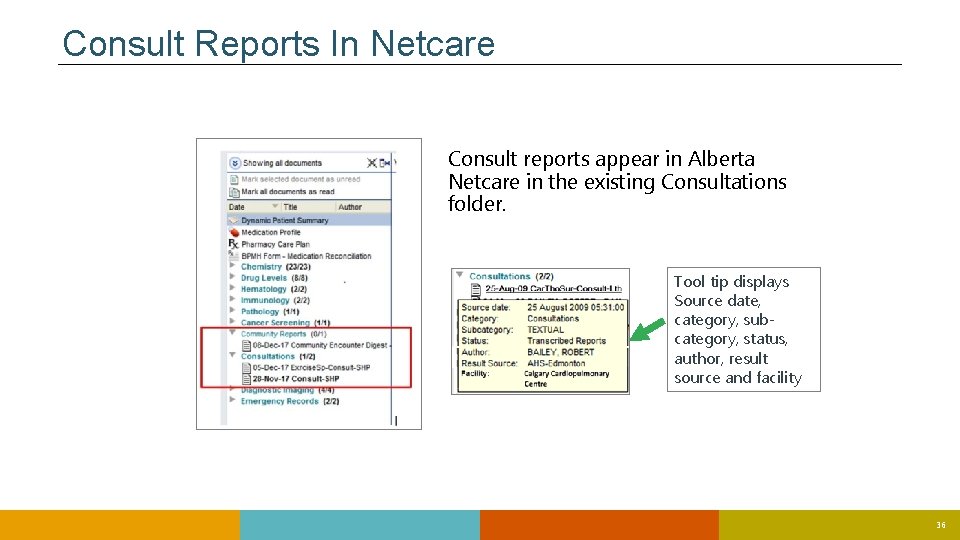
Consult Reports In Netcare Consult reports appear in Alberta Netcare in the existing Consultations folder. Tool tip displays Source date, category, subcategory, status, author, result source and facility 36
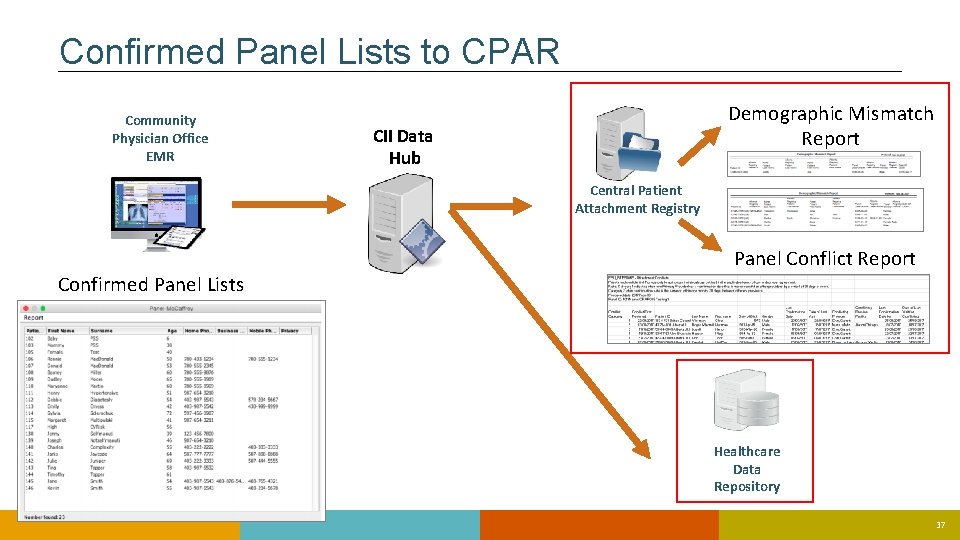
Confirmed Panel Lists to CPAR Community Physician Office EMR Demographic Mismatch Report CII Data Hub Central Patient Attachment Registry Confirmed Panel Lists Panel Conflict Report Healthcare Data Repository 37
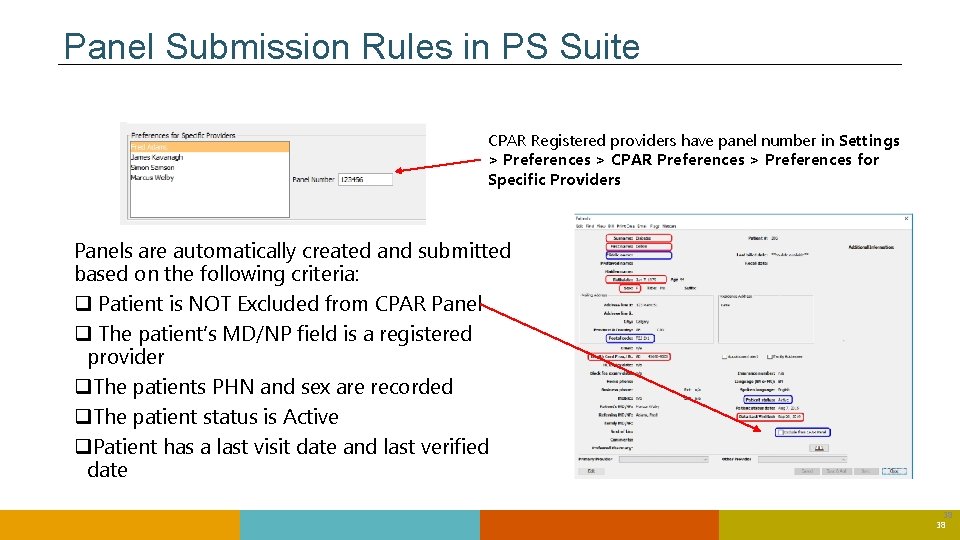
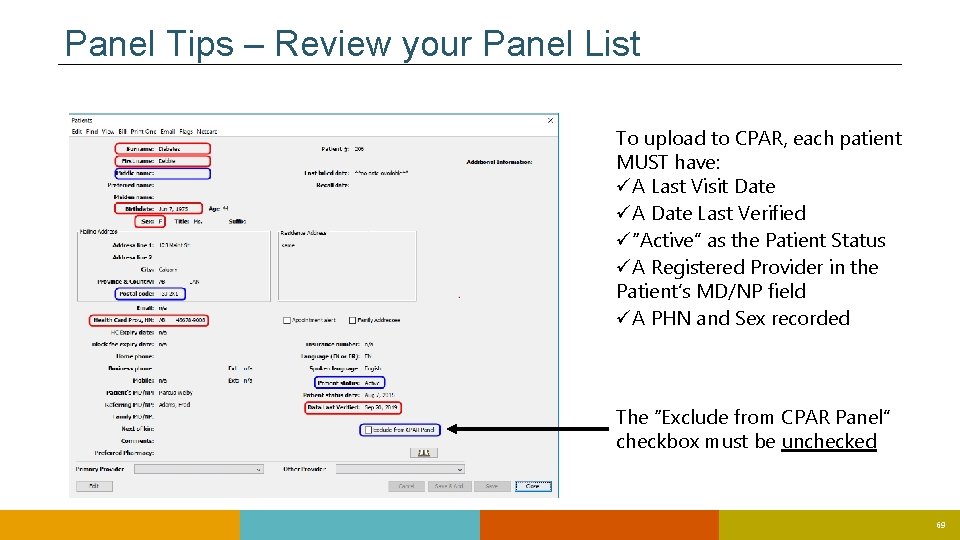
Panel Submission Rules in PS Suite CPAR Registered providers have panel number in Settings > Preferences > CPAR Preferences > Preferences for Specific Providers Panels are automatically created and submitted based on the following criteria: q Patient is NOT Excluded from CPAR Panel q The patient’s MD/NP field is a registered provider q. The patients PHN and sex are recorded q. The patient status is Active q. Patient has a last visit date and last verified date 38 38
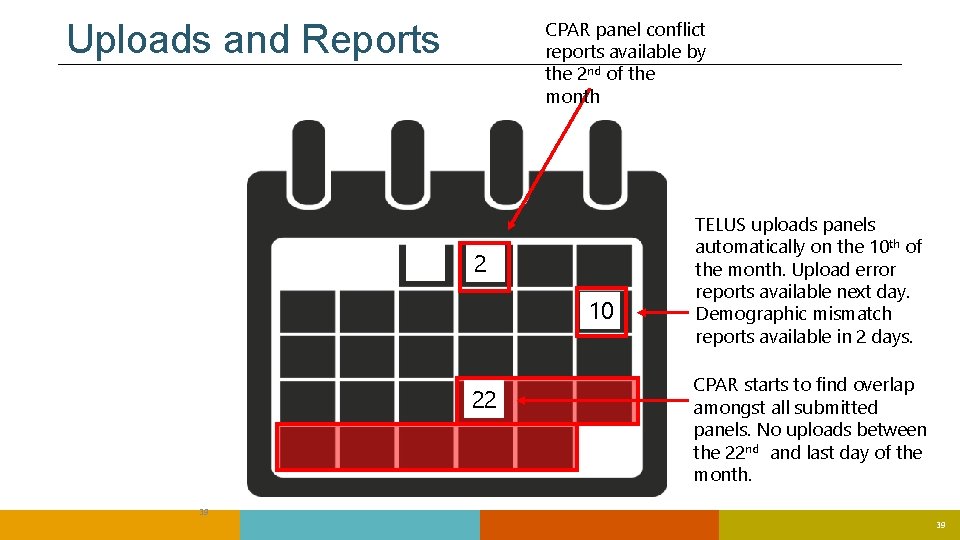
CPAR panel conflict reports available by the 2 nd of the month Uploads and Reports 2 10 22 TELUS uploads panels automatically on the 10 th of the month. Upload error reports available next day. Demographic mismatch reports available in 2 days. CPAR starts to find overlap amongst all submitted panels. No uploads between the 22 nd and last day of the month. 39 39
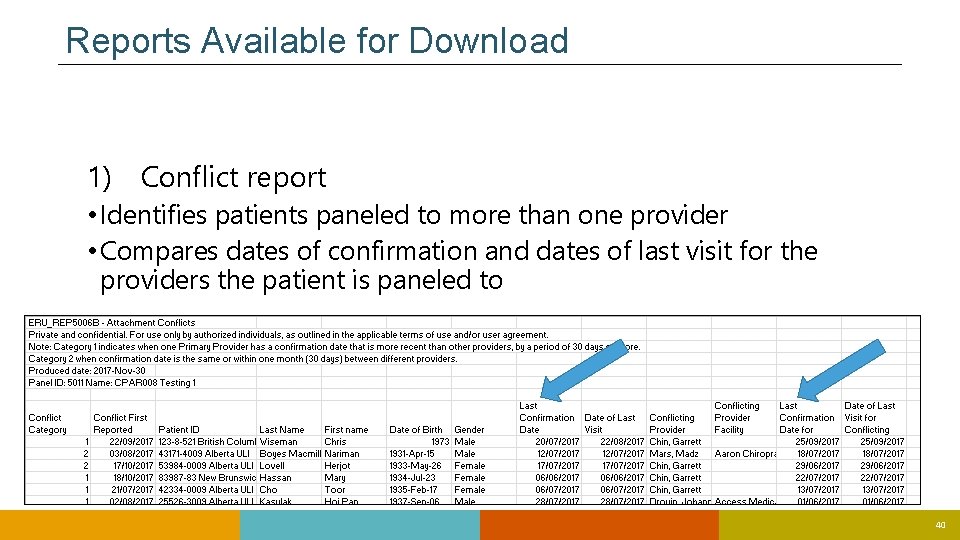
Reports Available for Download 1) Conflict report • Identifies patients paneled to more than one provider • Compares dates of confirmation and dates of last visit for the providers the patient is paneled to 40
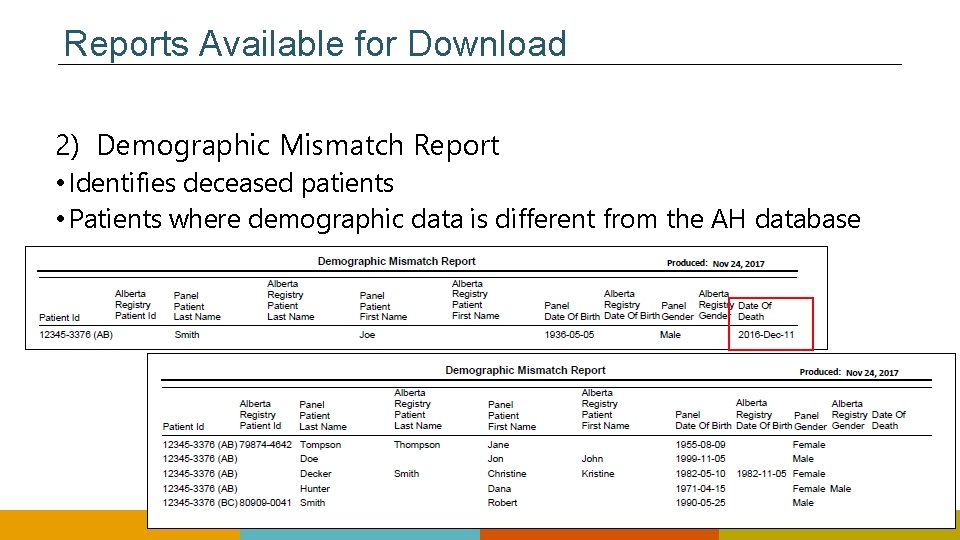
Reports Available for Download 2) Demographic Mismatch Report • Identifies deceased patients • Patients where demographic data is different from the AH database 41
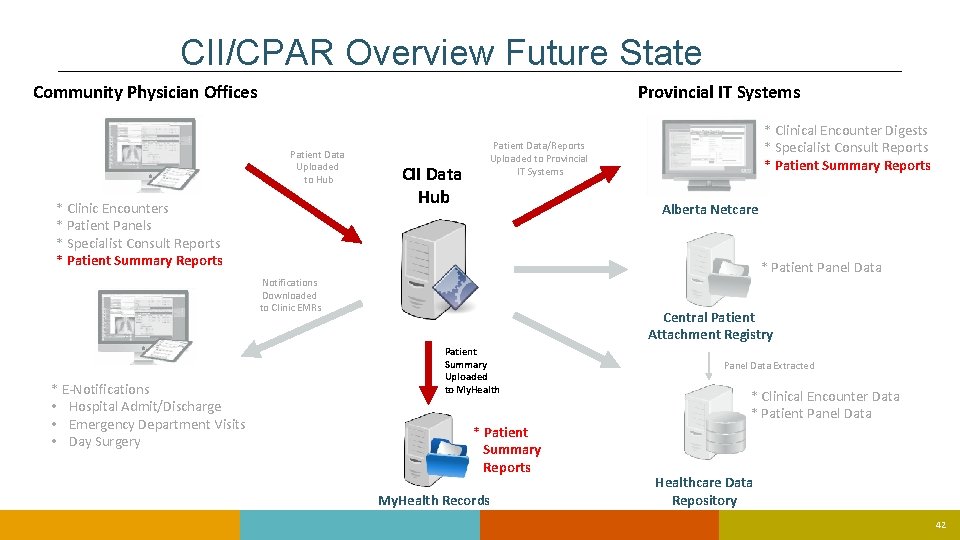
CII/CPAR Overview Future State Provincial IT Systems Community Physician Offices Patient Data Uploaded to Hub * Clinic Encounters * Patient Panels * Specialist Consult Reports * Patient Summary Reports CII Data Hub Patient Data/Reports Uploaded to Provincial IT Systems Alberta Netcare * Patient Panel Data Notifications Downloaded to Clinic EMRs * E-Notifications • Hospital Admit/Discharge • Emergency Department Visits • Day Surgery * Clinical Encounter Digests * Specialist Consult Reports * Patient Summary Reports Central Patient Attachment Registry Patient Summary Uploaded to My. Health * Patient Summary Reports My. Health Records Panel Data Extracted * Clinical Encounter Data * Patient Panel Data Healthcare Data Repository 42
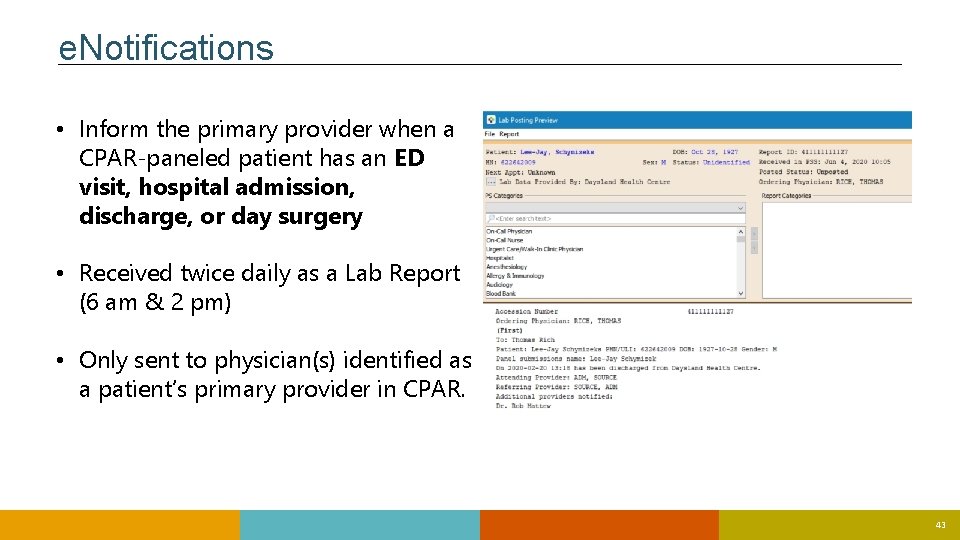
e. Notifications • Inform the primary provider when a CPAR-paneled patient has an ED visit, hospital admission, discharge, or day surgery • Received twice daily as a Lab Report (6 am & 2 pm) • Only sent to physician(s) identified as a patient’s primary provider in CPAR. 43
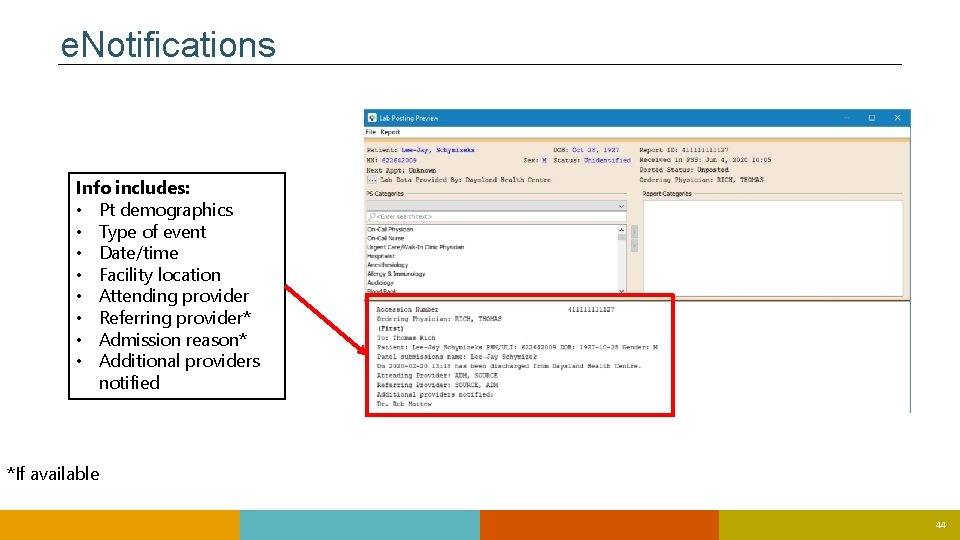
e. Notifications Info includes: • Pt demographics • Type of event • Date/time • Facility location • Attending provider • Referring provider* • Admission reason* • Additional providers notified *If available 44
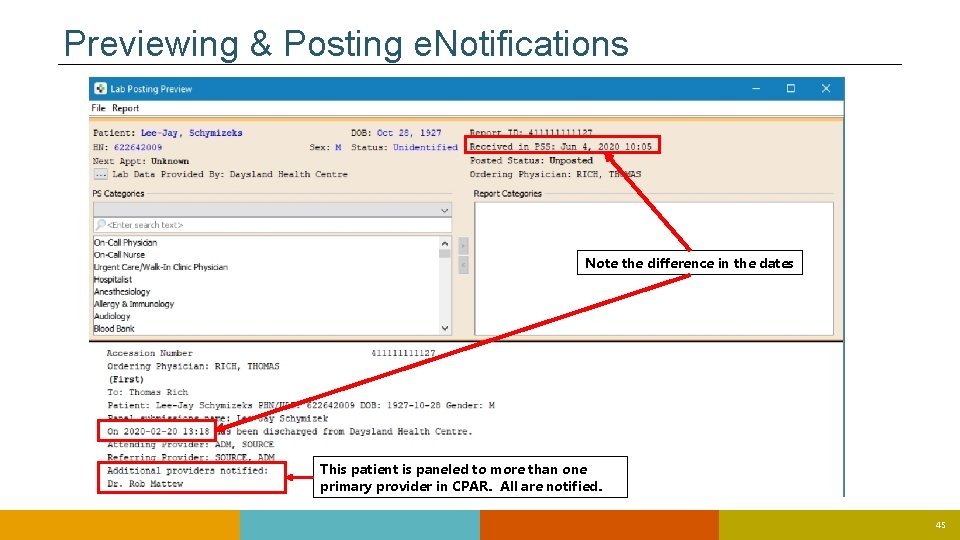
Previewing & Posting e. Notifications Note the difference in the dates This patient is paneled to more than one primary provider in CPAR. All are notified. 45
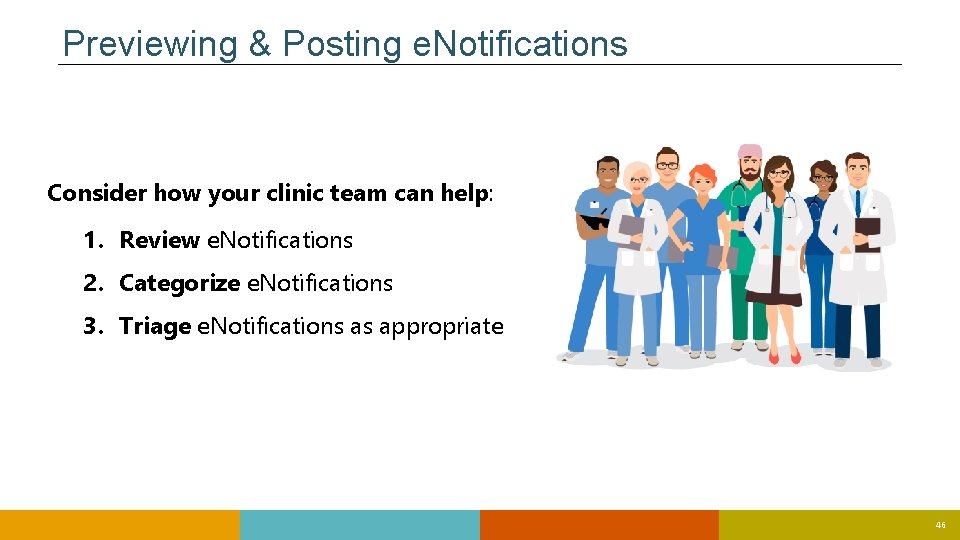
Previewing & Posting e. Notifications Consider how your clinic team can help: 1. Review e. Notifications 2. Categorize e. Notifications 3. Triage e. Notifications as appropriate 46
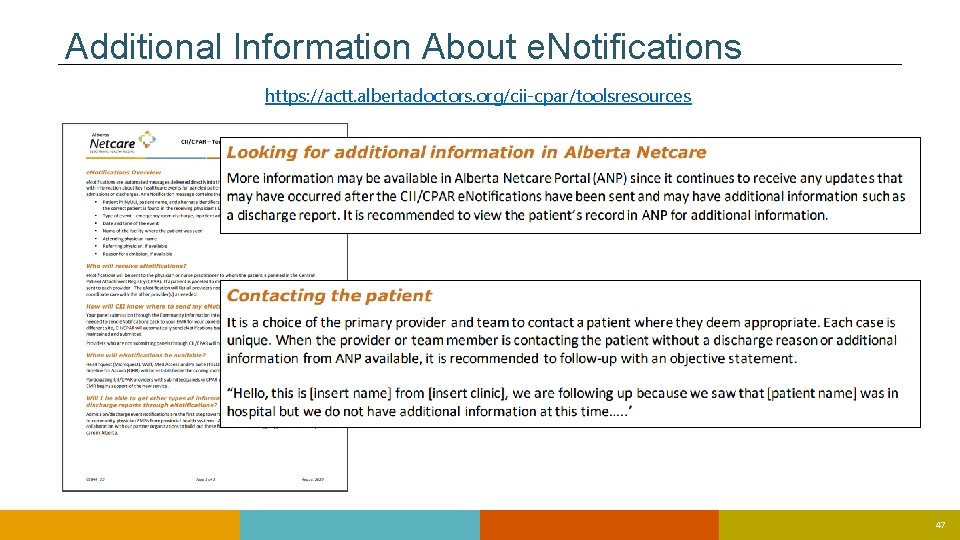
Additional Information About e. Notifications https: //actt. albertadoctors. org/cii-cpar/toolsresources 47
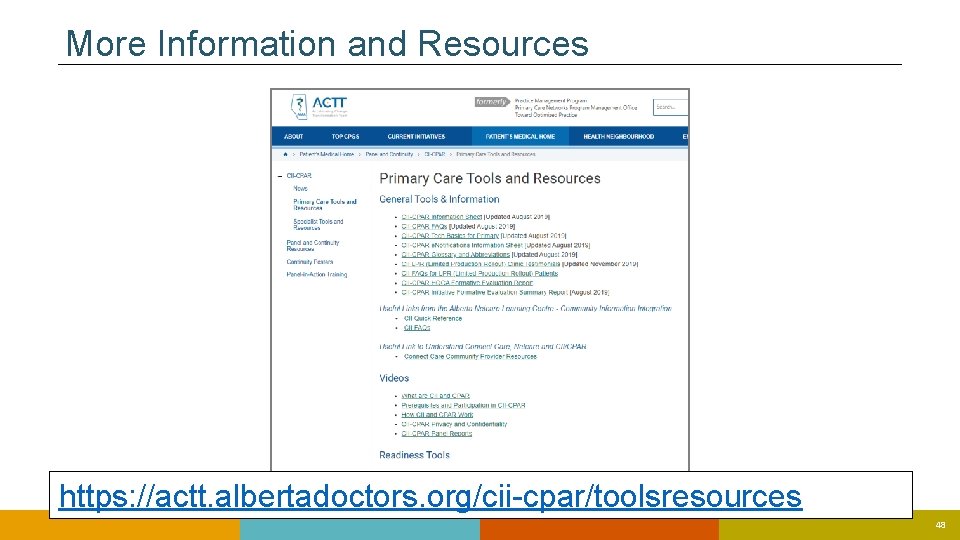
More Information and Resources https: //actt. albertadoctors. org/cii-cpar/toolsresources 48 48
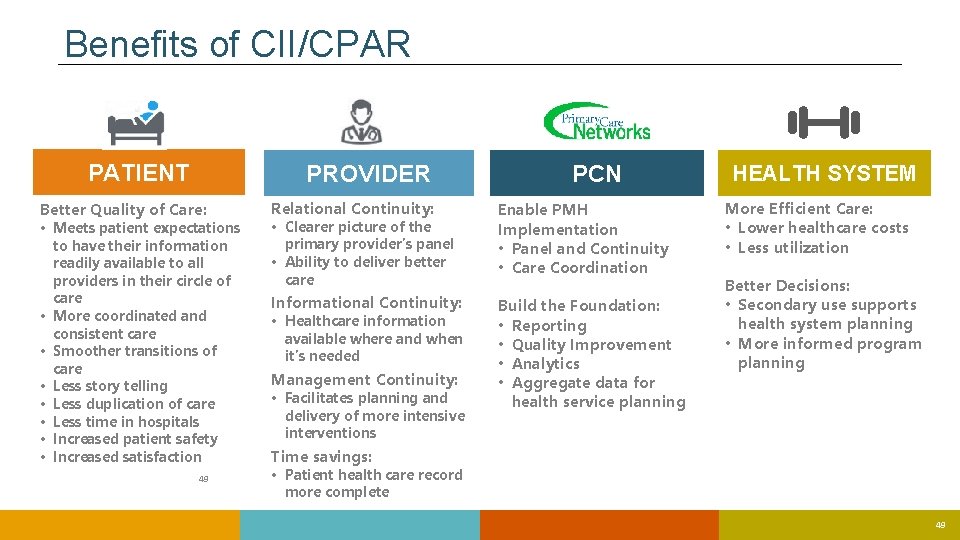
Benefits of CII/CPAR PATIENT PROVIDER Better Quality of Care: • Meets patient expectations to have their information readily available to all providers in their circle of care • More coordinated and consistent care • Smoother transitions of care • Less story telling • Less duplication of care • Less time in hospitals • Increased patient safety • Increased satisfaction 49 Relational Continuity: • Clearer picture of the primary provider’s panel • Ability to deliver better care Informational Continuity: • Healthcare information available where and when it’s needed Management Continuity: • Facilitates planning and delivery of more intensive interventions PCN Enable PMH Implementation • Panel and Continuity • Care Coordination Build the Foundation: • Reporting • Quality Improvement • Analytics • Aggregate data for health service planning HEALTH SYSTEM More Efficient Care: • Lower healthcare costs • Less utilization Better Decisions: • Secondary use supports health system planning • More informed program planning Time savings: • Patient health care record more complete 49
Participation Readiness 50 50
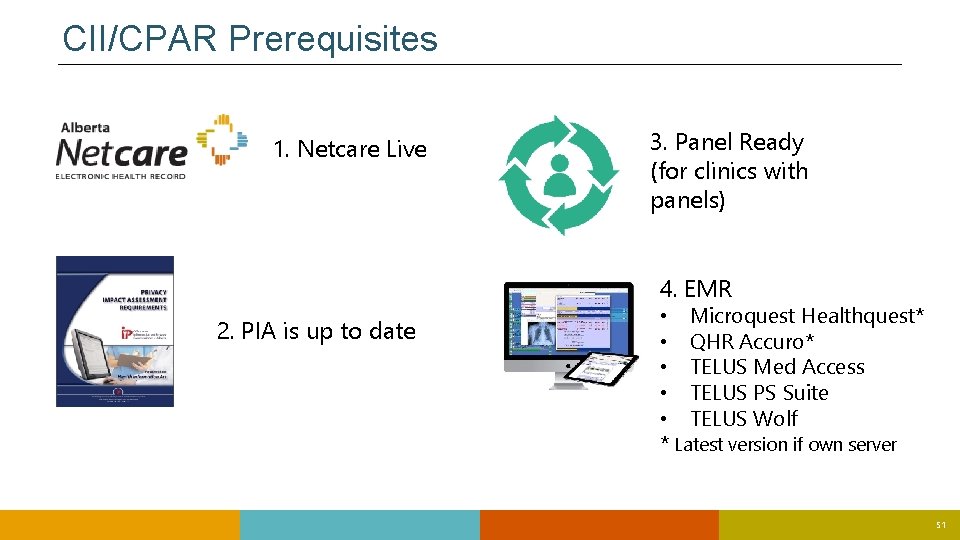
CII/CPAR Prerequisites 1. Netcare Live 3. Panel Ready (for clinics with panels) 4. EMR 2. PIA is up to date • Microquest Healthquest* • QHR Accuro* • TELUS Med Access • TELUS PS Suite • TELUS Wolf * Latest version if own server 51
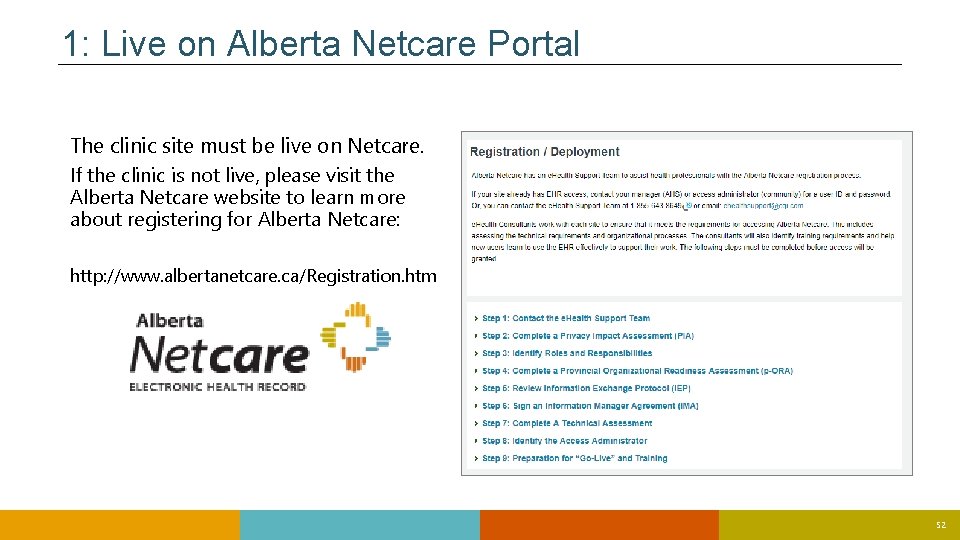
1: Live on Alberta Netcare Portal The clinic site must be live on Netcare. If the clinic is not live, please visit the Alberta Netcare website to learn more about registering for Alberta Netcare: http: //www. albertanetcare. ca/Registration. htm 52
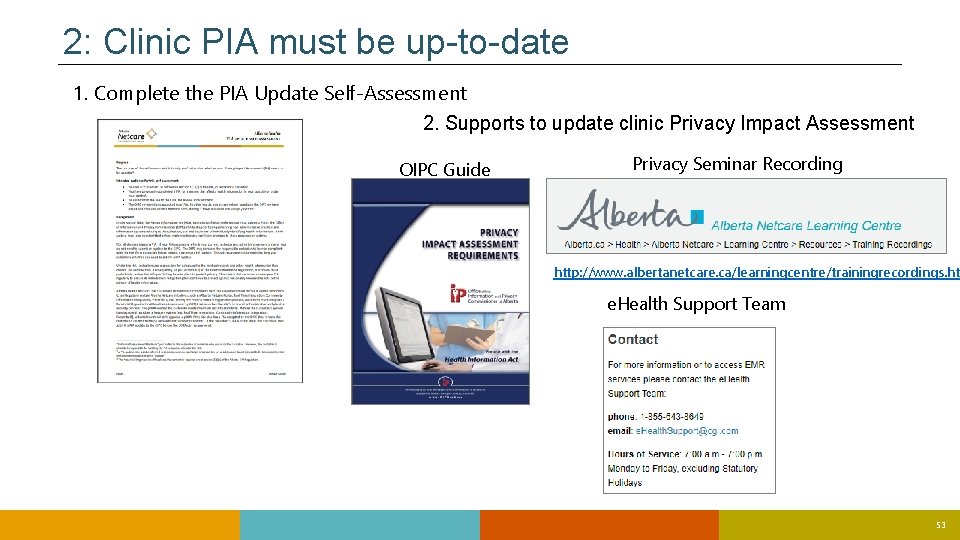
2: Clinic PIA must be up-to-date 1. Complete the PIA Update Self-Assessment 2. Supports to update clinic Privacy Impact Assessment OIPC Guide Privacy Seminar Recording http: //www. albertanetcare. ca/learningcentre/trainingrecordings. htm e. Health Support Team 53
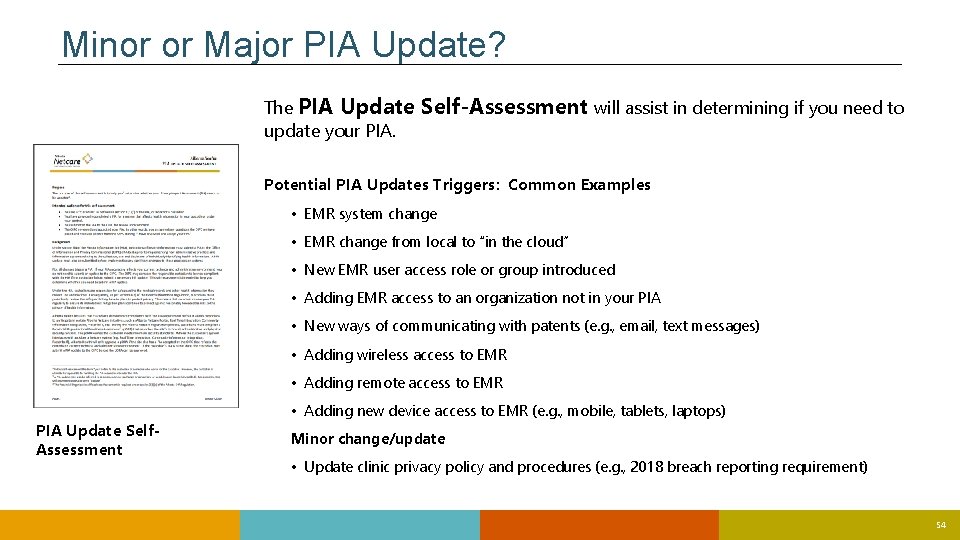
Minor or Major PIA Update? The PIA Update update your PIA. Self-Assessment will assist in determining if you need to Potential PIA Updates Triggers: Common Examples • EMR system change • EMR change from local to “in the cloud” • New EMR user access role or group introduced • Adding EMR access to an organization not in your PIA • New ways of communicating with patents (e. g. , email, text messages) • Adding wireless access to EMR • Adding remote access to EMR PIA Update Self. Assessment • Adding new device access to EMR (e. g. , mobile, tablets, laptops) Minor change/update • Update clinic privacy policy and procedures (e. g. , 2018 breach reporting requirement) 54
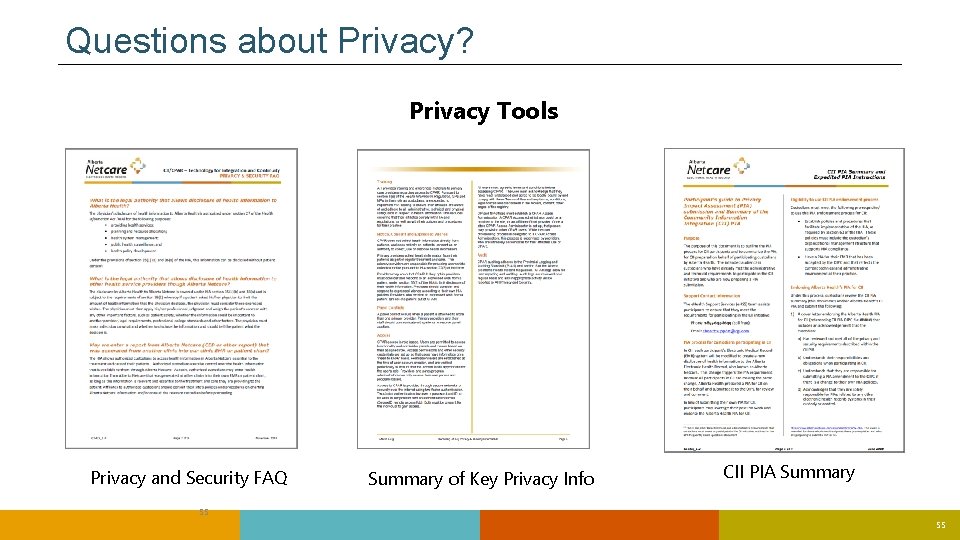
Questions about Privacy? Privacy Tools Privacy and Security FAQ Summary of Key Privacy Info CII PIA Summary 55 55
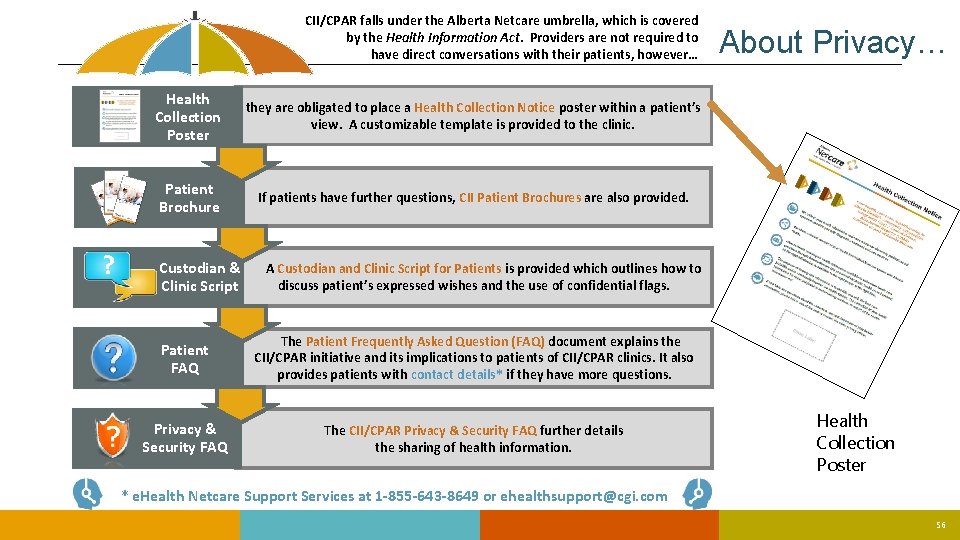
CII/CPAR falls under the Alberta Netcare umbrella, which is covered by the Health Information Act. Providers are not required to have direct conversations with their patients, however… ? Health Collection Poster they are obligated to place a Health Collection Notice poster within a patient’s view. A customizable template is provided to the clinic. Patient Brochure If patients have further questions, CII Patient Brochures are also provided. Custodian & Clinic Script About Privacy… A Custodian and Clinic Script for Patients is provided which outlines how to discuss patient’s expressed wishes and the use of confidential flags. Patient FAQ The Patient Frequently Asked Question (FAQ) document explains the CII/CPAR initiative and its implications to patients of CII/CPAR clinics. It also provides patients with contact details* if they have more questions. Privacy & Security FAQ The CII/CPAR Privacy & Security FAQ further details the sharing of health information. Health Collection Poster * e. Health Netcare Support Services at 1 -855 -643 -8649 or ehealthsupport@cgi. com 56
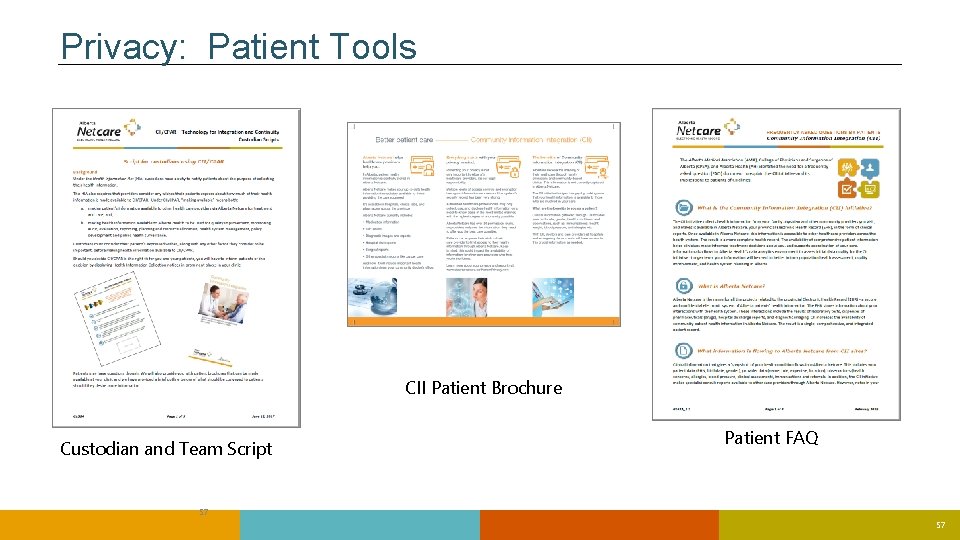
Privacy: Patient Tools CII Patient Brochure Custodian and Team Script Patient FAQ 57 57
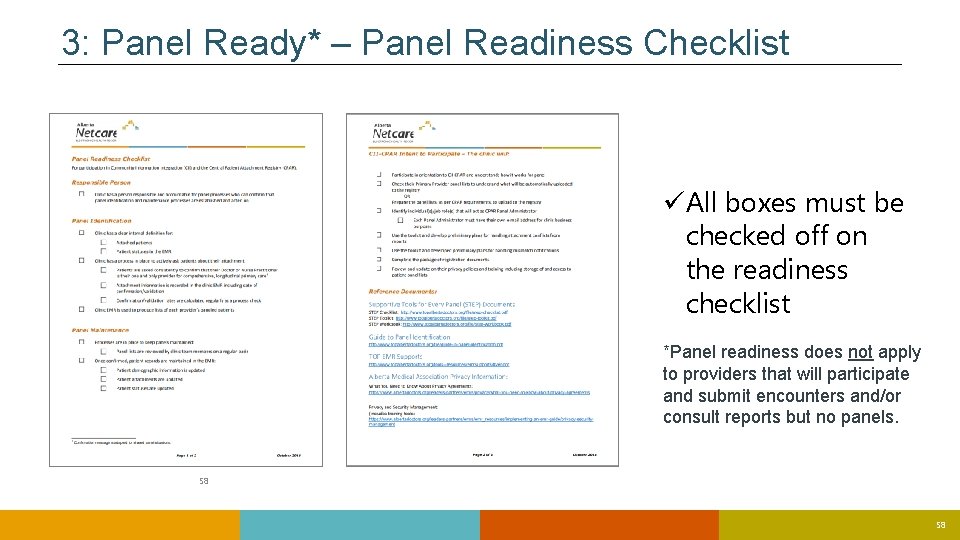
3: Panel Ready* – Panel Readiness Checklist üAll boxes must be checked off on the readiness checklist *Panel readiness does not apply to providers that will participate and submit encounters and/or consult reports but no panels. 58 58
What Must Physicians Do? What is Optional? 59
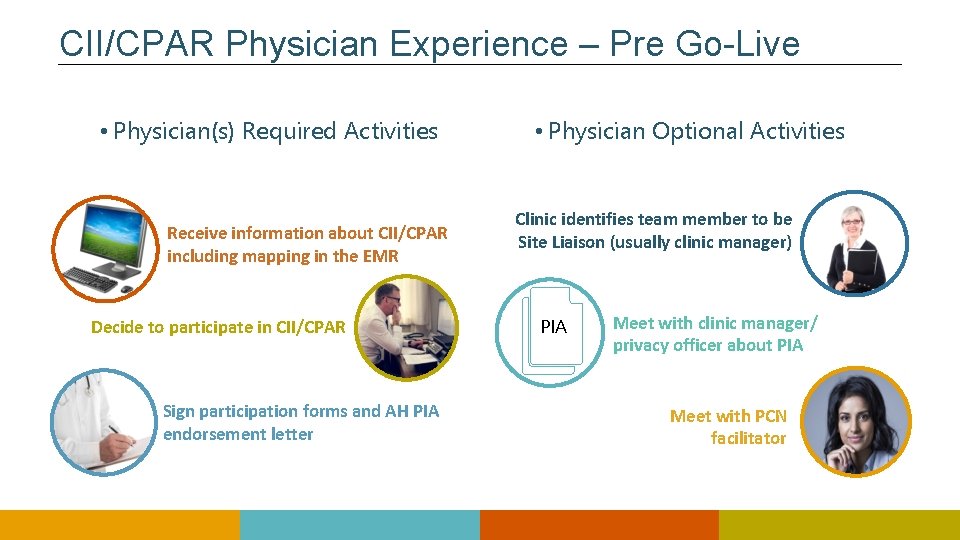
CII/CPAR Physician Experience – Pre Go-Live • Physician(s) Required Activities Receive information about CII/CPAR including mapping in the EMR Decide to participate in CII/CPAR Sign participation forms and AH PIA endorsement letter • Physician Optional Activities Clinic identifies team member to be Site Liaison (usually clinic manager) PIA Meet with clinic manager/ privacy officer about PIA Meet with PCN facilitator 60
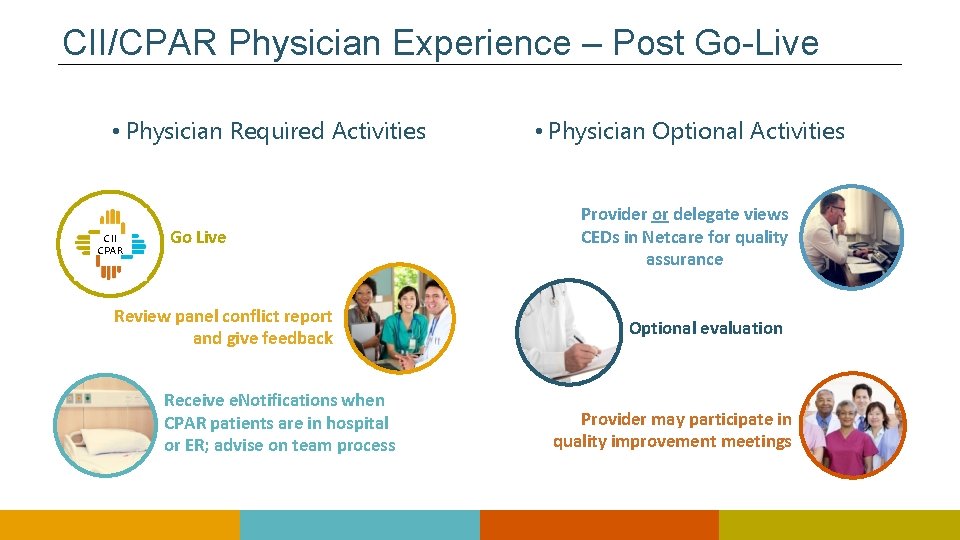
CII/CPAR Physician Experience – Post Go-Live • Physician Required Activities CII CPAR Go Live Review panel conflict report and give feedback Receive e. Notifications when CPAR patients are in hospital or ER; advise on team process • Physician Optional Activities Provider or delegate views CEDs in Netcare for quality assurance Optional evaluation Provider may participate in quality improvement meetings 61
Ready to Participate? 62
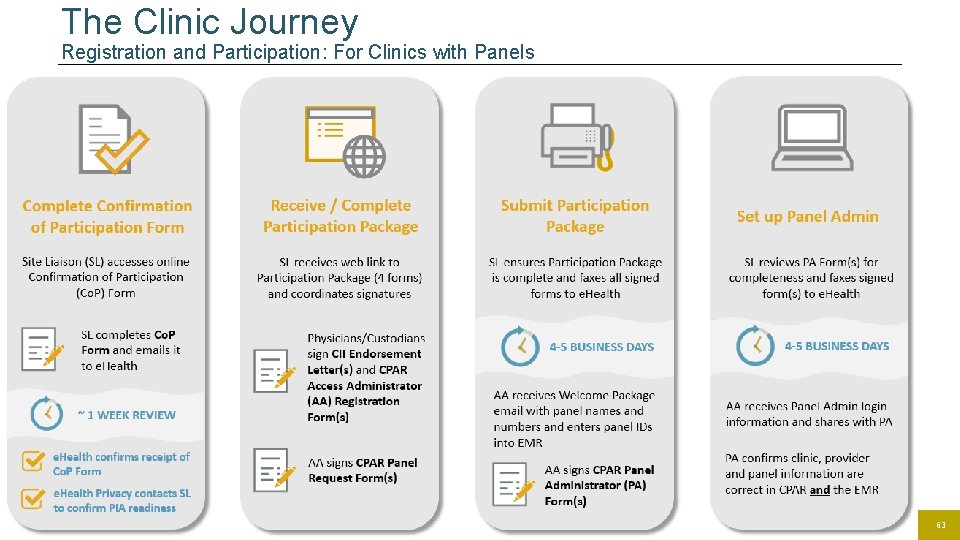
The Clinic Journey Registration and Participation: For Clinics with Panels 63
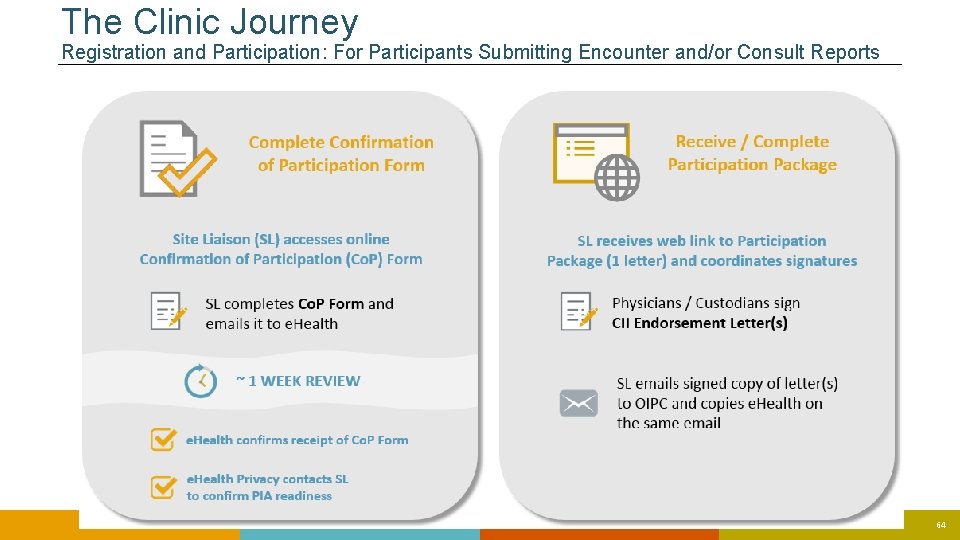
The Clinic Journey Registration and Participation: For Participants Submitting Encounter and/or Consult Reports 64
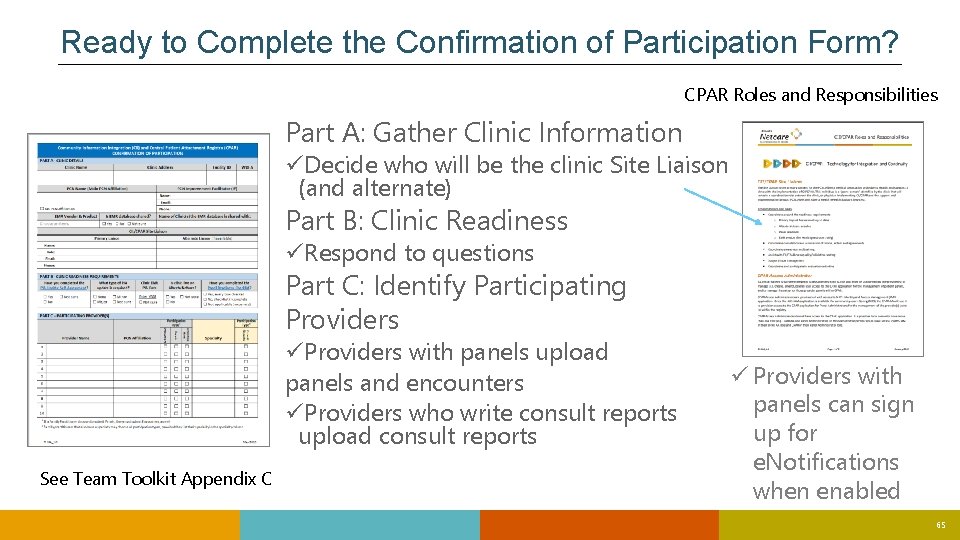
Ready to Complete the Confirmation of Participation Form? CPAR Roles and Responsibilities Part A: Gather Clinic Information üDecide who will be the clinic Site Liaison (and alternate) Part B: Clinic Readiness üRespond to questions Part C: Identify Participating Providers üProviders with panels upload panels and encounters üProviders who write consult reports upload consult reports See Team Toolkit Appendix C ü Providers with panels can sign up for e. Notifications when enabled 65
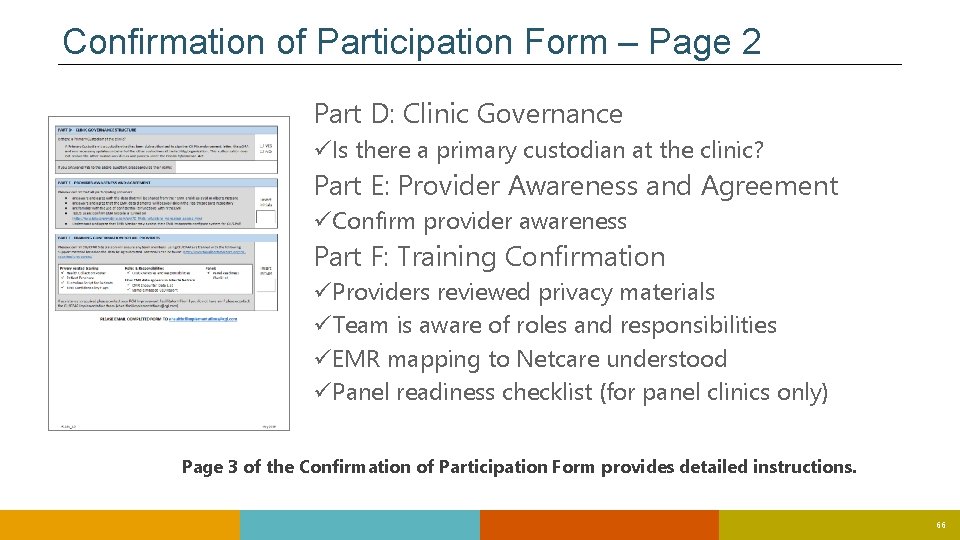
Confirmation of Participation Form – Page 2 Part D: Clinic Governance üIs there a primary custodian at the clinic? Part E: Provider Awareness and Agreement üConfirm provider awareness Part F: Training Confirmation üProviders reviewed privacy materials üTeam is aware of roles and responsibilities üEMR mapping to Netcare understood üPanel readiness checklist (for panel clinics only) Page 3 of the Confirmation of Participation Form provides detailed instructions. 66
Pre Go-Live Tips Tools and Supports https: //actt. albertadoctors. org/cii-cpar/toolsresources 67
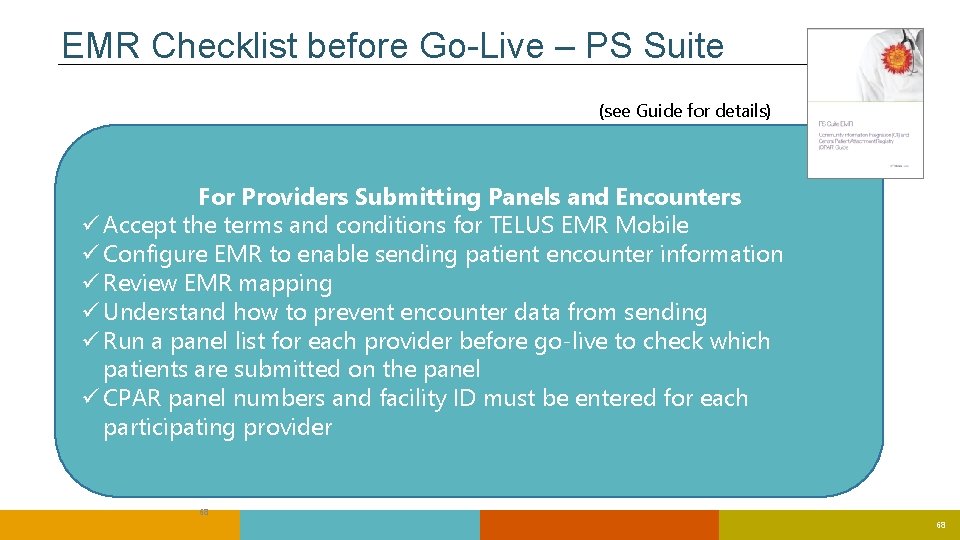
EMR Checklist before Go-Live – PS Suite (see Guide for details) For Providers Submitting Panels and Encounters ü Accept the terms and conditions for TELUS EMR Mobile ü Configure EMR to enable sending patient encounter information ü Review EMR mapping ü Understand how to prevent encounter data from sending ü Run a panel list for each provider before go-live to check which patients are submitted on the panel ü CPAR panel numbers and facility ID must be entered for each participating provider 68 68
Panel Tips – Review your Panel List To upload to CPAR, each patient MUST have: üA Last Visit Date üA Date Last Verified ü“Active” as the Patient Status üA Registered Provider in the Patient’s MD/NP field üA PHN and Sex recorded The “Exclude from CPAR Panel” checkbox must be unchecked 69
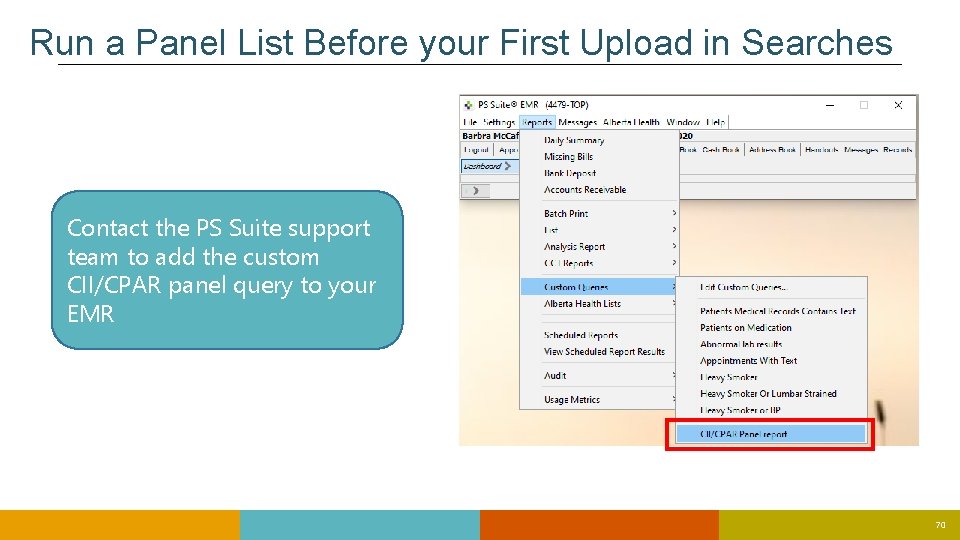
Run a Panel List Before your First Upload in Searches Contact the PS Suite support team to add the custom CII/CPAR panel query to your EMR 70
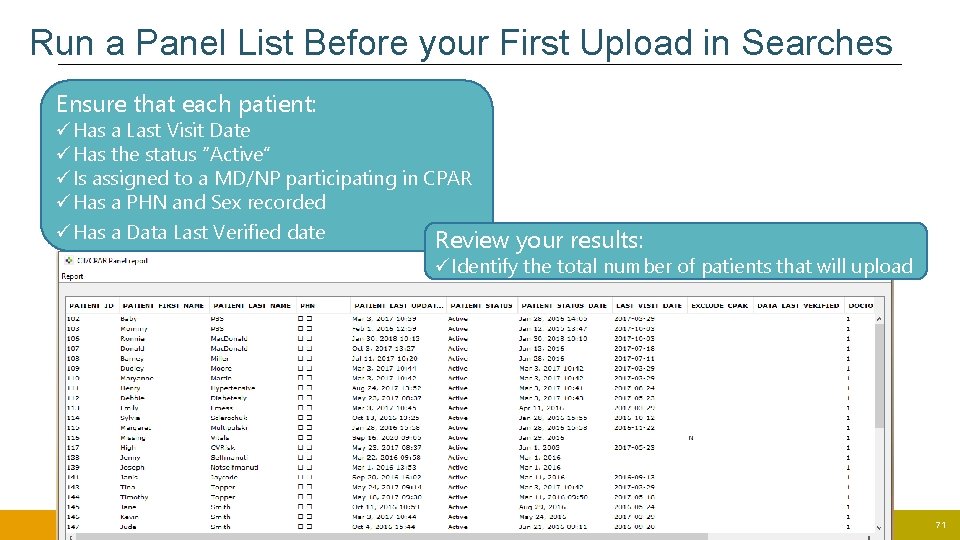
Run a Panel List Before your First Upload in Searches Ensure that each patient: üHas a Last Visit Date üHas the status “Active” üIs assigned to a MD/NP participating in CPAR üHas a PHN and Sex recorded üHas a Data Last Verified date Review your results: üIdentify the total number of patients that will upload 71
EMR Checklist before Go-Live – PS Suite (see Guide for details) For Providers Submitting Consult Reports 1. Accept the terms and conditions for TELUS EMR Mobile 2. Add the clinic’s facility number under CPAR Preferences 3. Add provider panel numbers under CPAR Preferences 4. Enable EMR integration with CII 2 3 4 72
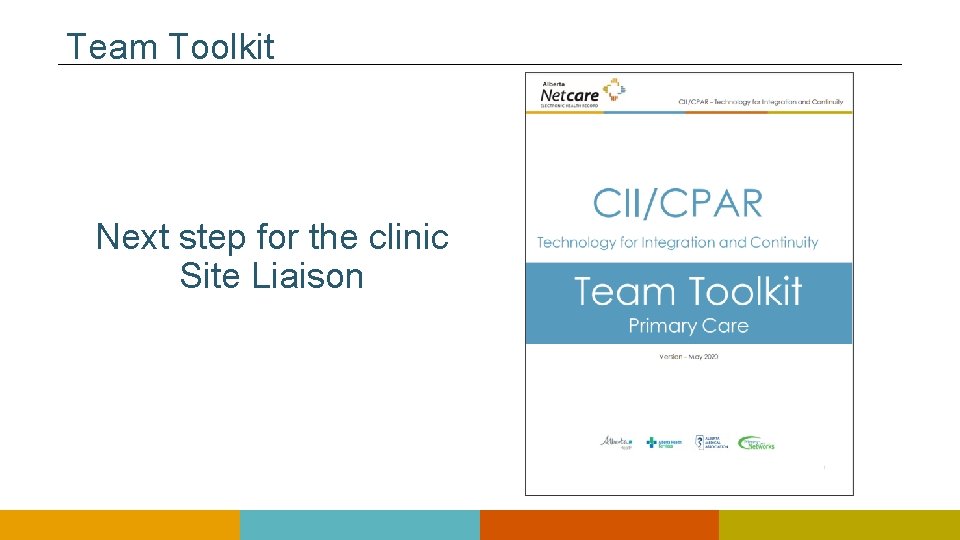
Team Toolkit Next step for the clinic Site Liaison 73
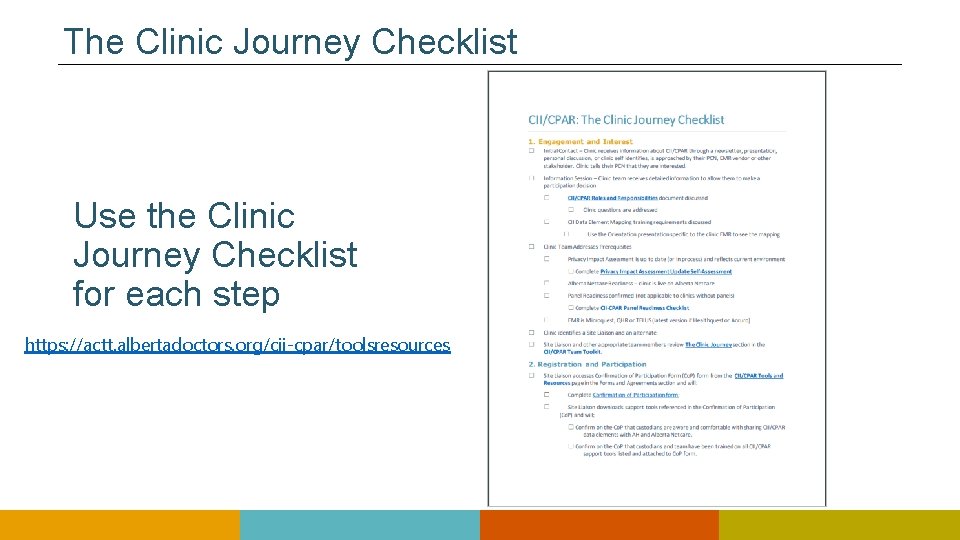
The Clinic Journey Checklist Use the Clinic Journey Checklist for each step https: //actt. albertadoctors. org/cii-cpar/toolsresources 74
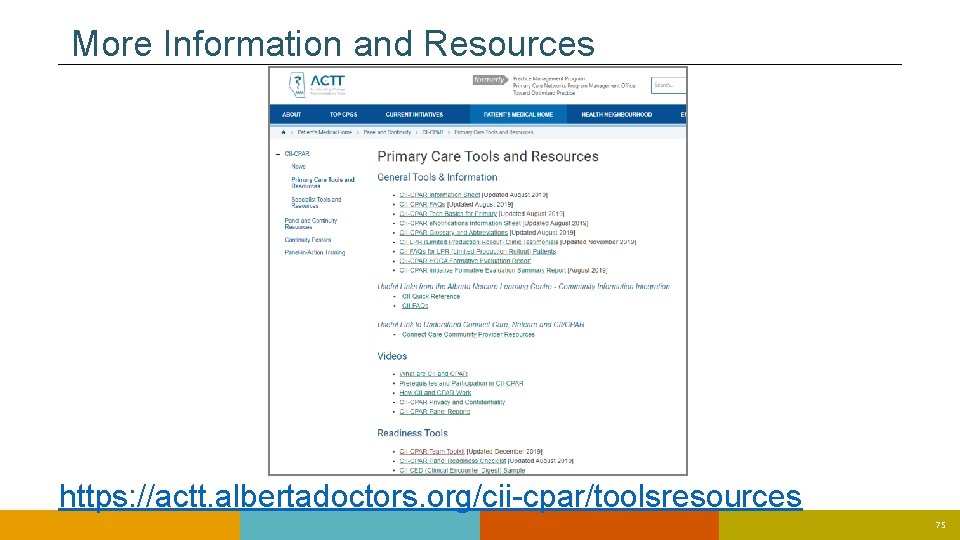
More Information and Resources https: //actt. albertadoctors. org/cii-cpar/toolsresources 75
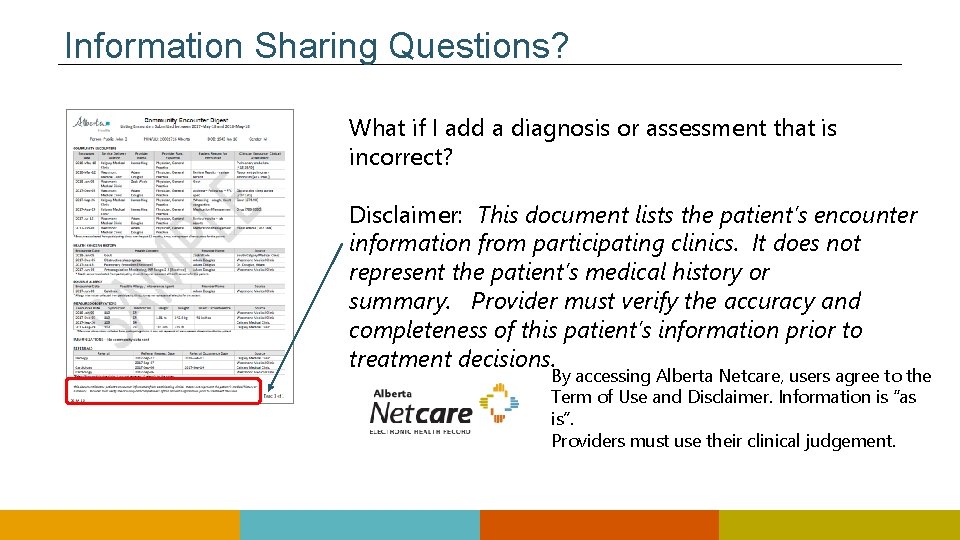
Information Sharing Questions? What if I add a diagnosis or assessment that is incorrect? Disclaimer: This document lists the patient’s encounter information from participating clinics. It does not represent the patient’s medical history or summary. Provider must verify the accuracy and completeness of this patient’s information prior to treatment decisions. By accessing Alberta Netcare, users agree to the Term of Use and Disclaimer. Information is “as is”. Providers must use their clinical judgement. 76
Questions & Next Steps 77
? http: //www. albertanetcare. ca/learningcentre/CII. htm https: //actt. albertadoctors. org/cii-cpar/toolsresources Let your PCN know that you are interested in participating in CII/CPAR. 78