
1 Strategies for the Technical Professional 2 Demonstrate
- Slides: 59
1 Strategies for the Technical Professional
2 Demonstrate selected skills using Microsoft Word elements: Basic Word functions Editing and formatting Tables and graphics References
3 Microsoft Word is one of the most commonly used word processing packages. Word processing software is a tool that allows us take information and create various documents that we can easily format, edit and modify. This software also allows us to save and share the documents with others. Among the kinds of documents we can create are: q q Letters Reports Memos Resumes
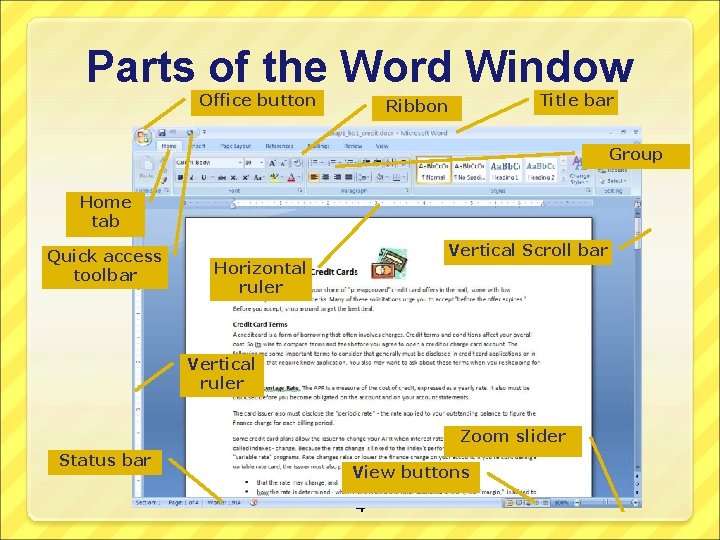
Parts of the Word Window Office button Title bar Ribbon Group Home tab Quick access toolbar Vertical Scroll bar Horizontal ruler Vertical ruler Zoom slider Status bar View buttons 4
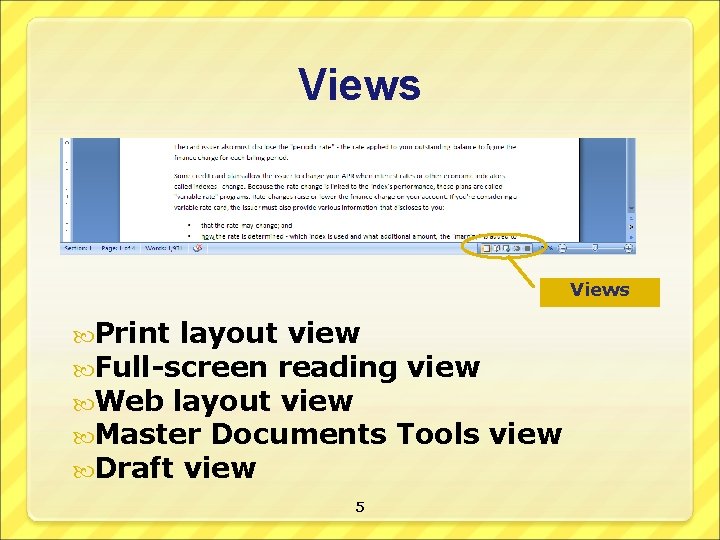
Views Print layout view Full-screen reading view Web layout view Master Documents Tools Draft view 5 view
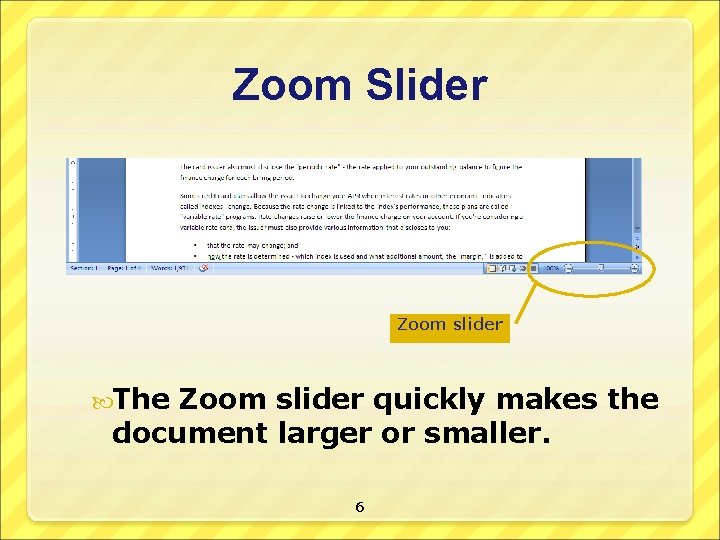
Zoom Slider Zoom slider The Zoom slider quickly makes the document larger or smaller. 6
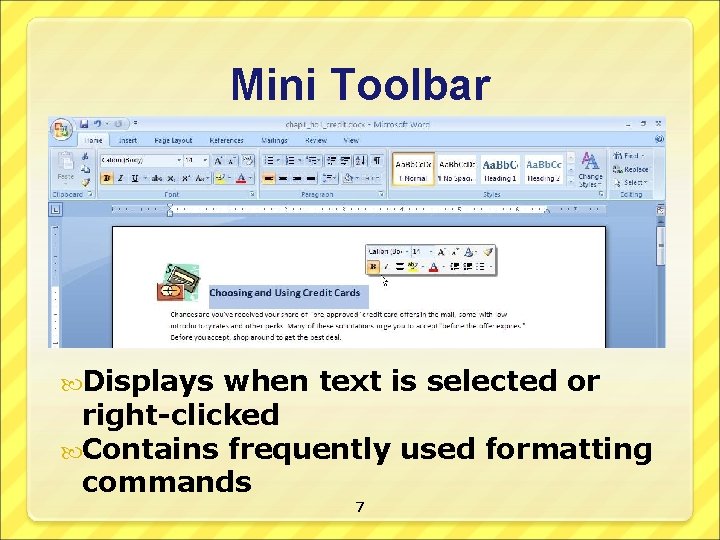
Mini Toolbar Displays when text is selected or right-clicked Contains frequently used formatting commands 7
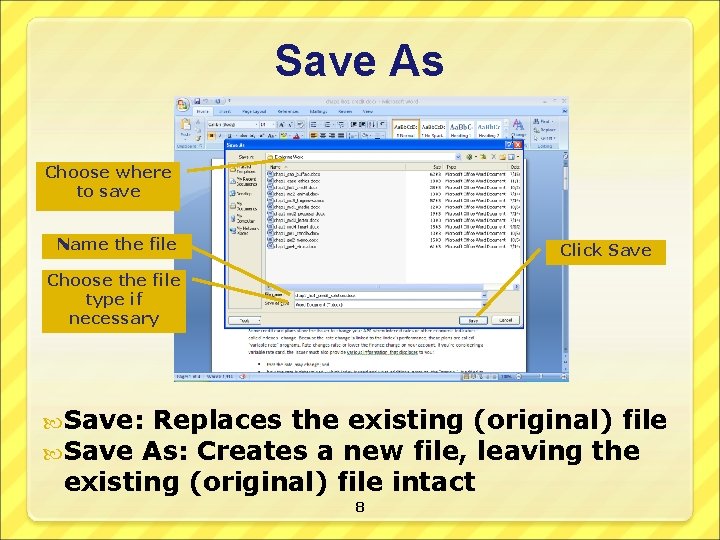
Save As Choose where to save Name the file Click Save Choose the file type if necessary Save: Replaces the existing (original) file Save As: Creates a new file, leaving the existing (original) file intact 8
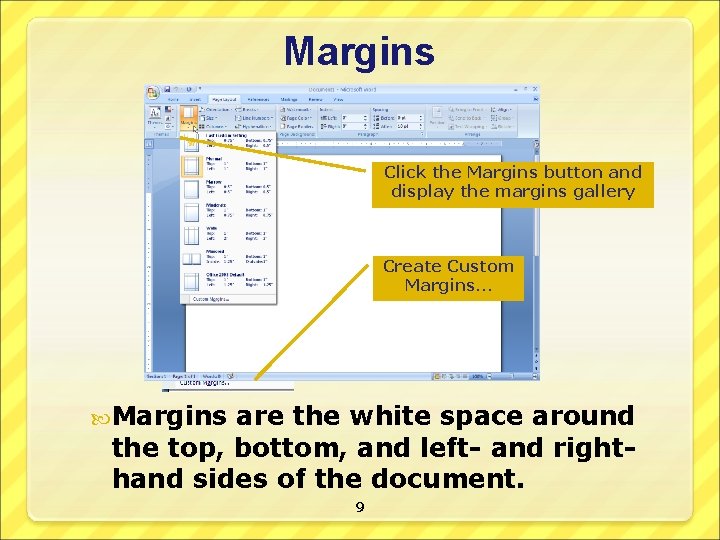
Margins Click the Margins button and display the margins gallery Create Custom Margins… Margins are the white space around the top, bottom, and left- and righthand sides of the document. 9
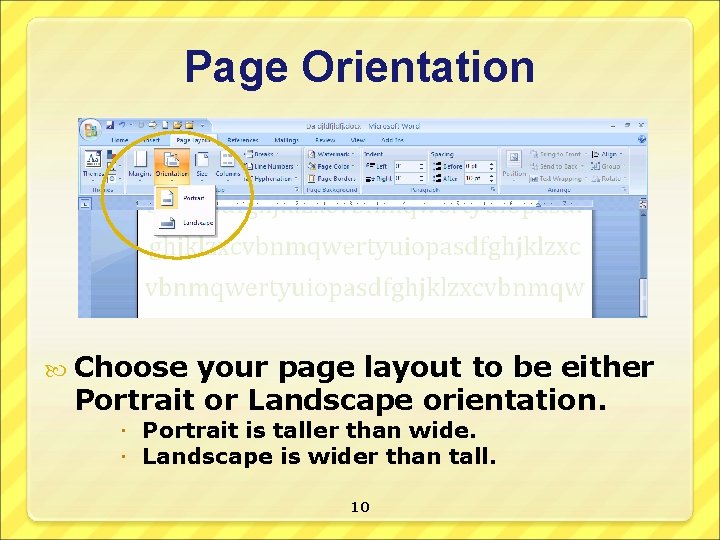
Page Orientation Choose your page layout to be either Portrait or Landscape orientation. Portrait is taller than wide. Landscape is wider than tall. 10
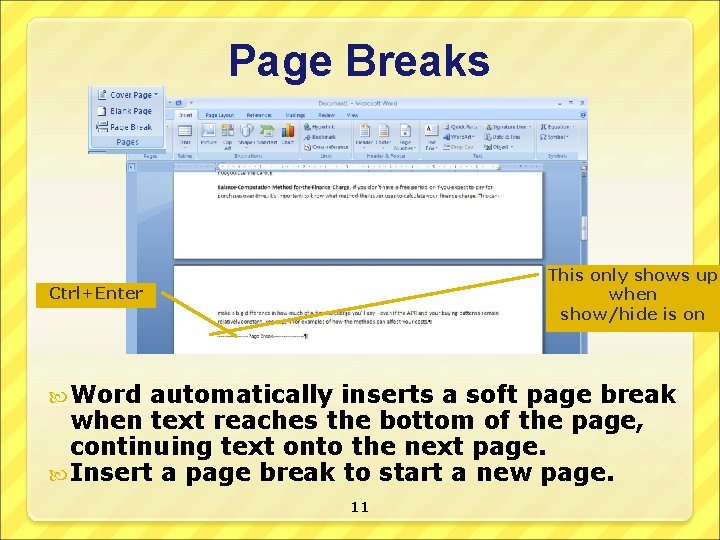
Page Breaks This only shows up when show/hide is on Ctrl+Enter Word automatically inserts a soft page break when text reaches the bottom of the page, continuing text onto the next page. Insert a page break to start a new page. 11
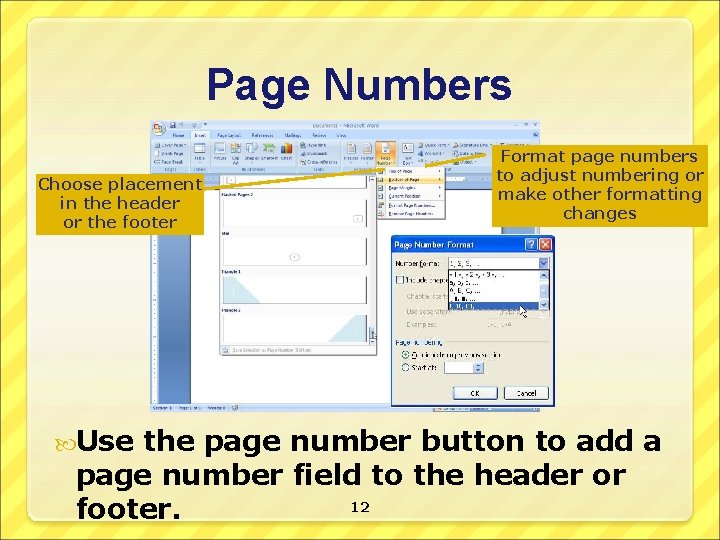
Page Numbers Choose placement in the header or the footer Use Format page numbers to adjust numbering or make other formatting changes the page number button to add a page number field to the header or 12 footer.
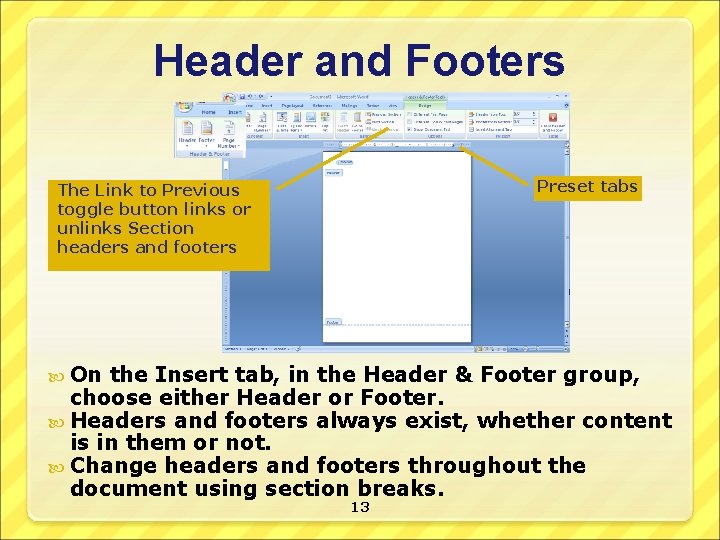
Header and Footers Preset tabs The Link to Previous toggle button links or unlinks Section headers and footers On the Insert tab, in the Header & Footer group, choose either Header or Footer. Headers and footers always exist, whether content is in them or not. Change headers and footers throughout the document using section breaks. 13
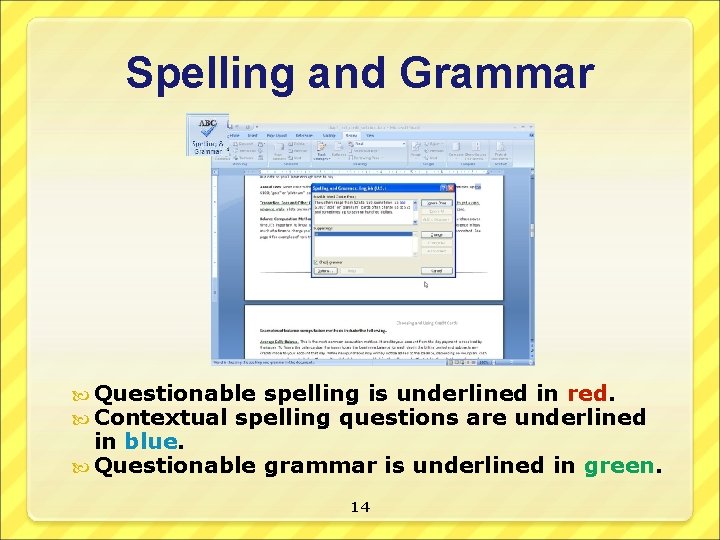
Spelling and Grammar Questionable spelling is underlined in red. Contextual spelling questions are underlined in blue. Questionable grammar is underlined in green. 14
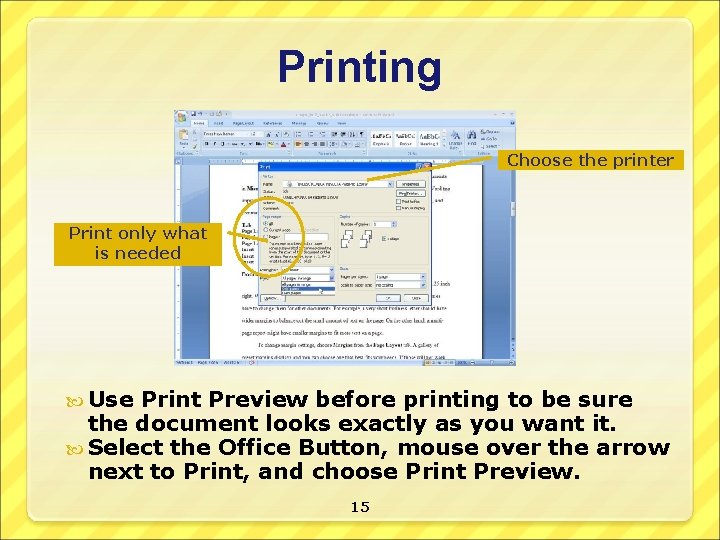
Printing Choose the printer Print only what is needed Use Print Preview before printing to be sure the document looks exactly as you want it. Select the Office Button, mouse over the arrow next to Print, and choose Print Preview. 15
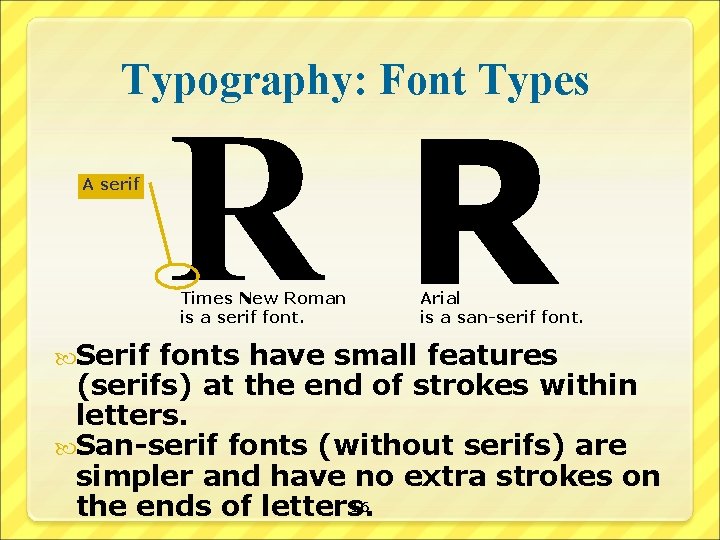
Typography: Font Types A serif RR Times New Roman is a serif font. Serif Arial is a san-serif fonts have small features (serifs) at the end of strokes within letters. San-serif fonts (without serifs) are simpler and have no extra strokes on 16 the ends of letters.
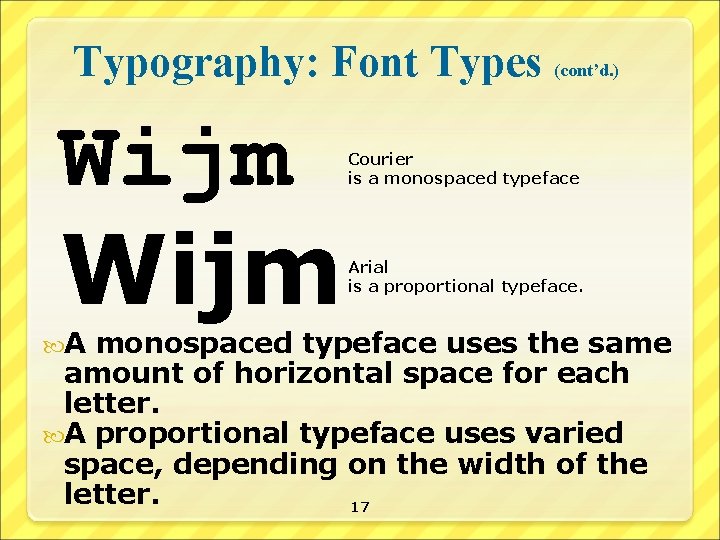
Typography: Font Types (cont’d. ) Wijm A Courier is a monospaced typeface Arial is a proportional typeface. monospaced typeface uses the same amount of horizontal space for each letter. A proportional typeface uses varied space, depending on the width of the letter. 17
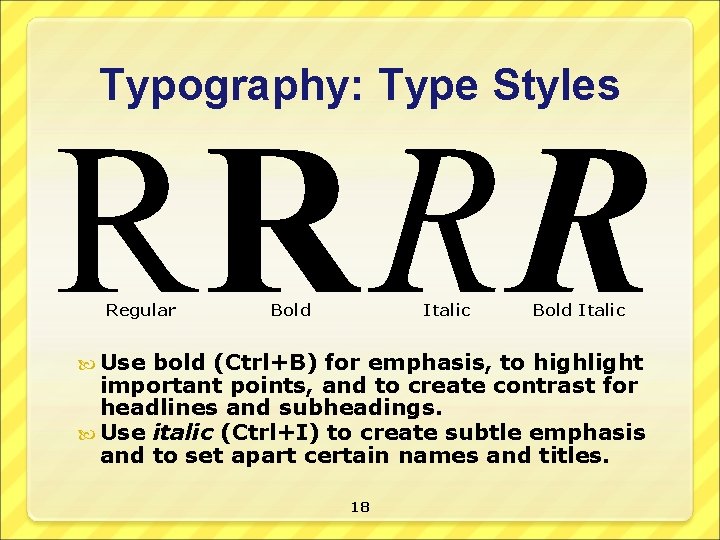
Typography: Type Styles RR R R Regular Bold Italic Use Bold Italic bold (Ctrl+B) for emphasis, to highlight important points, and to create contrast for headlines and subheadings. Use italic (Ctrl+I) to create subtle emphasis and to set apart certain names and titles. 18
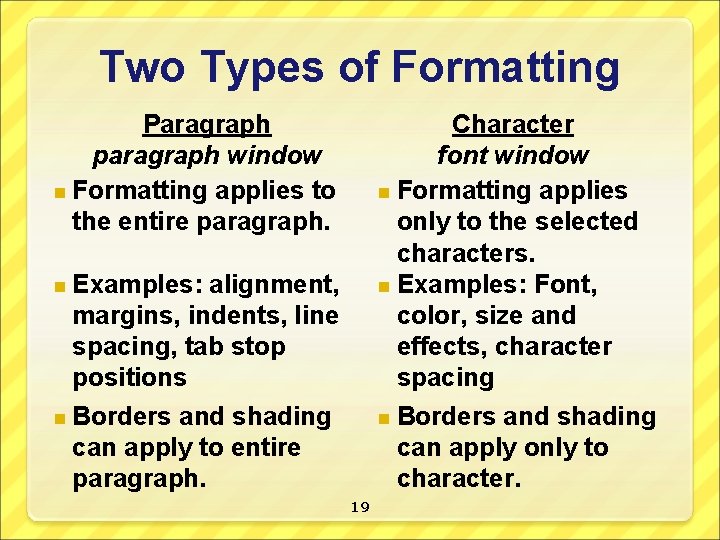
Two Types of Formatting Paragraph paragraph window n Formatting applies to the entire paragraph. Character font window n Formatting applies only to the selected characters. n Examples: Font, color, size and effects, character spacing n Borders and shading can apply only to character. Examples: alignment, margins, indents, line spacing, tab stop positions n Borders and shading can apply to entire paragraph. n 19
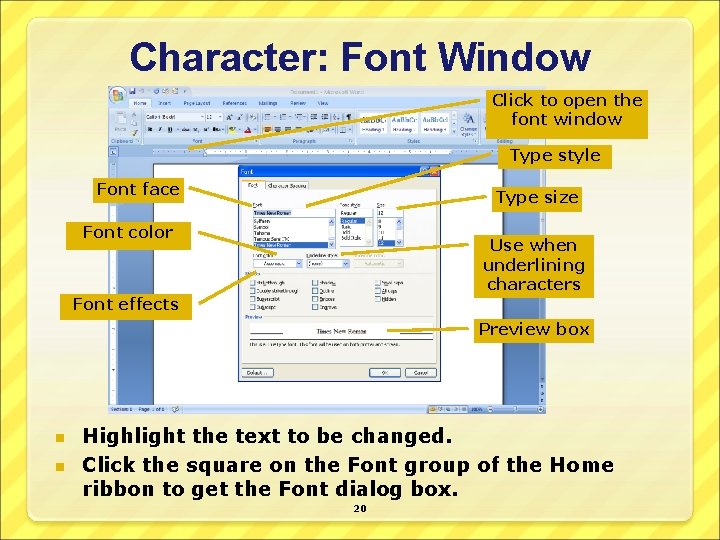
Character: Font Window Click to open the font window Type style Font face Type size Font color Use when underlining characters Font effects Preview box n n Highlight the text to be changed. Click the square on the Font group of the Home ribbon to get the Font dialog box. 20
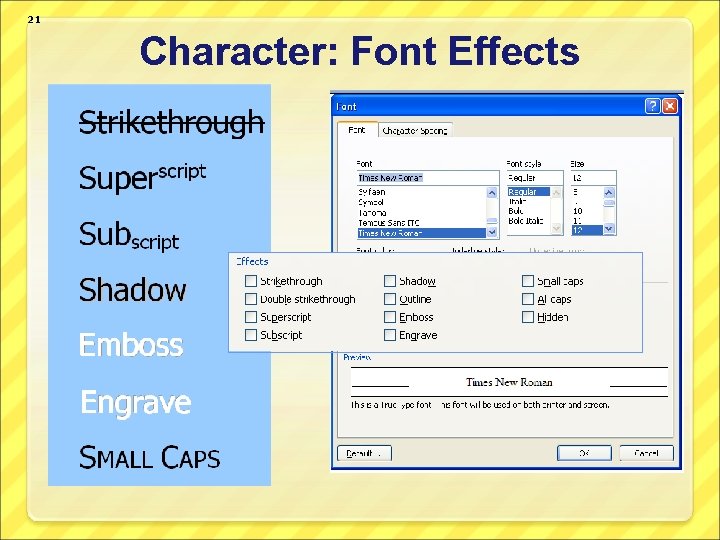
21 Character: Font Effects
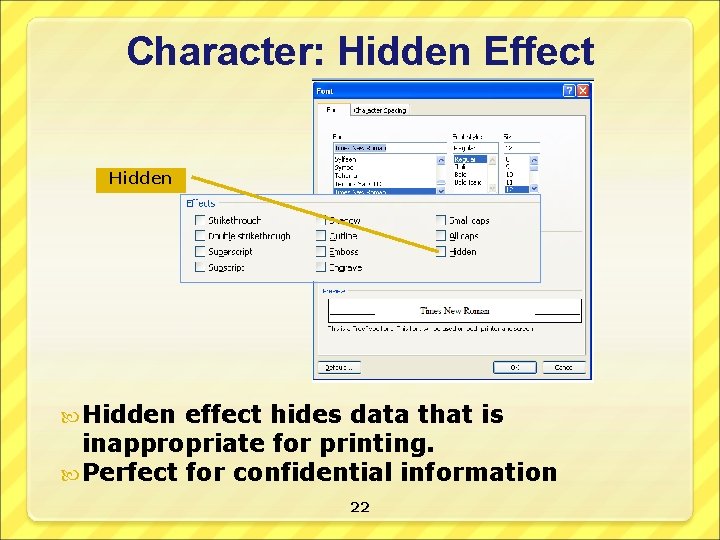
Character: Hidden Effect Hidden effect hides data that is inappropriate for printing. Perfect for confidential information 22
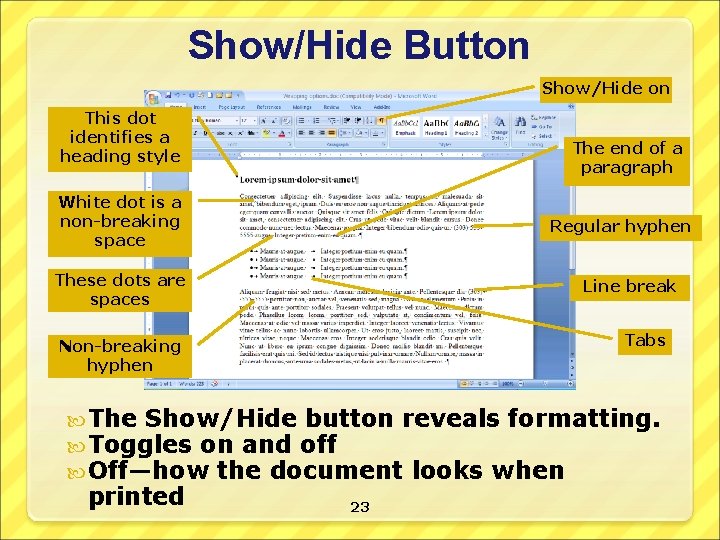
Show/Hide Button Show/Hide on This dot identifies a heading style The end of a paragraph White dot is a non-breaking space Regular hyphen These dots are spaces Line break Tabs Non-breaking hyphen The Show/Hide button reveals formatting. Toggles on and off Off—how the document looks when printed 23
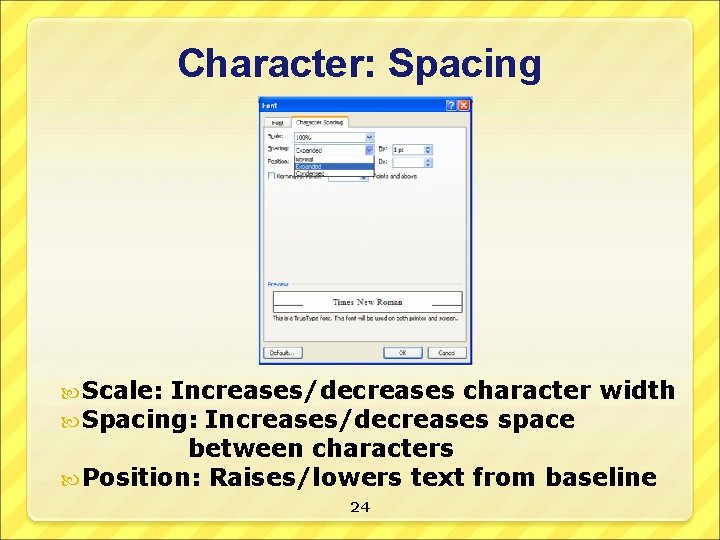
Character: Spacing Scale: Increases/decreases character Spacing: Increases/decreases space width between characters Position: Raises/lowers text from baseline 24
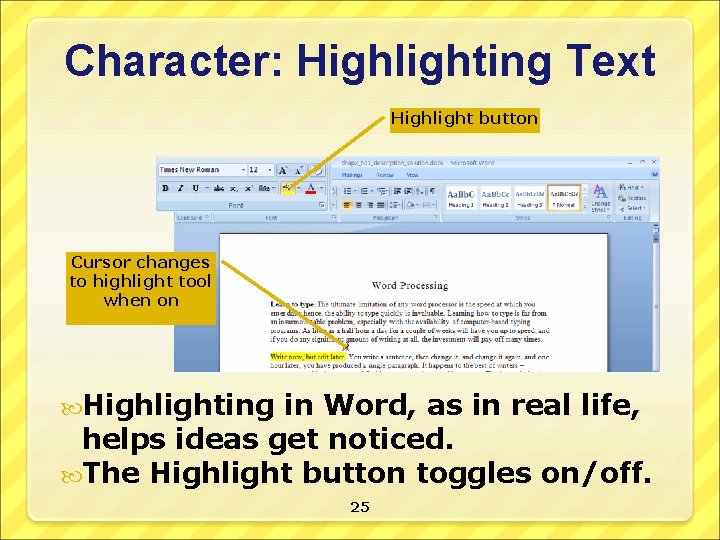
Character: Highlighting Text Highlight button Cursor changes to highlight tool when on Highlighting in Word, as in real life, helps ideas get noticed. The Highlight button toggles on/off. 25
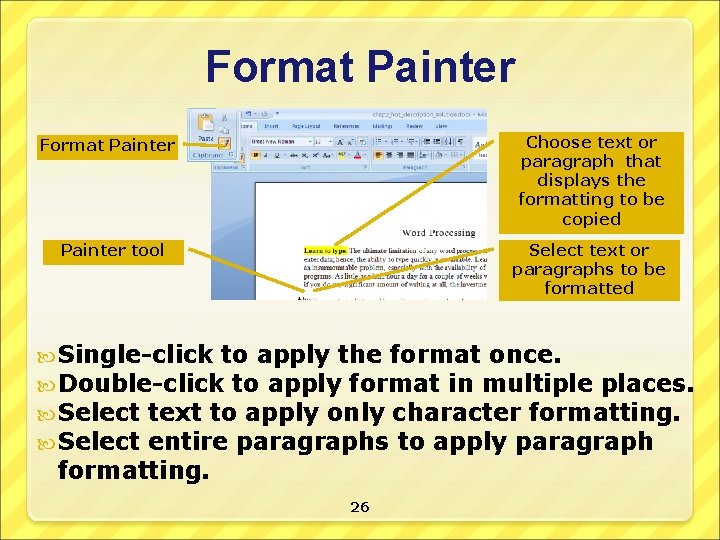
Format Painter Choose text or paragraph that displays the formatting to be copied Format Painter tool Select text or paragraphs to be formatted Single-click to apply the format once. Double-click to apply format in multiple places. Select text to apply only character formatting. Select entire paragraphs to apply paragraph formatting. 26
Formatting a Paragraph-level formatting applies to the entire paragraph. Even when an entire paragraph is not selected, the Format Paragraph commands affect the entire paragraph. 27
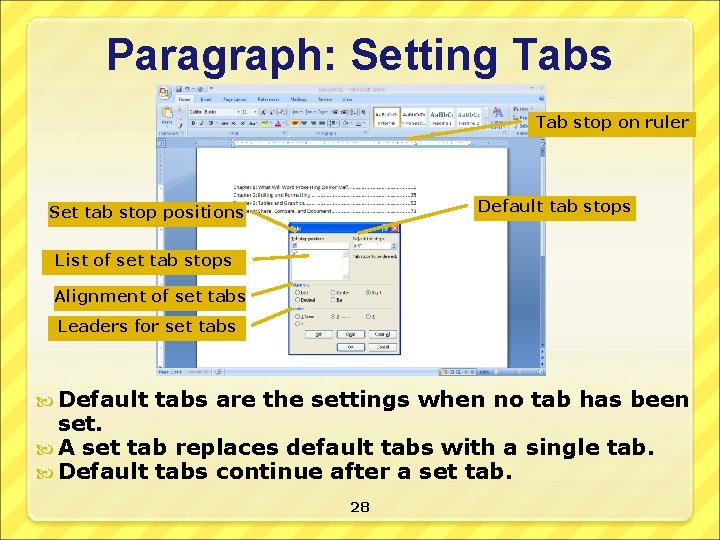
Paragraph: Setting Tabs Tab stop on ruler Default tab stops Set tab stop positions List of set tab stops Alignment of set tabs Leaders for set tabs Default tabs are the settings when no tab has been set. A set tab replaces default tabs with a single tab. Default tabs continue after a set tab. 28
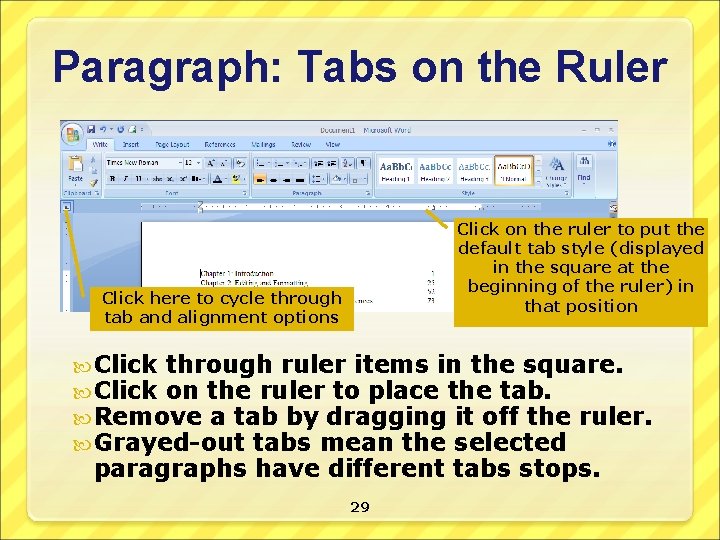
Paragraph: Tabs on the Ruler Click on the ruler to put the default tab style (displayed in the square at the beginning of the ruler) in that position Click here to cycle through tab and alignment options Click through ruler items in the square. Click on the ruler to place the tab. Remove a tab by dragging it off the ruler. Grayed-out tabs mean the selected paragraphs have different tabs stops. 29
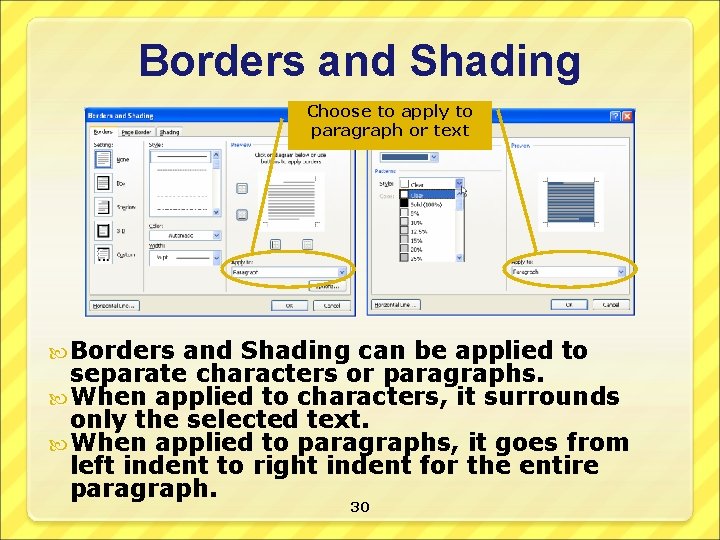
Borders and Shading Choose to apply to paragraph or text Borders and Shading can be applied to separate characters or paragraphs. When applied to characters, it surrounds only the selected text. When applied to paragraphs, it goes from left indent to right indent for the entire paragraph. 30
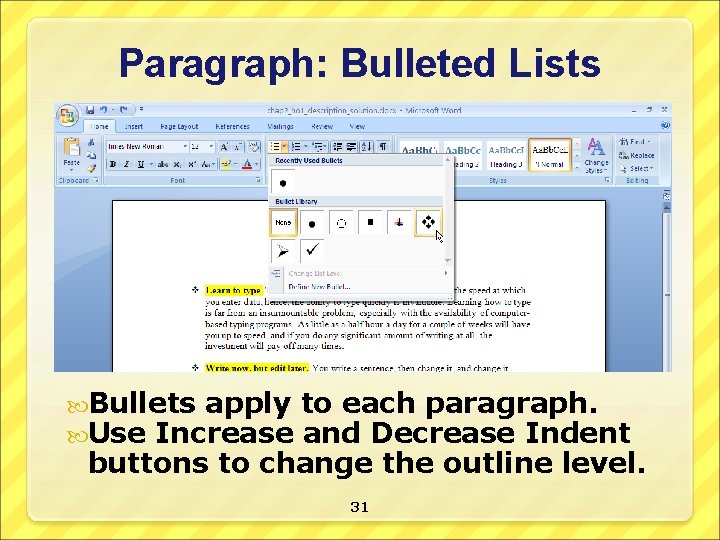
Paragraph: Bulleted Lists Bullets apply Use Increase to each paragraph. and Decrease Indent buttons to change the outline level. 31
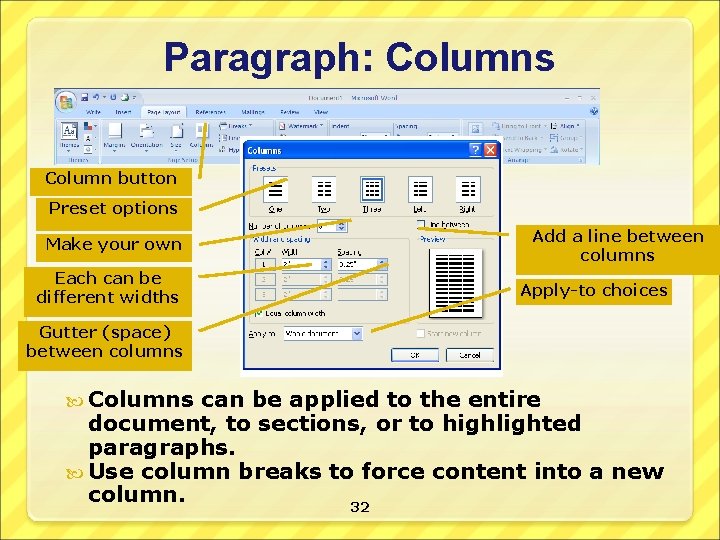
Paragraph: Columns Column button Preset options Make your own Each can be different widths Add a line between columns Apply-to choices Gutter (space) between columns Columns can be applied to the entire document, to sections, or to highlighted paragraphs. Use column breaks to force content into a new column. 32
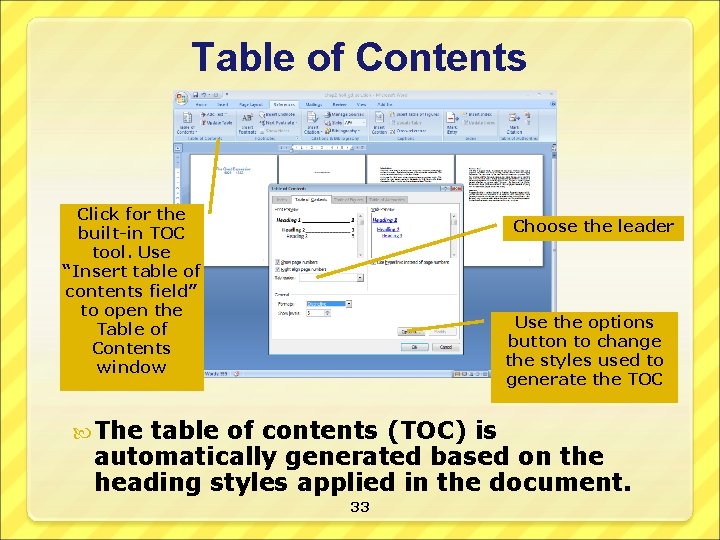
Table of Contents Click for the built-in TOC tool. Use “Insert table of contents field” to open the Table of Contents window Choose the leader Use the options button to change the styles used to generate the TOC The table of contents (TOC) is automatically generated based on the heading styles applied in the document. 33
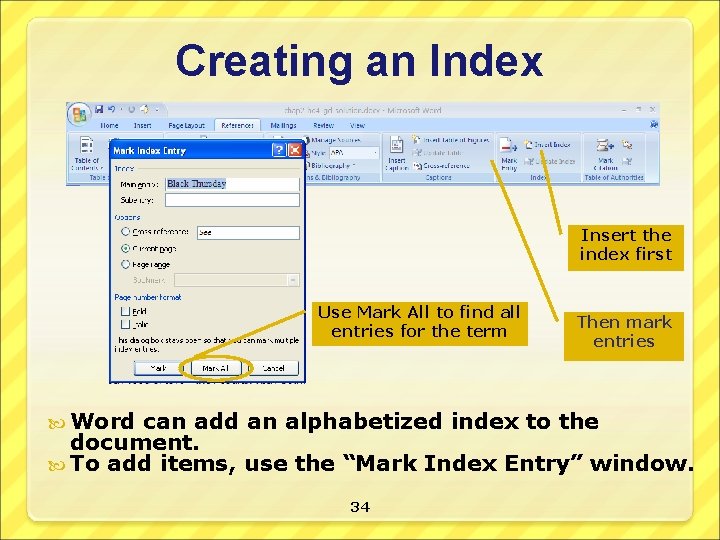
Creating an Index Insert the index first Use Mark All to find all entries for the term Word Then mark entries can add an alphabetized index to the document. To add items, use the “Mark Index Entry” window. 34
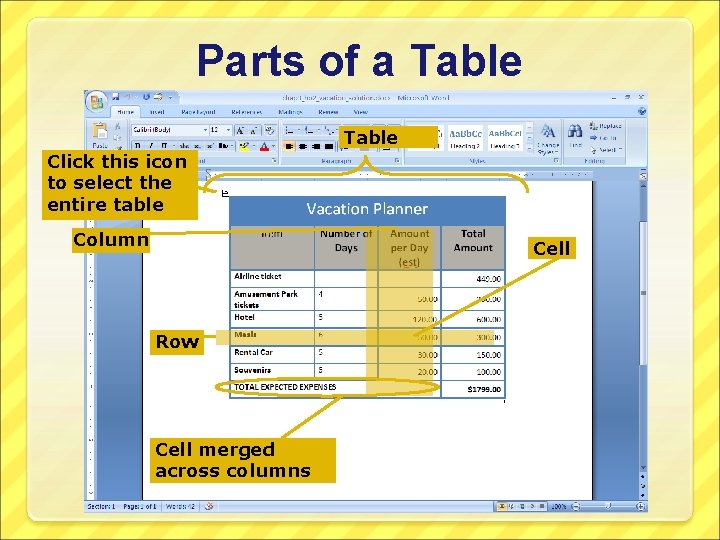
Parts of a Table Click this icon to select the entire table Column Cell Row Cell merged across columns 35
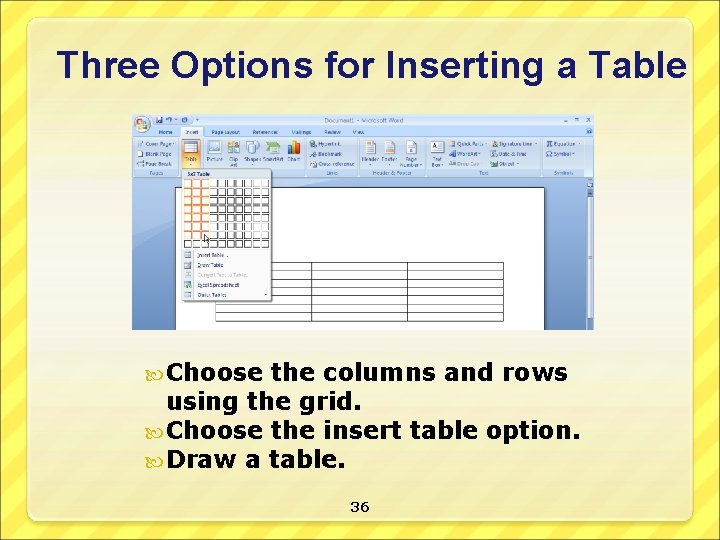
Three Options for Inserting a Table Choose the columns and rows using the grid. Choose the insert table option. Draw a table. 36
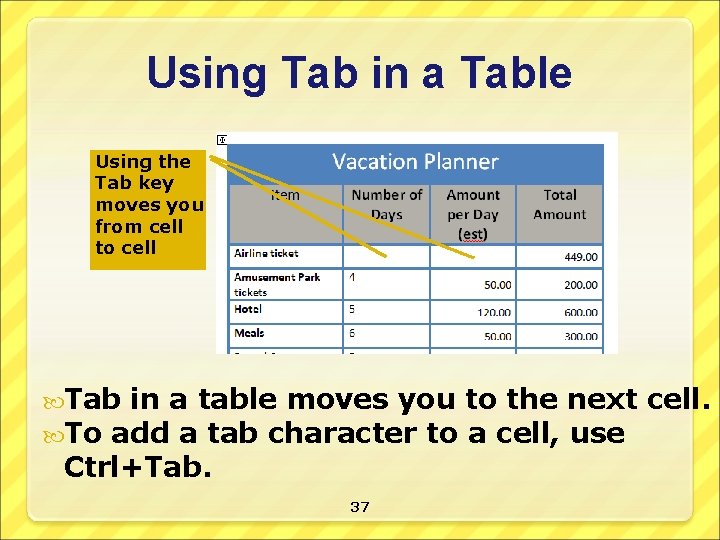
Using Tab in a Table Using the Tab key moves you from cell to cell Tab in a table moves you to the To add a tab character to a cell, Ctrl+Tab. 37 next cell. use
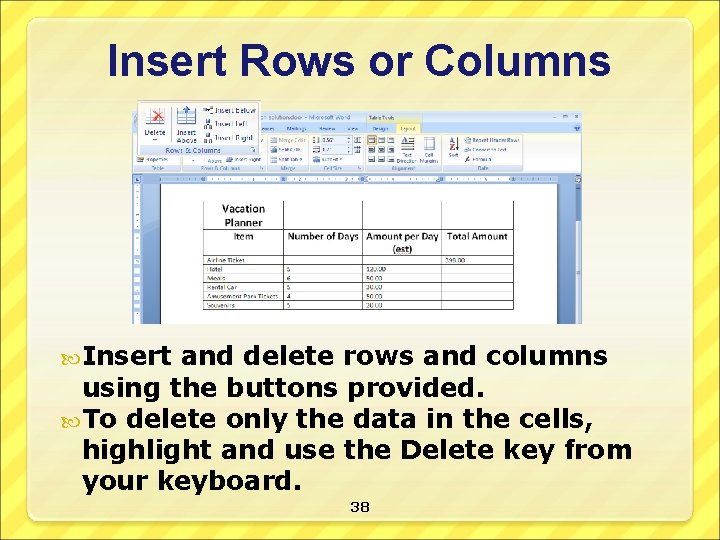
Insert Rows or Columns Insert and delete rows and columns using the buttons provided. To delete only the data in the cells, highlight and use the Delete key from your keyboard. 38
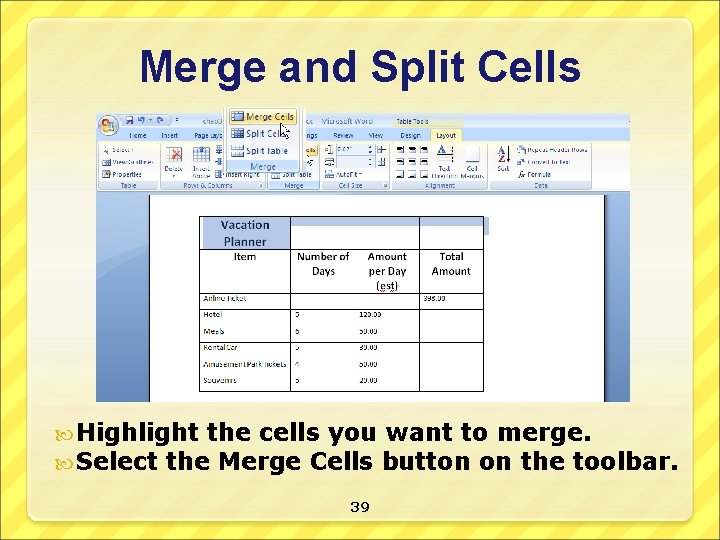
Merge and Split Cells Highlight the cells you want to merge. Select the Merge Cells button on the toolbar. 39
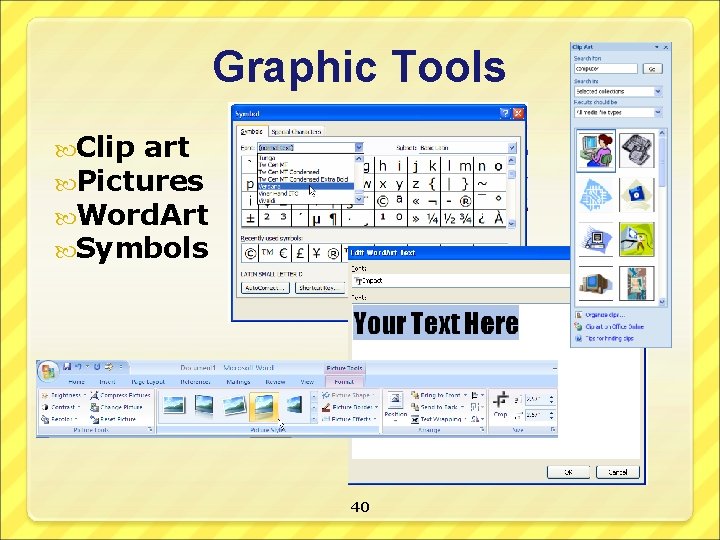
Graphic Tools Clip art Pictures Word. Art Symbols 40
Copyright protects work and gives its producer exclusive rights to its use and reproduction. Assume all work on the Internet is copyrighted and do not use something unless it is expressly stated to be in the public domain. Be sure to read all license agreements to see how you may use an image. 41
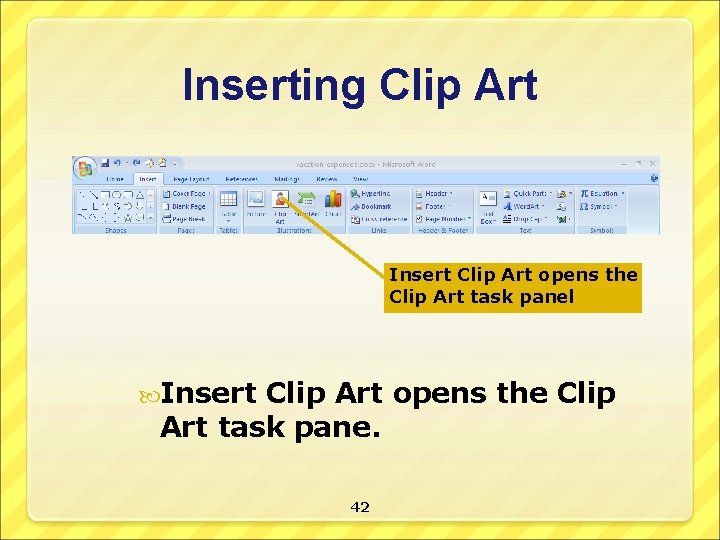
Inserting Clip Art Insert Clip Art opens the Clip Art task panel Insert Clip Art opens the Clip Art task pane. 42
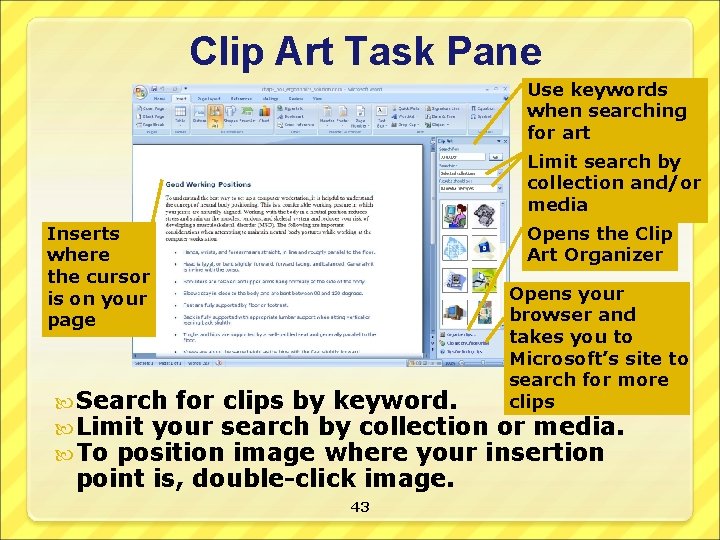
Clip Art Task Pane Use keywords when searching for art Limit search by collection and/or media Inserts where the cursor is on your page Opens the Clip Art Organizer Opens your browser and takes you to Microsoft’s site to search for more clips Search for clips by keyword. Limit your search by collection or media. To position image where your insertion point is, double-click image. 43
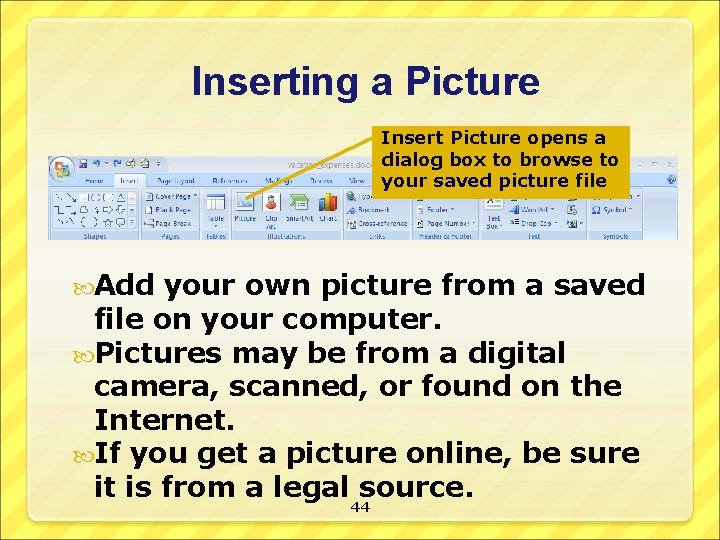
Inserting a Picture Insert Picture opens a dialog box to browse to your saved picture file Add your own picture from a saved file on your computer. Pictures may be from a digital camera, scanned, or found on the Internet. If you get a picture online, be sure it is from a legal source. 44
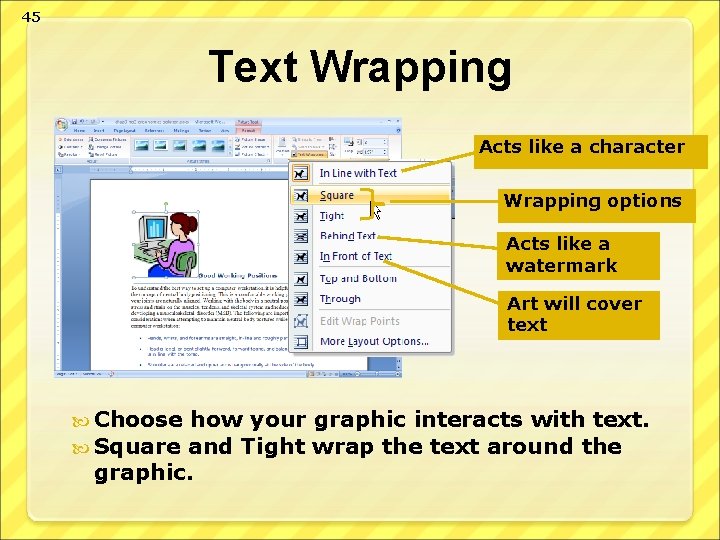
45 Text Wrapping Acts like a character Wrapping options Acts like a watermark Art will cover text Choose how your Square and Tight graphic interacts with text. wrap the text around the
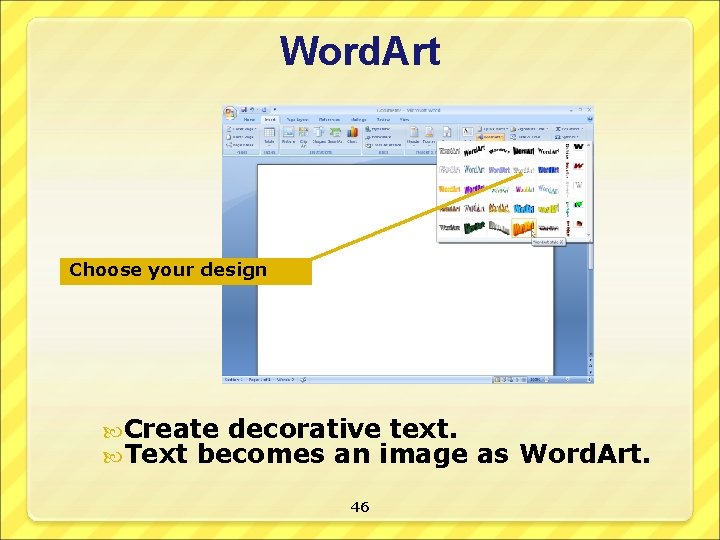
Word. Art Choose your design Create decorative text. Text becomes an image 46 as Word. Art.
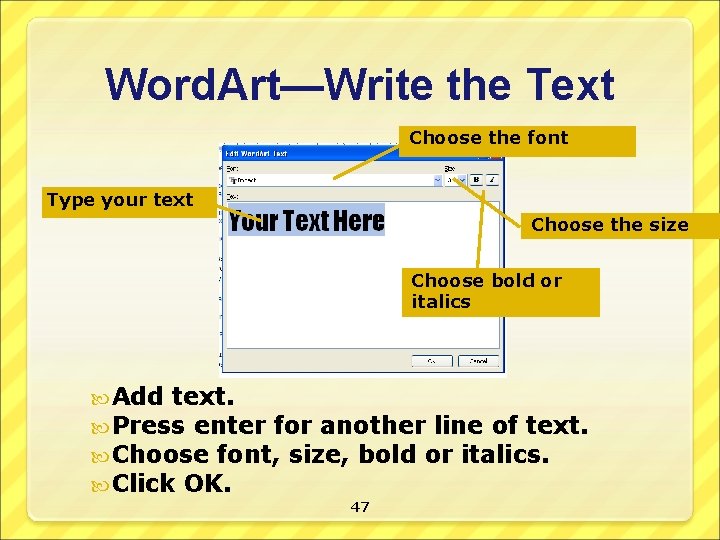
Word. Art—Write the Text Choose the font Type your text Choose the size Choose bold or italics Add text. Press enter for another line of text. Choose font, size, bold or italics. Click OK. 47
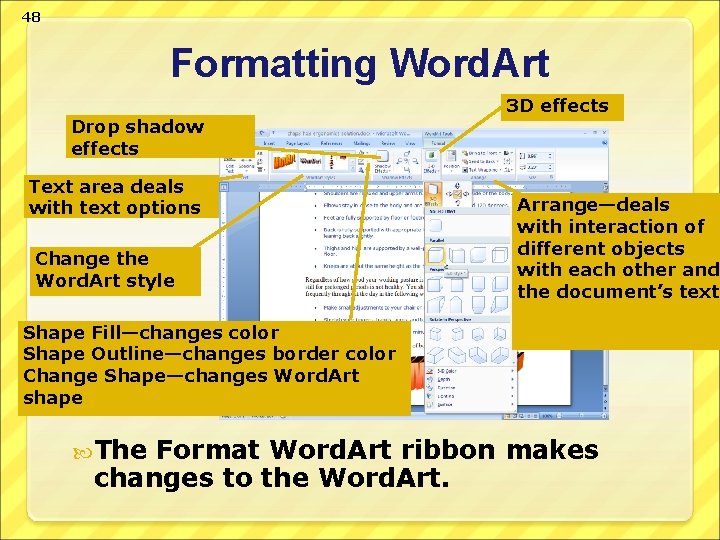
48 Formatting Word. Art Drop shadow effects Text area deals with text options Change the Word. Art style 3 D effects Arrange—deals with interaction of different objects with each other and the document’s text Shape Fill—changes color Shape Outline—changes border color Change Shape—changes Word. Art shape The Format Word. Art ribbon makes changes to the Word. Art.
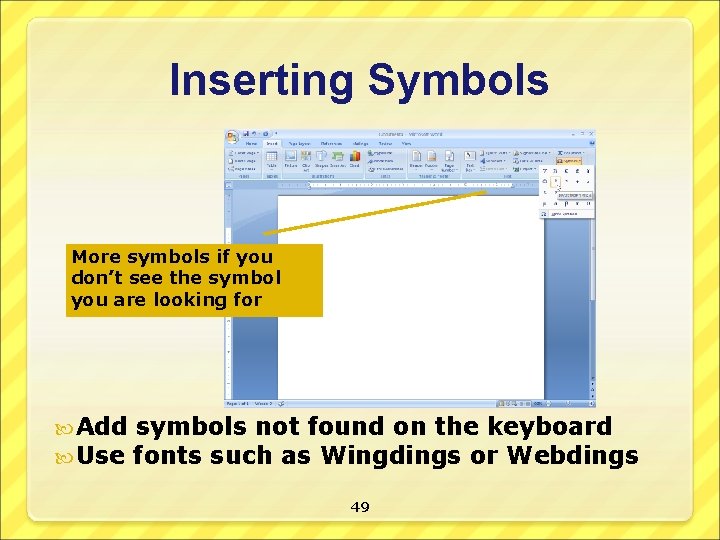
Inserting Symbols More symbols if you don’t see the symbol you are looking for Add symbols not found on the keyboard Use fonts such as Wingdings or Webdings 49
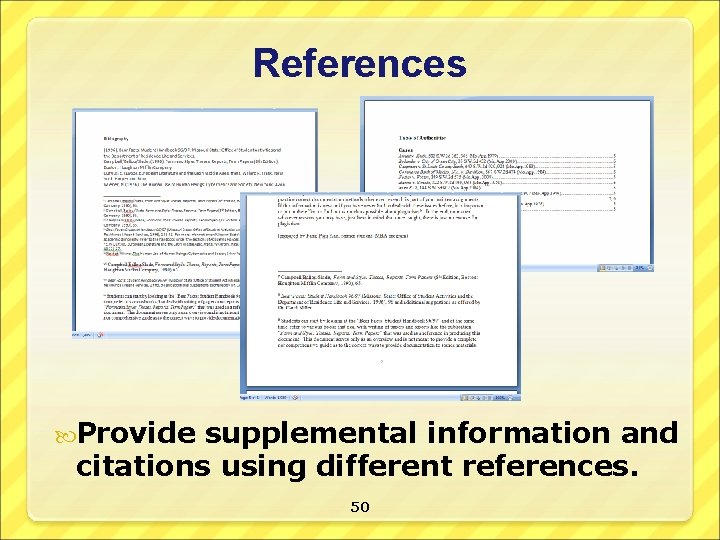
References Provide supplemental information and citations using different references. 50
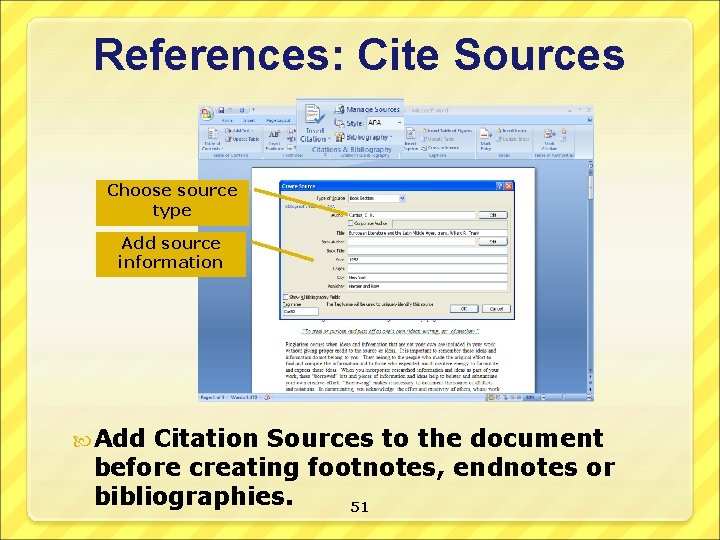
References: Cite Sources Choose source type Add source information Add Citation Sources to the document before creating footnotes, endnotes or bibliographies. 51
Reference: Current vs. Master Lists The current document contains the entered citation sources in the Current List. All citations entered on the computer are compiled into a Master List and are available to any other document on the computer. 52
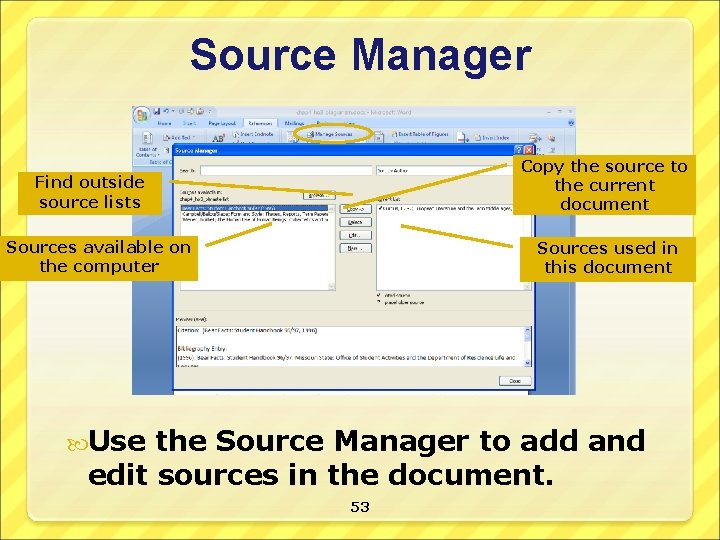
Source Manager Copy the source to the current document Find outside source lists Sources available on the computer Sources used in this document Use the Source Manager to add and edit sources in the document. 53
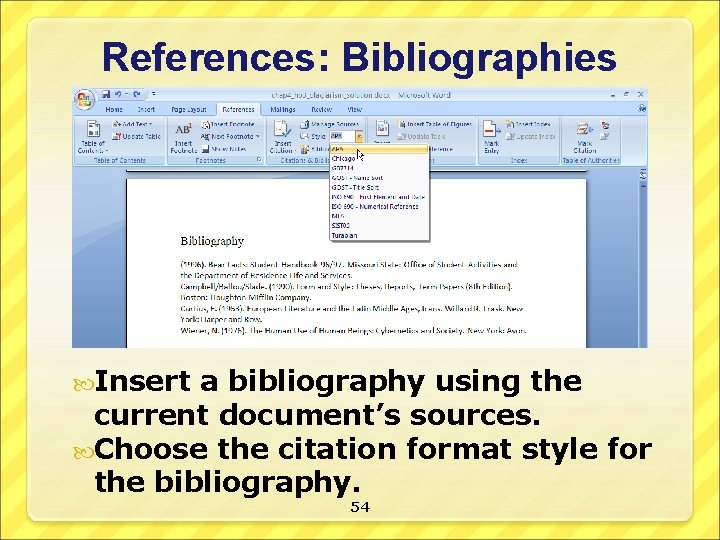
References: Bibliographies Insert a bibliography using the current document’s sources. Choose the citation format style for the bibliography. 54
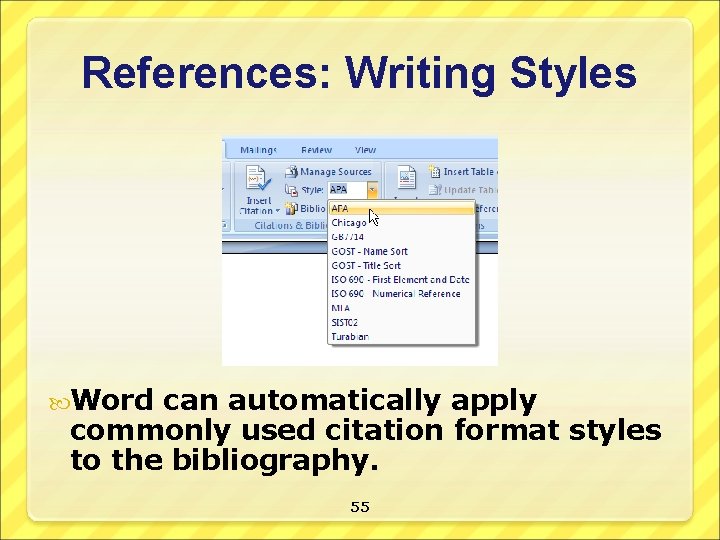
References: Writing Styles Word can automatically apply commonly used citation format styles to the bibliography. 55
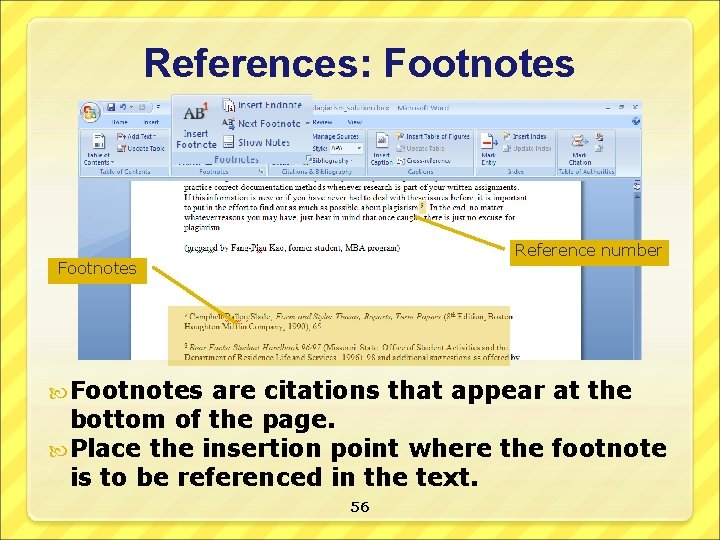
References: Footnotes Reference number Footnotes are citations that appear at the bottom of the page. Place the insertion point where the footnote is to be referenced in the text. 56
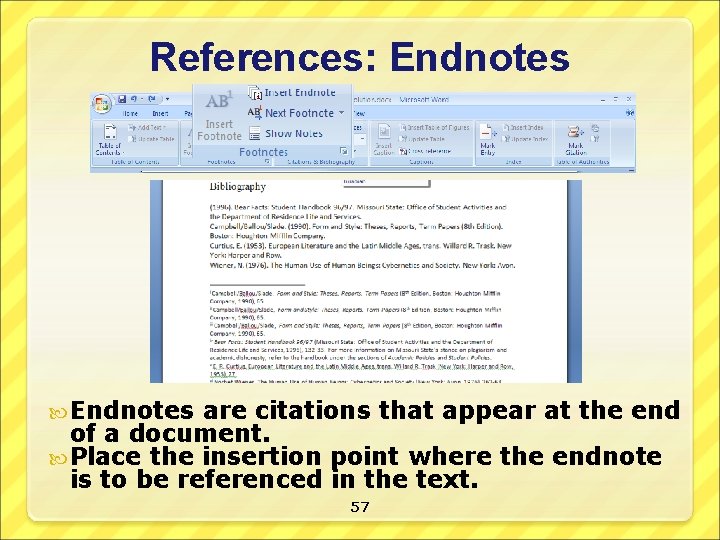
References: Endnotes are citations that appear at the end of a document. Place the insertion point where the endnote is to be referenced in the text. 57
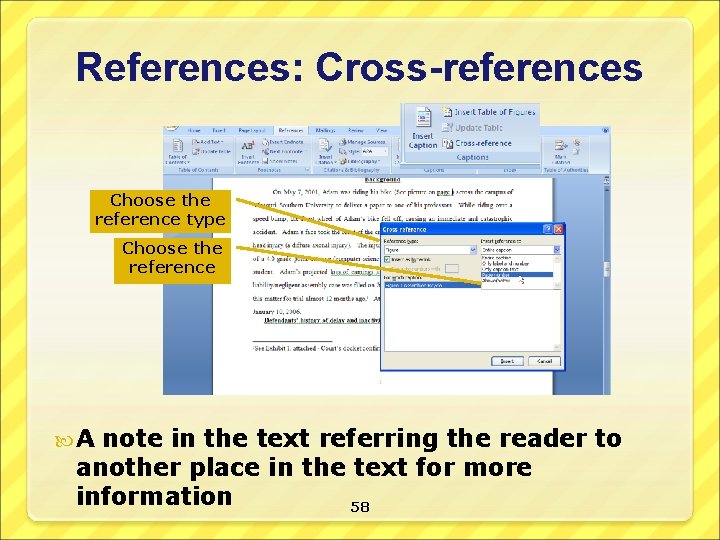
References: Cross-references Choose the reference type Choose the reference A note in the text referring the reader to another place in the text for more information 58
59 Lab and Homework Two Labs today: 1) Virtual Library lab 2) Microsoft Word lab Check your lab handout sheets for pages you are expected to print out and turn in to prove you did the work Start with Virtual Library lab first Continue on to Microsoft Word lab Anything you don’t complete in lab is assigned for HW