
1 STAFF COMPUTER TRAINING Microsoft office Microsoft Word
- Slides: 24
1 STAFF COMPUTER TRAINING Microsoft office Microsoft Word Module 1
Microsoft Word • Microsoft Word or MS-WORD (often just called “Word”) is a graphical word processing program that users can type with. • The purpose of the MS Word is to allow users to type, save and print electronic documents. • It was initially launched in 1983 and has since been revised numerous times. • Different versions are named by the year of release. For example; Microsoft Word 2016, MS Word 2013, and MS Word 2010 are the 3 most recent versions. • Microsoft Word can be used on both Windows and Macintosh operating systems. 2
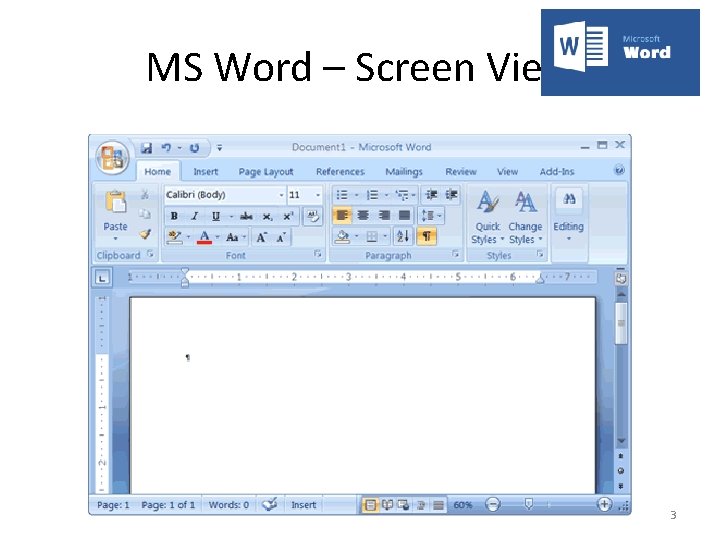
MS Word – Screen View 3
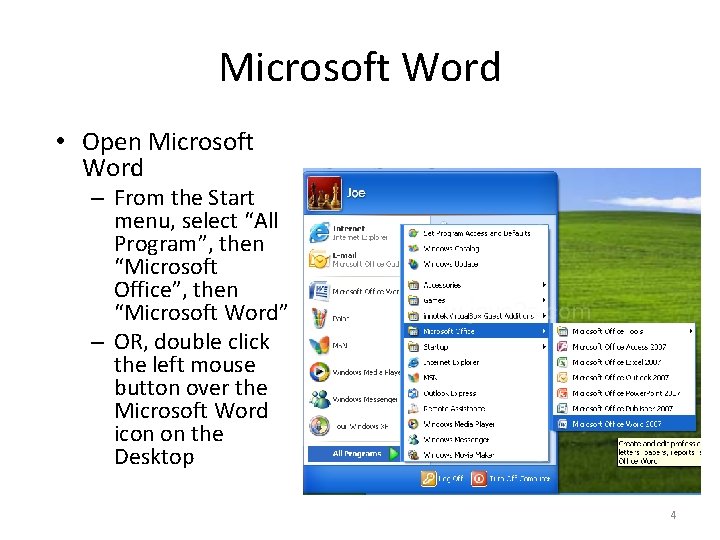
Microsoft Word • Open Microsoft Word – From the Start menu, select “All Program”, then “Microsoft Office”, then “Microsoft Word” – OR, double click the left mouse button over the Microsoft Word icon on the Desktop 4
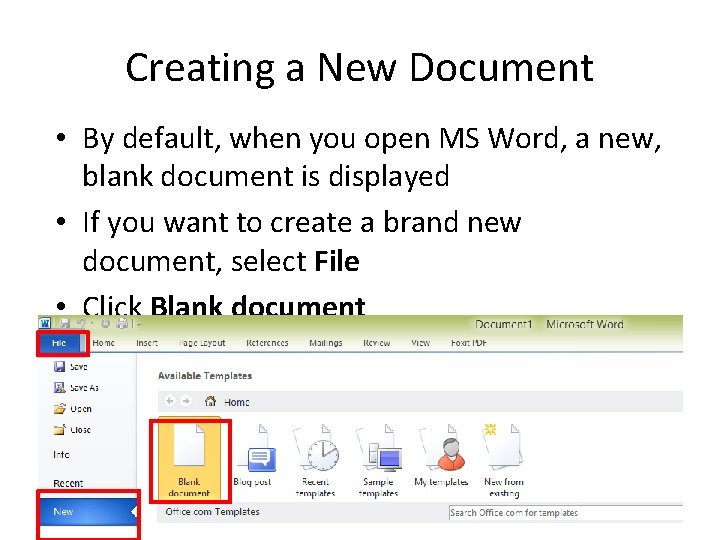
Creating a New Document • By default, when you open MS Word, a new, blank document is displayed • If you want to create a brand new document, select File • Click Blank document 5
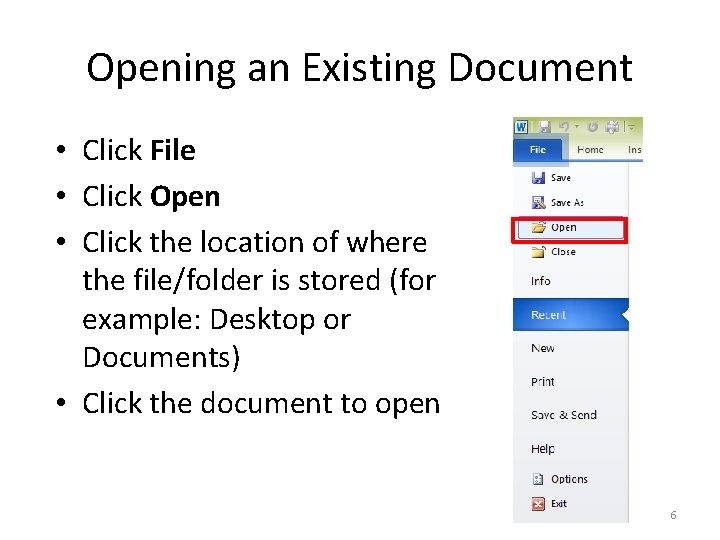
Opening an Existing Document • Click File • Click Open • Click the location of where the file/folder is stored (for example: Desktop or Documents) • Click the document to open 6
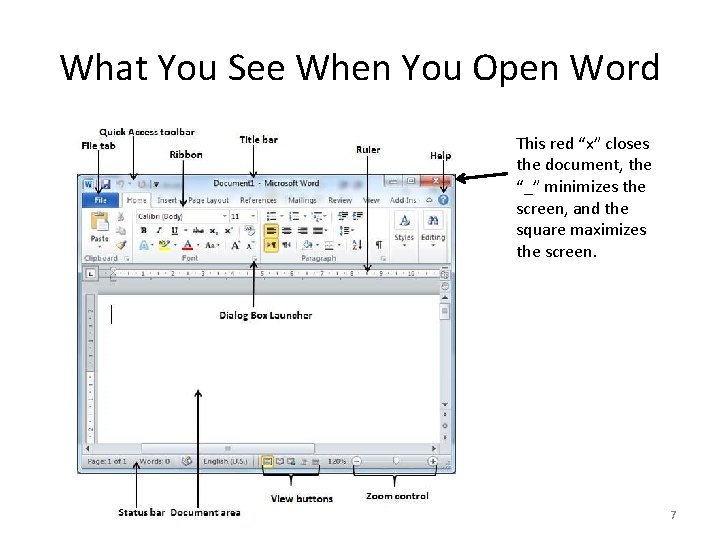
What You See When You Open Word This red “x” closes the document, the “_” minimizes the screen, and the square maximizes the screen. 7
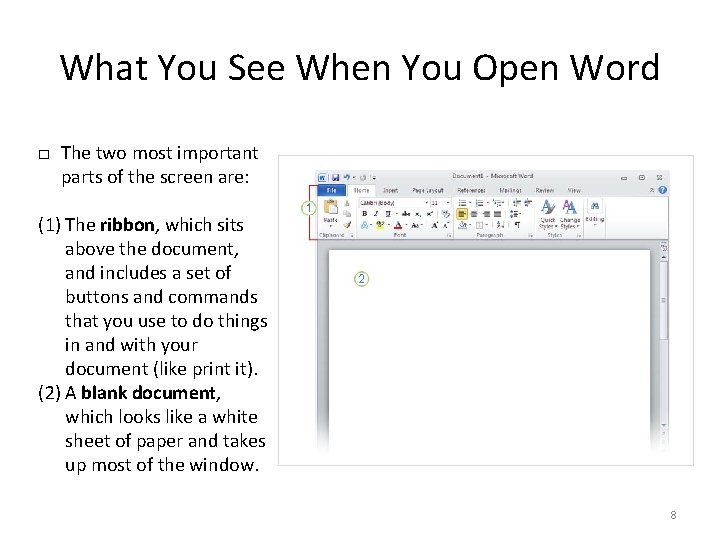
What You See When You Open Word □ The two most important parts of the screen are: (1) The ribbon, which sits above the document, and includes a set of buttons and commands that you use to do things in and with your document (like print it). (2) A blank document, which looks like a white sheet of paper and takes up most of the window. 8
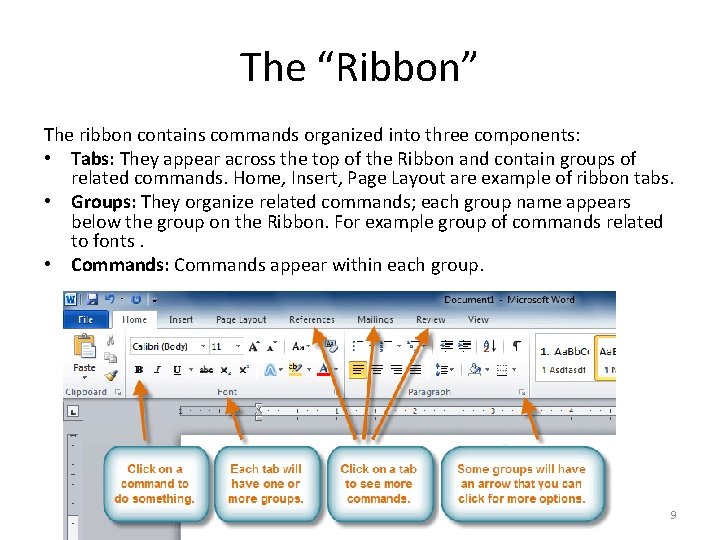
The “Ribbon” The ribbon contains commands organized into three components: • Tabs: They appear across the top of the Ribbon and contain groups of related commands. Home, Insert, Page Layout are example of ribbon tabs. • Groups: They organize related commands; each group name appears below the group on the Ribbon. For example group of commands related to fonts. • Commands: Commands appear within each group. 9
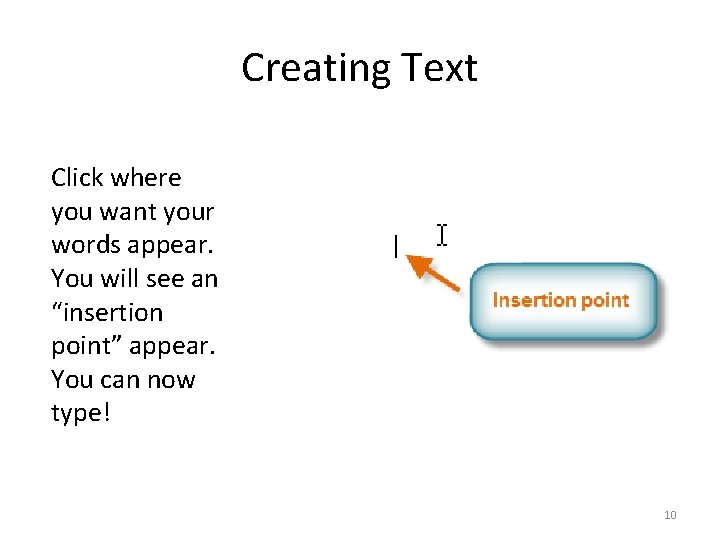
Creating Text Click where you want your words appear. You will see an “insertion point” appear. You can now type! 10
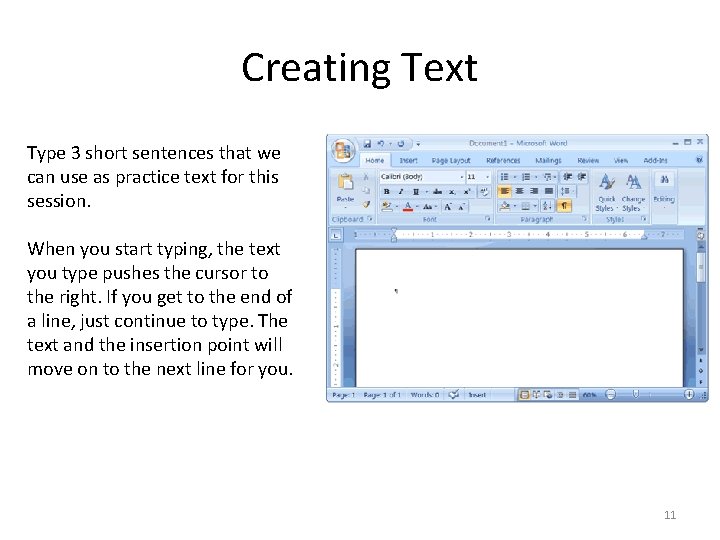
Creating Text Type 3 short sentences that we can use as practice text for this session. When you start typing, the text you type pushes the cursor to the right. If you get to the end of a line, just continue to type. The text and the insertion point will move on to the next line for you. 11
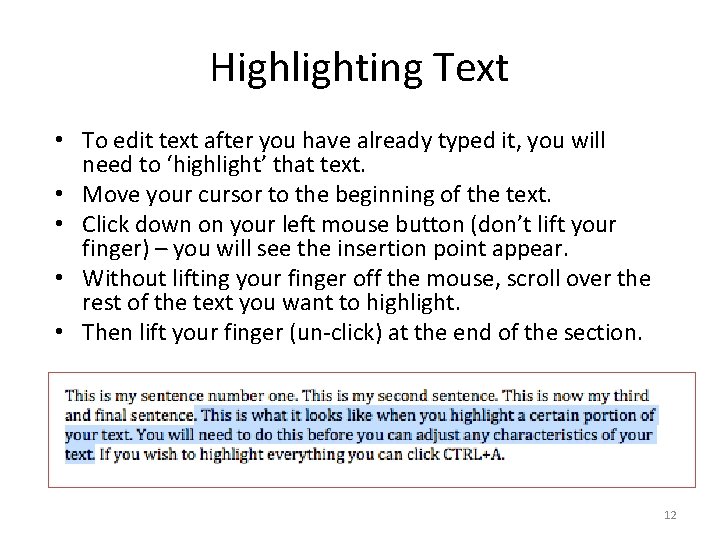
Highlighting Text • To edit text after you have already typed it, you will need to ‘highlight’ that text. • Move your cursor to the beginning of the text. • Click down on your left mouse button (don’t lift your finger) – you will see the insertion point appear. • Without lifting your finger off the mouse, scroll over the rest of the text you want to highlight. • Then lift your finger (un-click) at the end of the section. 12
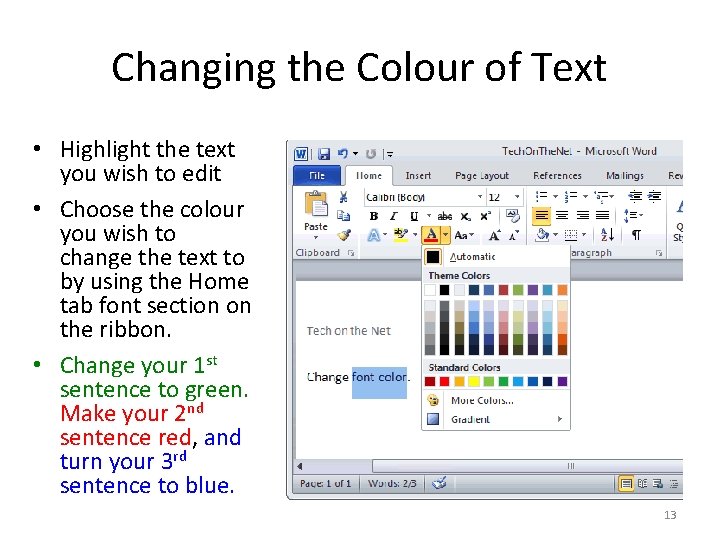
Changing the Colour of Text • Highlight the text you wish to edit • Choose the colour you wish to change the text to by using the Home tab font section on the ribbon. • Change your 1 st sentence to green. Make your 2 nd sentence red, and turn your 3 rd sentence to blue. 13
Why Change the Colour of Text? • Changing the text colour can add emphasis to titles and headings. • It is important not to go overboard with colour – limit colour use in one document to no more than 3 colours. – Generally, colours used in one document should belong to the same colour family – e. g. blue. 14
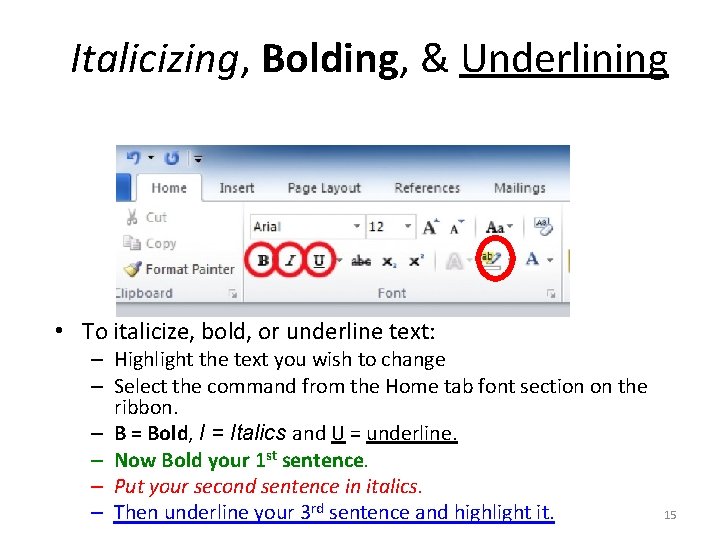
Italicizing, Bolding, & Underlining • To italicize, bold, or underline text: – Highlight the text you wish to change – Select the command from the Home tab font section on the ribbon. – B = Bold, I = Italics and U = underline. – Now Bold your 1 st sentence. – Put your second sentence in italics. – Then underline your 3 rd sentence and highlight it. 15
Why Italicize, Bold, or Underline Text? • Bolding, underlining, or italicizing text adds emphasis, and makes it stand out from the rest of the document. – Use bold when you want to emphasise something strongly. – Use italics when you want to emphasize something softly. • Underlining is primarily reserved for titles: chapter titles, headings, and book titles. • Do not overuse these tools: too much bold, italic text is distracting. 16
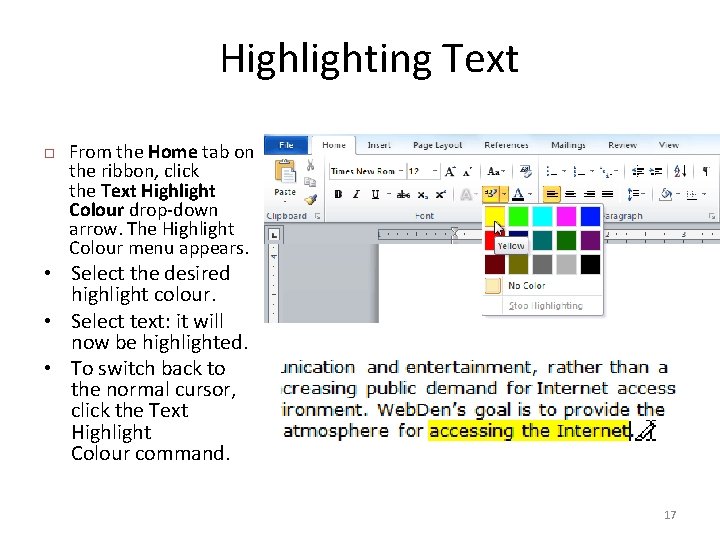
Highlighting Text From the Home tab on the ribbon, click the Text Highlight Colour drop-down arrow. The Highlight Colour menu appears. • Select the desired highlight colour. • Select text: it will now be highlighted. • To switch back to the normal cursor, click the Text Highlight Colour command. 17
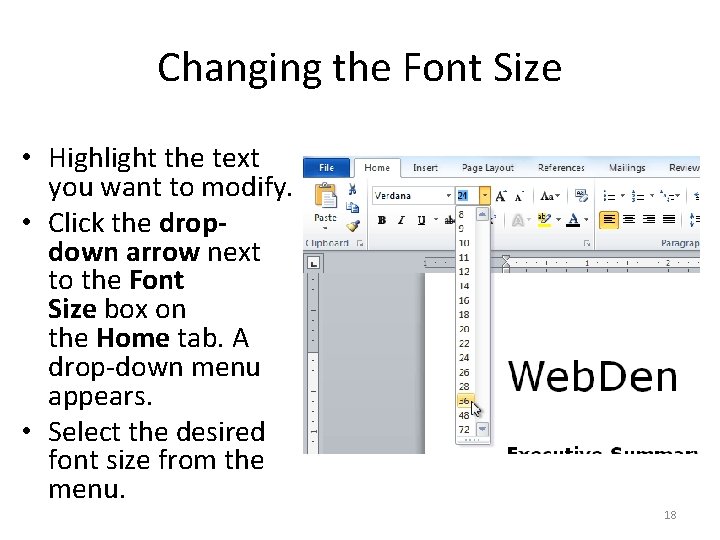
Changing the Font Size • Highlight the text you want to modify. • Click the dropdown arrow next to the Font Size box on the Home tab. A drop-down menu appears. • Select the desired font size from the menu. 18
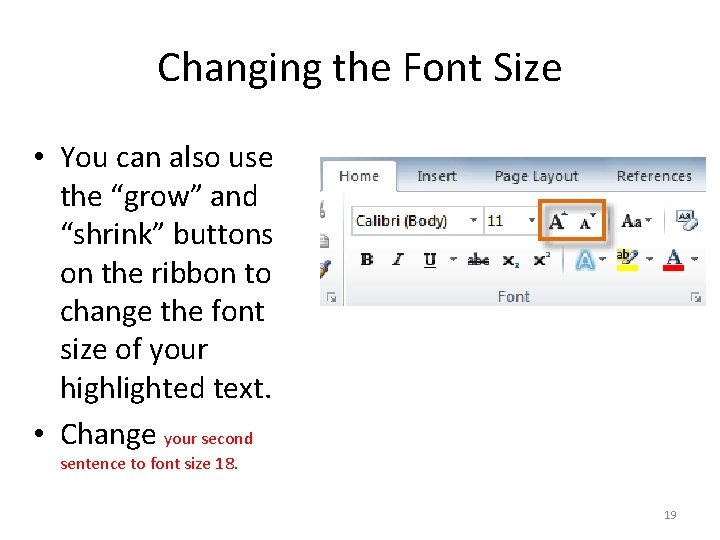
Changing the Font Size • You can also use the “grow” and “shrink” buttons on the ribbon to change the font size of your highlighted text. • Change your second sentence to font size 18. 19
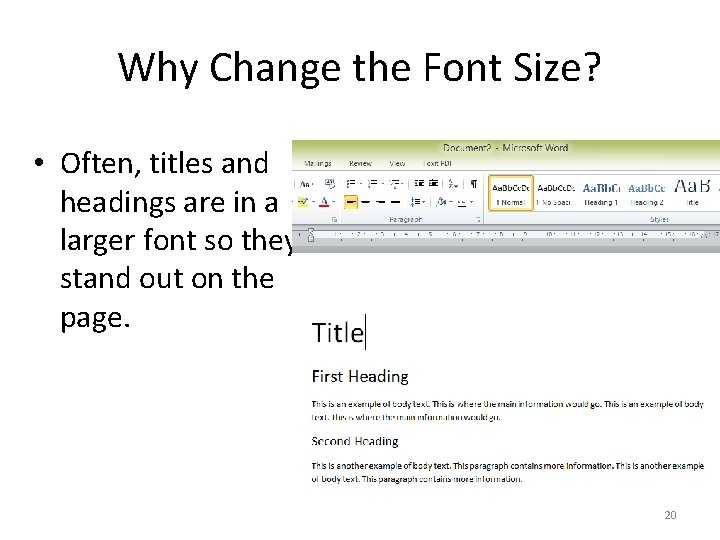
Why Change the Font Size? • Often, titles and headings are in a larger font so they stand out on the page. 20
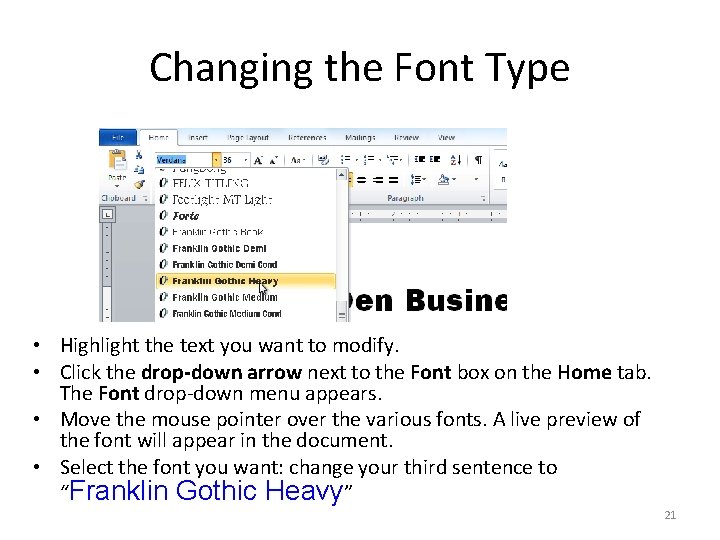
Changing the Font Type • Highlight the text you want to modify. • Click the drop-down arrow next to the Font box on the Home tab. The Font drop-down menu appears. • Move the mouse pointer over the various fonts. A live preview of the font will appear in the document. • Select the font you want: change your third sentence to “Franklin Gothic Heavy” 21
Why Change the Font Type? • Often, titles and headings are in a different font face so they stand out on the page. • Only use 2 font faces in any one document. 22
General Document Rules • Documents should have a title, and clear headings • It is important to keep your formatting consistent through-out a document. • Too many colours, font sizes, font types, or bold/italic words are confusing. – Use these formatting tools sparingly. 23
Report • Once you have completed this module, create a report in Microsoft Word and upload it to the staff training website. – Name the report “Your Name - Microsoft Word Module 1” • The report should include updates on what you have been working on, including any program updates and beneficiary stories. • Make sure to demonstrate the following skills in your report: – – – Change font size Change font colour Change font face Bold Italicize Underline • Your report will be graded. – If your report receives a grade of 75% of greater, you will be able to move on to the next module. 24