
1 Microsoft Outlook 2011 2 What Will Be

1 Microsoft Outlook 2011
2 What Will Be Covered • Learn what Outlook 2011 provides to you • Three important interfaces • Email • Calendar • Contacts, Tasks, and Notes • Mobile Device Support • Outlook Web Access • Additional Support
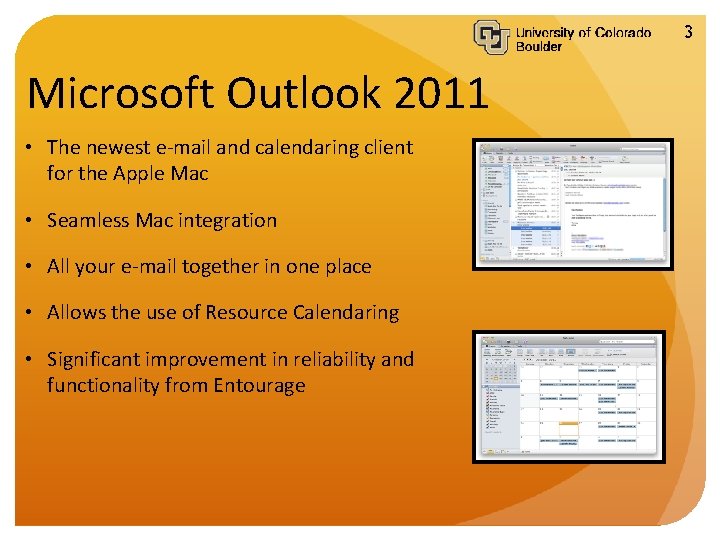
3 Microsoft Outlook 2011 • The newest e-mail and calendaring client for the Apple Mac • Seamless Mac integration • All your e-mail together in one place • Allows the use of Resource Calendaring • Significant improvement in reliability and functionality from Entourage
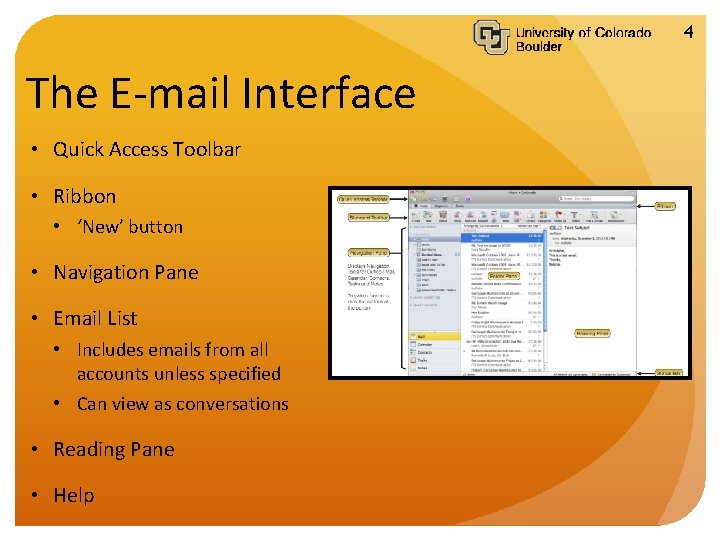
4 The E-mail Interface • Quick Access Toolbar • Ribbon • ‘New’ button • Navigation Pane • Email List • Includes emails from all accounts unless specified • Can view as conversations • Reading Pane • Help
5 E-mail Demonstration • Creating an e-mail • Out-of-Office • E-mail Signature(s) • Color Categories • E-mail Delegation • Email Categories • How to arrange your e-mails • Global Address List (GAL) • Moving the different panes
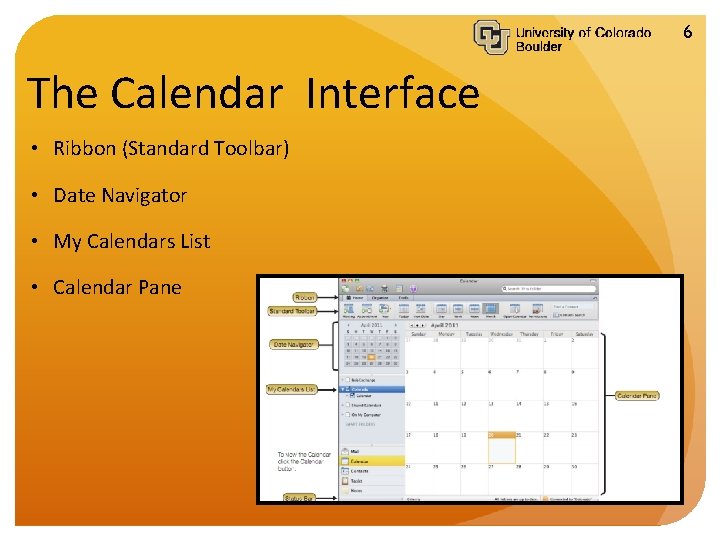
6 The Calendar Interface • Ribbon (Standard Toolbar) • Date Navigator • My Calendars List • Calendar Pane
7 Calendar Demonstration • Creating an Appointment • Creating a Meeting • Reoccurring Appointments and Meetings • Private Appointments and Meetings • Resource Calendars (Rooms and Assets) • Free/Busy and Reminders • Color Categories & Flags • Open Shared Calendars • Calendar Delegation
8 Contacts, Tasks, and Notes • Server Based • Integration with other Outlook components • Flag on emails become tasks • Contacts can be created multiple ways • Can add a contact from e-mails quick and easy • Tasks help with organization and can be viewed by multiple people
9 Contacts, Tasks, and Notes Demonstration • Creating a contact • Through a specific e-mail • Through ‘Add a Contact’ • Creating a contact group • Making a task • Writing a note
10 Mobile Device Support • Windows Mobile 6 • i. Phone, i. Pod Touch, and i. Pad • Palm. OS • Android 2. 2. x Not recommended, is an OS issue • Blackberry • http: //oit. colorado. edu/services/e-mail-calendaring/exchange 2007/help/mobile-devices • Remote Device Wipe- the process of remotely wiping your mobile device of its connection to your exchange account
11 Outlook Web Access (OWA) • With Outlook Web Access, you can use a Web browser to access your Microsoft Exchange account from any computer with an Internet connection. • https: //exchangeweb. colorado. edu • Not all OWA functions are available in Safari or Firefox • Viewing Subfolders is not automatic • There are known issues with Chrome
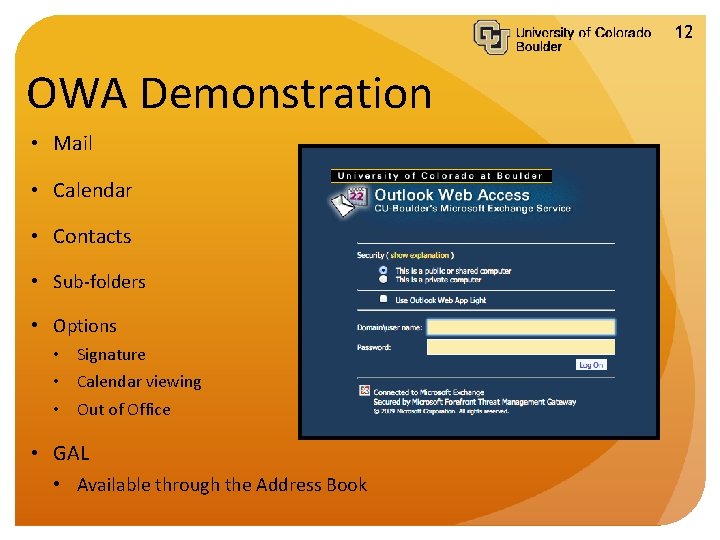
12 OWA Demonstration • Mail • Calendar • Contacts • Sub-folders • Options • Signature • Calendar viewing • Out of Office • GAL • Available through the Address Book
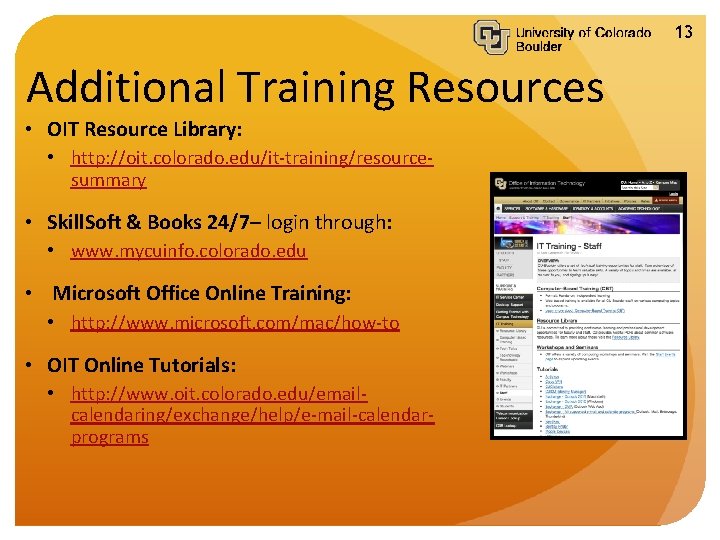
13 Additional Training Resources • OIT Resource Library: • http: //oit. colorado. edu/it-training/resourcesummary • Skill. Soft & Books 24/7– login through: • www. mycuinfo. colorado. edu • Microsoft Office Online Training: • http: //www. microsoft. com/mac/how-to • OIT Online Tutorials: • http: //www. oit. colorado. edu/emailcalendaring/exchange/help/e-mail-calendarprograms
14 Support IT Service Center • 303 -735 -HELP (4357) from off Campus Phone • 5 -HELP (4357) from on Campus Phone • help@colorado. edu OIT Website • http: //oit. colorado. edu/email
15 Are There Any Questions?
- Slides: 15