
1 IT Basics Series Password Basics 2 PASSWORD

1
IT Basics Series Password Basics 2
PASSWORD BASICS 3
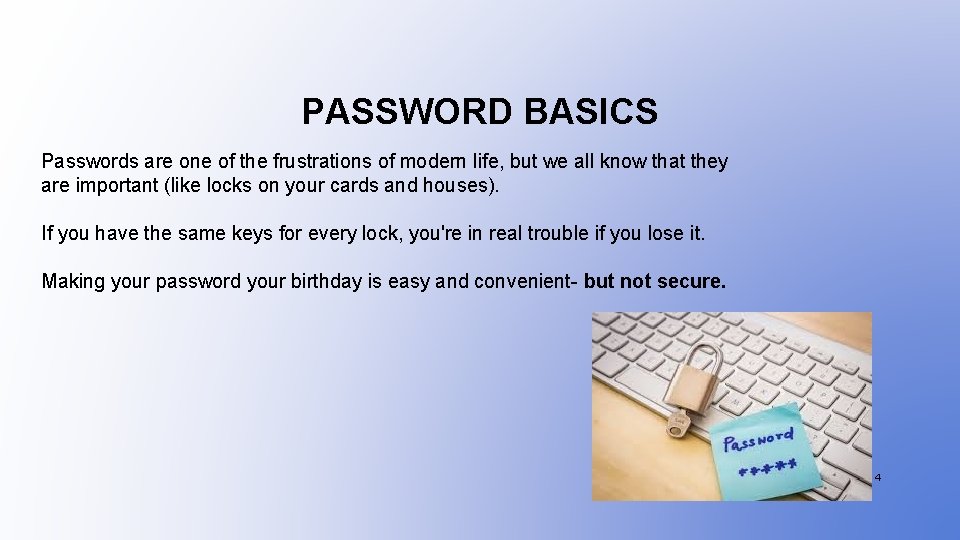
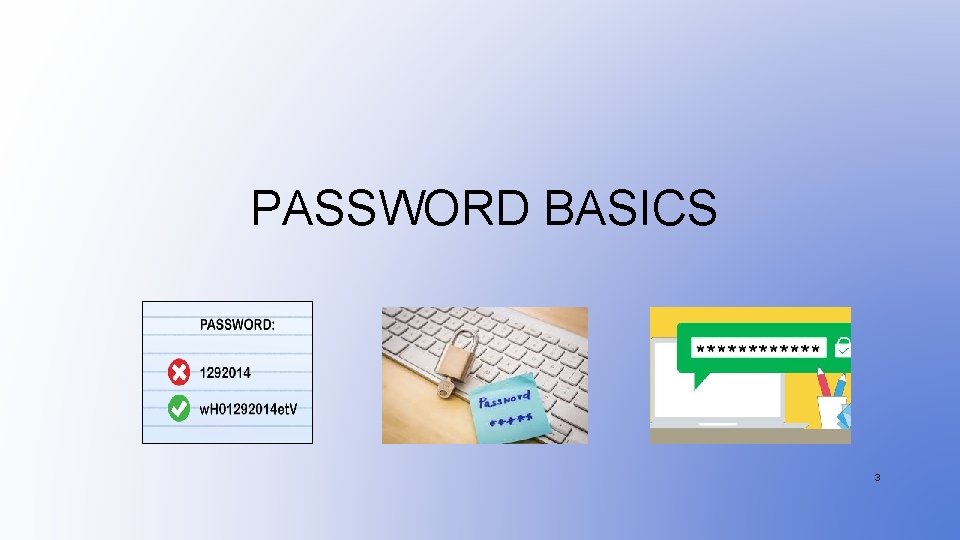
PASSWORD BASICS Passwords are one of the frustrations of modern life, but we all know that they are important (like locks on your cards and houses). If you have the same keys for every lock, you're in real trouble if you lose it. Making your password your birthday is easy and convenient- but not secure. 4
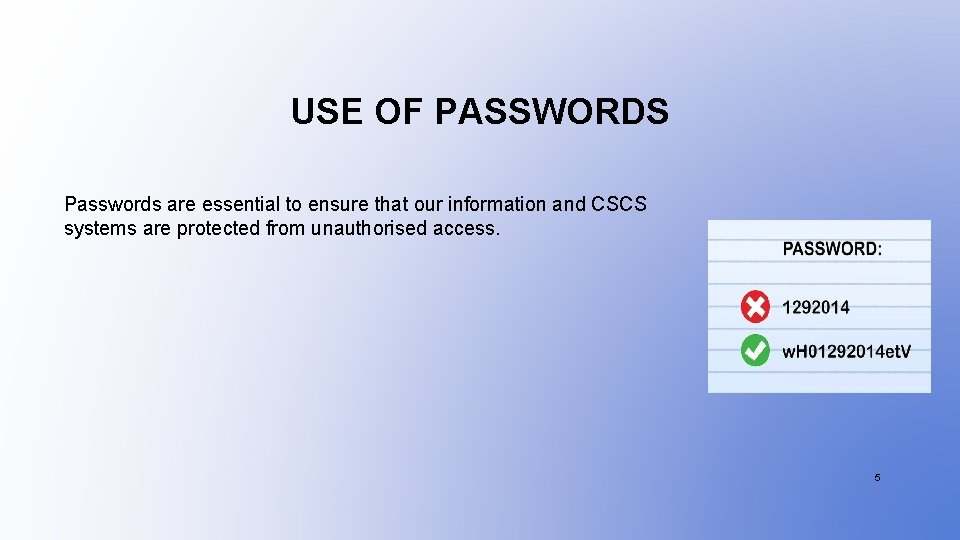
USE OF PASSWORDS Passwords are essential to ensure that our information and CSCS systems are protected from unauthorised access. 5

WHO IS RESPONSIBLE FOR PASSWORD SECURITY? Everyone at CSCS shares the responsibility to ensure that their CSCS Password is protected and maintained. You MUST change your password every 120 days. If you do not change your password within the time frame you will lose access to CSU online services. 6
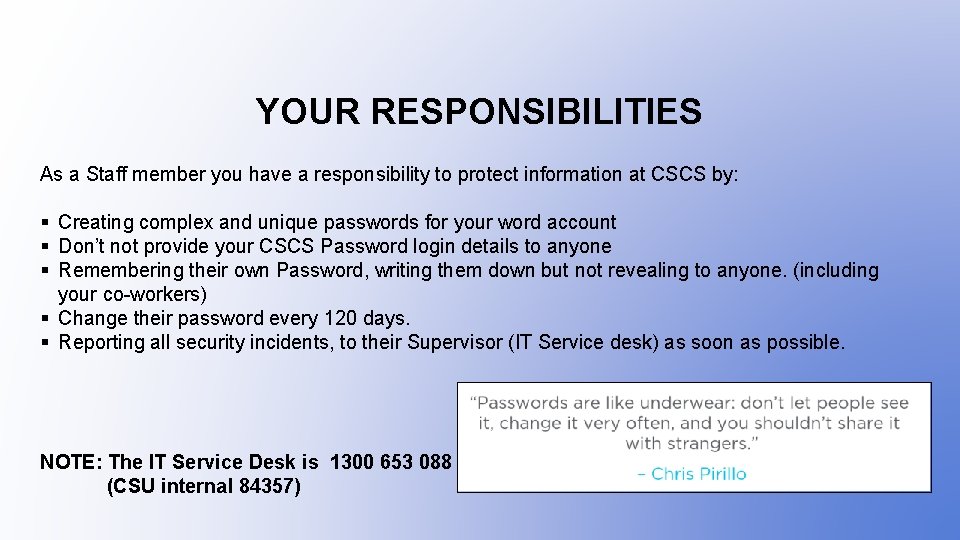
YOUR RESPONSIBILITIES As a Staff member you have a responsibility to protect information at CSCS by: § Creating complex and unique passwords for your word account § Don’t not provide your CSCS Password login details to anyone § Remembering their own Password, writing them down but not revealing to anyone. (including your co-workers) § Change their password every 120 days. § Reporting all security incidents, to their Supervisor (IT Service desk) as soon as possible. NOTE: The IT Service Desk is 1300 653 088 (CSU internal 84357) 7
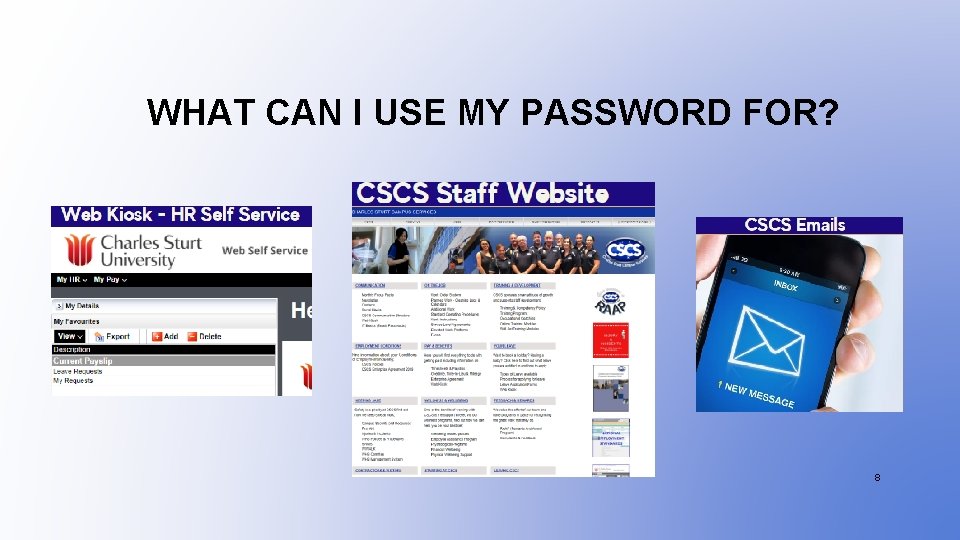
WHAT CAN I USE MY PASSWORD FOR? 8

CHOOSE SUITABLE PASSWORDS 9

KEEP YOUR PASSWORDS SECURE 10

HOW TO CHANGE MY PASSWORD 11
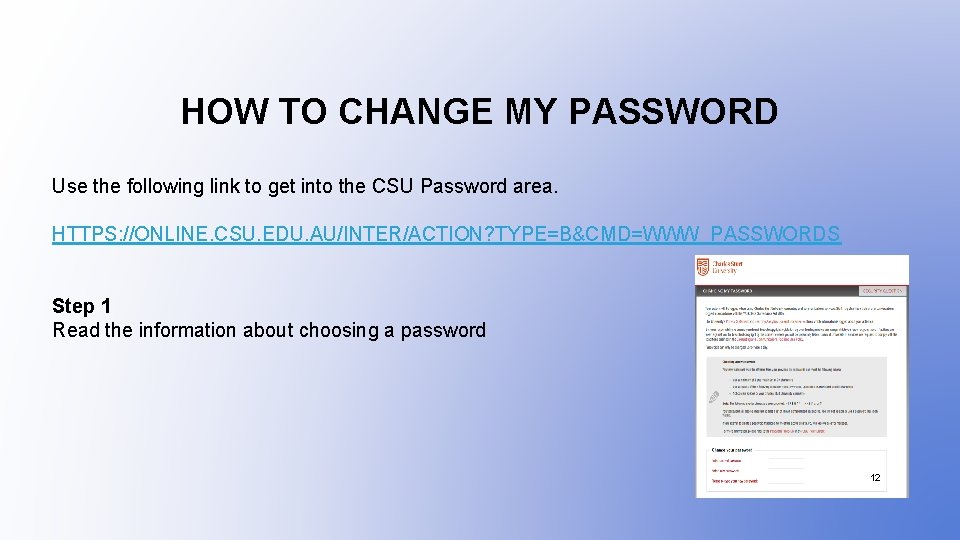
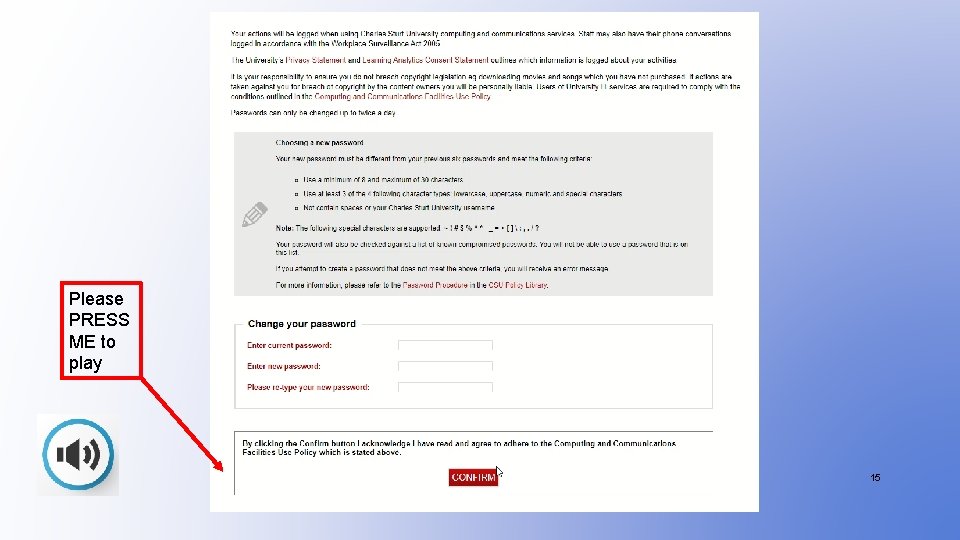
HOW TO CHANGE MY PASSWORD Use the following link to get into the CSU Password area. HTTPS: //ONLINE. CSU. EDU. AU/INTER/ACTION? TYPE=B&CMD=WWW_PASSWORDS Step 1 Read the information about choosing a password 12
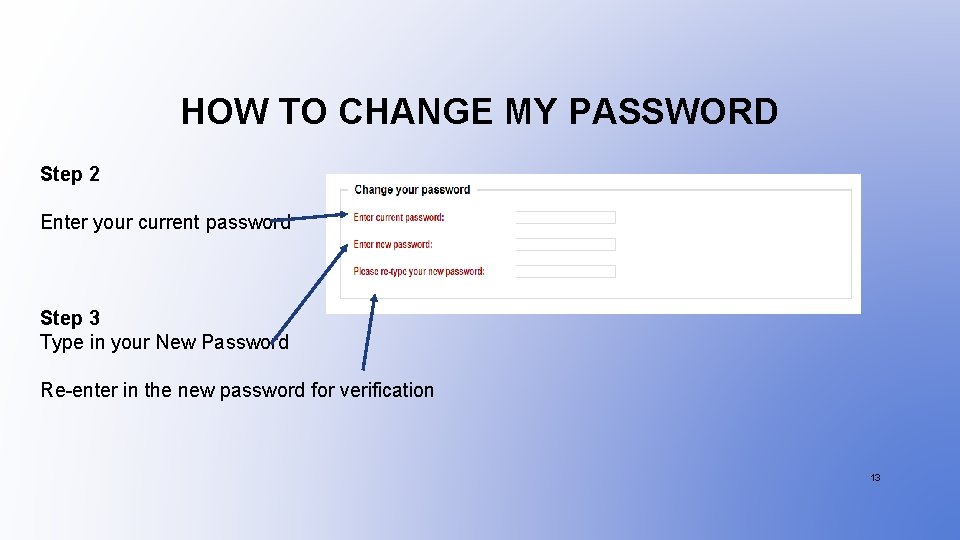
HOW TO CHANGE MY PASSWORD Step 2 Enter your current password Step 3 Type in your New Password Re-enter in the new password for verification 13
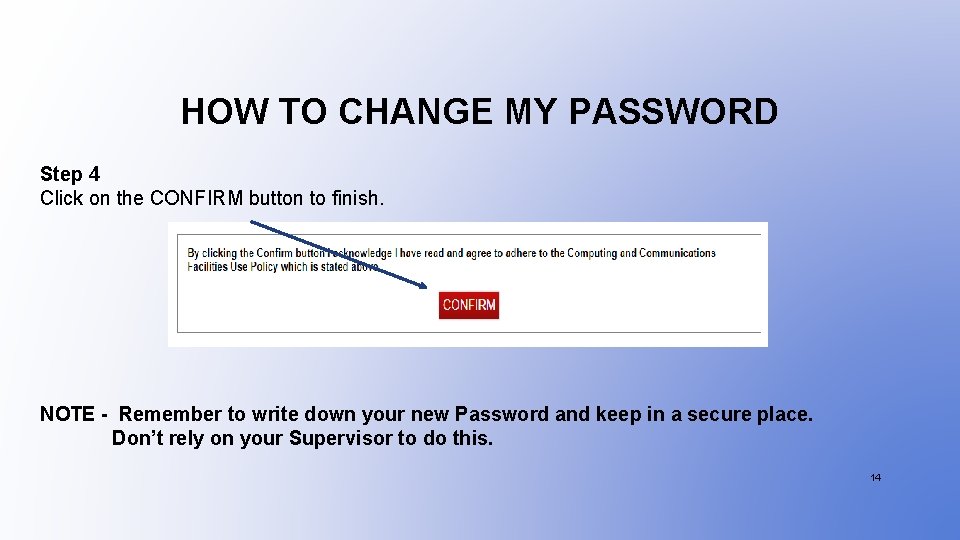
HOW TO CHANGE MY PASSWORD Step 4 Click on the CONFIRM button to finish. NOTE - Remember to write down your new Password and keep in a secure place. Don’t rely on your Supervisor to do this. 14
Please PRESS ME to play 15

NOTIFICATION OF YOUR CHANGED PASSWORD You will receive a Work email to notify you that you have set a new password. Support If you experience any problems, contact by phone the IT Service Desk Local: 1300 653 088 Internal: 84357 International: +61 2 6338 4357 Online: http: //www. csu. edu. au/desk 16
HOW TO RE-ENABLE YOUR ACCESS 17
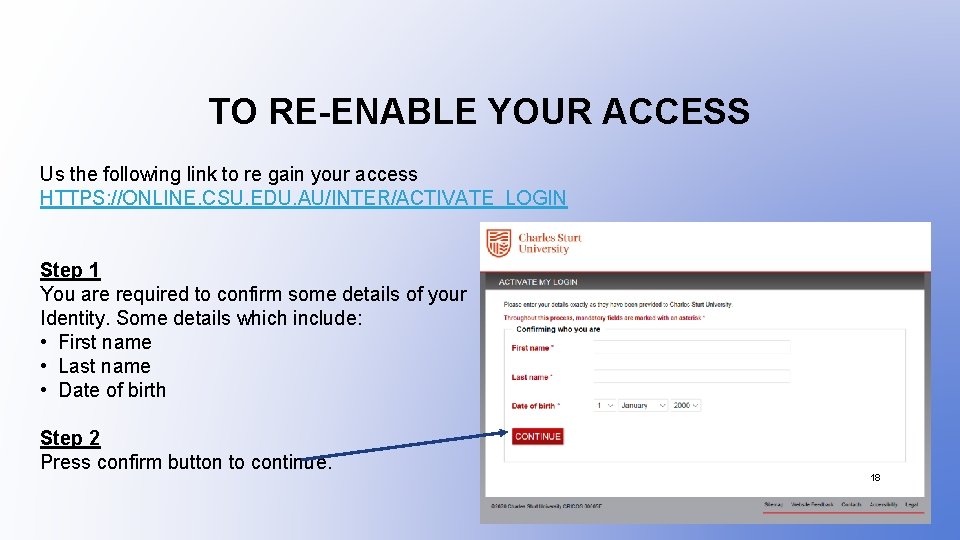
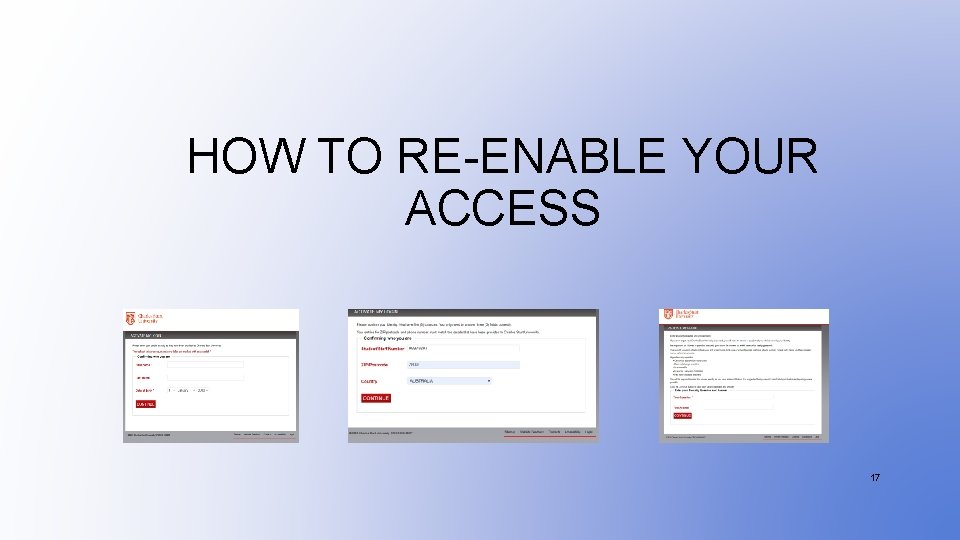
TO RE-ENABLE YOUR ACCESS Us the following link to re gain your access HTTPS: //ONLINE. CSU. EDU. AU/INTER/ACTIVATE_LOGIN Step 1 You are required to confirm some details of your Identity. Some details which include: • First name • Last name • Date of birth Step 2 Press confirm button to continue. 18
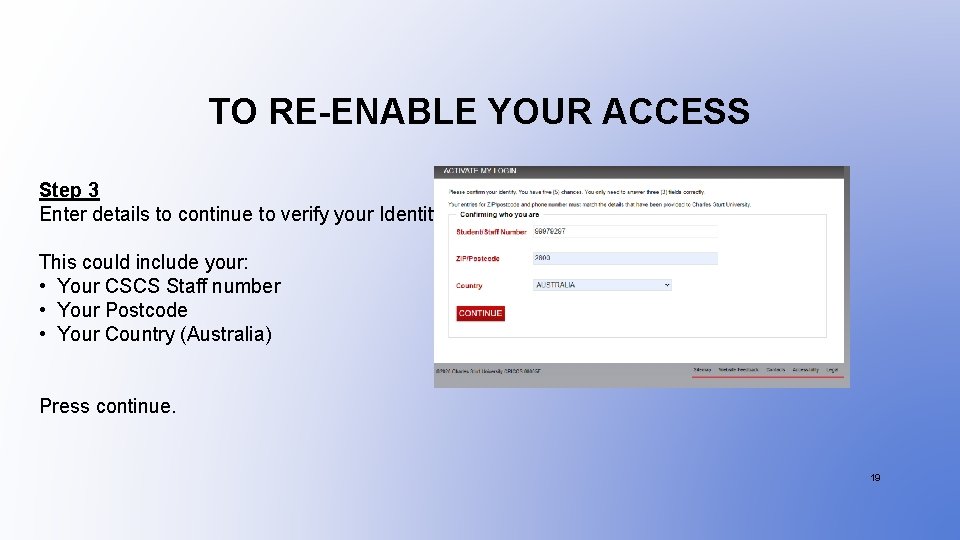
TO RE-ENABLE YOUR ACCESS Step 3 Enter details to continue to verify your Identity. This could include your: • Your CSCS Staff number • Your Postcode • Your Country (Australia) Press continue. 19
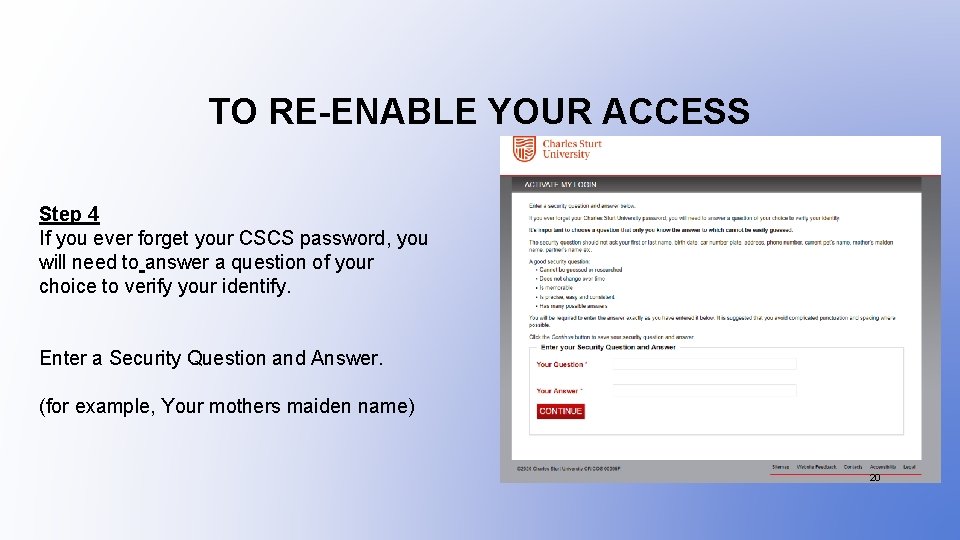
TO RE-ENABLE YOUR ACCESS Step 4 If you ever forget your CSCS password, you will need to answer a question of your choice to verify your identify. Enter a Security Question and Answer. (for example, Your mothers maiden name) 20
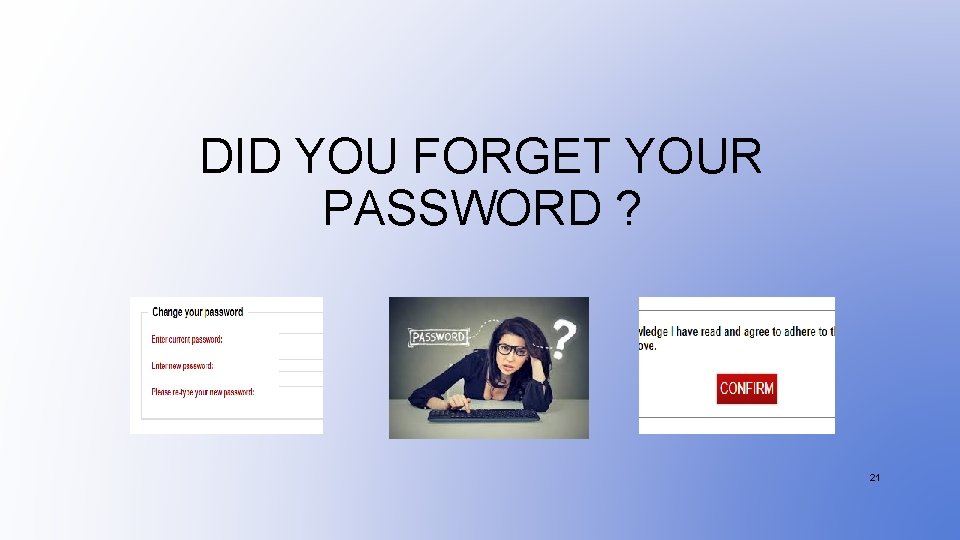
DID YOU FORGET YOUR PASSWORD ? 21
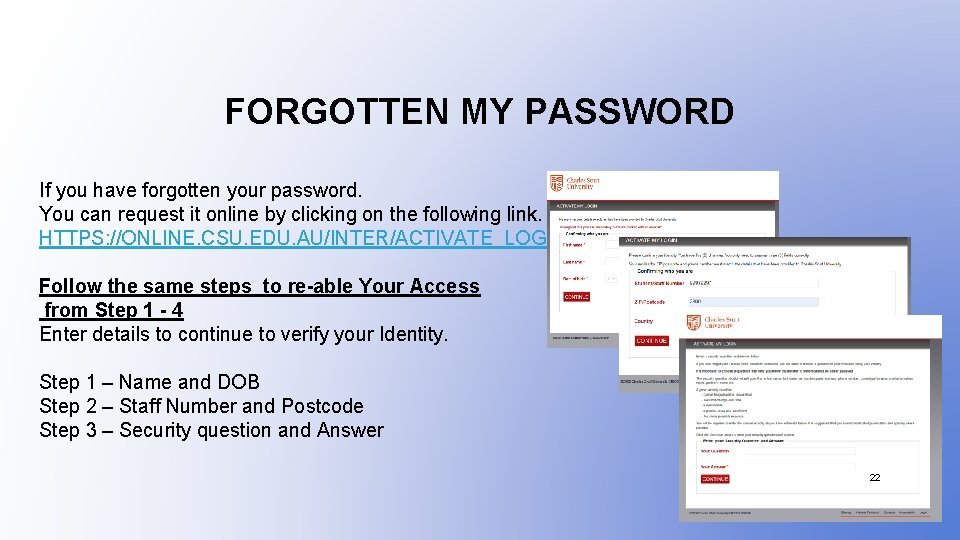
FORGOTTEN MY PASSWORD If you have forgotten your password. You can request it online by clicking on the following link. HTTPS: //ONLINE. CSU. EDU. AU/INTER/ACTIVATE_LOGIN Follow the same steps to re-able Your Access from Step 1 - 4 Enter details to continue to verify your Identity. Step 1 – Name and DOB Step 2 – Staff Number and Postcode Step 3 – Security question and Answer 22
ANY QUESTIONS Well done, you have now completed the Powerpoint presentation on Password Basics. If you have any questions, please ask them now. 23
- Slides: 23