
1 DMR Radio Training INSTRUCTORS Digital Mobile Radio
1 DMR Radio Training INSTRUCTORS Digital Mobile Radio communications MARTY FITZGERALD – W 5 MF WALTER HOLMES – K 5 WH RON MATUSEK - WA 6 TQH 9/29/2018
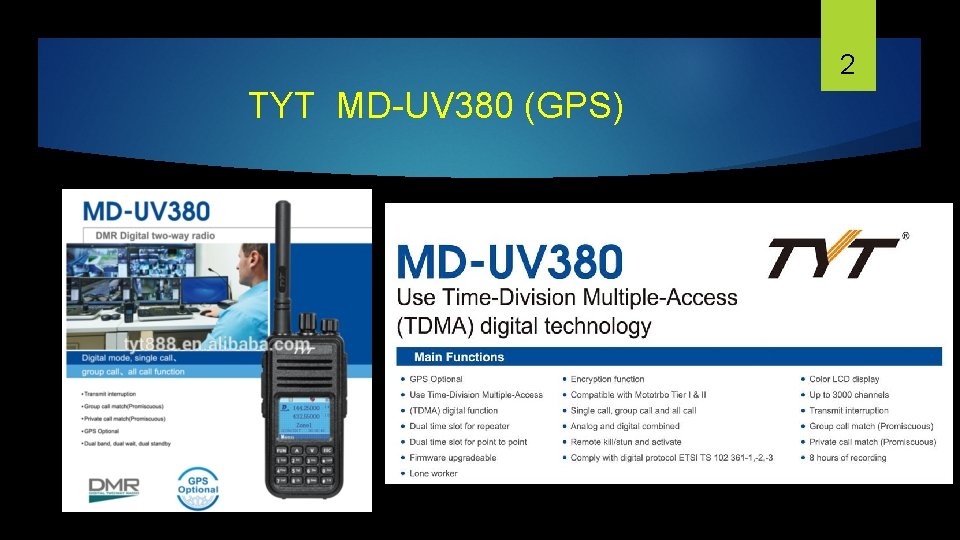
2 TYT MD-UV 380 (GPS)
Training Overview Marty – W 5 MF 1. What is DMR 2. DMR Structure 3. Brandmeister Network 4. DMR-Marc Network 5. Local DMR Repeaters i. e. – Klein – Cypress 3
Training Overview Walter – K 5 WH 1. Loading a codeplug into the radio 2. Loading the user database into the radio 3. Making changes to the codeplug 4. Adding a channel Creating a Zone and adding channels to it Creating a Scan group and adding channels 4
Training Overview Ron – WA 6 TQH 1. What parts do I need to build a “Hotspot” 2. Where do I get the parts for a “Hotspot” 3. How do I program a “Hotspot” 4. Do I want a Simplex Hotspot or Duplex – What’s the difference ? 5
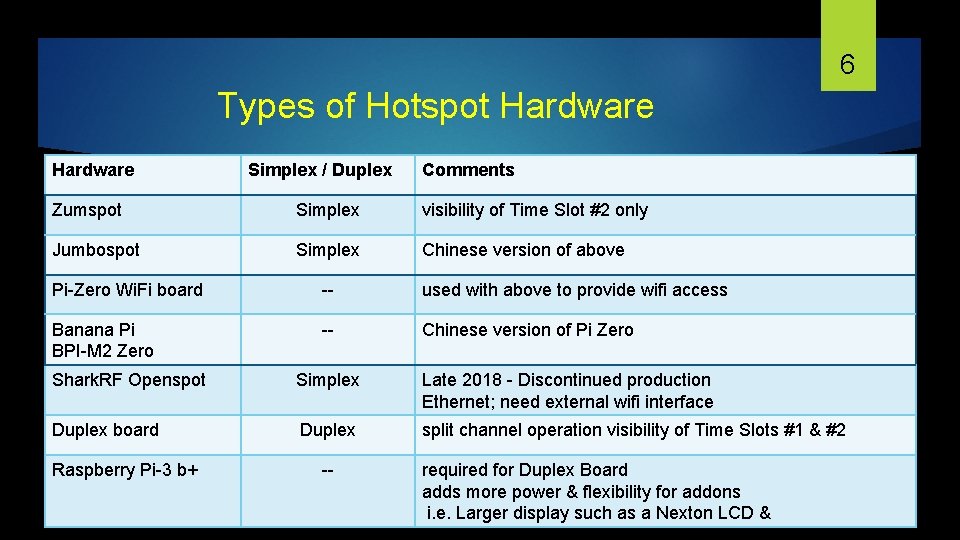
6 Types of Hotspot Hardware Simplex / Duplex Comments Zumspot Simplex visibility of Time Slot #2 only Jumbospot Simplex Chinese version of above Pi-Zero Wi. Fi board -- used with above to provide wifi access Banana Pi BPI-M 2 Zero -- Chinese version of Pi Zero Shark. RF Openspot Simplex Late 2018 - Discontinued production Ethernet; need external wifi interface Duplex board Duplex split channel operation visibility of Time Slots #1 & #2 Raspberry Pi-3 b+ -- required for Duplex Board adds more power & flexibility for addons i. e. Larger display such as a Nexton LCD &

7 Zumspot assembly https: //www. hamradio. com/detail. cfm? pid=H 0 -015993 Zumspot with Pi-Zero W attached
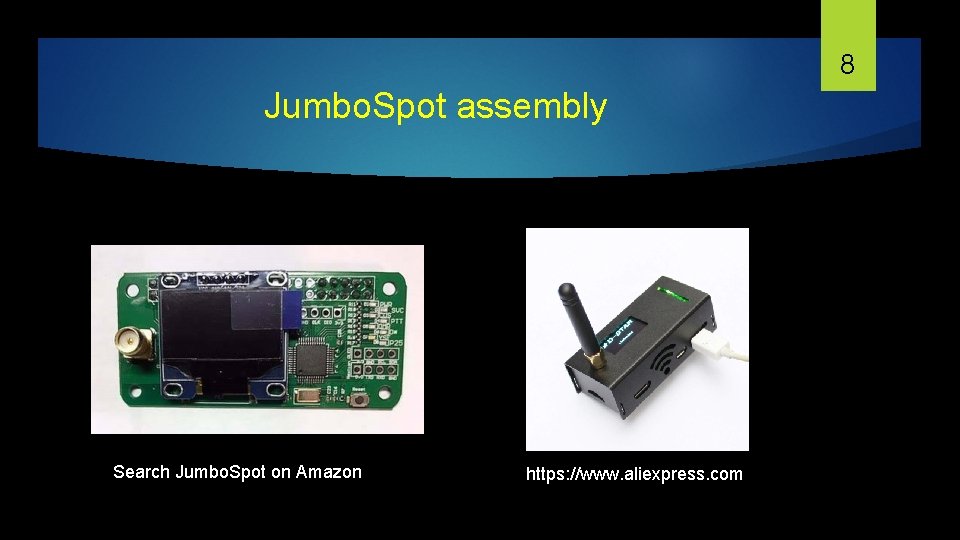
8 Jumbo. Spot assembly Search Jumbo. Spot on Amazon https: //www. aliexpress. com
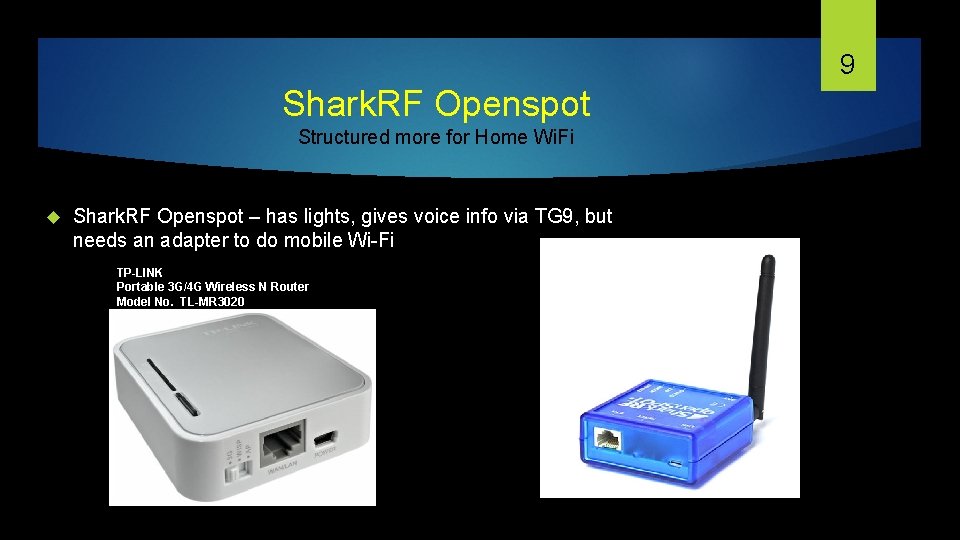
9 Shark. RF Openspot Structured more for Home Wi. Fi Shark. RF Openspot – has lights, gives voice info via TG 9, but needs an adapter to do mobile Wi-Fi TP-LINK Portable 3 G/4 G Wireless N Router Model No. TL-MR 3020
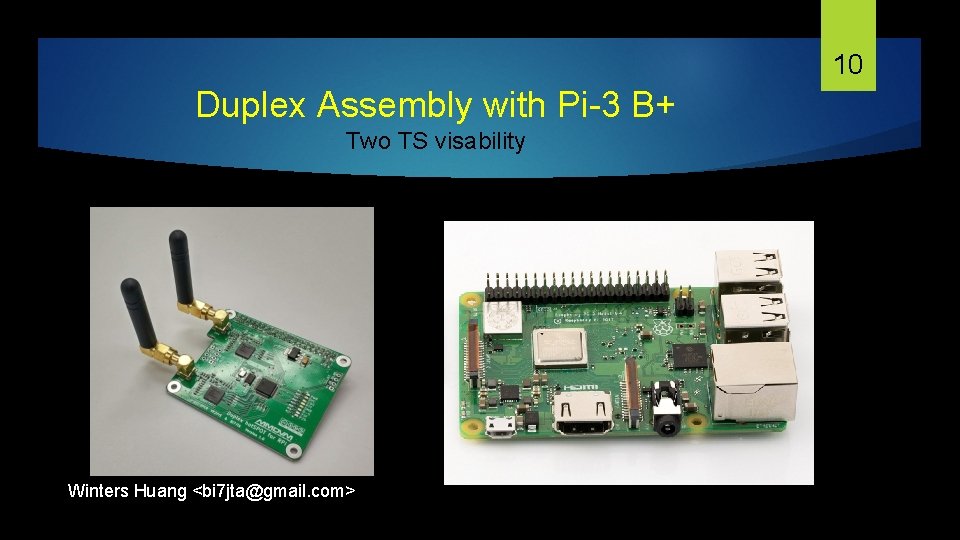
10 Duplex Assembly with Pi-3 B+ Two TS visability Winters Huang <bi 7 jta@gmail. com>
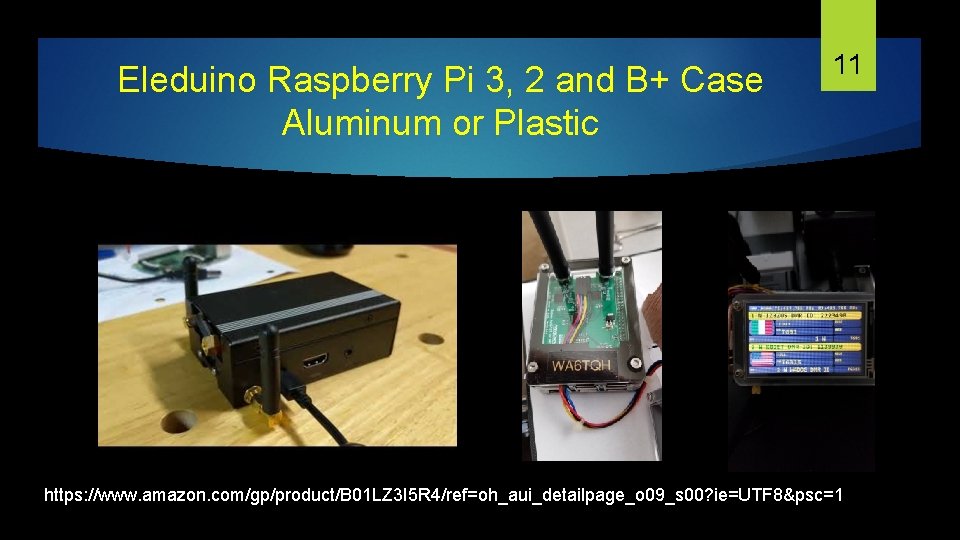
Eleduino Raspberry Pi 3, 2 and B+ Case Aluminum or Plastic 11 https: //www. amazon. com/gp/product/B 01 LZ 3 I 5 R 4/ref=oh_aui_detailpage_o 09_s 00? ie=UTF 8&psc=1
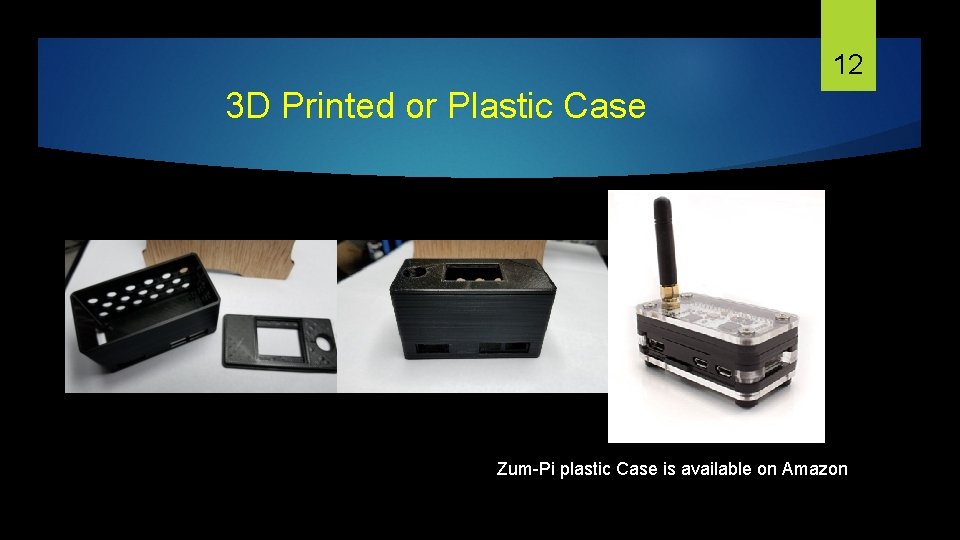
12 3 D Printed or Plastic Case Zum-Pi plastic Case is available on Amazon
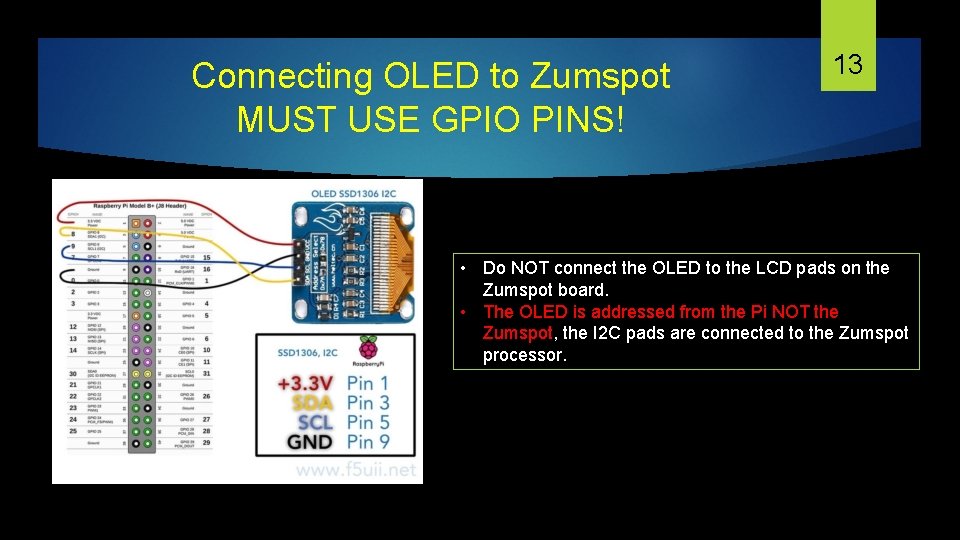
Connecting OLED to Zumspot MUST USE GPIO PINS! 13 • Do NOT connect the OLED to the LCD pads on the Zumspot board. • The OLED is addressed from the Pi NOT the Zumspot, the I 2 C pads are connected to the Zumspot processor.
14 Recommended Software Tools 1. Angry IP – https: //angryip. org/ 2. Firmware Updater for MD-UV 380(GPS) Available at the TYT Website http: //www. tyt 888. com/? mod=download 3. CPS – Code Plug loader and Editor – CPS MD-UV 390 Setup V 1. 06 (GPS version) 4. Pi-Star application - https: //www. pistar. uk/ 5. Win 32 Disk Imager https: //sourceforge. net/projects/win 32 diskimager/files/latest/download 6. Etcher – https: //etcher. io/ image writing application for SD
15 How to Configure a Hot. Spot The next few slides outline the steps to getting the Hot. Spot operational Download pi-star OS and create wifi wpa file Locating the IP address of the Hotspot Using Google Chrome to access pi-star OS on the hotspot Initial configuration of the pi-star OS Testing communication between the Radio and Hot. Spot

16 Download Pi-Star Using Google Chrome type in: http: //www. pistar. uk/ 1. SELECT DOWNLOADS 2. Select Correct Pi. Star Version
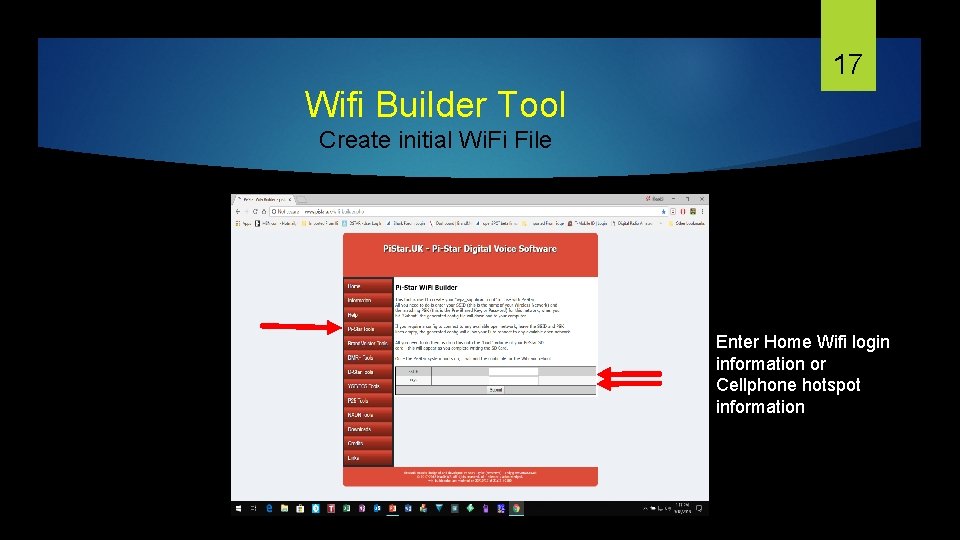
17 Wifi Builder Tool Create initial Wi. Fi File Enter Home Wifi login information or Cellphone hotspot information
18 Copy Pi-Star. img to SD along with Wifi wpa File Un-Zip Pi-Star file to a local folder i. e. DMR Pi-Star Firmware Go to file location where. img is located Using Win 32 Disk Imager or Etcher Imager write the . img file to SD Copy the wifi file (wpa_supplicant. conf) file to SD (boot dir) Insert the SD into the pi-star zero W board Apply 5 V power to the board and wait for boot-up If using LCD screen it should reflect wifi connection IP on boot up
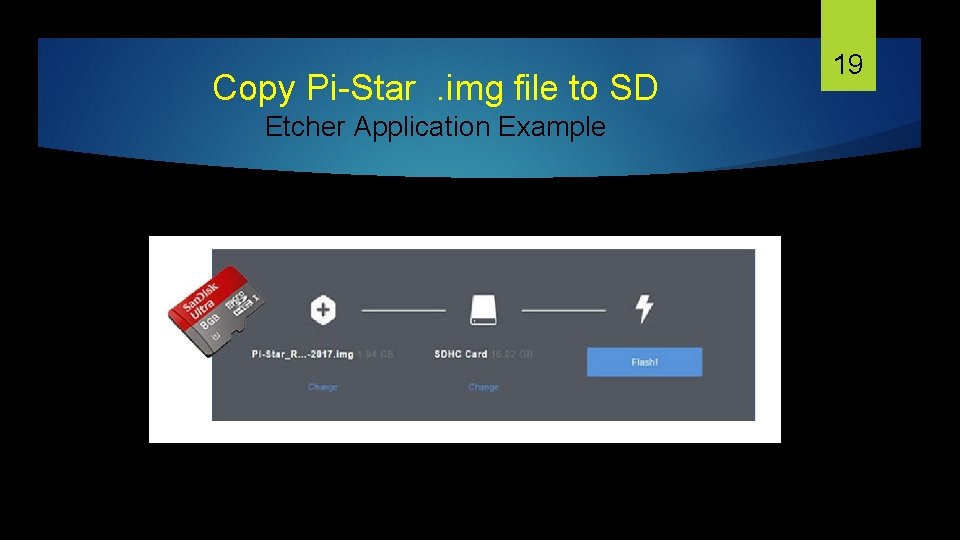
Copy Pi-Star . img file to SD Etcher Application Example 19
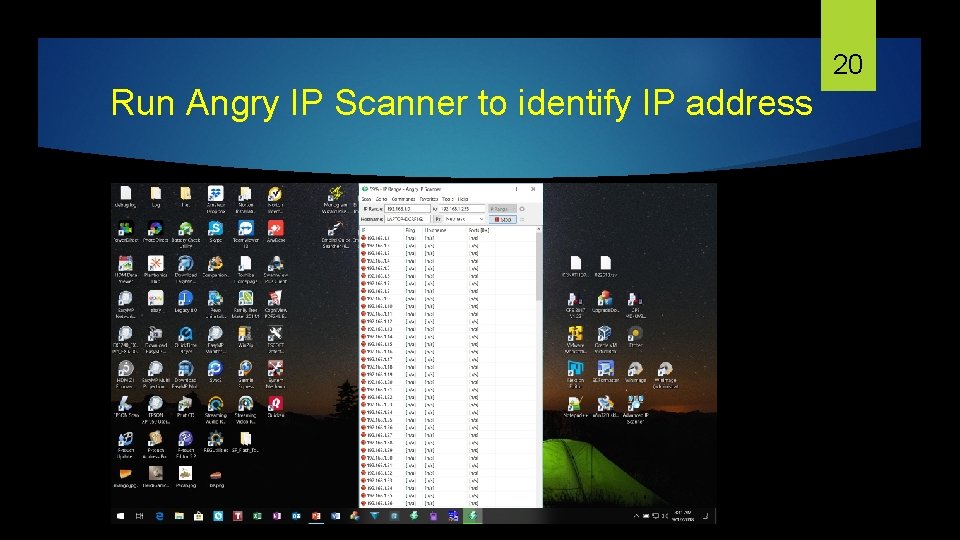
20 Run Angry IP Scanner to identify IP address
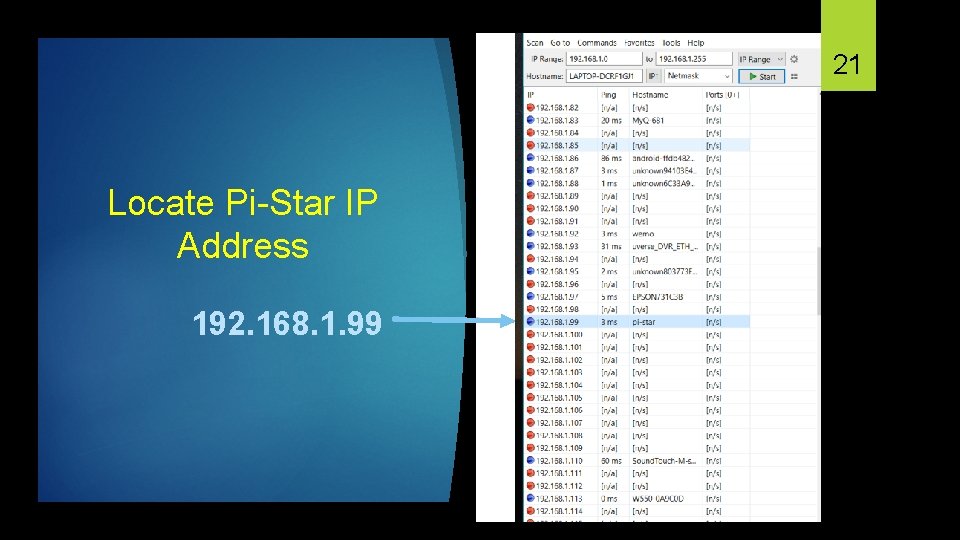
21 Locate Pi-Star IP Address 192. 168. 1. 99
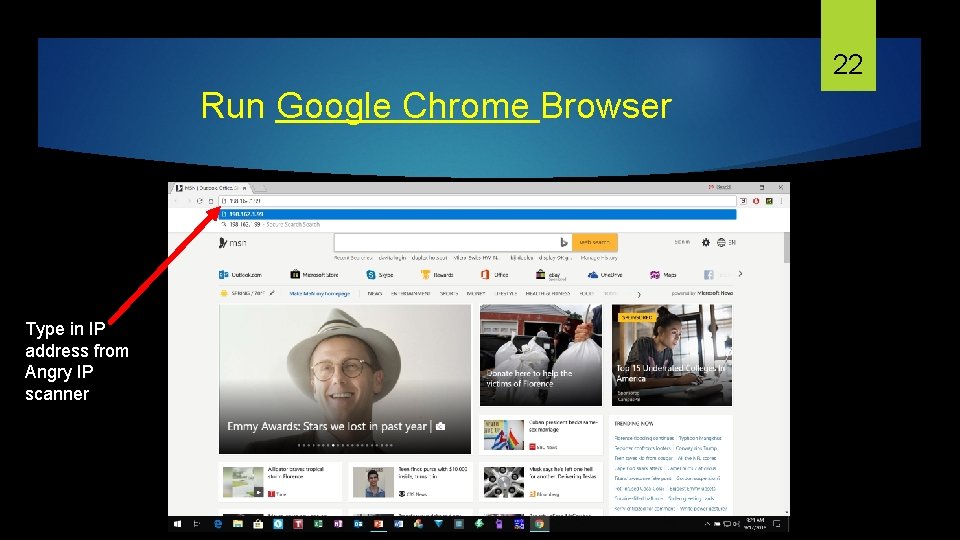
22 Run Google Chrome Browser Type in IP address from Angry IP scanner
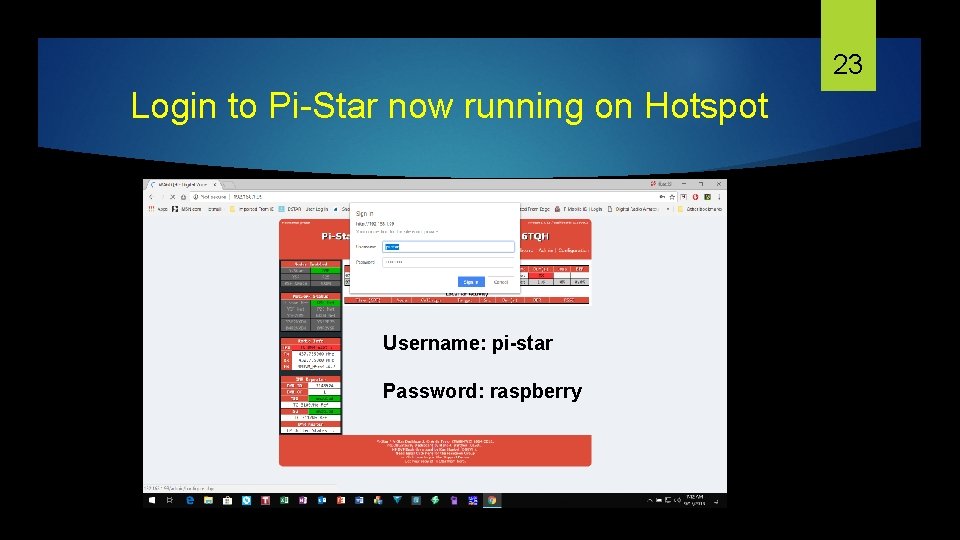
23 Login to Pi-Star now running on Hotspot Username: pi-star Password: raspberry
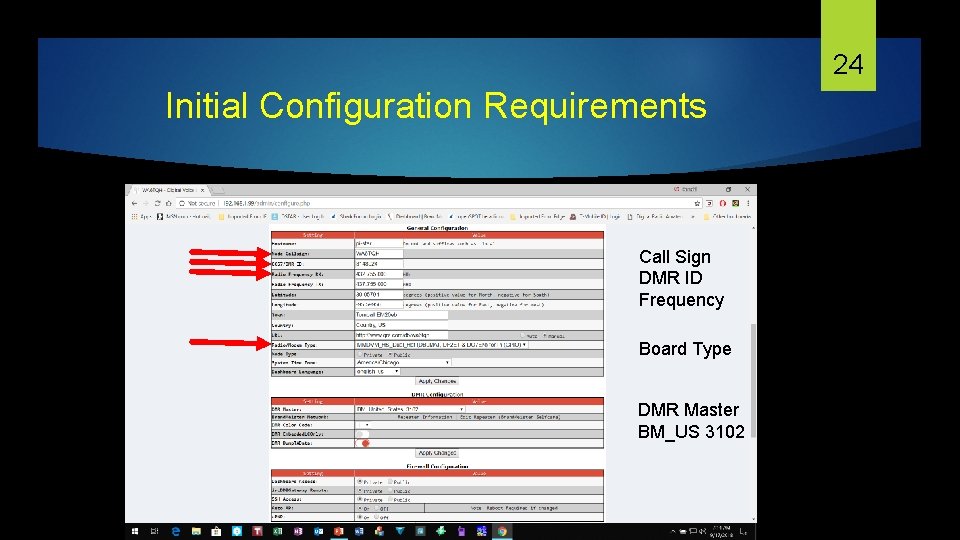
24 Initial Configuration Requirements Call Sign DMR ID Frequency Board Type DMR Master BM_US 3102
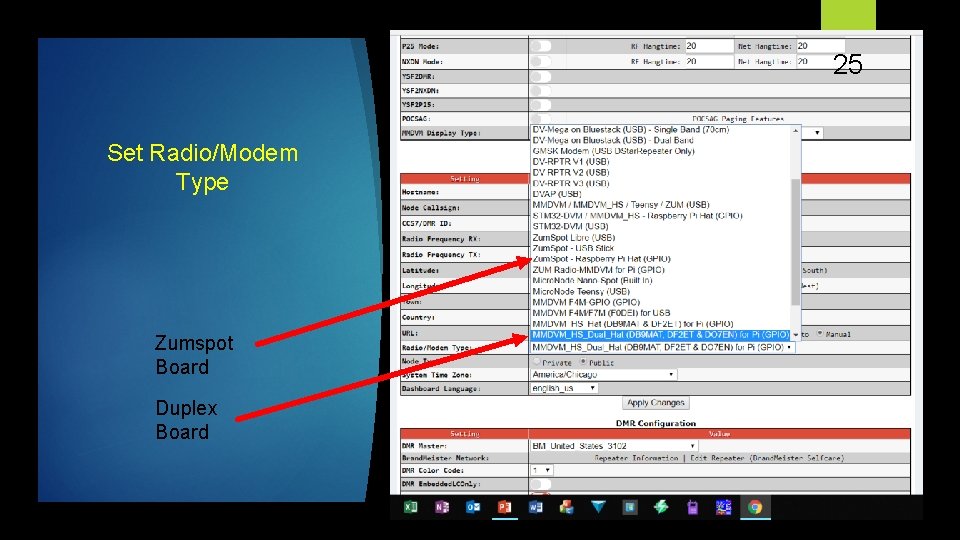
25 Set Radio/Modem Type Zumspot Board Duplex Board
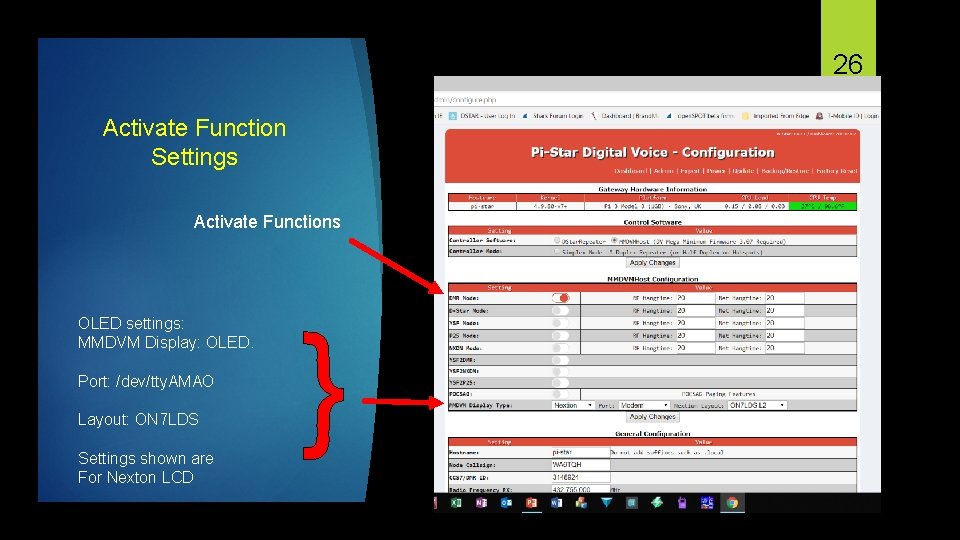
26 Activate Function Settings Activate Functions OLED settings: MMDVM Display: OLED. Port: /dev/tty. AMAO Layout: ON 7 LDS Settings shown are For Nexton LCD }
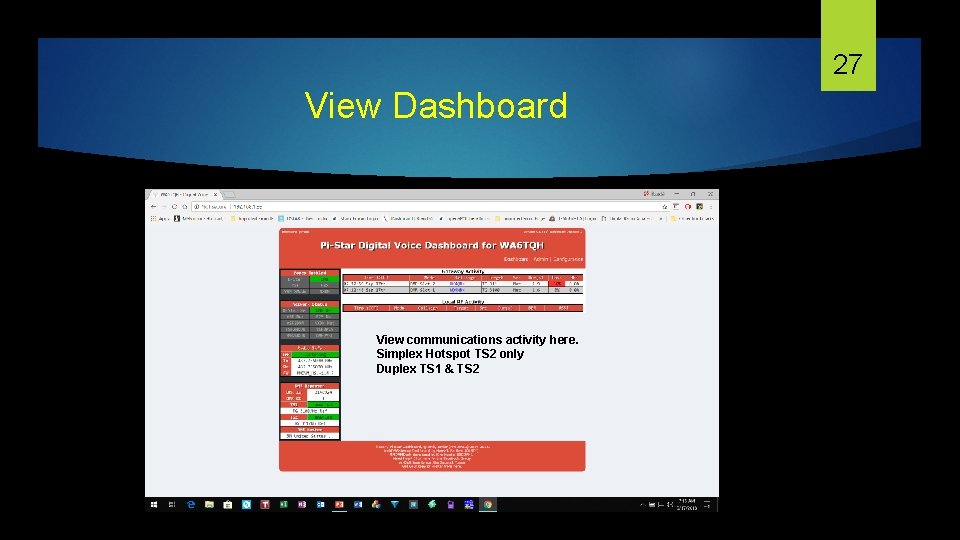
27 View Dashboard View communications activity here. Simplex Hotspot TS 2 only Duplex TS 1 & TS 2
28 Talk Group Visability In practical terms you are limited to the slots available. If you have a duplex hot spot, you have two talkgroups available at a time, 1 on slot 1 and 1 on slot 2. A simplex hotspot 1 talk group / reflector only. Anyone listening to the transmission can hear any of the transmission provided that they have been made dynamically available or are fixed. You won't be able to hear two talk groups active on the same slot, unless the dynamic timeout is reached and there more fixed groups available on the slots, in other words, it's first come first served
29 Talk Group Visability (cont’d) There are no abilities for multiple radios listen to multiple TG's. With a simplex board setup, whatever you are connected with will be the one transmitting. If you have multiple fixed static groups you could use a radio with an Rx channel for each static TG, but again only one can transmit at any given time, so you might miss an over or two on another radio. With a duplex MMDVM board you have the use of two timeslots which doubles the amount you could listen too.
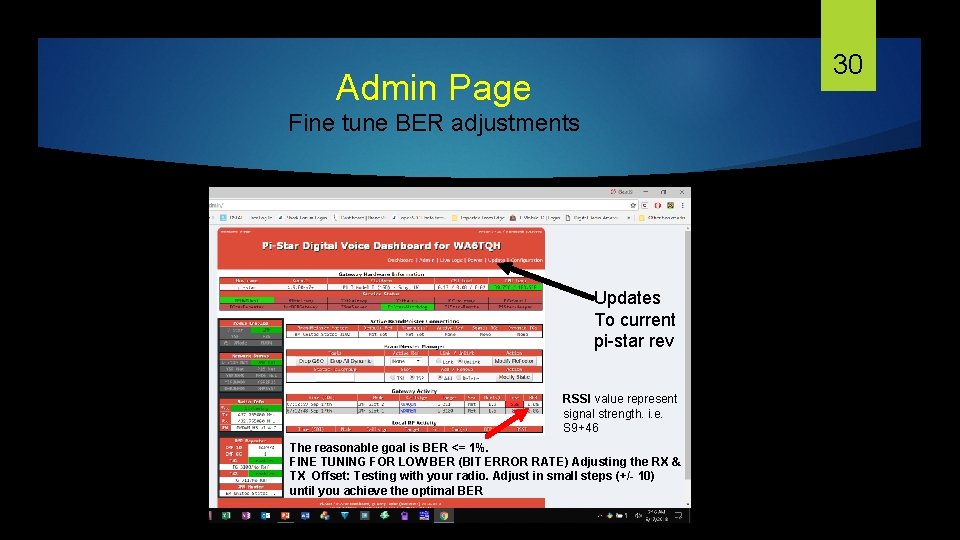
30 Admin Page Fine tune BER adjustments Updates To current pi-star rev RSSI value represent signal strength. i. e. S 9+46 The reasonable goal is BER <= 1%. FINE TUNING FOR LOW BER (BIT ERROR RATE) Adjusting the RX & TX Offset: Testing with your radio. Adjust in small steps (+/- 10) until you achieve the optimal BER
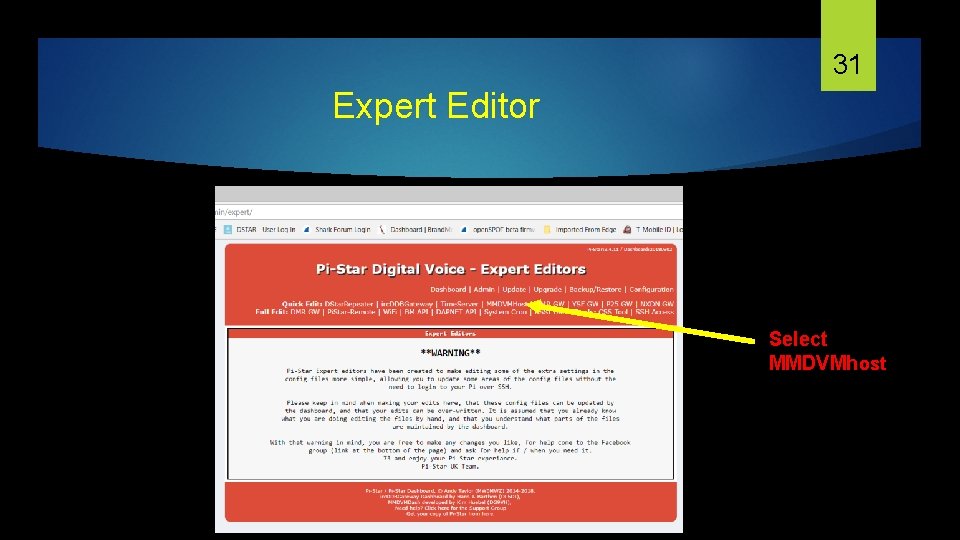
31 Expert Editor Select MMDVMhost
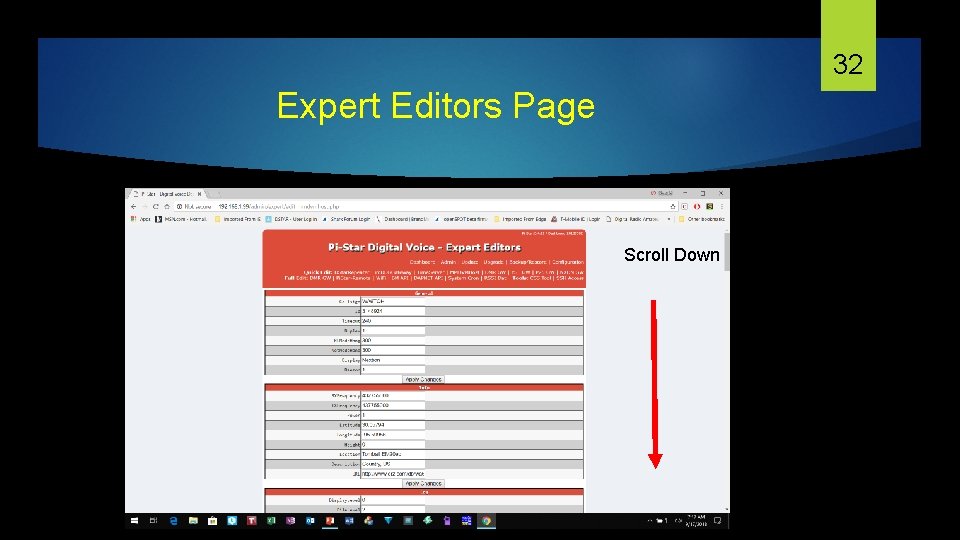
32 Expert Editors Page Scroll Down
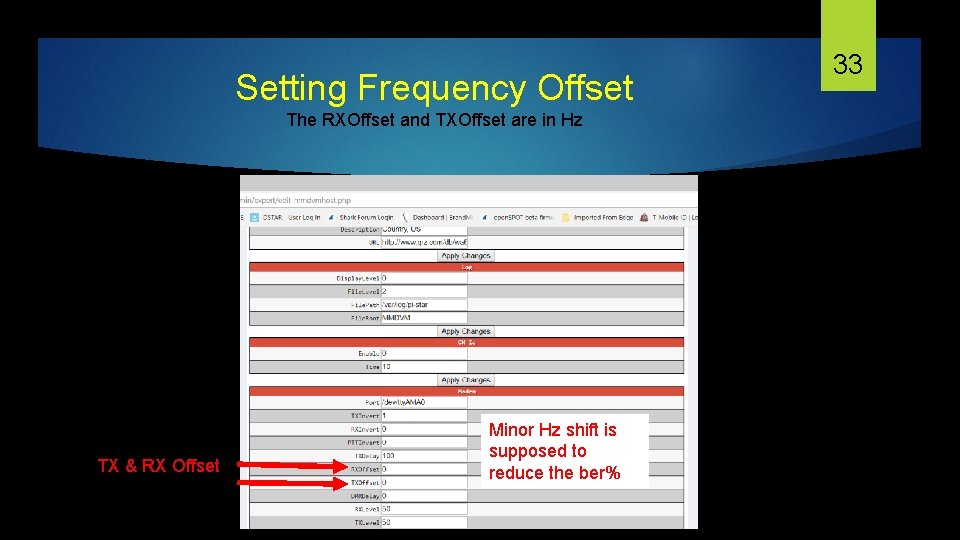
Setting Frequency Offset The RXOffset and TXOffset are in Hz TX & RX Offset Minor Hz shift is supposed to reduce the ber% 33
34 Relationship of Radio to Hotspot BER Fine Tune Try moving your radio farther from the hot spot. Mine works best 10 to 15 feet from the hotspot. You may also have an issue with the quality of your wi-fi signal.
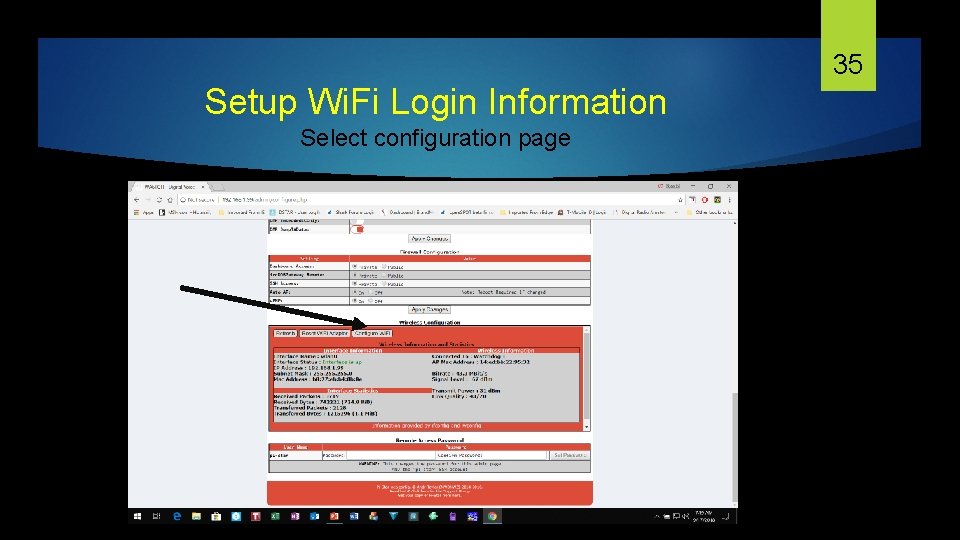
35 Setup Wi. Fi Login Information Select configuration page
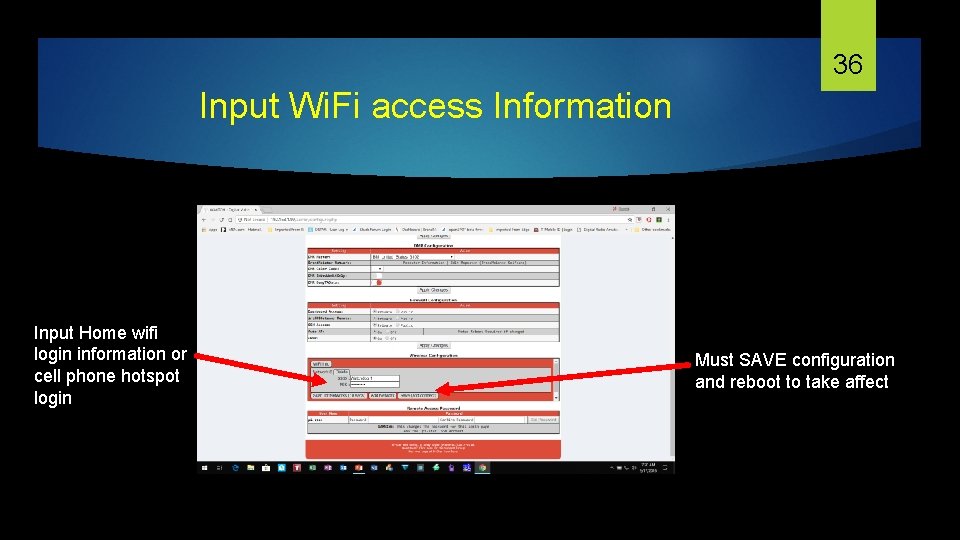
36 Input Wi. Fi access Information Input Home wifi login information or cell phone hotspot login Must SAVE configuration and reboot to take affect
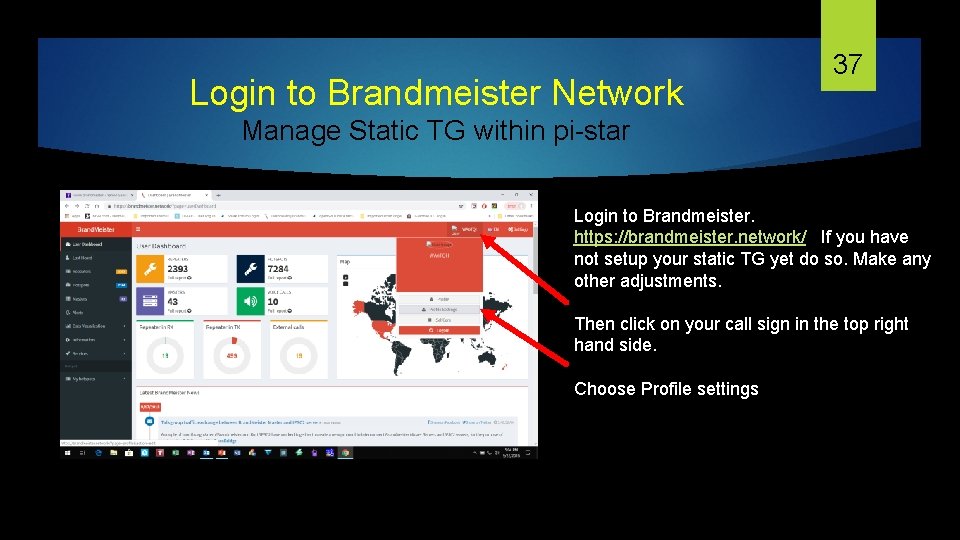
Login to Brandmeister Network 37 Manage Static TG within pi-star Login to Brandmeister. https: //brandmeister. network/ If you have not setup your static TG yet do so. Make any other adjustments. Then click on your call sign in the top right hand side. Choose Profile settings
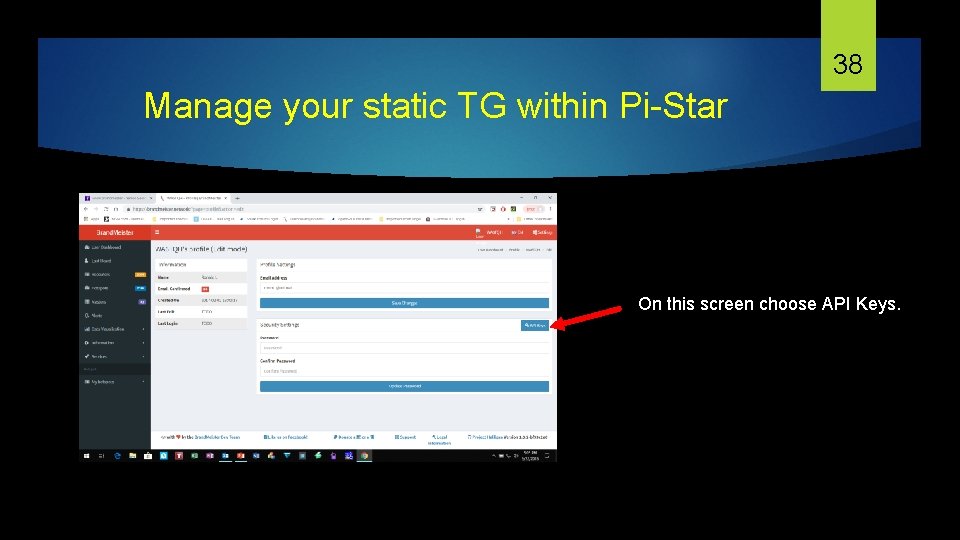
38 Manage your static TG within Pi-Star On this screen choose API Keys.
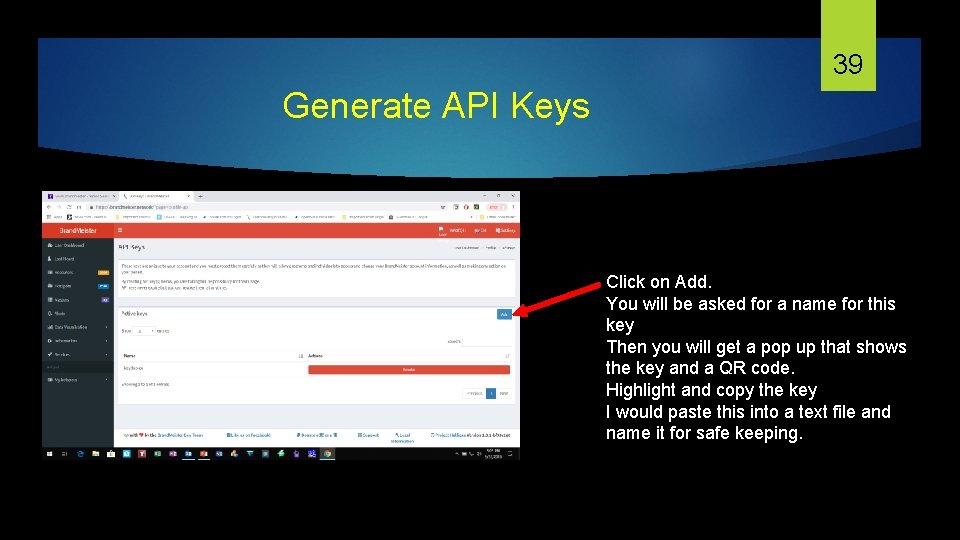
39 Generate API Keys Click on Add. You will be asked for a name for this key Then you will get a pop up that shows the key and a QR code. Highlight and copy the key I would paste this into a text file and name it for safe keeping.
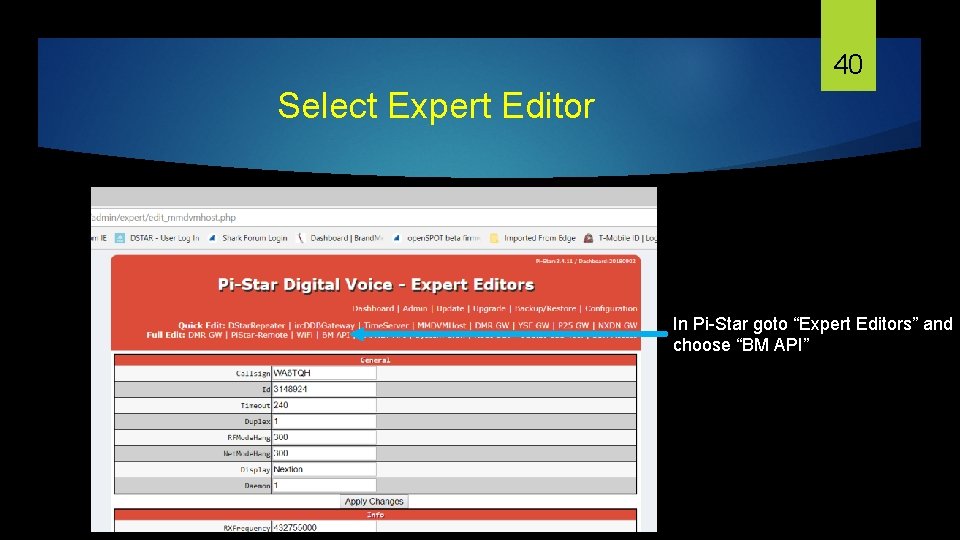
40 Select Expert Editor In Pi-Star goto “Expert Editors” and choose “BM API”
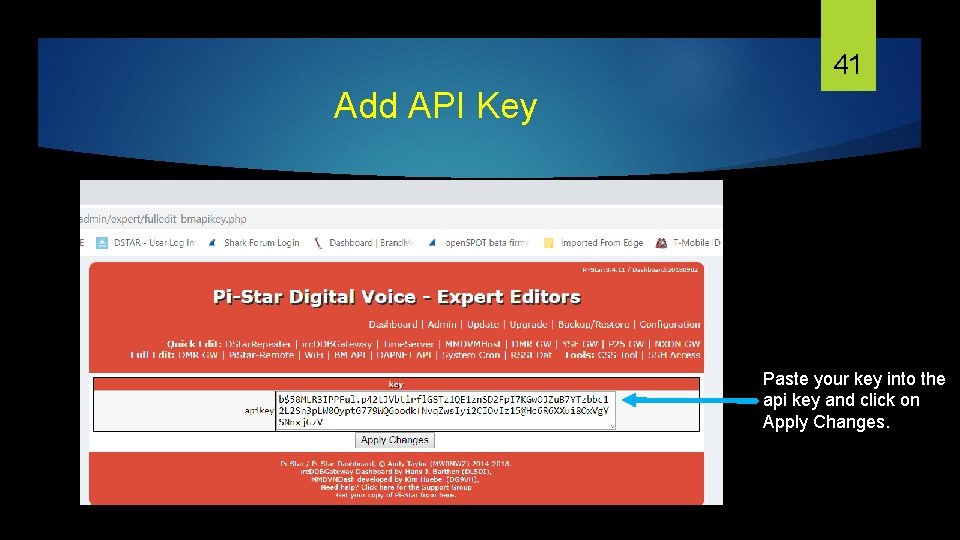
41 Add API Key Paste your key into the api key and click on Apply Changes.
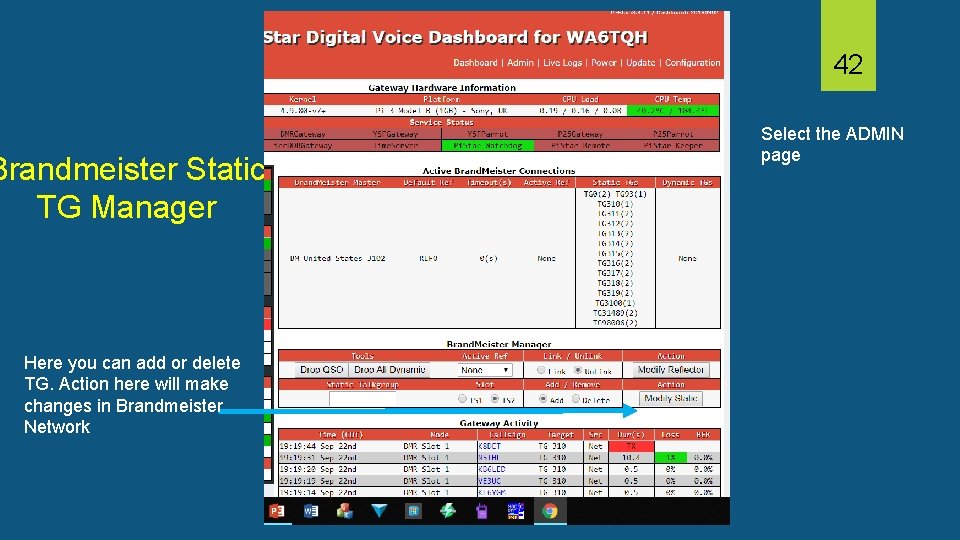
42 Brandmeister Static TG Manager Here you can add or delete TG. Action here will make changes in Brandmeister Network Select the ADMIN page
43 DMR Help Talk Group If you need any help outside of the training sessions you can find help here: Amsat Talk Group – (98006) – Access this Amsat TG using your Hotspot Klein Local DMR Repeater – Direct Access Cypress Local DMR Repeater – Direct Access To use the local DMR repeater do the following: Go to ZONE – Select Zone List – Select Klein TX – turn dial to Klein Local Go to ZONE – Select Zone List – Select Cypress TX – turn dial to Cypress Local
- Slides: 43