
1 Cog Tool Exercise HumanComputer Interaction All examples
- Slides: 40
1 Cog. Tool Exercise Human-Computer Interaction * All examples and exercises in this presentation were created while Bonnie John was faculty at Carnegie Mellon University © Bonnie E. John, 2014
2 Introduction * All examples and exercises in this presentation were created while Bonnie John was faculty at Carnegie Mellon University © Bonnie E. John, 2014
Acknowledgement § This exercise and almost all of the content has been prepared by Dr. Bonnie John, who published the material on Git. Hub § Bonnie E. John is an American cognitive psychologist who studies human–computer interaction, predictive human performance modeling, and the relationship between usability and software architecture. § Cog. Tool_Course contains the Power. Point source of course notes for a 3 -hour course that introduces the concept of predictive human performance modeling for UI design and evaluation and demonstrates how to use Cog. Tool for this purpose. It contains the materials necessary to do a comparison of three UIs for collaborative shopping, plus the answers to that exercise. § She was a founding member of the Human-Computer Interaction Institute at Carnegie Mellon University where she was a professor of Computer Science, a research Staff Member at IBM's Thomas J. Watson Research Center, and is now the Director of Computation and Innovation at The Cooper Union. * All examples and exercises in this presentation were created while Bonnie John was faculty at Carnegie Mellon University © Bonnie E. John, 2014 3
4 Predictive human performance modeling § Computer-based computational model that mimics human behavior § Perception, Cognition, Motor actions § Several computational cognitive architectures exist, e. g. , ACT-R, Soar, EPIC, which provide § A structure of modules and communication between them § A programming language for expressing human knowledge and capabilities § When a model runs, it produces a trace from which human performance metrics can be extracted and compared to human data, e. g. , § Time it takes to do a task, Number of errors, Blood oxygen level § Psychologist use human performance models to develop and test theories of human capabilities § Software engineers can use human performance models to help design and test interactive computer systems 4 * All examples and exercises in this presentation were created while Bonnie John was faculty at Carnegie Mellon University © Bonnie E. John, 2014 4
5 Uses of human performance models in interactive system design § Predict human behavior on a proposed design before implementing that design § Construct systems that adapt to the user, e. g. , cognitive tutoring systems § Substitute for human participants in collaborative or combative training situations 5
6 6 Origins of predictive human performance modeling § In the beginning, there was The Psychology of Human. Computer Interaction (Card, Moran & Newell, 1983) § Coined the phrase that became the name of the field § Presented modeling frameworks for predictive models to evaluate and guide design § They called these models (GOMS and KLM) “Engineering models” of human performance
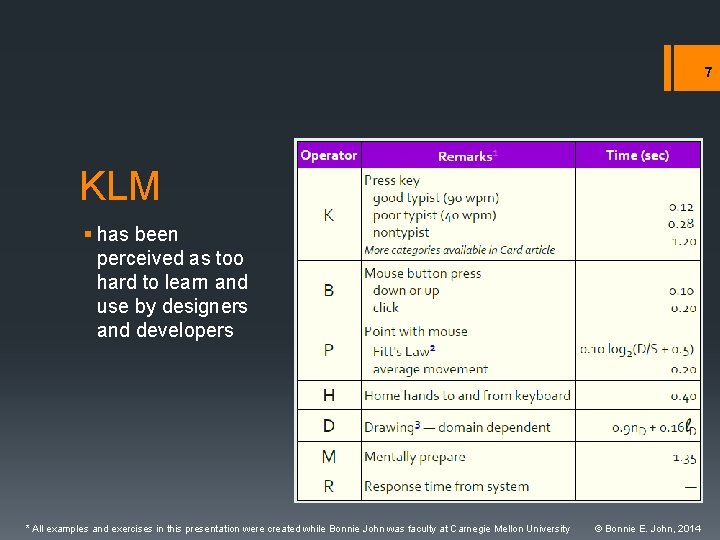
7 KLM § has been perceived as too hard to learn and use by designers and developers * All examples and exercises in this presentation were created while Bonnie John was faculty at Carnegie Mellon University © Bonnie E. John, 2014
8 Cog. Tool Overview * All examples and exercises in this presentation were created while Bonnie John was faculty at Carnegie Mellon University © Bonnie E. John, 2014
9 9 Introduction to Cog. Tool § Goal: Make it easier to construct human behavior models § Reduce the cost of learning and creating valid cognitive models § “Toe in the door” philosophy § First, make the simplest models (KLM) really easy § Hope that interest in more powerful, but complex, modeling will follow § Gradually expand the power of the tool without sacrificing usability § Expand the scope of what models can predict, e. g. , § New domains beyond office work § Other measures besides task execution time of skilled users
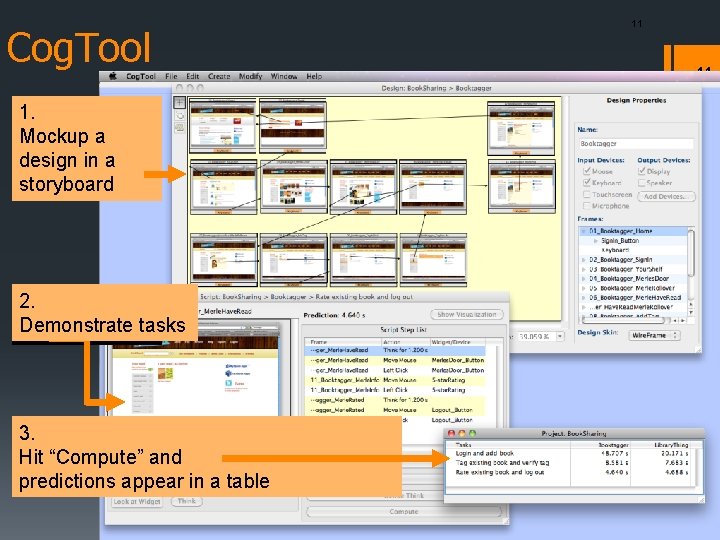
10 What is Cog. Tool? § Cog. Tool is a general purpose UI prototyping tool with a difference – it automatically evaluates your design with a predictive human performance model. § Simply create a storyboard of your design idea with sketches, images or on a canvas with Cog. Tool's widgets, demonstrate tasks on that storyboard, then press a button to produce a valid cognitive model predicting how long it will take a skilled user to complete those tasks. § Cog. Tool can be used today to baseline your current interface, or compare competitors' interfaces, and predict how much better your new designs will be.
Cog. Tool 1. Mockup a design in a storyboard 2. Demonstrate tasks 3. Hit “Compute” and predictions appear in a table 11 11
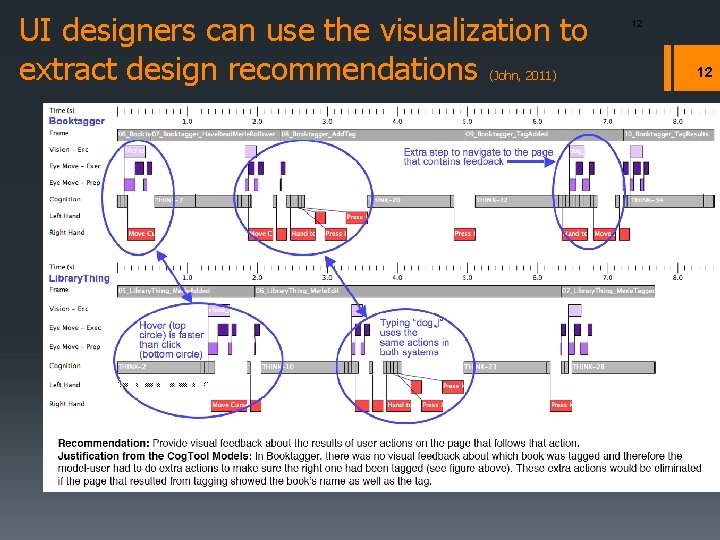
UI designers can use the visualization to extract design recommendations (John, 2011) 12 12
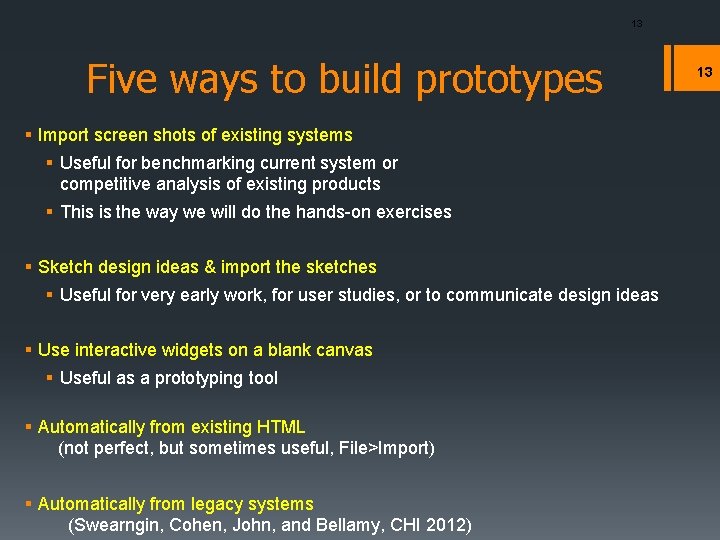
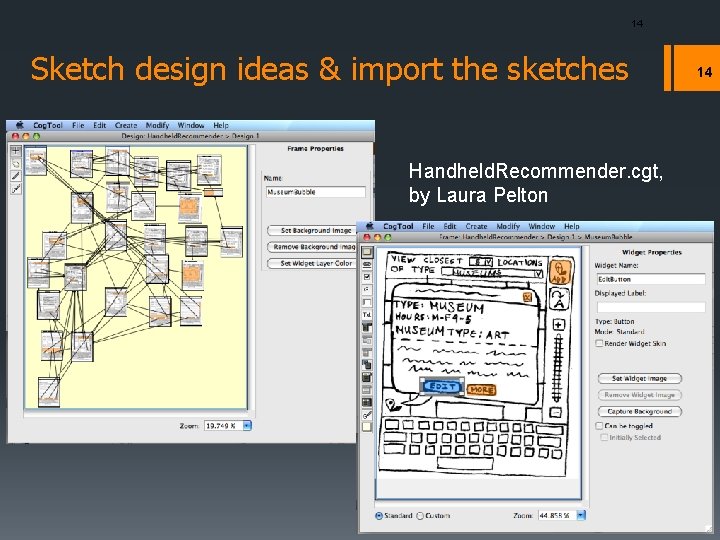
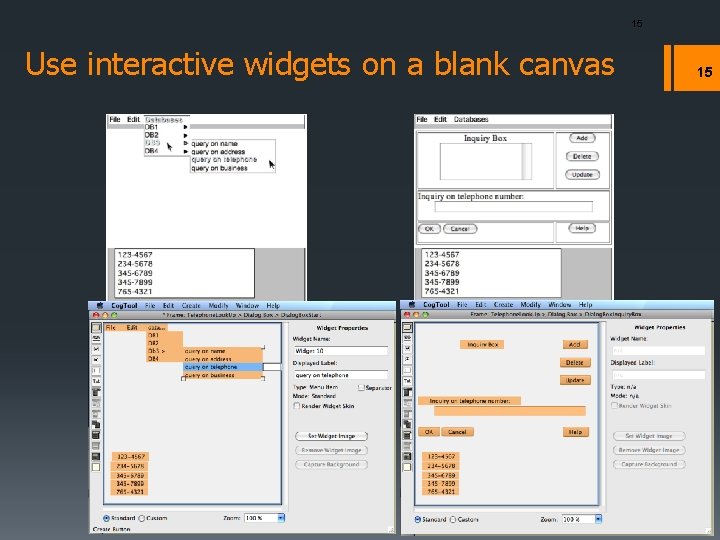
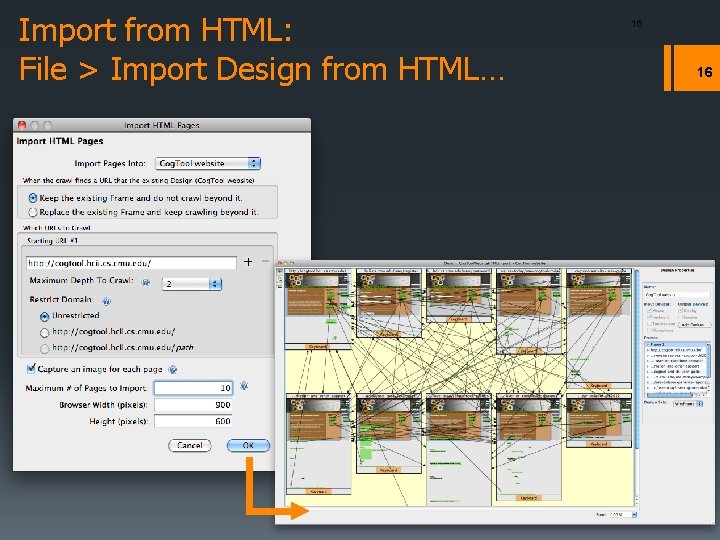
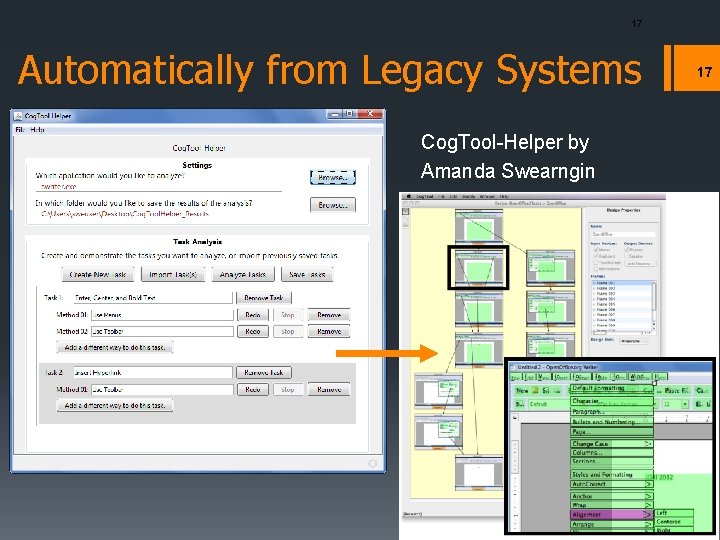
13 Five ways to build prototypes § Import screen shots of existing systems § Useful for benchmarking current system or competitive analysis of existing products § This is the way we will do the hands-on exercises § Sketch design ideas & import the sketches § Useful for very early work, for user studies, or to communicate design ideas § Use interactive widgets on a blank canvas § Useful as a prototyping tool § Automatically from existing HTML (not perfect, but sometimes useful, File>Import) § Automatically from legacy systems (Swearngin, Cohen, John, and Bellamy, CHI 2012) 13
14 Sketch design ideas & import the sketches Handheld. Recommender. cgt, by Laura Pelton 14
15 Use interactive widgets on a blank canvas 15
Import from HTML: File > Import Design from HTML… 16 16
17 Automatically from Legacy Systems Cog. Tool-Helper by Amanda Swearngin 17
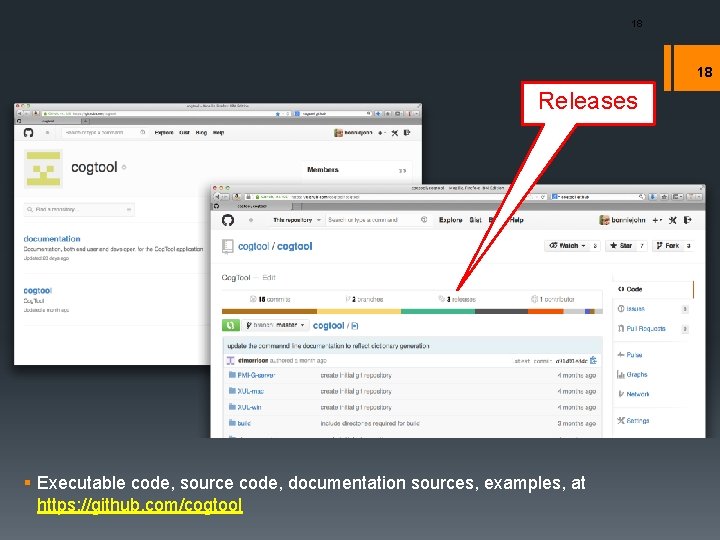
18 18 Cog. Tool Sources Releases § Executable code, source code, documentation sources, examples, at https: //github. com/cogtool
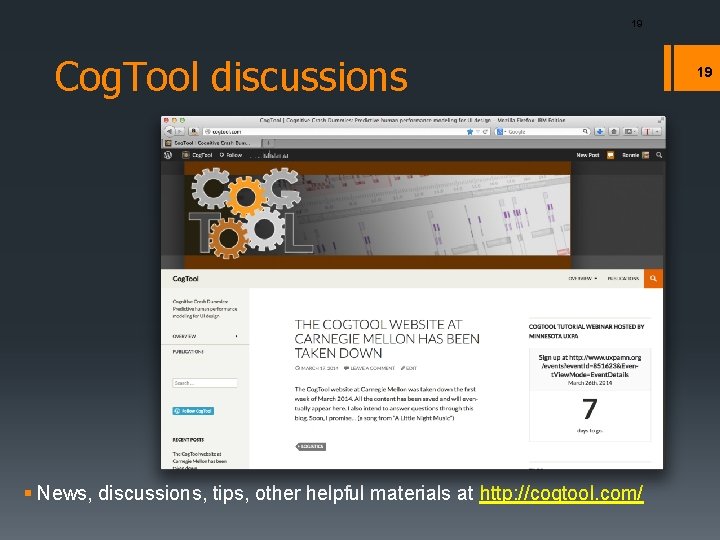
19 Cog. Tool discussions § News, discussions, tips, other helpful materials at http: //cogtool. com/ 19
20 The Exercise * All examples and exercises in this presentation were created while Bonnie John was faculty at Carnegie Mellon University © Bonnie E. John, 2014
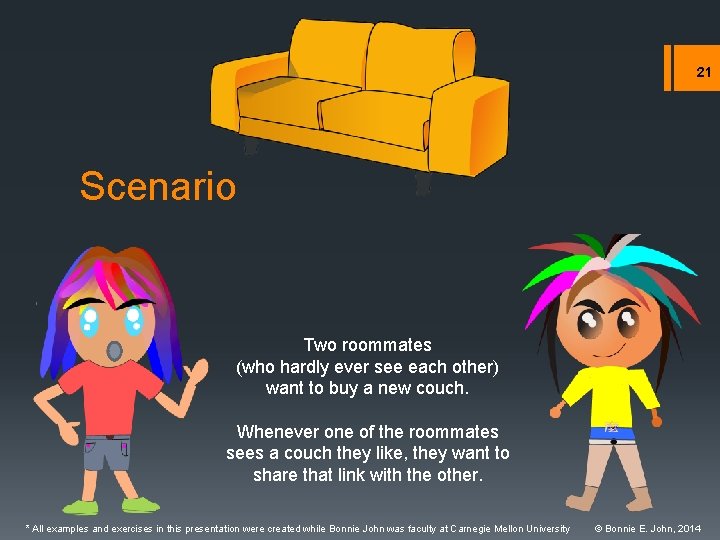
21 Scenario Two roommates (who hardly ever see each other) want to buy a new couch. Whenever one of the roommates sees a couch they like, they want to share that link with the other. * All examples and exercises in this presentation were created while Bonnie John was faculty at Carnegie Mellon University © Bonnie E. John, 2014
Interfaces and Task Collaborative Shopping 22 § In the context of roommates shopping for a couch, this example compares three ways for people to share a link on craigslist, and a comment about the item. It compares Gmail, Google Notebook (no longer in production) and a wiki set up with Wetpaint § Assume: § The roommates are going to follow the link to see the page, so it doesn't matter if the link is just a URL or a page title § All screens load immediately unless otherwise noted § The start screen is the craigslisting of the couch to be shared § Any necessary sharing has already bee set up (i. e. , Google. Mail group Google note sharing, wiki permissions), so all we are modeling here is how long it takes to share a single link with a comment § The user's hand starts on the mouse * All examples and exercises in this presentation were created while Bonnie John was faculty at Carnegie Mellon University © Bonnie E. John, 2014
23 23 Video Instructions § https: //www. youtube. com/watch? v=Aj 5 oa. Ny 4 d. Cw § This is a three hour video; start at 53: 00 * All examples and exercises in this presentation were created while Bonnie John was faculty at Carnegie Mellon University © Bonnie E. John, 2014
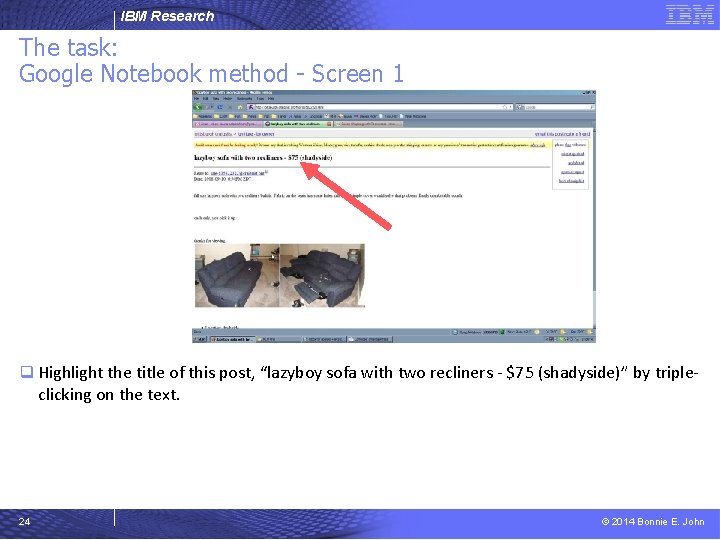
IBM Research The task: Google Notebook method - Screen 1 q Highlight the title of this post, “lazyboy sofa with two recliners - $75 (shadyside)” by triple- clicking on the text. 24 © 2014 Bonnie E. John
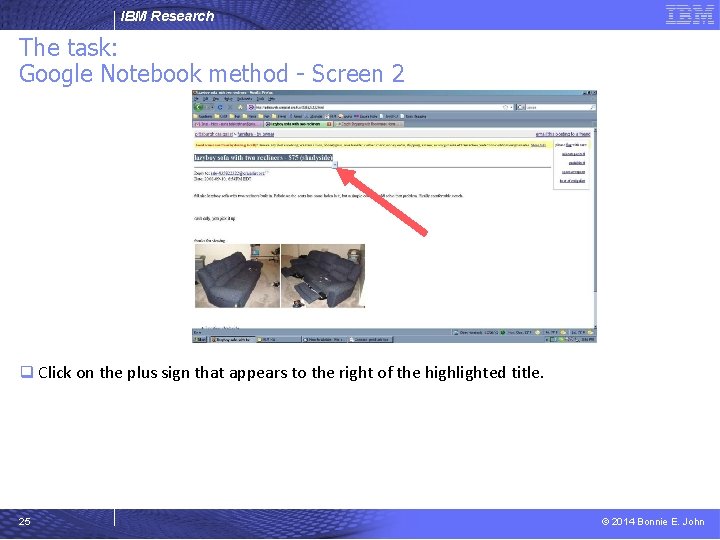
IBM Research The task: Google Notebook method - Screen 2 q Click on the plus sign that appears to the right of the highlighted title. 25 © 2014 Bonnie E. John
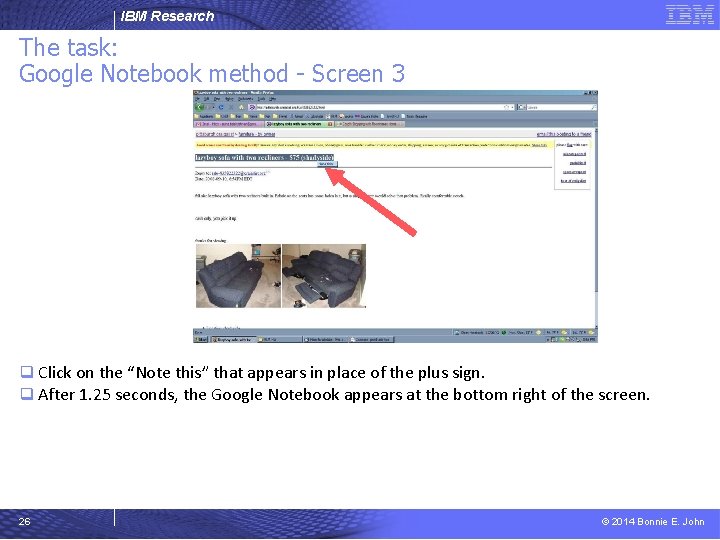
IBM Research The task: Google Notebook method - Screen 3 q Click on the “Note this” that appears in place of the plus sign. q After 1. 25 seconds, the Google Notebook appears at the bottom right of the screen. 26 © 2014 Bonnie E. John
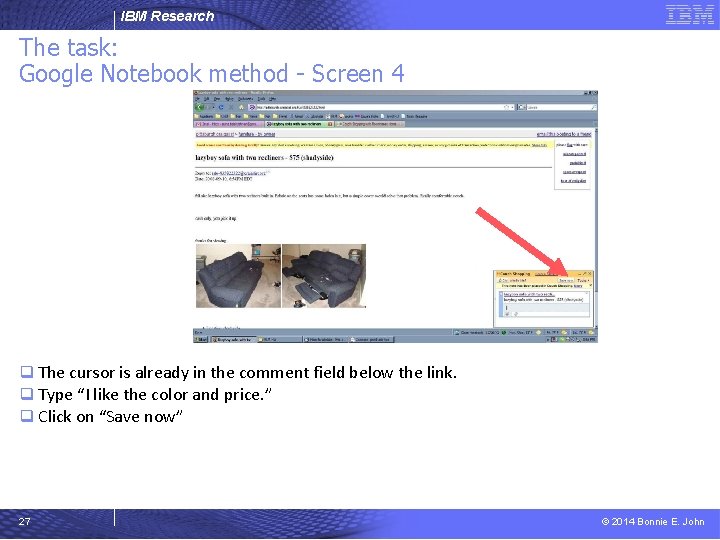
IBM Research The task: Google Notebook method - Screen 4 q The cursor is already in the comment field below the link. q Type “I like the color and price. ” q Click on “Save now” 27 © 2014 Bonnie E. John
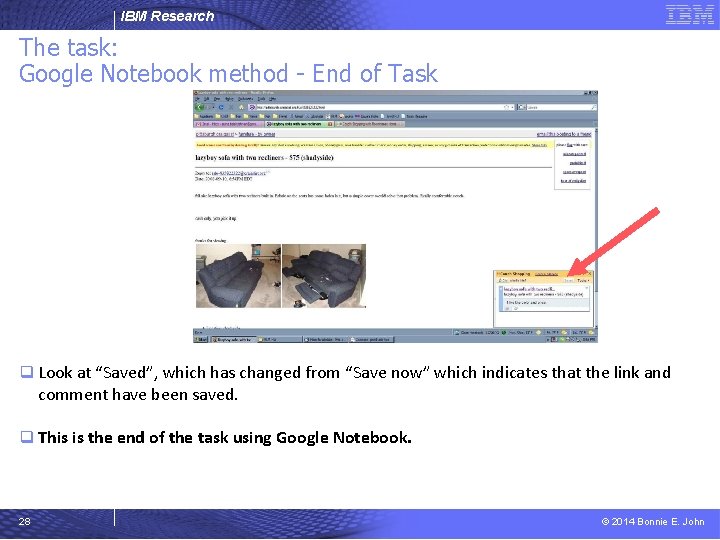
IBM Research The task: Google Notebook method - End of Task q Look at “Saved”, which has changed from “Save now” which indicates that the link and comment have been saved. q This is the end of the task using Google Notebook. 28 © 2014 Bonnie E. John
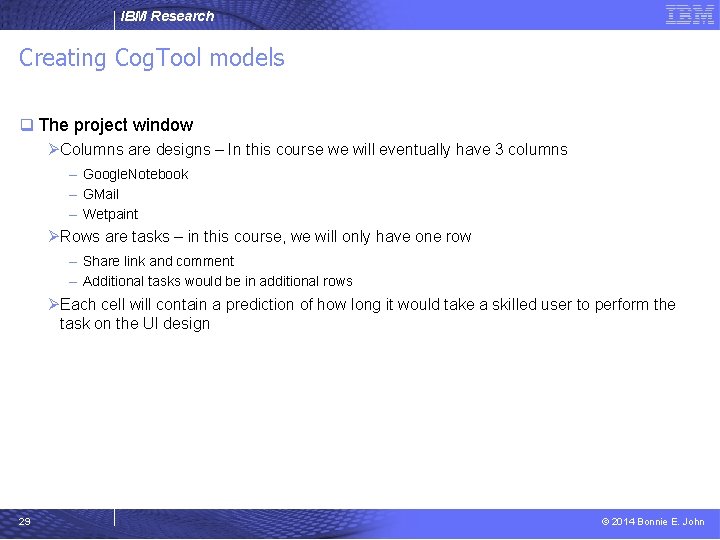
IBM Research Creating Cog. Tool models q The project window ØColumns are designs – In this course we will eventually have 3 columns – Google. Notebook – GMail – Wetpaint ØRows are tasks – in this course, we will only have one row – Share link and comment – Additional tasks would be in additional rows ØEach cell will contain a prediction of how long it would take a skilled user to perform the task on the UI design 29 © 2014 Bonnie E. John
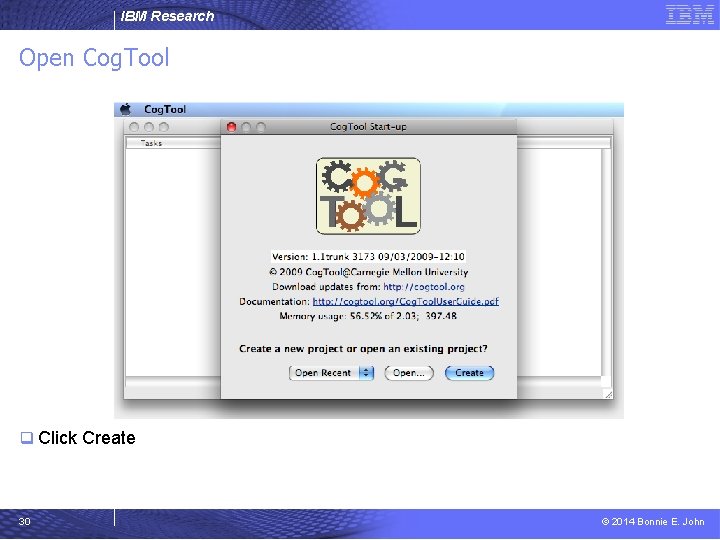
IBM Research Open Cog. Tool q Click Create 30 © 2014 Bonnie E. John
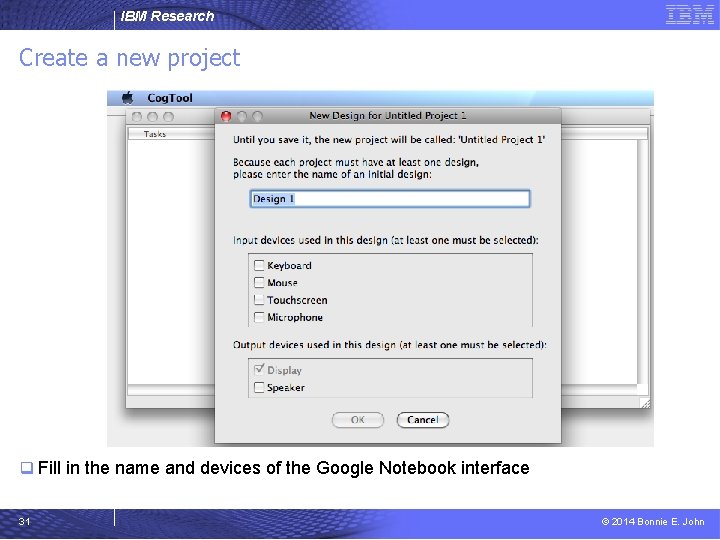
IBM Research Create a new project q Fill in the name and devices of the Google Notebook interface 31 © 2014 Bonnie E. John
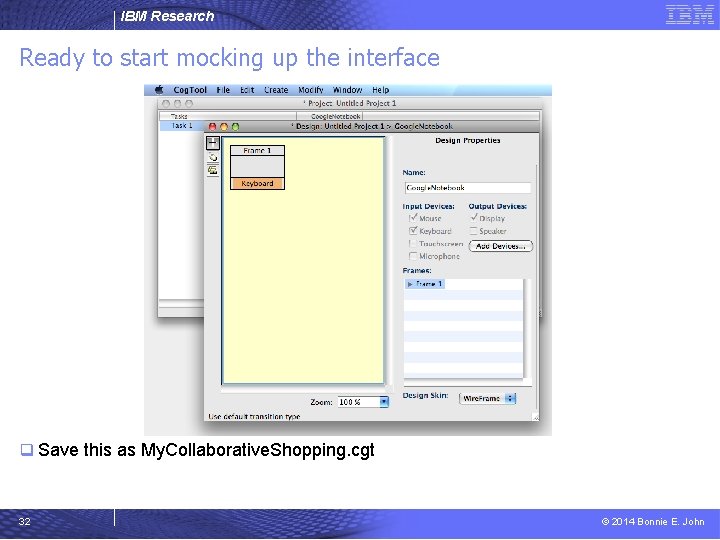
IBM Research Ready to start mocking up the interface q Save this as My. Collaborative. Shopping. cgt 32 © 2014 Bonnie E. John
IBM Research Creating the Prototype of the Design q A prototype is expressed in a storyboard ØFrames ØTransitions from one frame to another q Each frame has the widgets it needs to do the task ØButtons, Menus, Text boxes, Text, etc. ØAll frames in a design also have access to the devices associated with the design – Keyboard, mouse, microphone, speaker, touch screen q Transitions represent actions on the widgets or devices ØTransitions take the interface from frame to frame 33 © 2014 Bonnie E. John
IBM Research Making a storyboard of the Google Notebook interface Creating the frames q What does the screen look like at each step in the task? ØBecause we are analyzing an existing system, we can import screen shots into frames ØChoose Modify>Import Images as New Frames… – Navigate to the folder called Colaborative. Shopping. Images q How do the things on each screen act? q What widgets act like that? 34 © 2014 Bonnie E. John
IBM Research Making a storyboard of the Google Notebook interface Drawing transitions in the Design window q What would the users do at the start screen? q What feedback would a user get? 35 © 2014 Bonnie E. John
IBM Research Making predictions about the Google Notebook interface Demonstrating a task & computing q Demonstrating a task creates a script q The script creates code that runs in the ACT-R cognitive engine (Anderson, et al. , 2004) and makes a prediction of task execution time by a skilled user. q When you are done, hit compute and we'll compare predictions 36 © 2014 Bonnie E. John
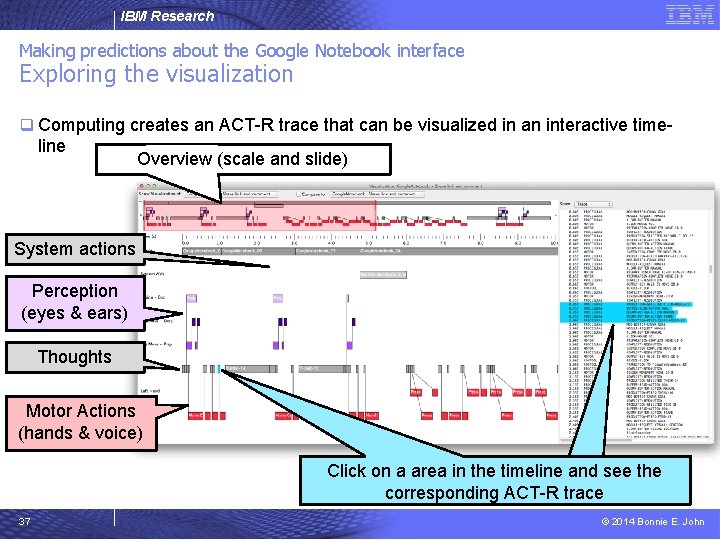
IBM Research Making predictions about the Google Notebook interface Exploring the visualization q Computing creates an ACT-R trace that can be visualized in an interactive time- line Overview (scale and slide) System actions Perception (eyes & ears) Thoughts Motor Actions (hands & voice) Click on a area in the timeline and see the corresponding ACT-R trace 37 © 2014 Bonnie E. John
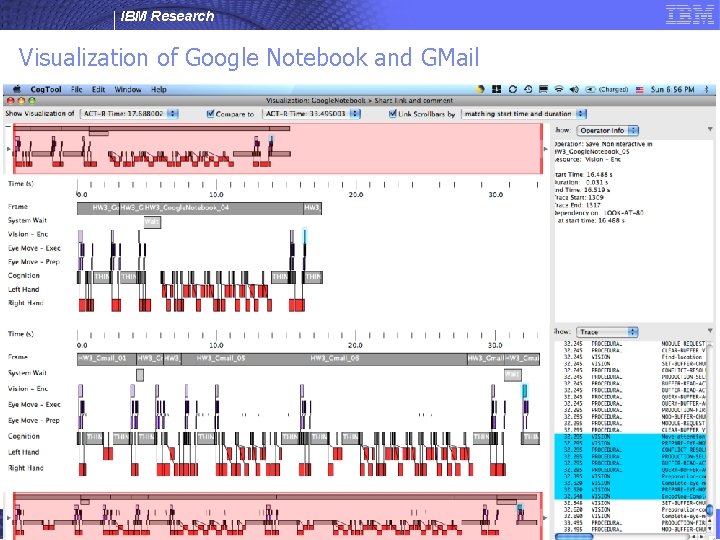
IBM Research Visualization of Google Notebook and GMail 38 © 2014 Bonnie E. John
IBM Research A completed comparison of the interfaces … can be found in Collaborative. Shopping. cgt 39 © 2014 Bonnie E. John
IBM Research With thanks to: • The HCI Institute at CMU Gus Prevas, Ken Koedinger, Peter Centgraf, Mike Horowitz, Alex Eiser, Alex Faaborg, Sandy Esch, Jason Cornwell, Lily Cho, Don Morrison, Samantha Konwinski, Carmen Jackson, Josh Ehlke, Ryan Myers, Diana Dill, Leigh Johnston, Chris Monti, Melissa Gallagher, Annie Luo, Brett Harris, Khaled Ziyaeen • IBM Research Rachel Bellamy, Shari Trewin, Cal Swart, John Thomas, John Richards • DSO National Laboratories, Singapore Leonghwee Teo • NASA Ames Research Center Alonso Vera, Collin Green, Guy Pryzak, Mike Feary • University of Michigan Rick Lewis, Mason Smith • University of Manchester Andrew Howes • PARC Peter Pirolli, Wai-Tat Fu, Victoria Bellotti, Nick Yee • Drexel University Dario Salvucci • George Mason University Lance Sherry, Maricel Medina Mora • University of Colorado Marylin Hughes Blackmon, Peter Polson, Karl Fennel, Richard Brown • University of Nebraska, Lincoln Myra Cohen, Amanda Swearngin • • • 40 Oregon State University David Piorkowsky The ACT-R community US Office of Naval Research Boeing NEC, Japan © 2014 Bonnie E. John