
1 Adding Videos in QUALTRICS SEAN FURMAN APRIL


- Slides: 9
1 Adding Videos in QUALTRICS SEAN FURMAN APRIL 10, 2018
Why add videos? Make it more visual Accessible for Deaf / ASL users User Friendly 2
3 Methods of adding videos § Upload video files ( Computer/ Qualtric folder) § URL link § Embed link
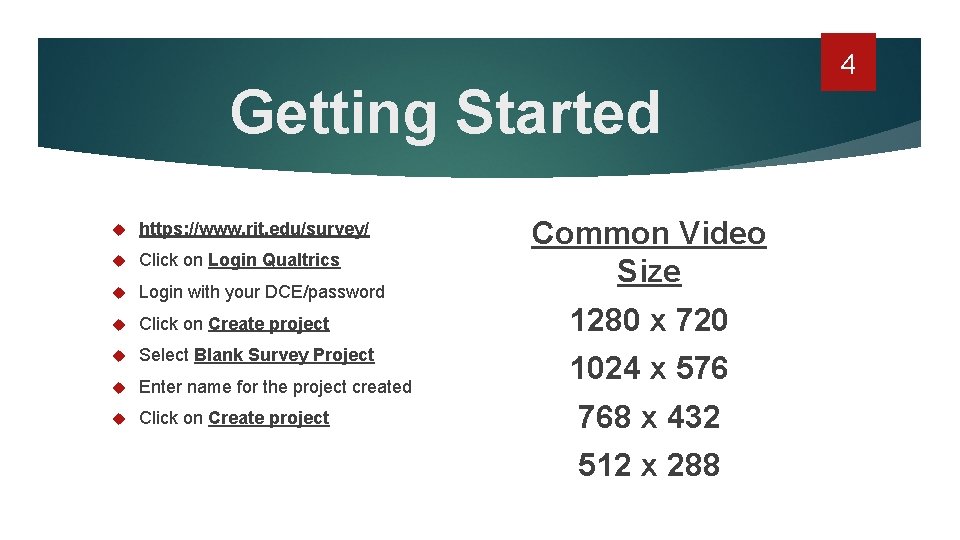
Getting Started https: //www. rit. edu/survey/ Click on Login Qualtrics Login with your DCE/password Click on Create project Select Blank Survey Project Enter name for the project created Click on Create project Common Video Size 1280 x 720 1024 x 576 768 x 432 512 x 288 4
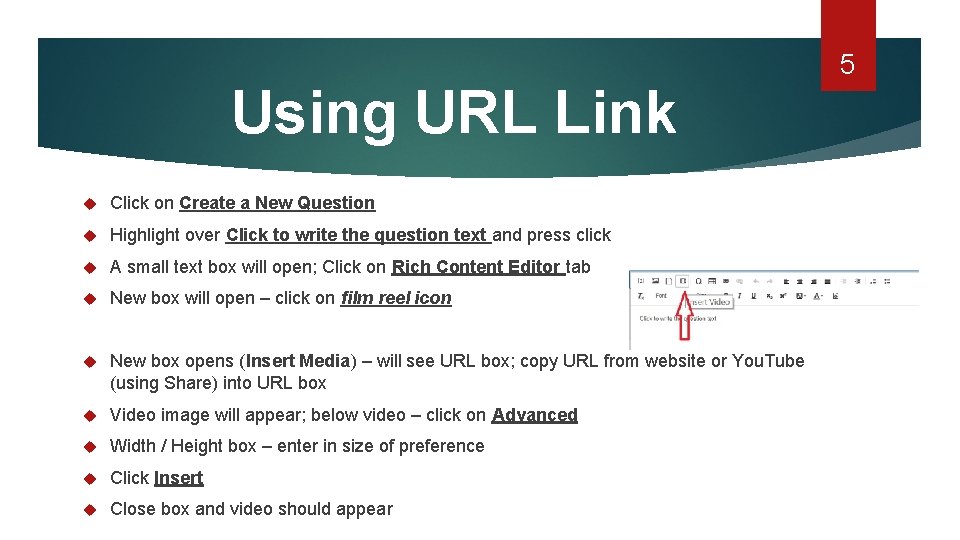
Using URL Link Click on Create a New Question Highlight over Click to write the question text and press click A small text box will open; Click on Rich Content Editor tab New box will open – click on film reel icon New box opens (Insert Media) – will see URL box; copy URL from website or You. Tube (using Share) into URL box Video image will appear; below video – click on Advanced Width / Height box – enter in size of preference Click Insert Close box and video should appear 5
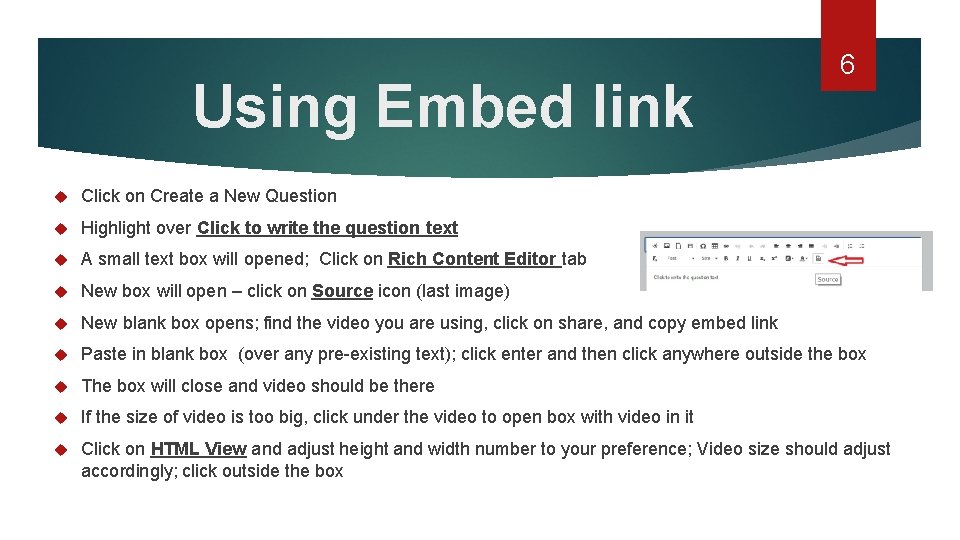
Using Embed link 6 Click on Create a New Question Highlight over Click to write the question text A small text box will opened; Click on Rich Content Editor tab New box will open – click on Source icon (last image) New blank box opens; find the video you are using, click on share, and copy embed link Paste in blank box (over any pre-existing text); click enter and then click anywhere outside the box The box will close and video should be there If the size of video is too big, click under the video to open box with video in it Click on HTML View and adjust height and width number to your preference; Video size should adjust accordingly; click outside the box
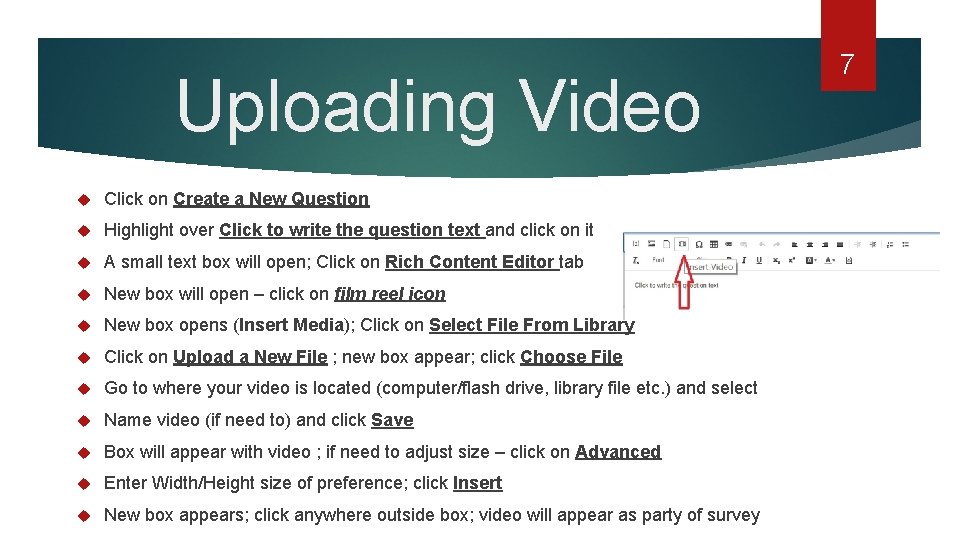
Uploading Video Click on Create a New Question Highlight over Click to write the question text and click on it A small text box will open; Click on Rich Content Editor tab New box will open – click on film reel icon New box opens (Insert Media); Click on Select File From Library Click on Upload a New File ; new box appear; click Choose File Go to where your video is located (computer/flash drive, library file etc. ) and select Name video (if need to) and click Save Box will appear with video ; if need to adjust size – click on Advanced Enter Width/Height size of preference; click Insert New box appears; click anywhere outside box; video will appear as party of survey 7
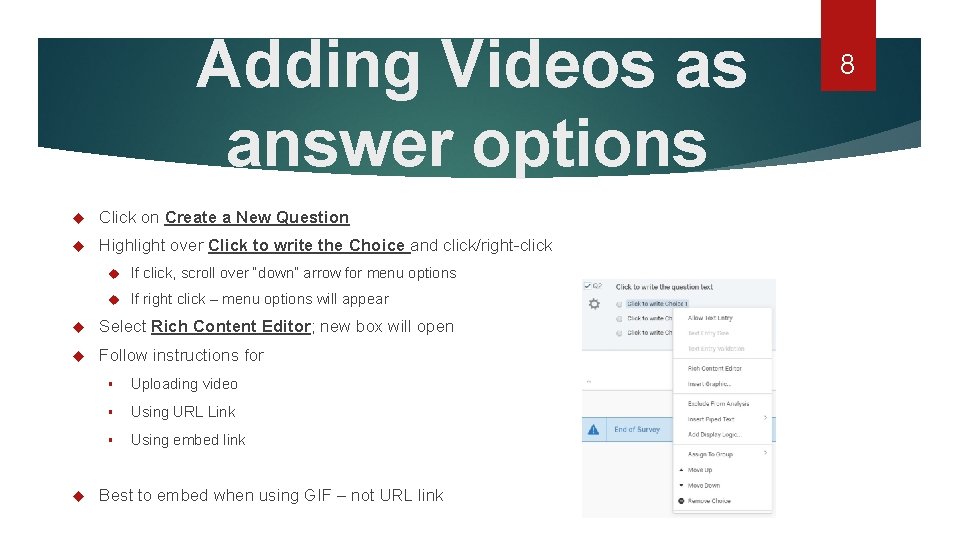
Adding Videos as answer options Click on Create a New Question Highlight over Click to write the Choice and click/right-click If click, scroll over “down” arrow for menu options If right click – menu options will appear Select Rich Content Editor; new box will open Follow instructions for § Uploading video § Using URL Link § Using embed link Best to embed when using GIF – not URL link 8
QUESTIONS 9 Email: smfnca@rit. edu