
1 6192017 e Requisition Overview JULY AUGUST SEPTEMBER

1 6/19/2017 e. Requisition Overview JULY, AUGUST, SEPTEMBER 2017
e. Requisition Overview Topics Search for Requisition Status Requisition Lines Approval Path Woo Hoo! Pre-Encumber the Budget Related Documents Security Info. Ex Training documents Questions 6/2/2017 2

3 6/2/2017 Search For A Requisition
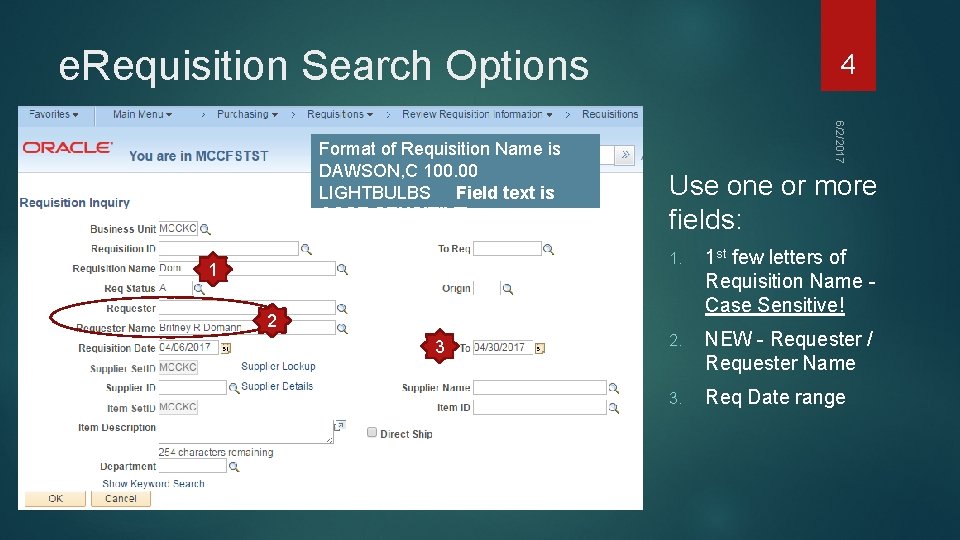
e. Requisition Search Options 1 6/2/2017 Format of Requisition Name is DAWSON, C 100. 00 LIGHTBULBS Field text is CASE SENSITIVE 4 Use one or more fields: 1. 1 st few letters of Requisition Name Case Sensitive! 2. NEW - Requester / Requester Name 3. Req Date range 2 3

Requisition Status (1 of 2) Open: Saved but not submitted to approvers Pending Approval: Routing to approvers Denied: An approver said ‘No’; Never becomes a PO 6/2/2017 5
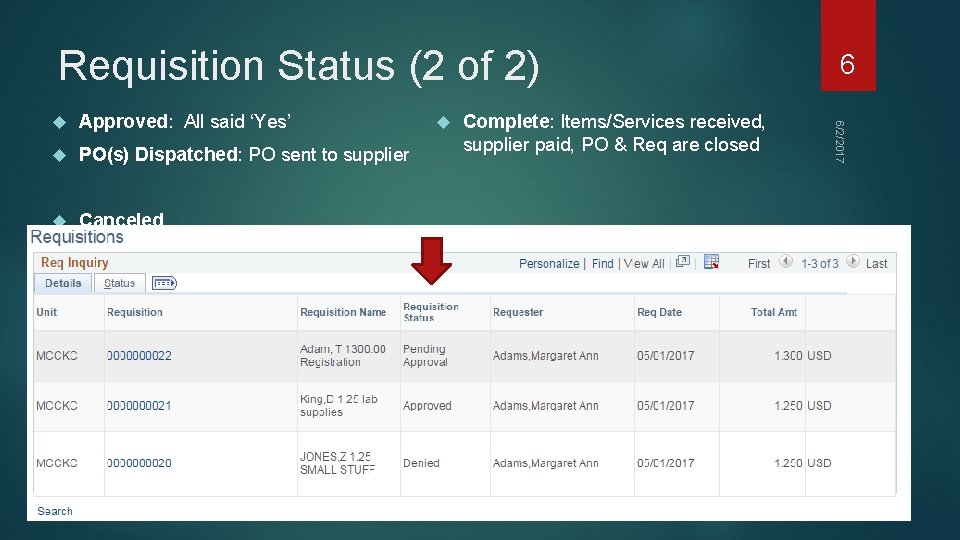
Requisition Status (2 of 2) Approved: All said ‘Yes’ PO(s) Dispatched: PO sent to supplier Canceled Complete: Items/Services received, supplier paid, PO & Req are closed 6/2/2017 6
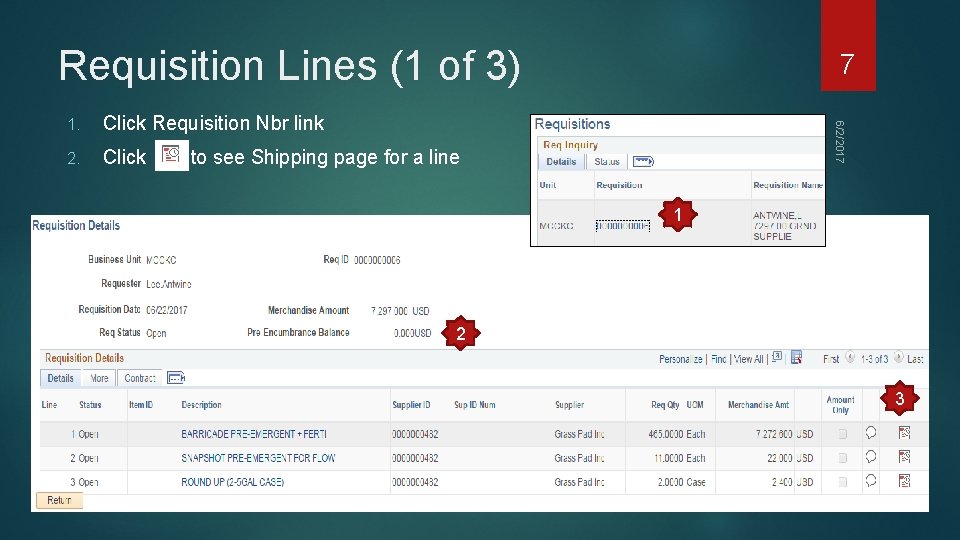
Requisition Lines (1 of 3) Click Requisition Nbr link 2. Click 6/2/2017 1. 7 to see Shipping page for a line 1 2 3
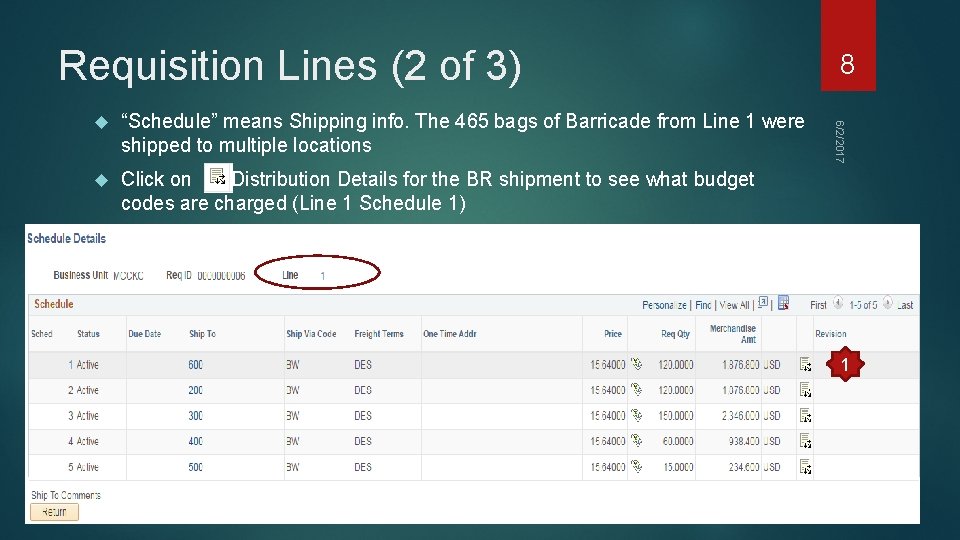
Requisition Lines (2 of 3) “Schedule” means Shipping info. The 465 bags of Barricade from Line 1 were shipped to multiple locations Click on Distribution Details for the BR shipment to see what budget codes are charged (Line 1 Schedule 1) 6/2/2017 8 1
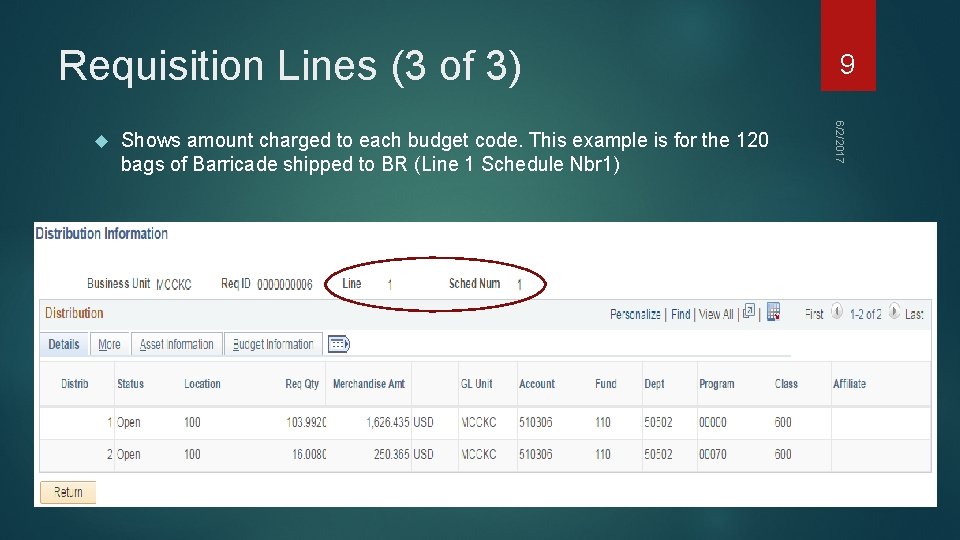
Requisition Lines (3 of 3) Shows amount charged to each budget code. This example is for the 120 bags of Barricade shipped to BR (Line 1 Schedule Nbr 1) 6/2/2017 9
10 6/2/2017 Look up Requisition Approver

Electronic Approvals for e. Requisition 11 6/2/2017 Submitted requisition routes to approvers Approval path based on Requester (to find supervisor) Budget Codes Total Price Approver receives email when his/her turn to approve Everyone can view approval path & approver comments The requisition path is not available if Req Status = Open (not submitted)
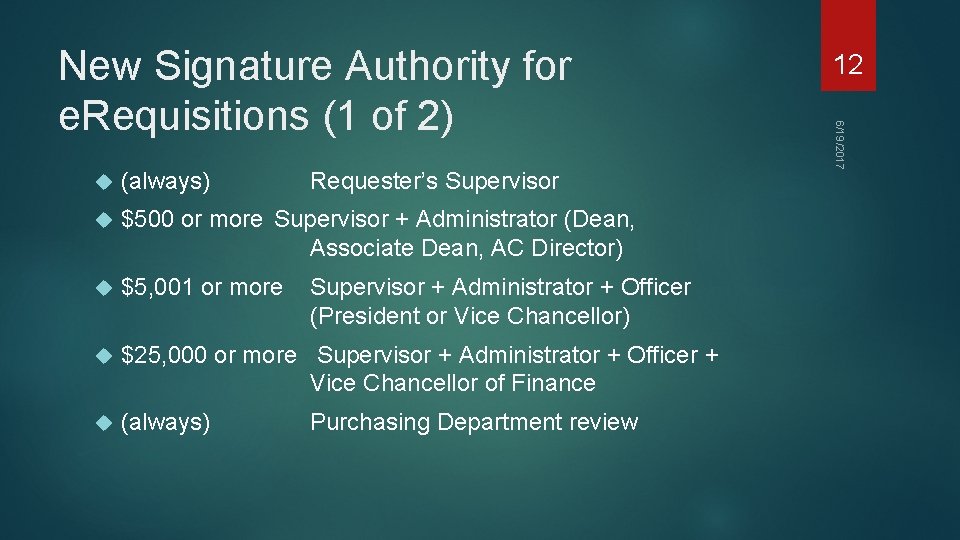
(always) Requester’s Supervisor $500 or more Supervisor + Administrator (Dean, Associate Dean, AC Director) $5, 001 or more $25, 000 or more Supervisor + Administrator + Officer + Vice Chancellor of Finance (always) Supervisor + Administrator + Officer (President or Vice Chancellor) Purchasing Department review 12 6/19/2017 New Signature Authority for e. Requisitions (1 of 2)
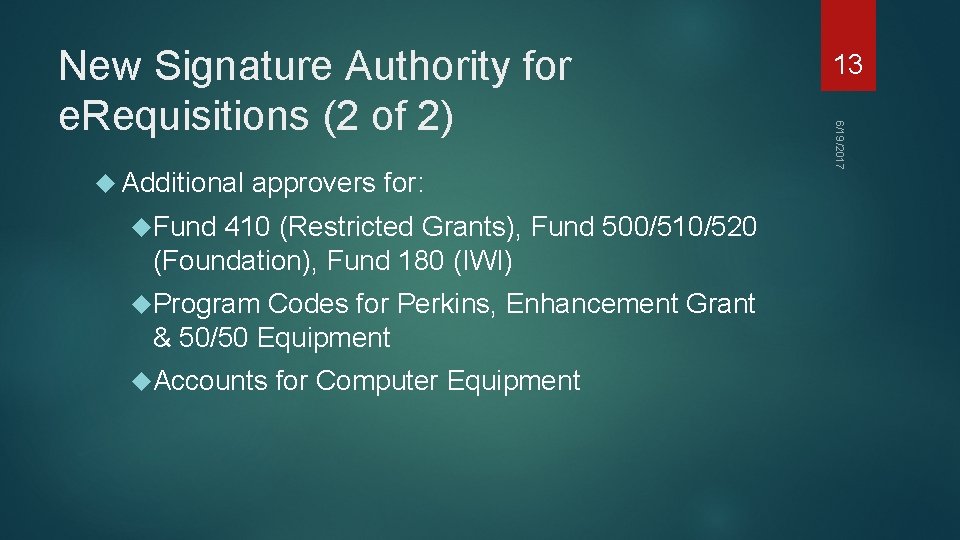
Additional approvers for: Fund 410 (Restricted Grants), Fund 500/510/520 (Foundation), Fund 180 (IWI) Program Codes for Perkins, Enhancement Grant & 50/50 Equipment Accounts for Computer Equipment 13 6/19/2017 New Signature Authority for e. Requisitions (2 of 2)

e. Requisition Approvers Search for a requisition Click STATUS folder tab Click Approval Status link 6/2/2017 14
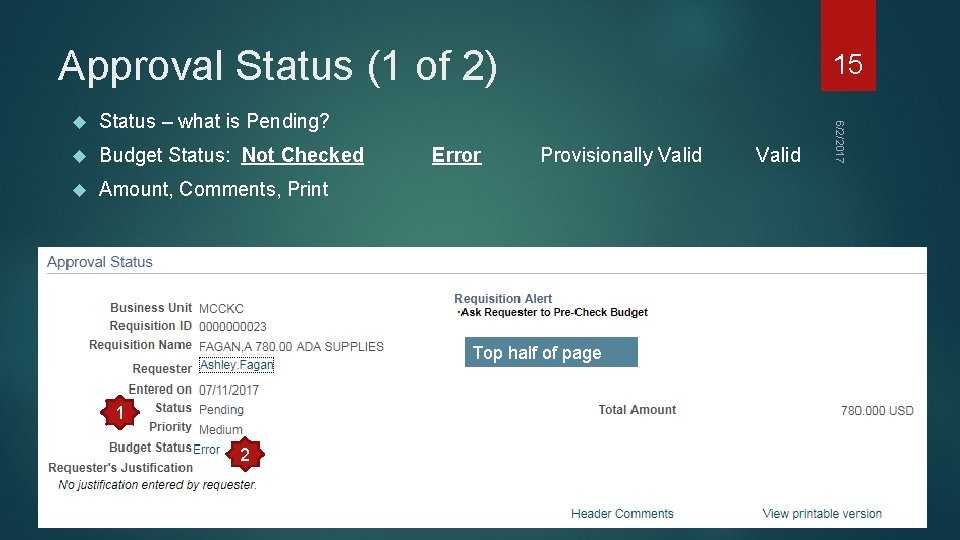
Approval Status (1 of 2) Status – what is Pending? Budget Status: Not Checked Amount, Comments, Print Error Provisionally Valid Top half of page 1 2 Valid 6/2/2017 15
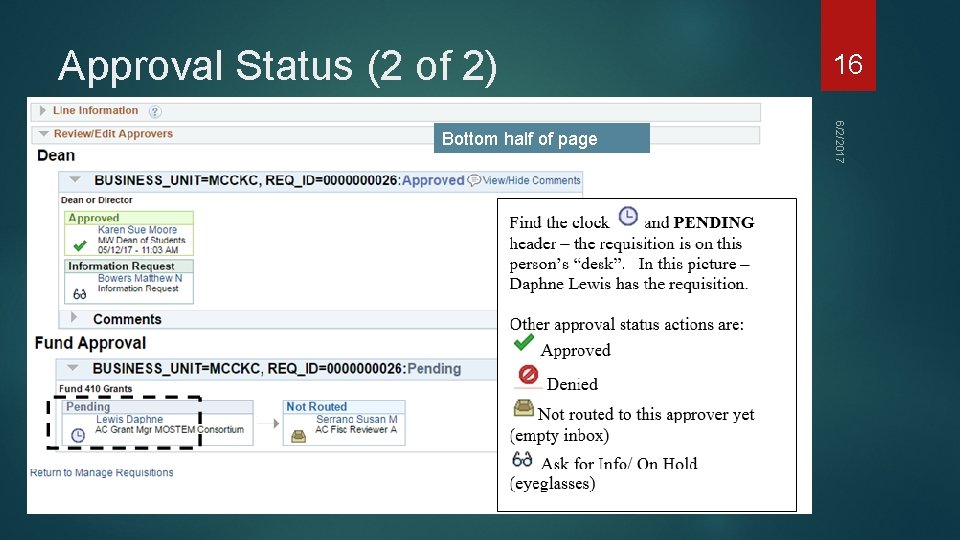
Approval Status (2 of 2) 6/2/2017 Bottom half of page 16
17 6/2/2017 Pre-Encumber the Budget
Definitions Pre-encumbrance: (First) Funds deducted from the budget and committed to an approved purchase requisition (before the PO is created & budget checked). Encumbrance: (Second) Funds deducted from the Preencumbrance and committed to a purchase order until invoices are received from the vendor and paid. Extra funds deducted from budget if PO amount > Requisition amount 6/2/2017 18
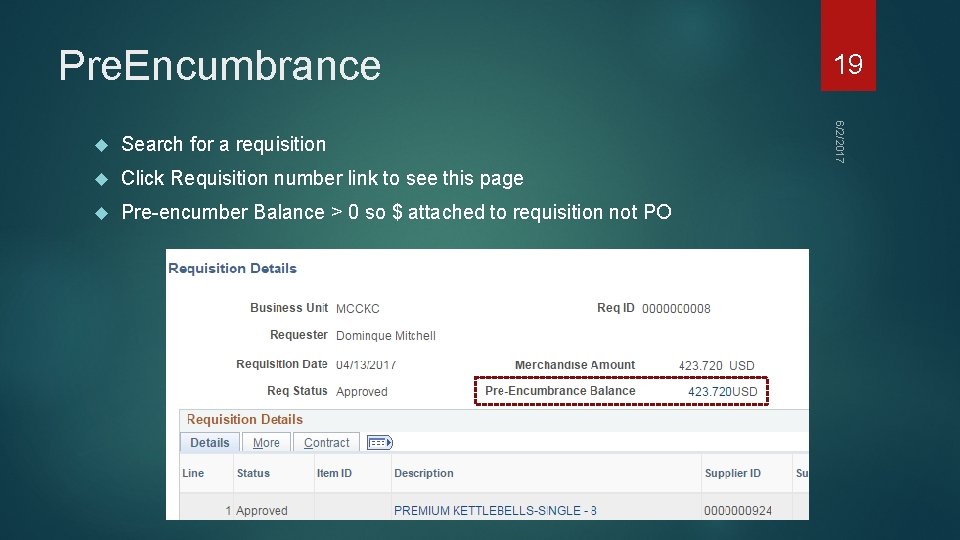
Pre. Encumbrance Search for a requisition Click Requisition number link to see this page Pre-encumber Balance > 0 so $ attached to requisition not PO 6/2/2017 19
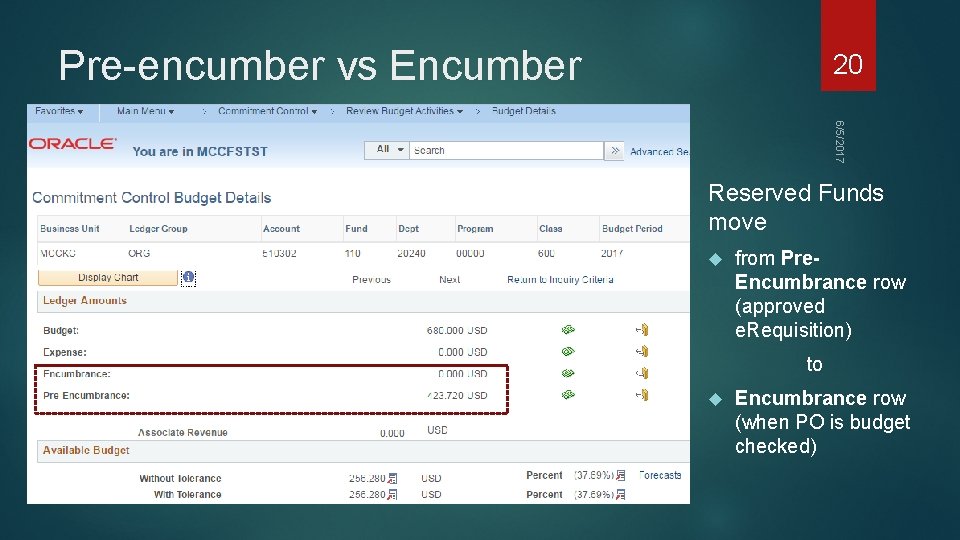
Pre-encumber vs Encumber 20 6/5/2017 Reserved Funds move from Pre. Encumbrance row (approved e. Requisition) to Encumbrance row (when PO is budget checked)
21 6/2/2017 View Related Documents
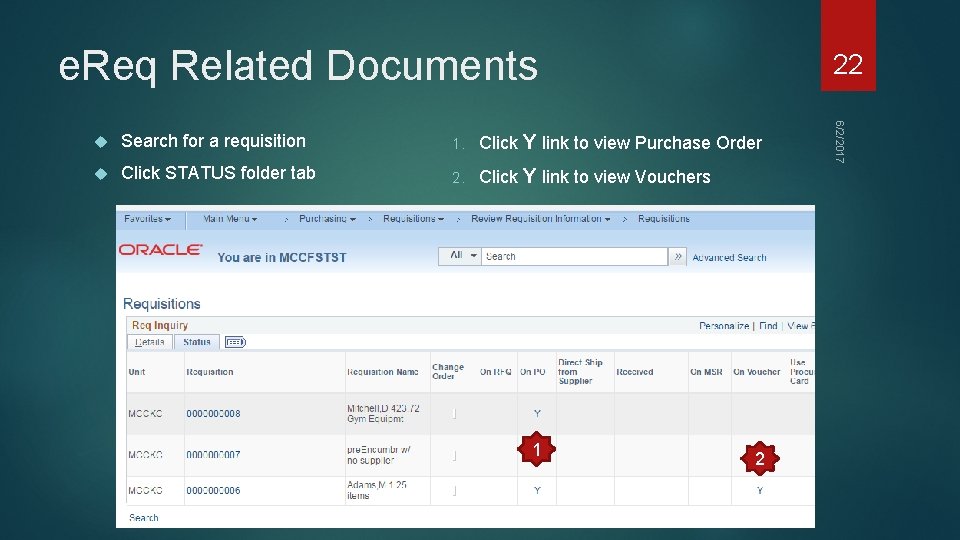
e. Req Related Documents 22 Search for a requisition 1. Click Y link to view Purchase Order Click STATUS folder tab 2. Click Y link to view Vouchers 1 2 6/2/2017
e. Req Security 23 6/2/2017 EVERYONE can view Finance pages in this presentation/handout Must have training and Purchasing security assigned to Create a Requisition Approve a Requisition
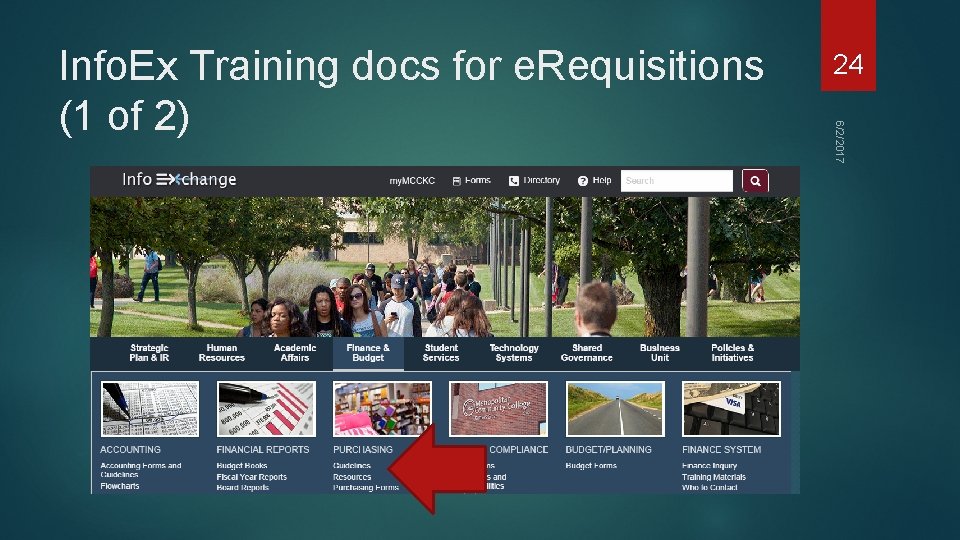
24 6/2/2017 Info. Ex Training docs for e. Requisitions (1 of 2)
FOR ALL Purchasing 101 View An E-Requisition Who Approves the E-Requisition FOR APPROVERS Approve, Deny or Hold an E-Requisition FOR REQUESTERS Create or Copy an E-Requisition Fixing a Budget Error Edit or Manage E-Requisitions Cancel an E-Requisition Security for Requester Coming Soon! 25 6/2/2017 Info. Ex Training docs for e. Requisitions (2 of 2)
26 PURCHASING DEPARTMENT 6041100 CARLA MACMILLAN W: 604 -1479 6/2/2017 Questions? Purchasing. Info@ mcckc. edu
- Slides: 26