
05 Variables Mark Dixon So CCE SOFT 131
05 – Variables Mark Dixon, So. CCE SOFT 131 Page 1
Admin: Test (next week) • In class test – teaching week 6 – university week 14 • 50 mins • multiple choice/short answer (5 - 6 words max) • 25% of coursework mark Mark Dixon, So. CCE SOFT 131 Page 2

Session Aims & Objectives • Aims – Introduce you to (invisible) data storage concepts, i. e. variables • Objectives, by end of this week’s sessions, you should be able to: – declare a variable – assign a value to a variable, • using combination of literal values, operators, functions, and identifiers – Determine whether a variable or procedure is in or out of scope at a given point in a piece of code – Select a variable’s scope in their own program Mark Dixon, So. CCE SOFT 131 Page 3
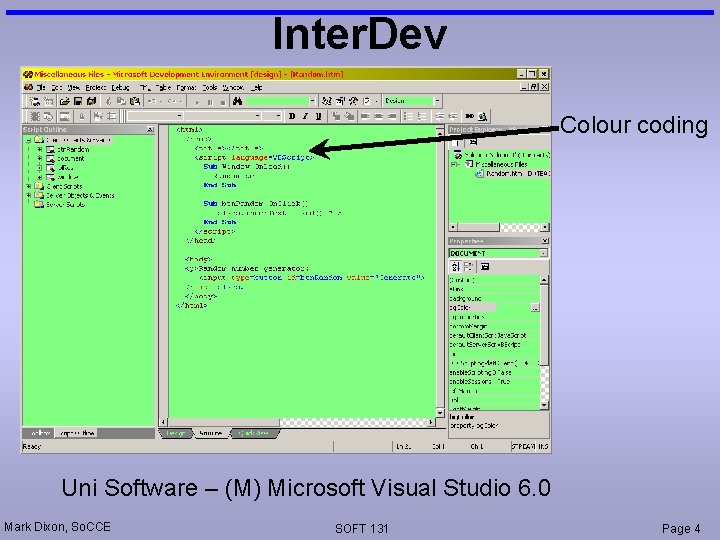
Inter. Dev Colour coding Uni Software – (M) Microsoft Visual Studio 6. 0 Mark Dixon, So. CCE SOFT 131 Page 4
Example: Guess. Num SPECIFICATION • User Requirements – need to keep children occupied/entertained, while learning about maths • Software Requirements – Functional: – computer picks a number between 0 and 10 – user enters a number – compare numbers and display appropriate message – Non-functional should be easy and fun to use Mark Dixon, So. CCE SOFT 131 Page 5
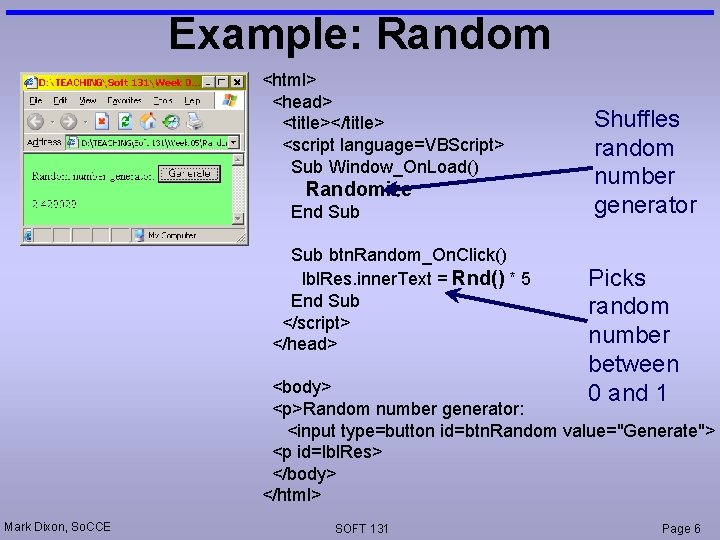
Example: Random <html> <head> <title></title> <script language=VBScript> Sub Window_On. Load() Randomize End Sub btn. Random_On. Click() lbl. Res. inner. Text = Rnd() * 5 End Sub </script> </head> Shuffles random number generator Picks random number between 0 and 1 <body> <p>Random number generator: <input type=button id=btn. Random value="Generate"> <p id=lbl. Res> </body> </html> Mark Dixon, So. CCE SOFT 131 Page 6
Data Storage • Data can be stored in – Controls (e. g. text boxes, buttons, paragraphs) • visible to user (although can use visible property to hide) • take lots of memory • slow to access • open to all parts of page – Variables • Not visible to user • take up very little memory • fast to access • access can be restricted (scope) Mark Dixon, So. CCE SOFT 131 Page 7
Variables (why? ) • Variables useful for: – reducing memory use – speed up execution – storing information you don't want user to see – storing intermediate results of calculations temporarily: • makes code easier to understand, & • prevents need to re-calculate – making code easier to read (short variable name instead of long object. property names) Mark Dixon, So. CCE SOFT 131 Page 8
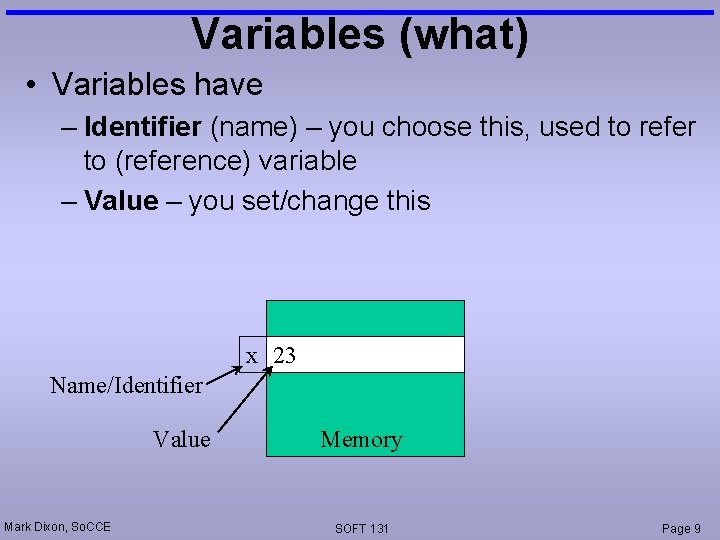
Variables (what) • Variables have – Identifier (name) – you choose this, used to refer to (reference) variable – Value – you set/change this x 23 Name/Identifier Value Mark Dixon, So. CCE Memory SOFT 131 Page 9
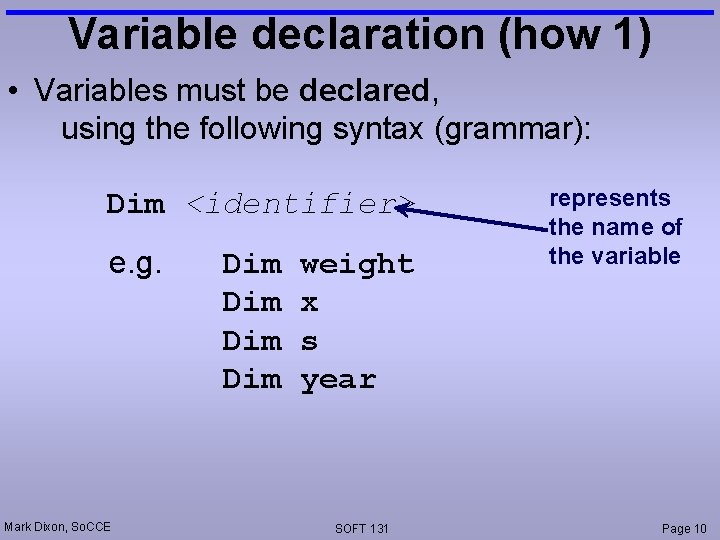
Variable declaration (how 1) • Variables must be declared, using the following syntax (grammar): Dim <identifier> e. g. Mark Dixon, So. CCE Dim Dim weight x s year SOFT 131 represents the name of the variable Page 10
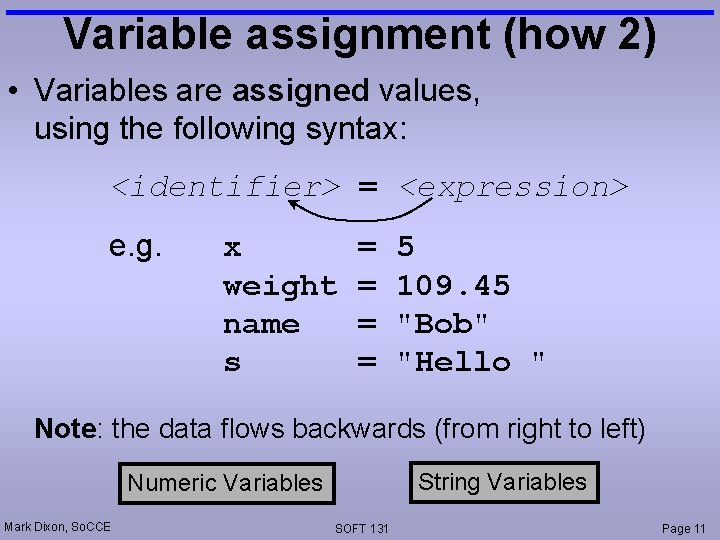
Variable assignment (how 2) • Variables are assigned values, using the following syntax: <identifier> = <expression> e. g. x weight name s = = 5 109. 45 "Bob" "Hello " Note: the data flows backwards (from right to left) String Variables Numeric Variables Mark Dixon, So. CCE SOFT 131 Page 11
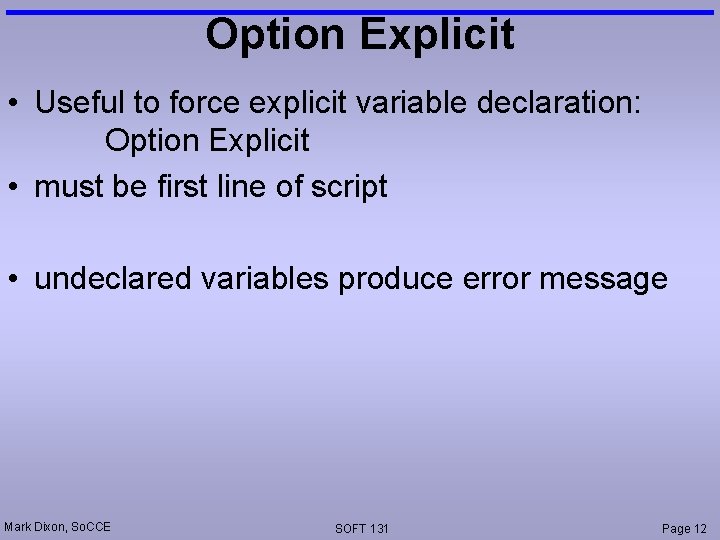
Option Explicit • Useful to force explicit variable declaration: Option Explicit • must be first line of script • undeclared variables produce error message Mark Dixon, So. CCE SOFT 131 Page 12
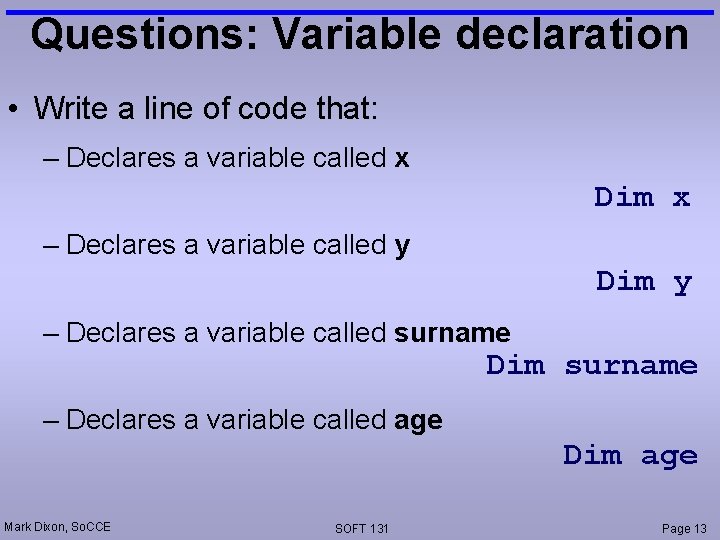
Questions: Variable declaration • Write a line of code that: – Declares a variable called x Dim x – Declares a variable called y Dim y – Declares a variable called surname Dim surname – Declares a variable called age Dim age Mark Dixon, So. CCE SOFT 131 Page 13
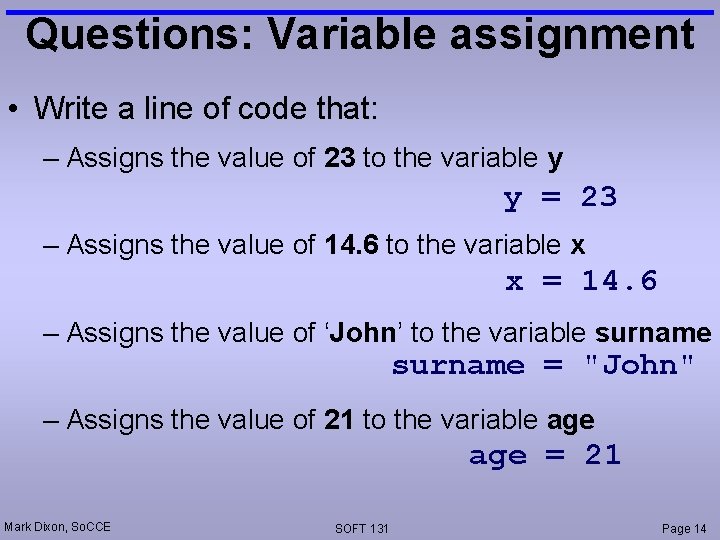
Questions: Variable assignment • Write a line of code that: – Assigns the value of 23 to the variable y y = 23 – Assigns the value of 14. 6 to the variable x x = 14. 6 – Assigns the value of ‘John’ to the variable surname = "John" – Assigns the value of 21 to the variable age = 21 Mark Dixon, So. CCE SOFT 131 Page 14
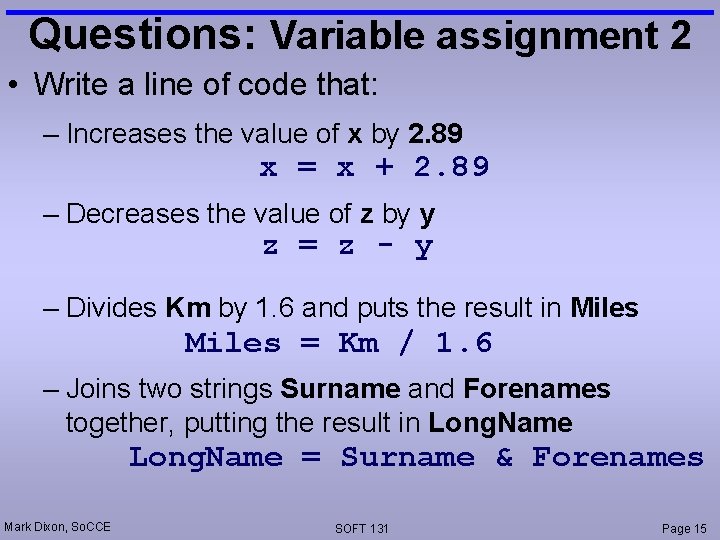
Questions: Variable assignment 2 • Write a line of code that: – Increases the value of x by 2. 89 x = x + 2. 89 – Decreases the value of z by y z = z - y – Divides Km by 1. 6 and puts the result in Miles = Km / 1. 6 – Joins two strings Surname and Forenames together, putting the result in Long. Name = Surname & Forenames Mark Dixon, So. CCE SOFT 131 Page 15
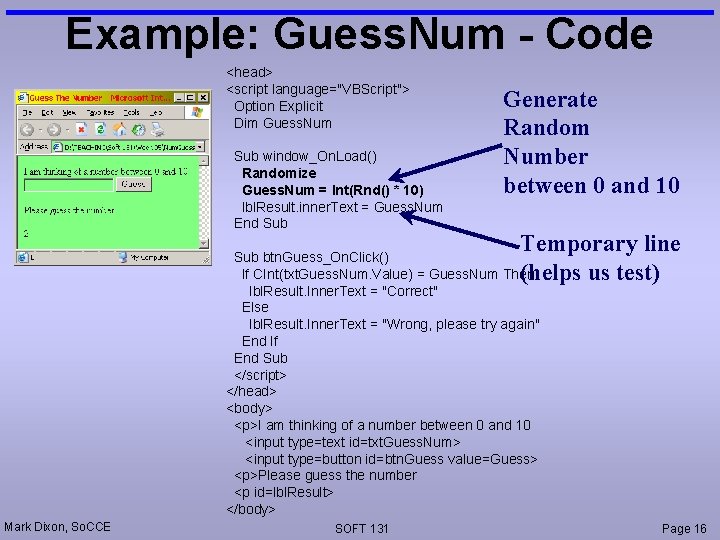
Example: Guess. Num - Code <head> <script language="VBScript"> Option Explicit Dim Guess. Num Sub window_On. Load() Randomize Guess. Num = Int(Rnd() * 10) lbl. Result. inner. Text = Guess. Num End Sub Generate Random Number between 0 and 10 Temporary line (helps us test) Sub btn. Guess_On. Click() If CInt(txt. Guess. Num. Value) = Guess. Num Then lbl. Result. Inner. Text = "Correct" Else lbl. Result. Inner. Text = "Wrong, please try again" End If End Sub </script> </head> <body> <p>I am thinking of a number between 0 and 10 <input type=text id=txt. Guess. Num> <input type=button id=btn. Guess value=Guess> <p>Please guess the number <p id=lbl. Result> </body> Mark Dixon, So. CCE SOFT 131 Page 16
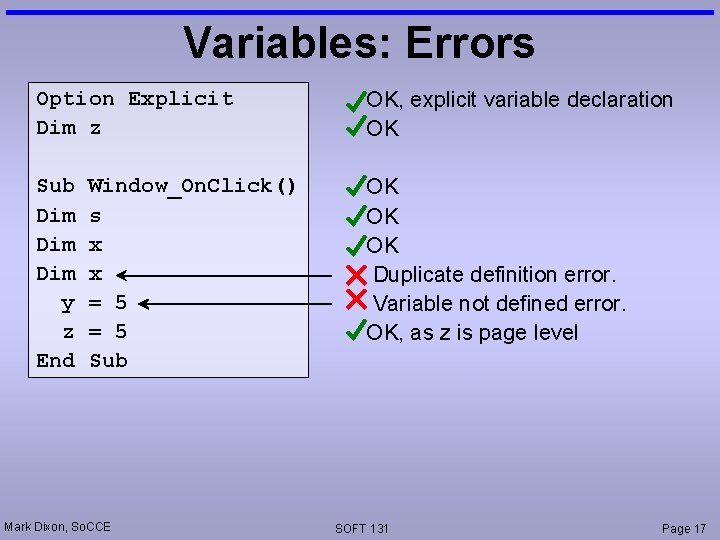
Variables: Errors Option Explicit Dim z OK, explicit variable declaration OK Sub Dim Dim y z End OK OK OK Duplicate definition error. Variable not defined error. OK, as z is page level Window_On. Click() s x x = 5 Sub Mark Dixon, So. CCE SOFT 131 Page 17
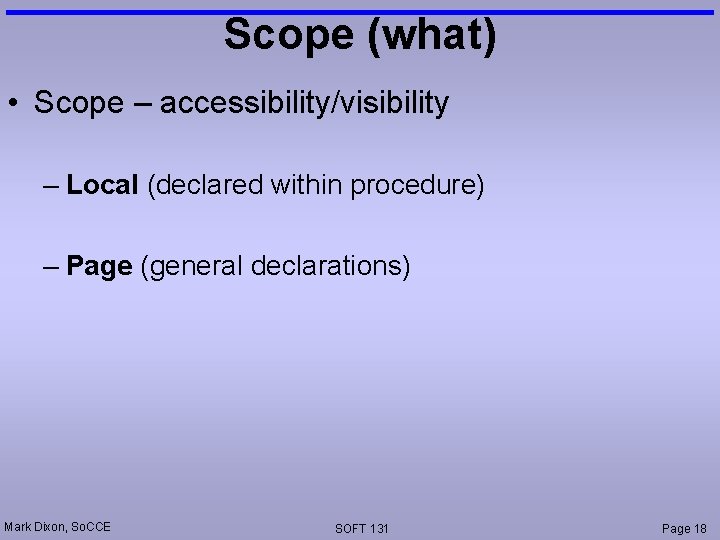
Scope (what) • Scope – accessibility/visibility – Local (declared within procedure) – Page (general declarations) Mark Dixon, So. CCE SOFT 131 Page 18
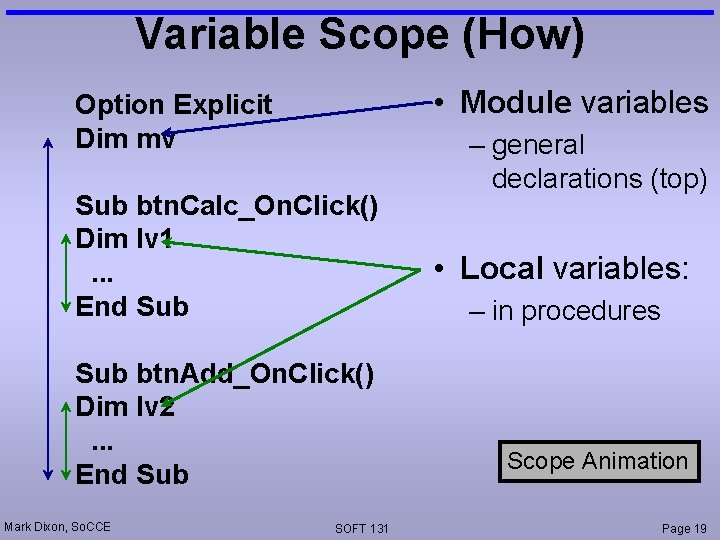
Variable Scope (How) • Module variables Option Explicit Dim mv Sub btn. Calc_On. Click() Dim lv 1. . . End Sub btn. Add_On. Click() Dim lv 2. . . End Sub Mark Dixon, So. CCE SOFT 131 – general declarations (top) • Local variables: – in procedures Scope Animation Page 19
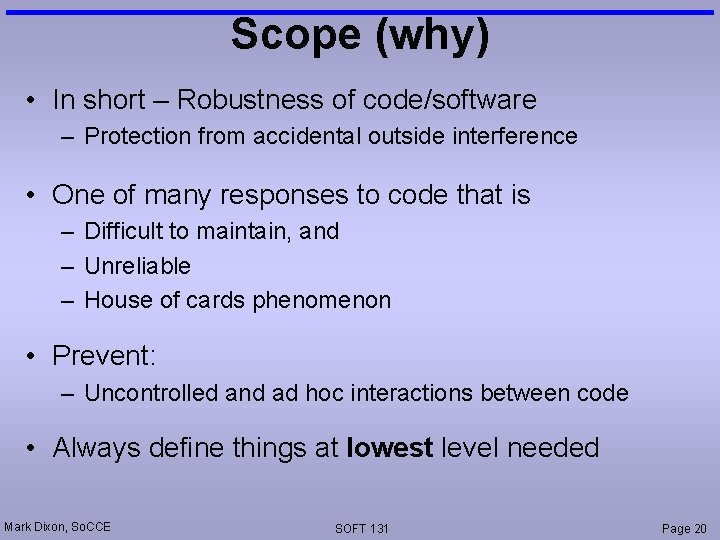
Scope (why) • In short – Robustness of code/software – Protection from accidental outside interference • One of many responses to code that is – Difficult to maintain, and – Unreliable – House of cards phenomenon • Prevent: – Uncontrolled and ad hoc interactions between code • Always define things at lowest level needed Mark Dixon, So. CCE SOFT 131 Page 20
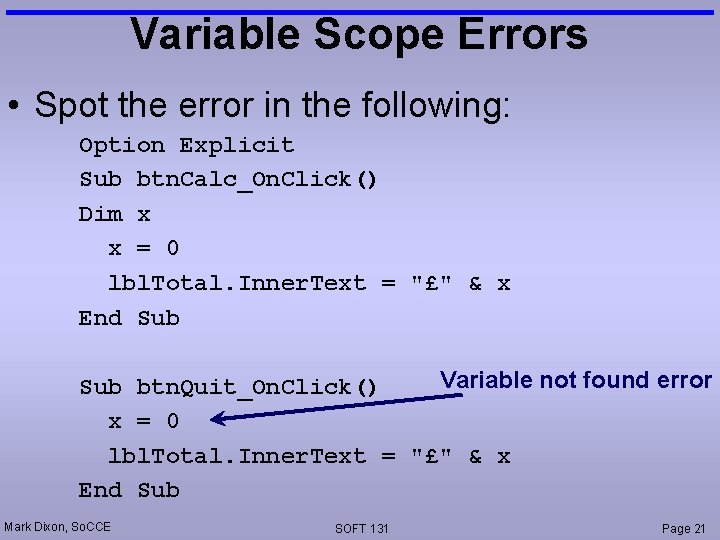
Variable Scope Errors • Spot the error in the following: Option Explicit Sub btn. Calc_On. Click() Dim x x = 0 lbl. Total. Inner. Text = "£" & x End Sub Variable not found error Sub btn. Quit_On. Click() x = 0 lbl. Total. Inner. Text = "£" & x End Sub Mark Dixon, So. CCE SOFT 131 Page 21
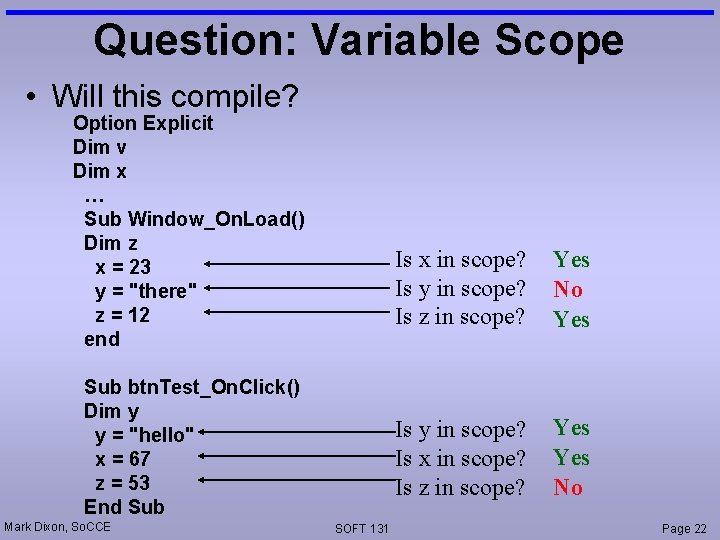
Question: Variable Scope • Will this compile? Option Explicit Dim v Dim x … Sub Window_On. Load() Dim z x = 23 y = "there" z = 12 end Sub btn. Test_On. Click() Dim y y = "hello" x = 67 z = 53 End Sub Mark Dixon, So. CCE SOFT 131 Is x in scope? Is y in scope? Is z in scope? Yes No Yes Is y in scope? Is x in scope? Is z in scope? Yes No Page 22
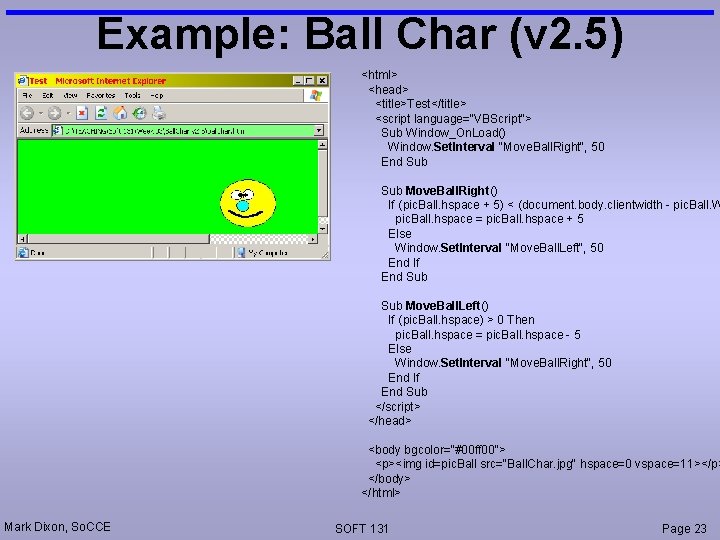
Example: Ball Char (v 2. 5) <html> <head> <title>Test</title> <script language="VBScript"> Sub Window_On. Load() Window. Set. Interval "Move. Ball. Right", 50 End Sub Move. Ball. Right() If (pic. Ball. hspace + 5) < (document. body. clientwidth - pic. Ball. W pic. Ball. hspace = pic. Ball. hspace + 5 Else Window. Set. Interval "Move. Ball. Left", 50 End If End Sub Move. Ball. Left() If (pic. Ball. hspace) > 0 Then pic. Ball. hspace = pic. Ball. hspace - 5 Else Window. Set. Interval "Move. Ball. Right", 50 End If End Sub </script> </head> <body bgcolor="#00 ff 00"> <p><img id=pic. Ball src="Ball. Char. jpg" hspace=0 vspace=11></p> </body> </html> Mark Dixon, So. CCE SOFT 131 Page 23
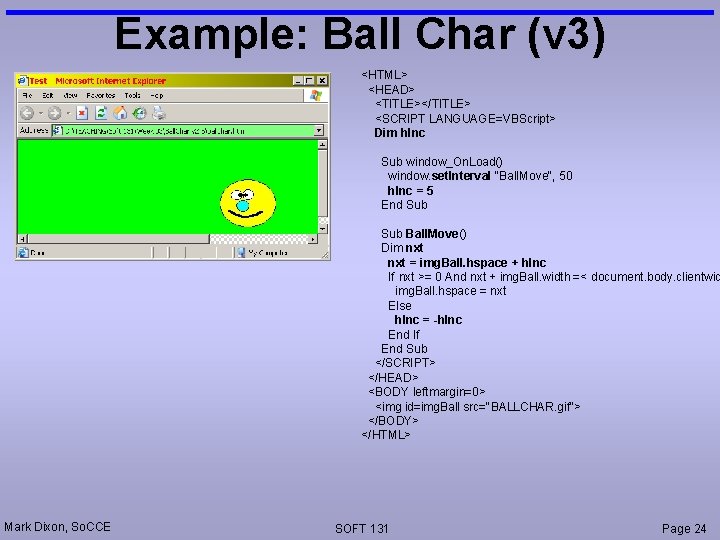
Example: Ball Char (v 3) <HTML> <HEAD> <TITLE></TITLE> <SCRIPT LANGUAGE=VBScript> Dim h. Inc Sub window_On. Load() window. set. Interval "Ball. Move", 50 h. Inc = 5 End Sub Ball. Move() Dim nxt = img. Ball. hspace + h. Inc If nxt >= 0 And nxt + img. Ball. width =< document. body. clientwid img. Ball. hspace = nxt Else h. Inc = -h. Inc End If End Sub </SCRIPT> </HEAD> <BODY leftmargin=0> <img id=img. Ball src="BALLCHAR. gif"> </BODY> </HTML> Mark Dixon, So. CCE SOFT 131 Page 24
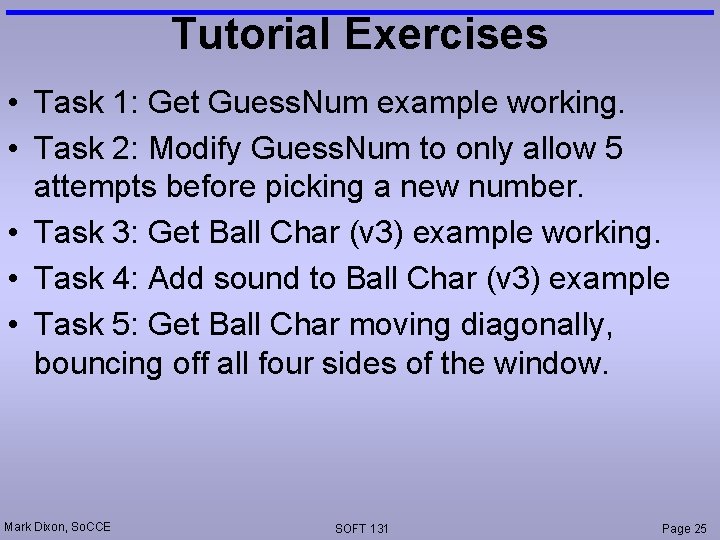
Tutorial Exercises • Task 1: Get Guess. Num example working. • Task 2: Modify Guess. Num to only allow 5 attempts before picking a new number. • Task 3: Get Ball Char (v 3) example working. • Task 4: Add sound to Ball Char (v 3) example • Task 5: Get Ball Char moving diagonally, bouncing off all four sides of the window. Mark Dixon, So. CCE SOFT 131 Page 25
- Slides: 25