
05 Building 3 D Visualizations using Power Map
05 | Building 3 D Visualizations using Power Map
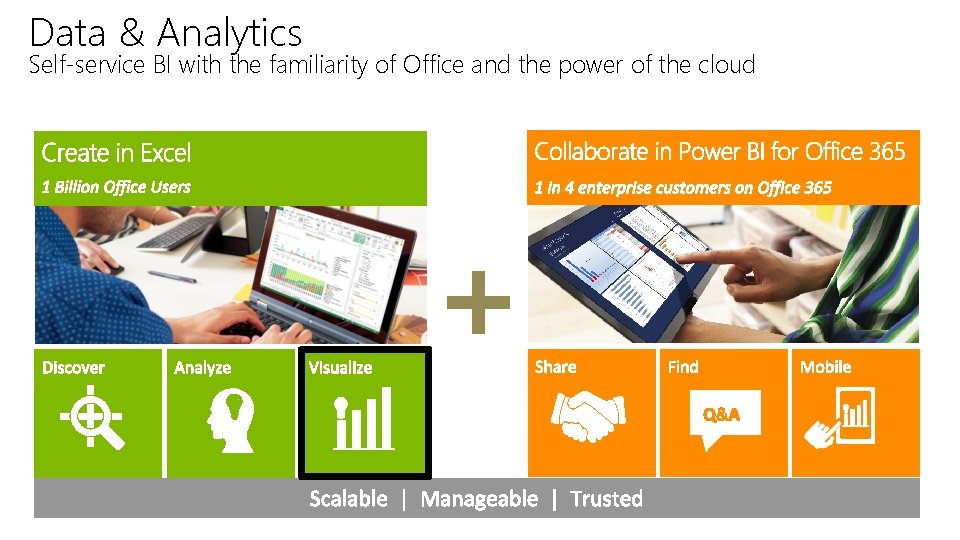
Data & Analytics Self-service BI with the familiarity of Office and the power of the cloud

What You Will Learn • Introducing Power Map • Preparing the Data Model for Power Map • Working with Power Map • Partner Opportunities • Resources
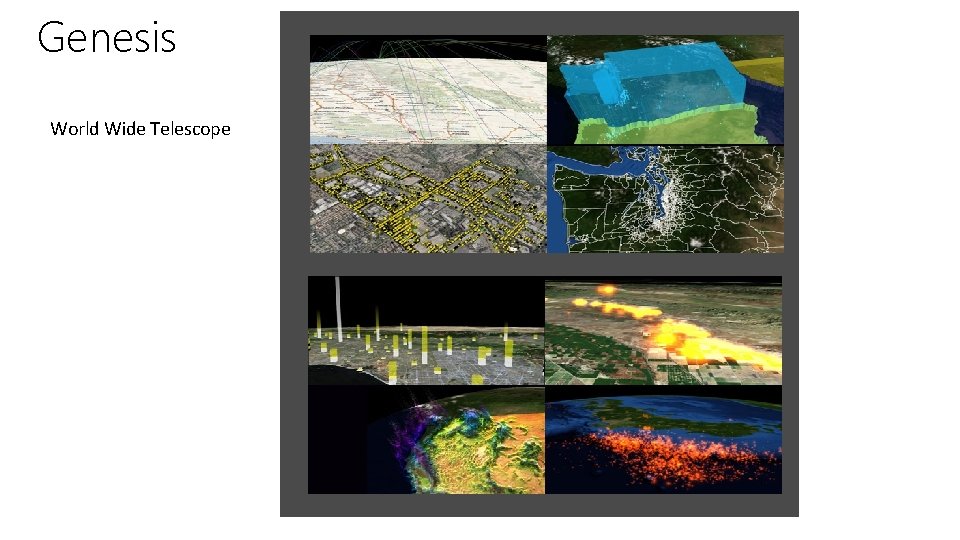
Genesis World Wide Telescope
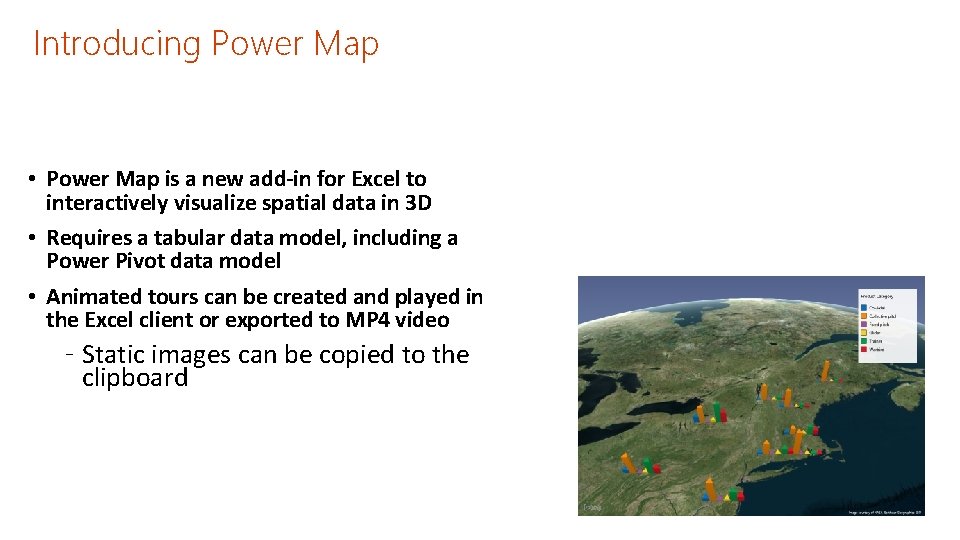
Introducing Power Map • Power Map is a new add-in for Excel to interactively visualize spatial data in 3 D • Requires a tabular data model, including a Power Pivot data model • Animated tours can be created and played in the Excel client or exported to MP 4 video ‐ Static images can be copied to the clipboard
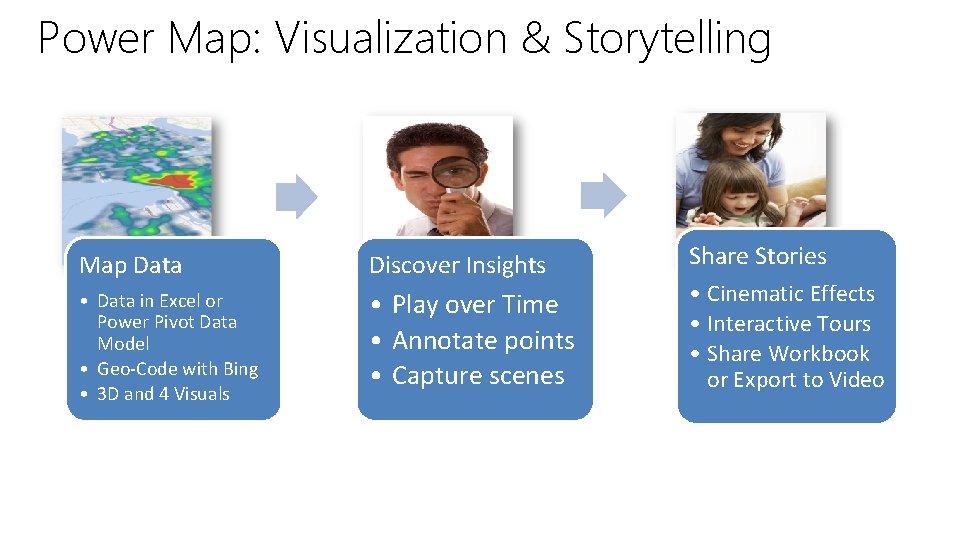
Power Map: Visualization & Storytelling Map Data Discover Insights • Data in Excel or Power Pivot Data Model • Geo-Code with Bing • 3 D and 4 Visuals • Play over Time • Annotate points • Capture scenes Share Stories • Cinematic Effects • Interactive Tours • Share Workbook or Export to Video
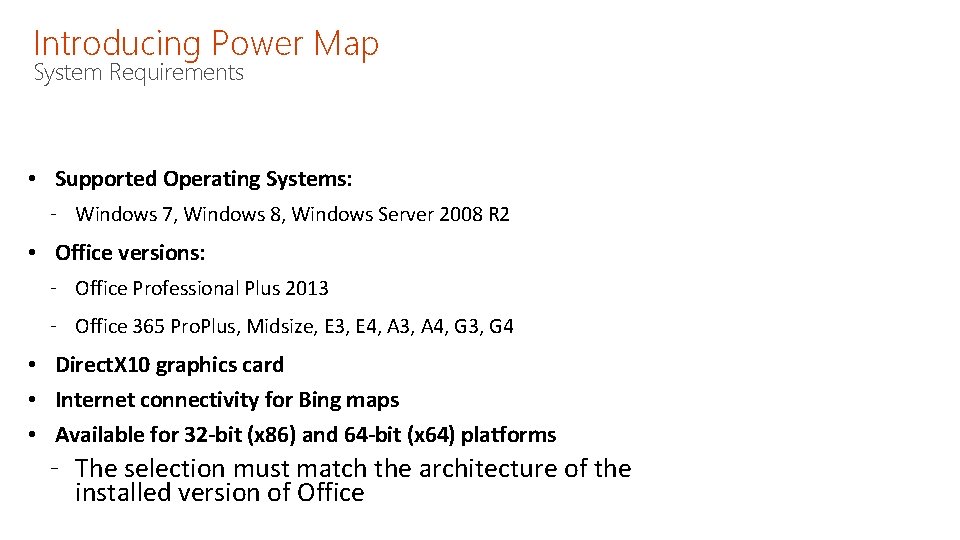
Introducing Power Map System Requirements • Supported Operating Systems: ‐ Windows 7, Windows 8, Windows Server 2008 R 2 • Office versions: ‐ Office Professional Plus 2013 ‐ Office 365 Pro. Plus, Midsize, E 3, E 4, A 3, A 4, G 3, G 4 • Direct. X 10 graphics card • Internet connectivity for Bing maps • Available for 32 -bit (x 86) and 64 -bit (x 64) platforms ‐ The selection must match the architecture of the installed version of Office
Preparing the Data Model for Power Map • Power Map does not: ‐ Support filtering ‐ Surface hierarchies • The data model can be prepared to fully exploit the Power Map experience by: ‐ Ensuring that columns used as hierarchy levels are visible ‐ Ensuring that the Date column from the data model Date table is visible § This will allow the time animation to be configured • Preparing the data model for Power Map may de-optimize the experience for other reporting and analytic tools ‐ Consider creating a data model dedicated to Power Map work

Introducing Power Map Ribbon • The Power Map Window allows creating and managing a single tour • Tours consist of scenes, and scenes can be configured with layers of data

Introducing Power Map Development Methodology 1. Create a workbook and develop a Power Pivot data model, or connect to an external tabular database 2. Create tours, consisting of a sequence of scenes 3. Configure the map and map layout for each scene 4. Introduce layer(s) to visualize data superimposed on each scene 5. Annotate the map with charts, textboxes and legends 6. Configure transition properties between the scenes 7. Produce and share an MP 4 video of the tour

Working with Power Map Configuring Scene Settings • A tour connects to a single data model and can defines an ordered set of scenes • Each scene represents a map area, and settings allow configuring: ‐ Name ‐ Time duration ‐ And transition effects into the next scene • Themes can be applied to the map
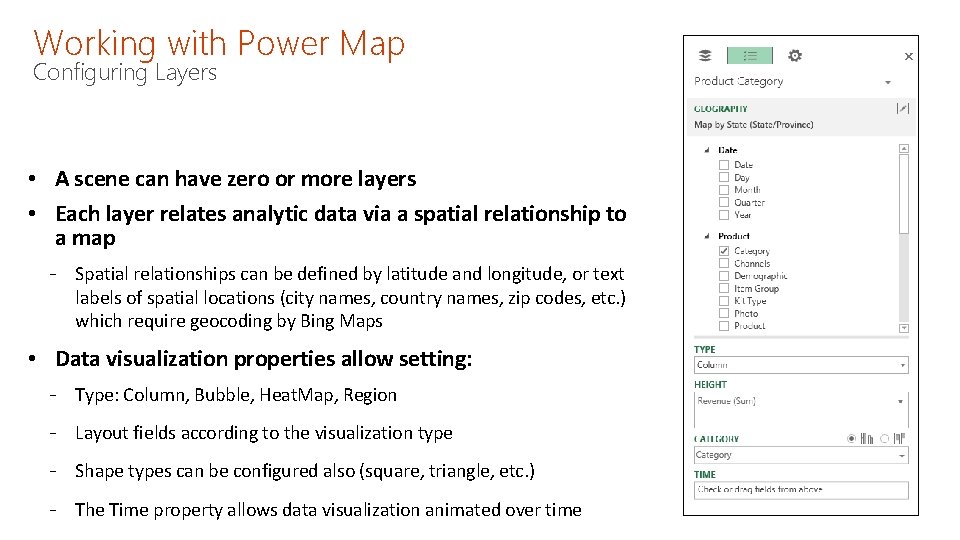
Working with Power Map Configuring Layers • A scene can have zero or more layers • Each layer relates analytic data via a spatial relationship to a map ‐ Spatial relationships can be defined by latitude and longitude, or text labels of spatial locations (city names, country names, zip codes, etc. ) which require geocoding by Bing Maps • Data visualization properties allow setting: ‐ Type: Column, Bubble, Heat. Map, Region ‐ Layout fields according to the visualization type ‐ Shape types can be configured also (square, triangle, etc. ) ‐ The Time property allows data visualization animated over time
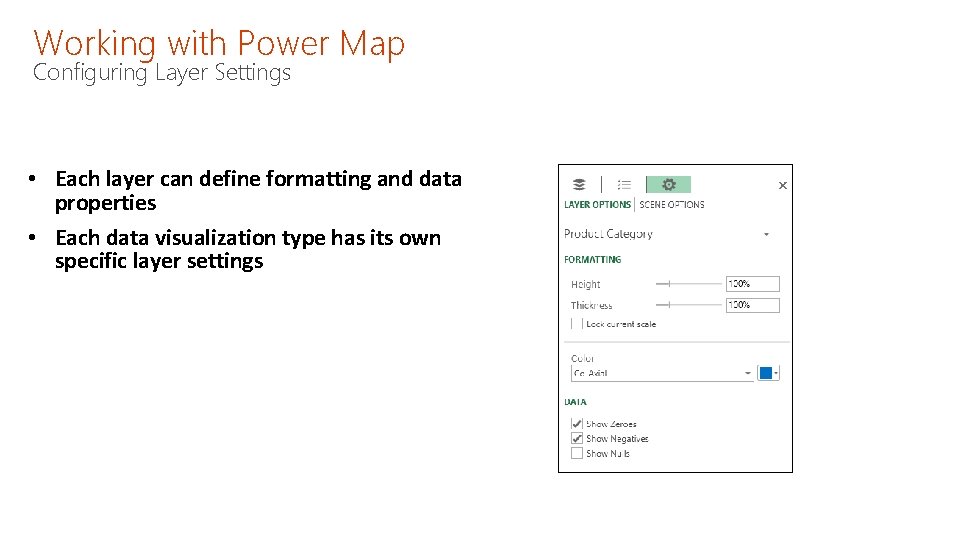
Working with Power Map Configuring Layer Settings • Each layer can define formatting and data properties • Each data visualization type has its own specific layer settings

Working with Power Map Expressing Feedback • Each scene can include (when appropriate): ‐ 2 D charts ‐ Textbox labels ‐ Legends ‐ Annotations, based on static text, or dynamic based on data values
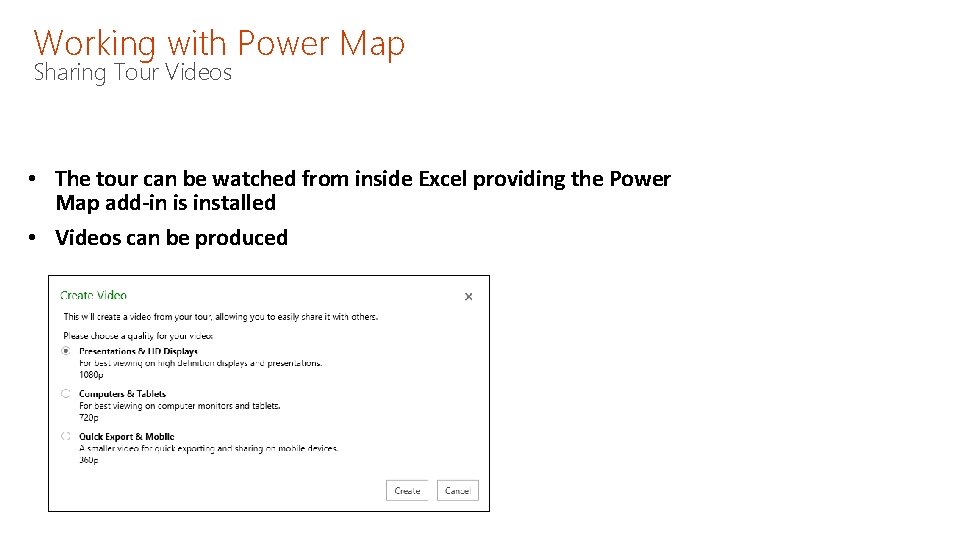
Working with Power Map Sharing Tour Videos • The tour can be watched from inside Excel providing the Power Map add-in is installed • Videos can be produced
Partner Opportunities Produce and share tours of geospatial videos ‐ Videos can be embedded into Power. Point presentations, or added to ‐ Share. Point document libraries
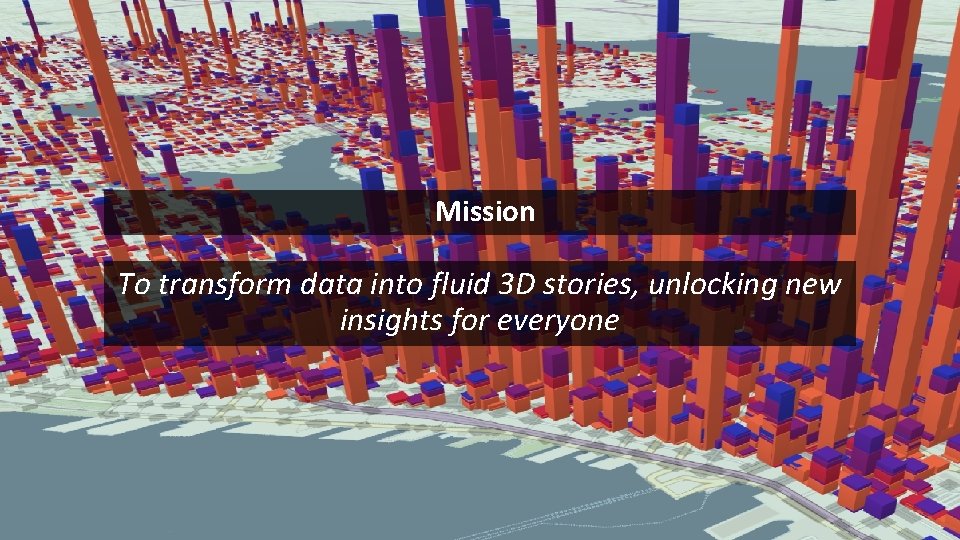
Mission To transform data into fluid 3 D stories, unlocking new insights for everyone

© 2013 Microsoft Corporation. All rights reserved. Microsoft, Windows, Office, Azure, System Center, Dynamics and other product names are or may be registered trademarks and/or trademarks in the U. S. and/or other countries. The information herein is for informational purposes only and represents the current view of Microsoft Corporation as of the date of this presentation. Because Microsoft must respond to changing market conditions, it should not be interpreted to be a commitment on the part of Microsoft, and Microsoft cannot guarantee the accuracy of any information provided after the date of this presentation. MICROSOFT MAKES NO WARRANTIES, EXPRESS, IMPLIED OR STATUTORY, AS TO THE INFORMATION IN THIS PRESENTATION.
- Slides: 18