
03 Using Eclipse IDE Overview An IDE is
- Slides: 40
03 Using Eclipse
IDE Overview • An IDE is an Interactive Development Environment • Different IDEs meet different needs • Blue. J and Dr. Java are designed as teaching tools - Emphasis is on ease of use for beginners - Little to learn, so students can concentrate on learning Java • Eclipse, JBuilder and Intelli. J are designed as professional-level work tools - Emphasis is on supporting professional programmers - More to learn, but well worth it in the long run • We will use Eclipse 2
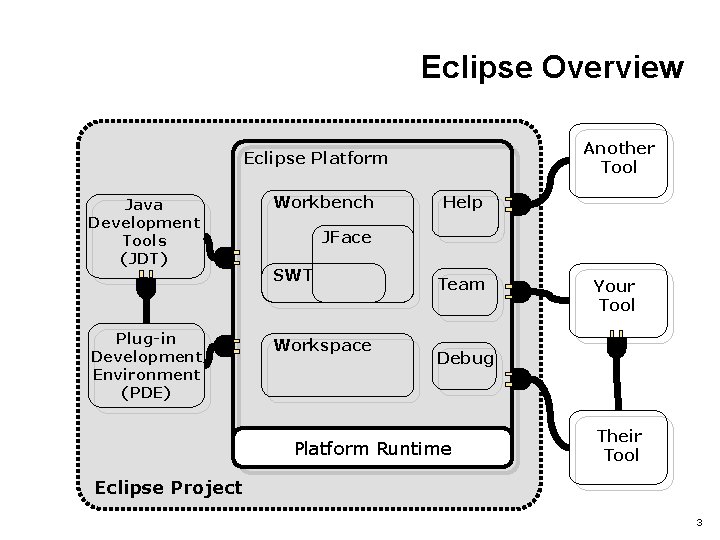
Eclipse Overview Another Tool Eclipse Platform Java Development Tools (JDT) Plug-in Development Environment (PDE) Workbench Help JFace SWT Workspace Team Your Tool Debug Platform Runtime Their Tool Eclipse Project 3
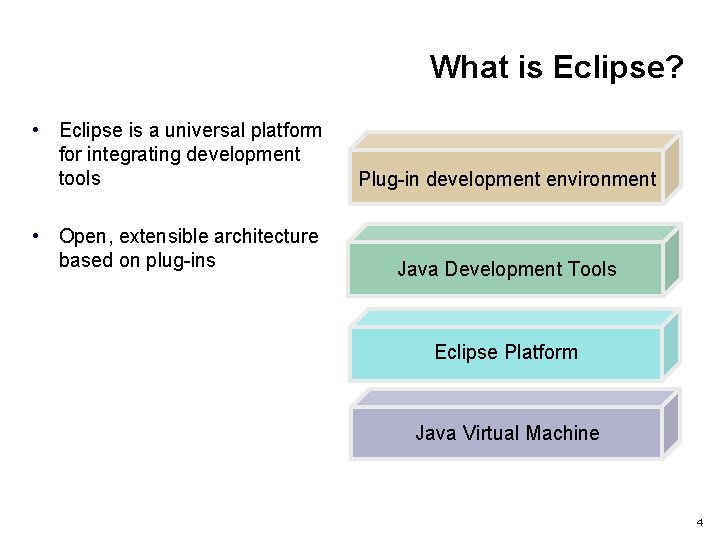
What is Eclipse? • Eclipse is a universal platform for integrating development tools Plug-in development environment • Open, extensible architecture based on plug-ins Java Development Tools Eclipse Platform Java Virtual Machine 4
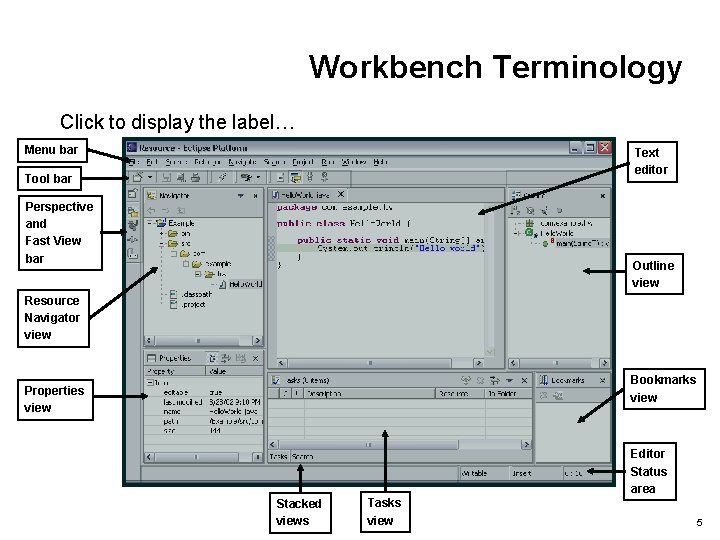
Workbench Terminology Click to display the label… Menu bar Text editor Tool bar Perspective and Fast View bar Outline view Resource Navigator view Bookmarks view Properties view Editor Status area Stacked views Tasks view 5
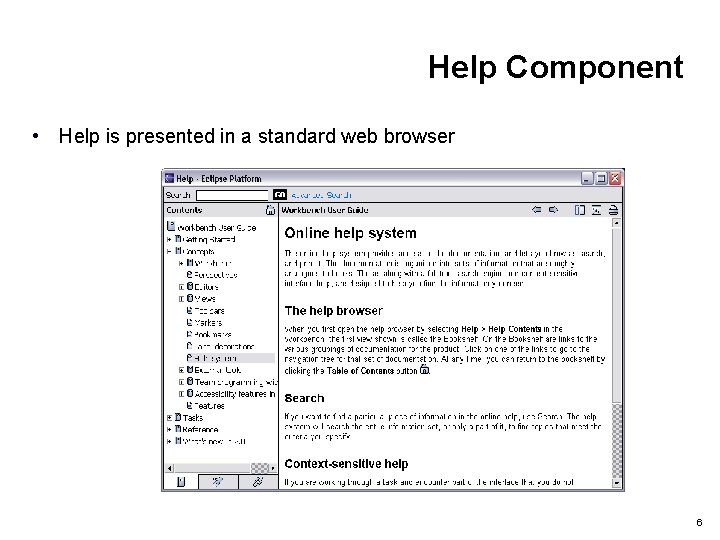
Help Component • Help is presented in a standard web browser 6
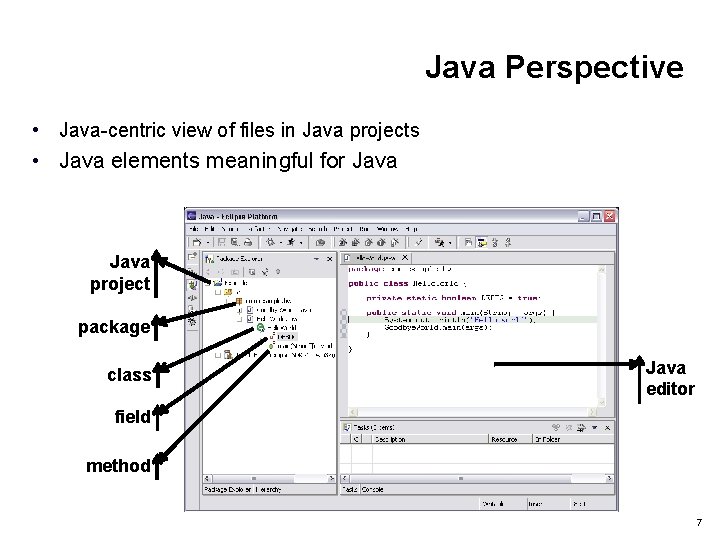
Java Perspective • Java-centric view of files in Java projects • Java elements meaningful for Java project package class Java editor field method 7
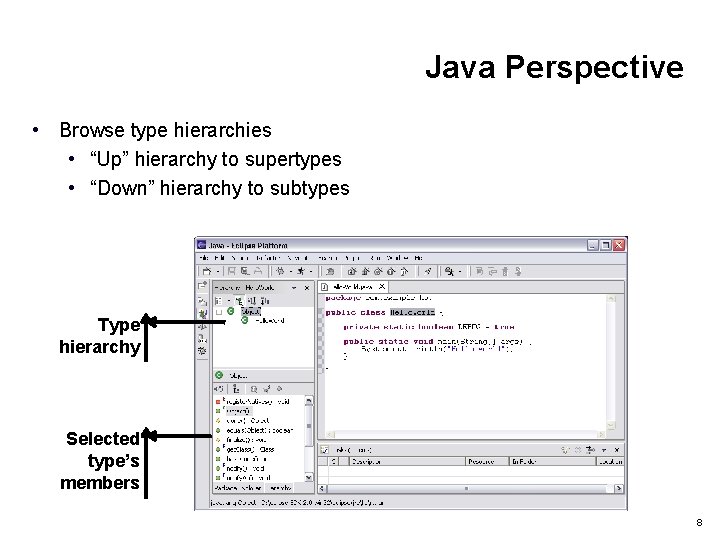
Java Perspective • Browse type hierarchies • “Up” hierarchy to supertypes • “Down” hierarchy to subtypes Type hierarchy Selected type’s members 8
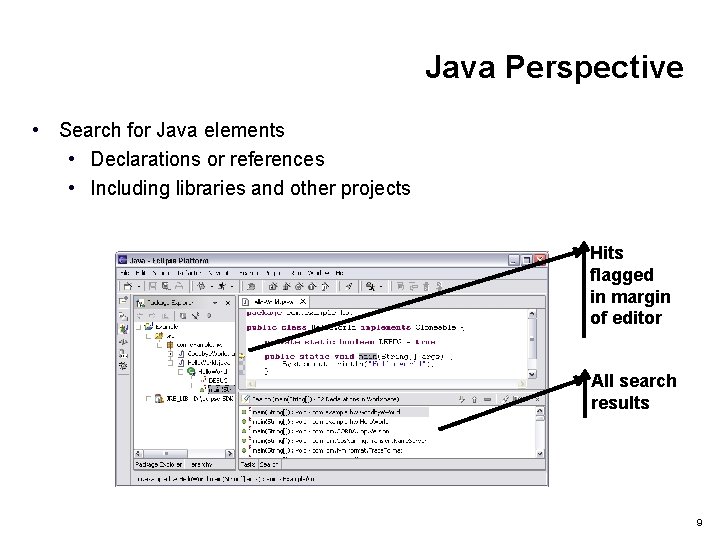
Java Perspective • Search for Java elements • Declarations or references • Including libraries and other projects Hits flagged in margin of editor All search results 9
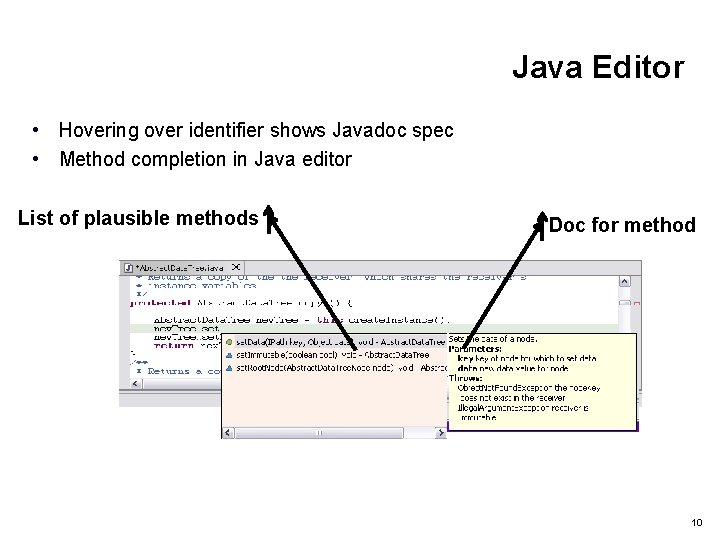
Java Editor • Hovering over identifier shows Javadoc spec • Method completion in Java editor List of plausible methods Doc for method 10
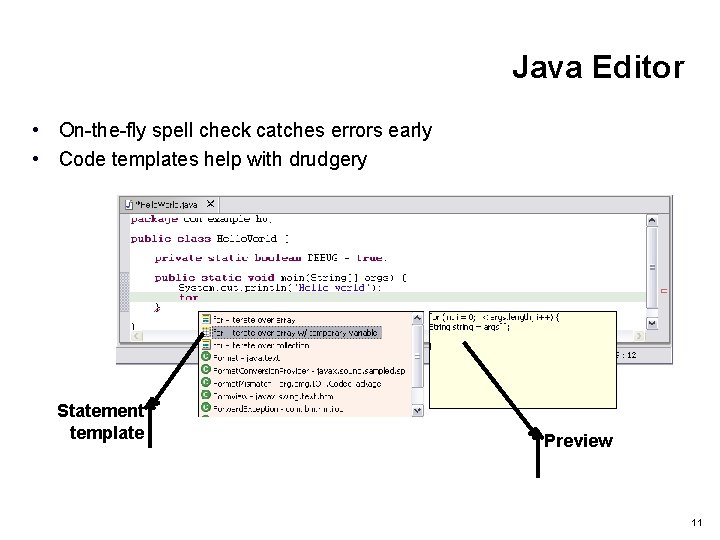
Java Editor • On-the-fly spell check catches errors early • Code templates help with drudgery Statement template Preview 11
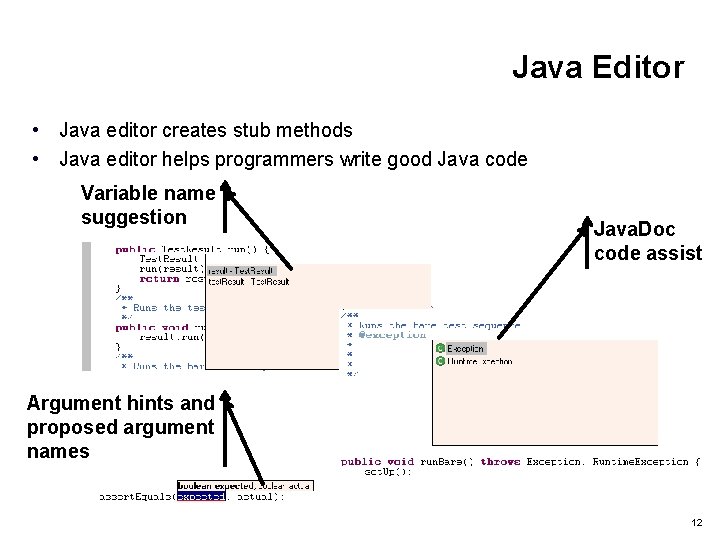
Java Editor • Java editor creates stub methods • Java editor helps programmers write good Java code Variable name suggestion Java. Doc code assist Argument hints and proposed argument names 12
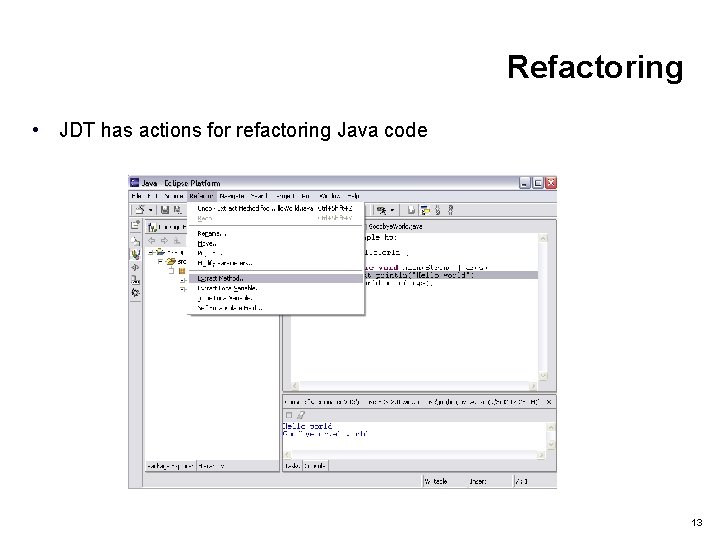
Refactoring • JDT has actions for refactoring Java code 13
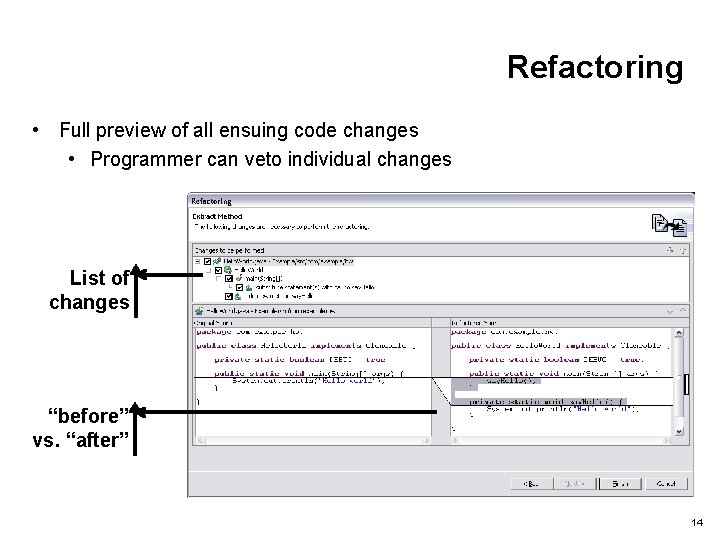
Refactoring • Full preview of all ensuing code changes • Programmer can veto individual changes List of changes “before” vs. “after” 14
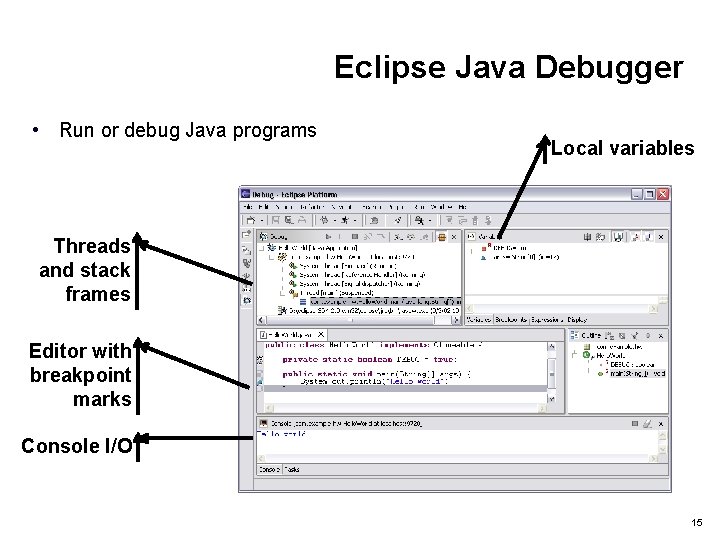
Eclipse Java Debugger • Run or debug Java programs Local variables Threads and stack frames Editor with breakpoint marks Console I/O 15
Contents • • • How To Create Java Project How To Add Folder How To Configure Java Project How To Create Java Package How To Create Java Application How To Run Java Application How To Debug a Java Application Configuring Library Build Path Resources 16
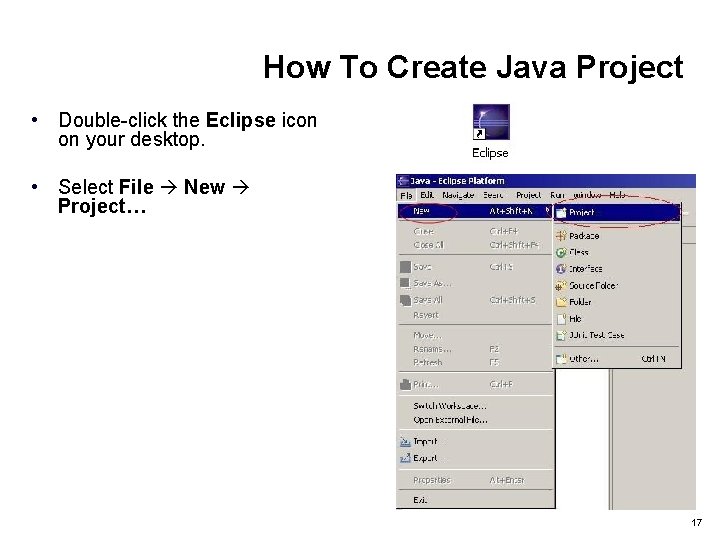
How To Create Java Project • Double-click the Eclipse icon on your desktop. • Select File New Project… 17
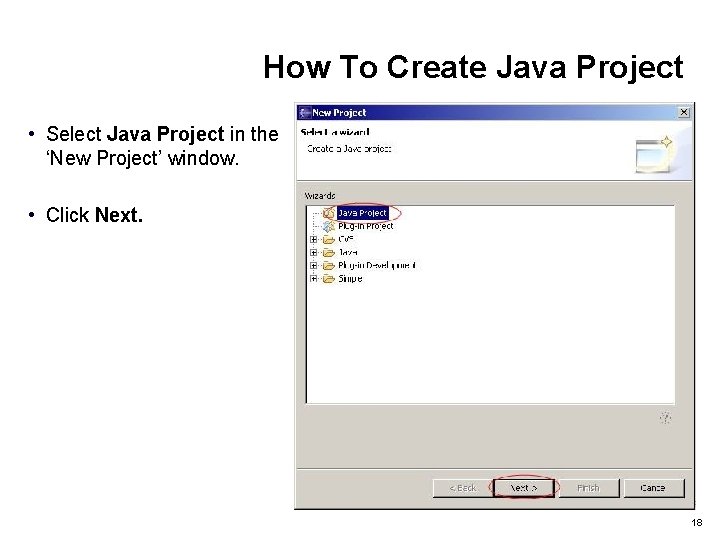
How To Create Java Project • Select Java Project in the ‘New Project’ window. • Click Next. 18
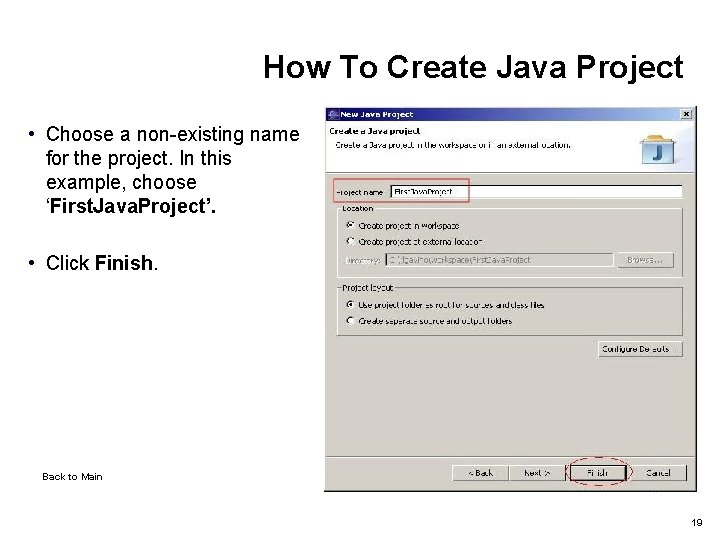
How To Create Java Project • Choose a non-existing name for the project. In this example, choose ‘First. Java. Project’. • Click Finish. Back to Main 19
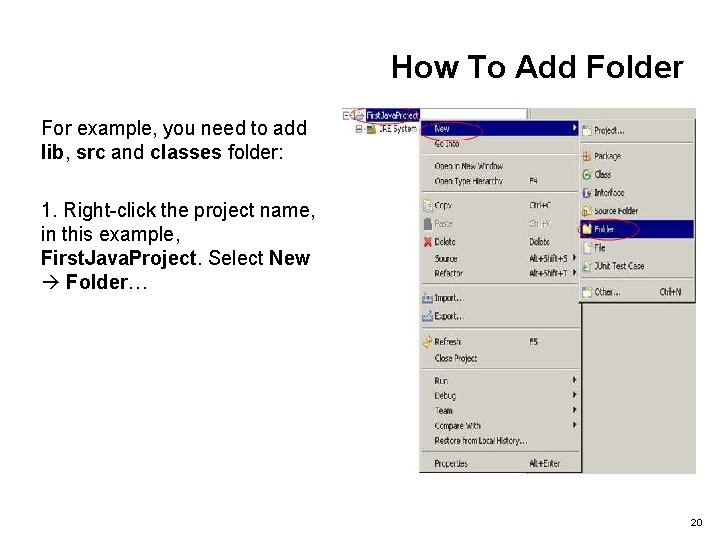
How To Add Folder For example, you need to add lib, src and classes folder: 1. Right-click the project name, in this example, First. Java. Project. Select New Folder… 20
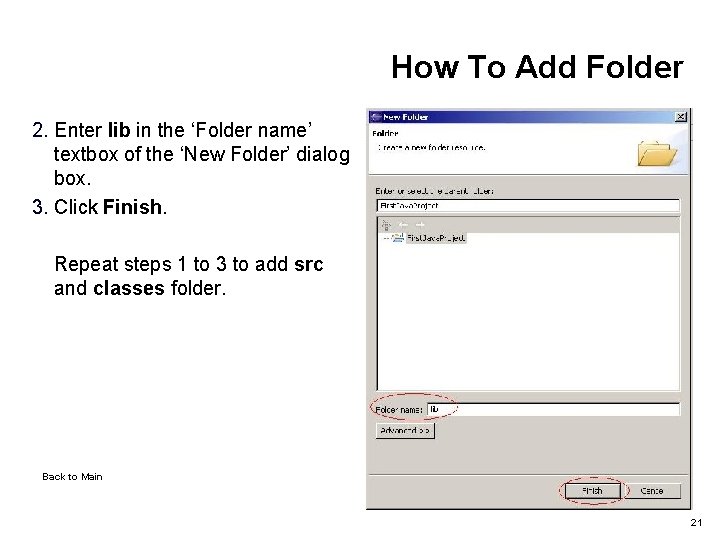
How To Add Folder 2. Enter lib in the ‘Folder name’ textbox of the ‘New Folder’ dialog box. 3. Click Finish. Repeat steps 1 to 3 to add src and classes folder. Back to Main 21
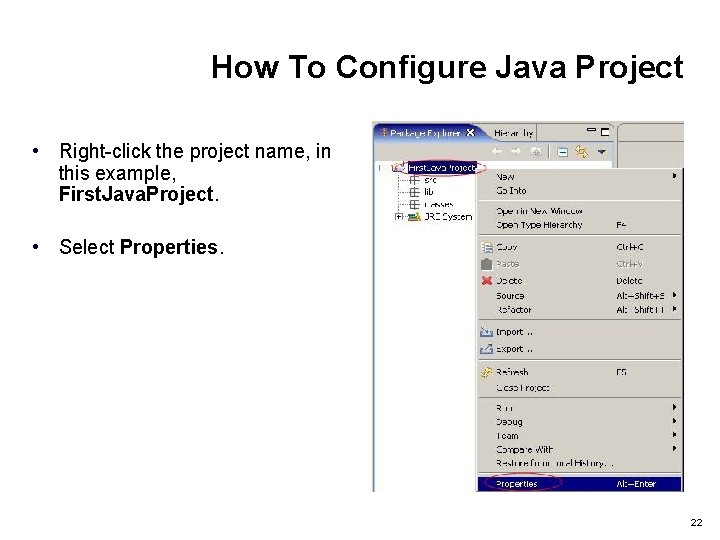
How To Configure Java Project • Right-click the project name, in this example, First. Java. Project. • Select Properties. 22
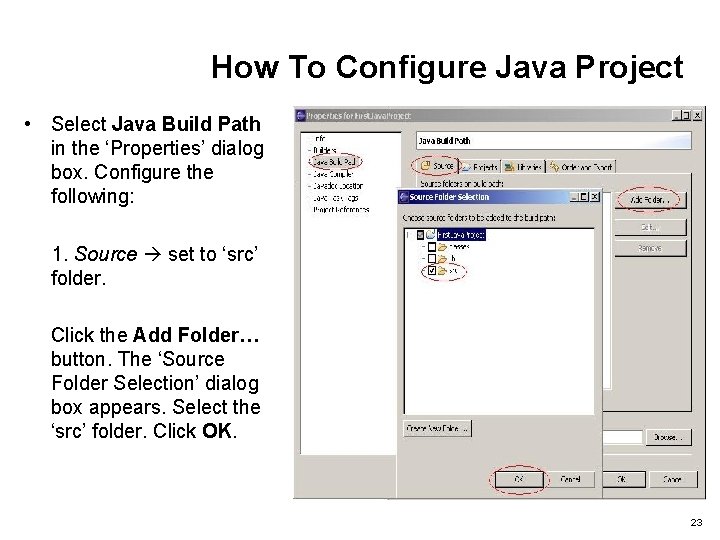
How To Configure Java Project • Select Java Build Path in the ‘Properties’ dialog box. Configure the following: 1. Source set to ‘src’ folder. Click the Add Folder… button. The ‘Source Folder Selection’ dialog box appears. Select the ‘src’ folder. Click OK. 23
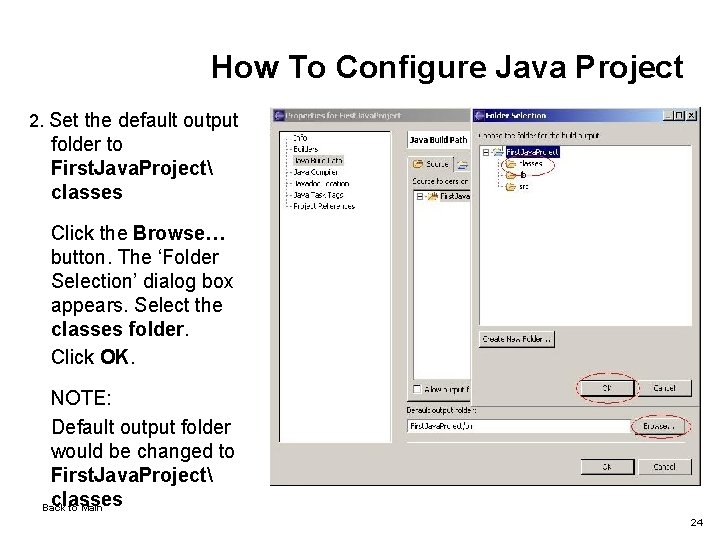
How To Configure Java Project 2. Set the default output folder to First. Java. Project classes Click the Browse… button. The ‘Folder Selection’ dialog box appears. Select the classes folder. Click OK. NOTE: Default output folder would be changed to First. Java. Project classes Back to Main 24
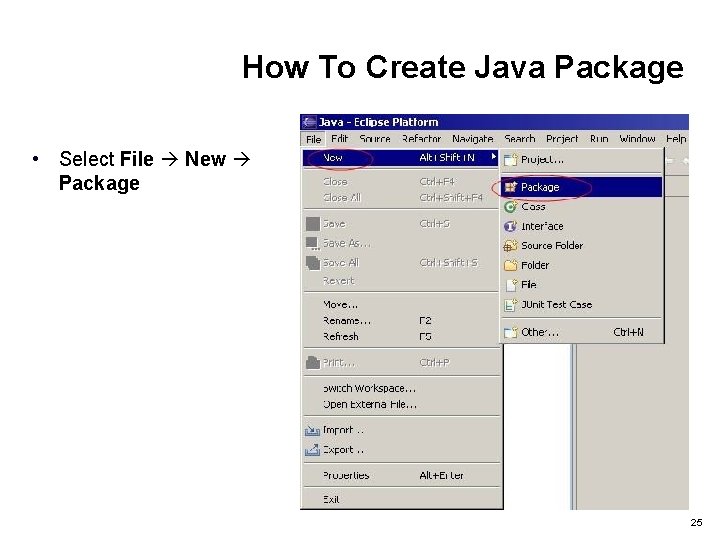
How To Create Java Package • Select File New Package 25
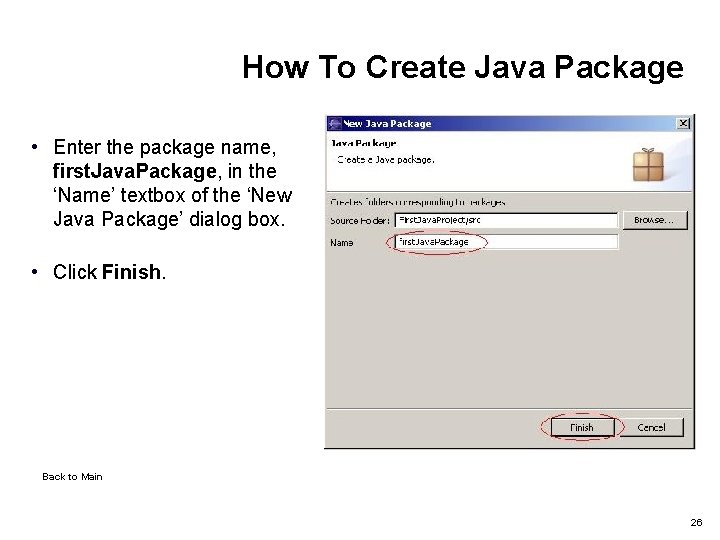
How To Create Java Package • Enter the package name, first. Java. Package, in the ‘Name’ textbox of the ‘New Java Package’ dialog box. • Click Finish. Back to Main 26
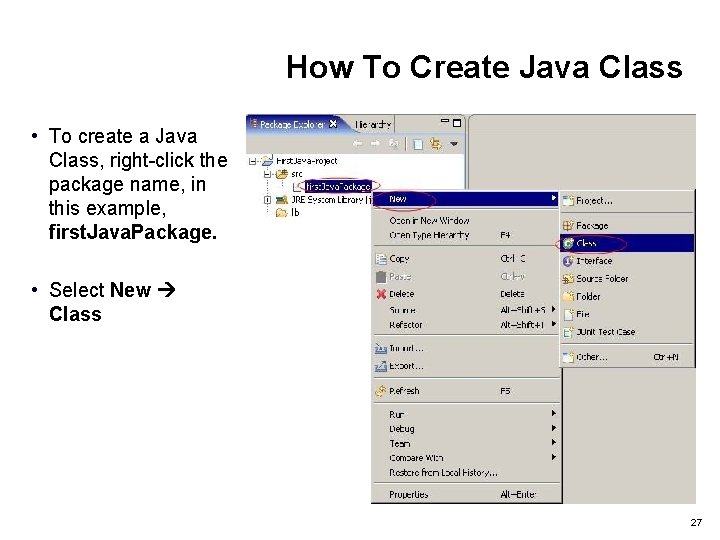
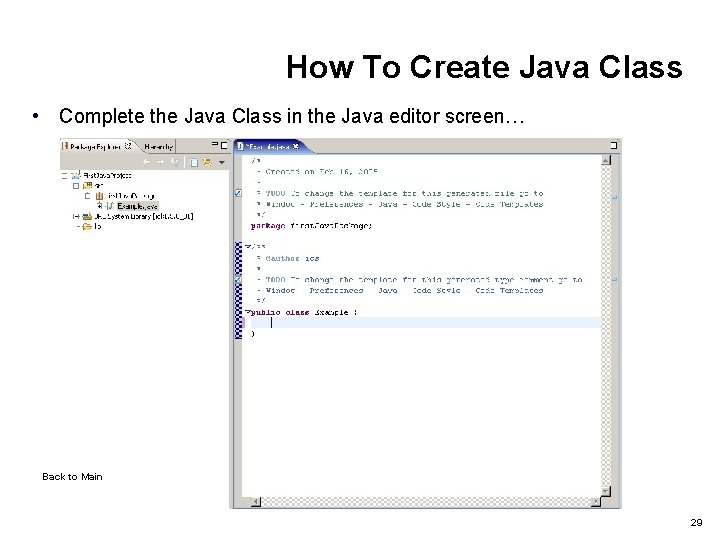
How To Create Java Class • To create a Java Class, right-click the package name, in this example, first. Java. Package. • Select New Class 27
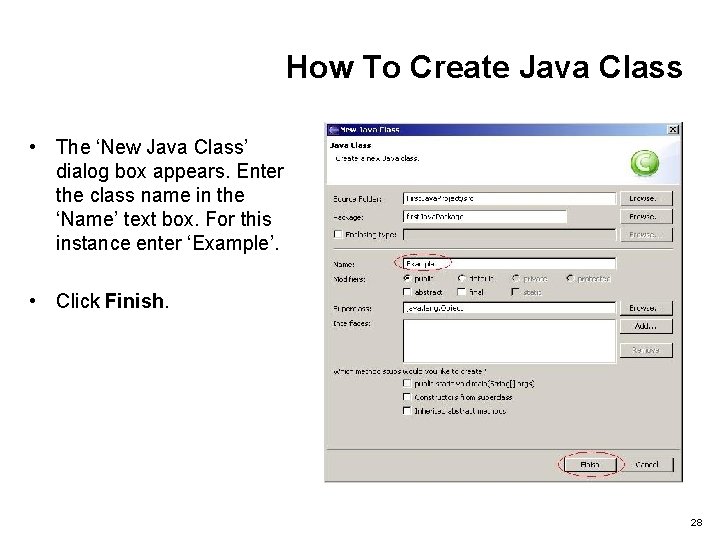
How To Create Java Class • The ‘New Java Class’ dialog box appears. Enter the class name in the ‘Name’ text box. For this instance enter ‘Example’. • Click Finish. 28
How To Create Java Class • Complete the Java Class in the Java editor screen… Back to Main 29
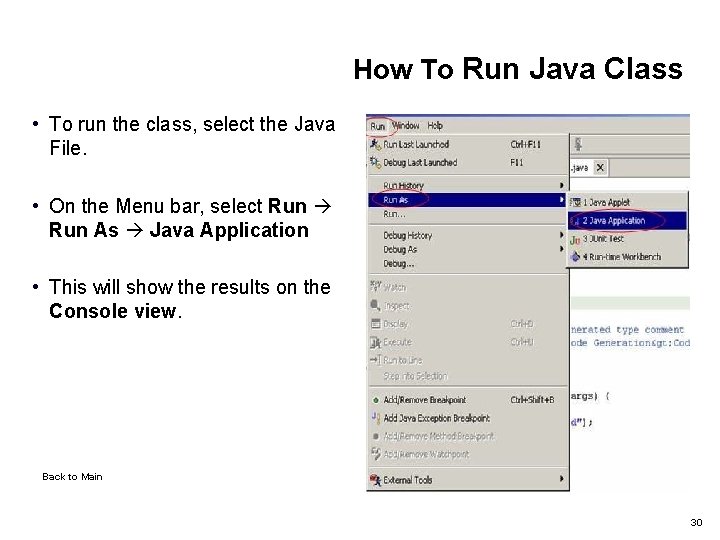
How To Run Java Class • To run the class, select the Java File. • On the Menu bar, select Run As Java Application • This will show the results on the Console view. Back to Main 30
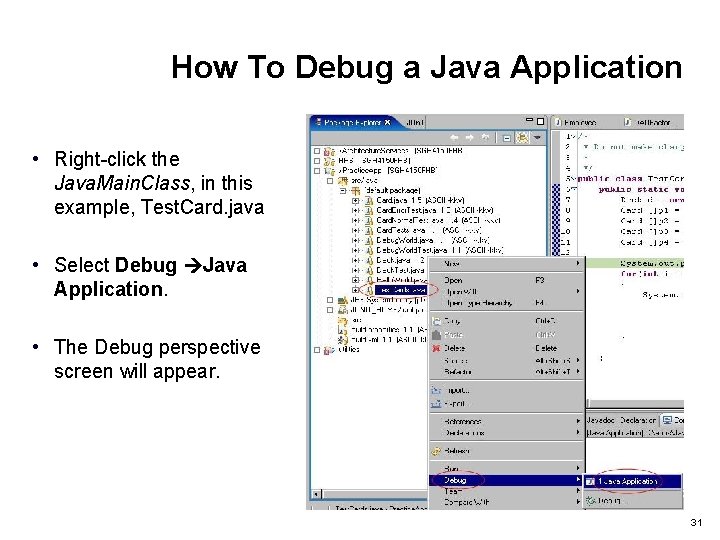
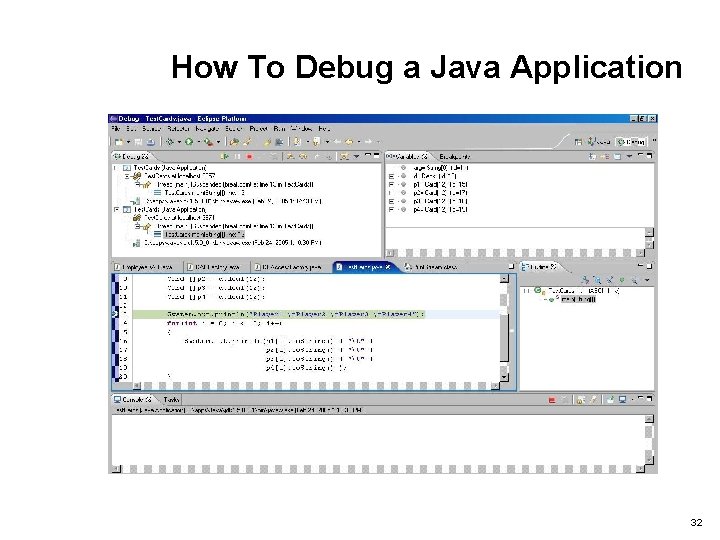
How To Debug a Java Application • Right-click the Java. Main. Class, in this example, Test. Card. java • Select Debug Java Application. • The Debug perspective screen will appear. 31
How To Debug a Java Application 32
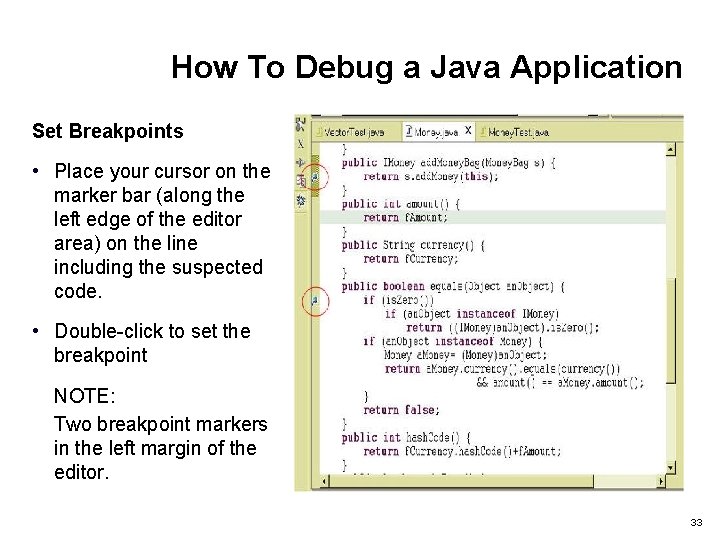
How To Debug a Java Application Set Breakpoints • Place your cursor on the marker bar (along the left edge of the editor area) on the line including the suspected code. • Double-click to set the breakpoint NOTE: Two breakpoint markers in the left margin of the editor. 33
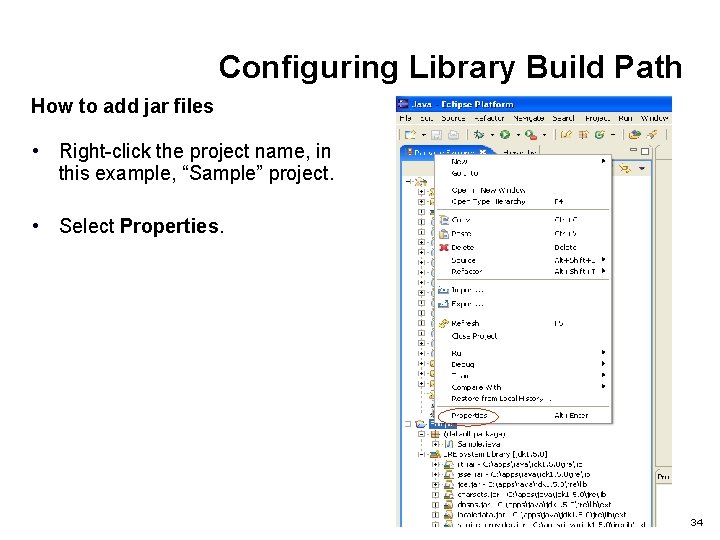
Configuring Library Build Path How to add jar files • Right-click the project name, in this example, “Sample” project. • Select Properties. 34
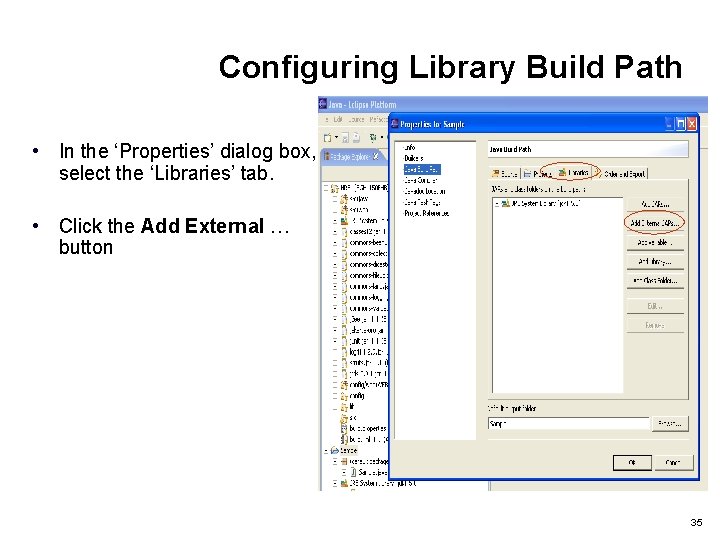
Configuring Library Build Path • In the ‘Properties’ dialog box, select the ‘Libraries’ tab. • Click the Add External … button 35
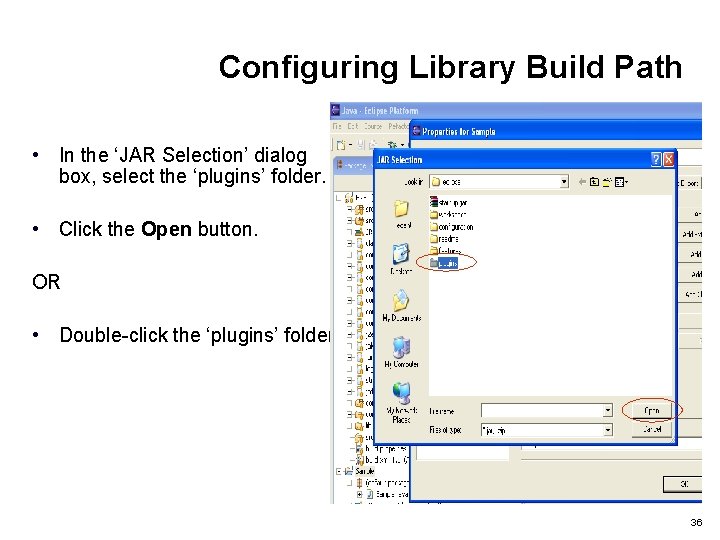
Configuring Library Build Path • In the ‘JAR Selection’ dialog box, select the ‘plugins’ folder. • Click the Open button. OR • Double-click the ‘plugins’ folder. 36
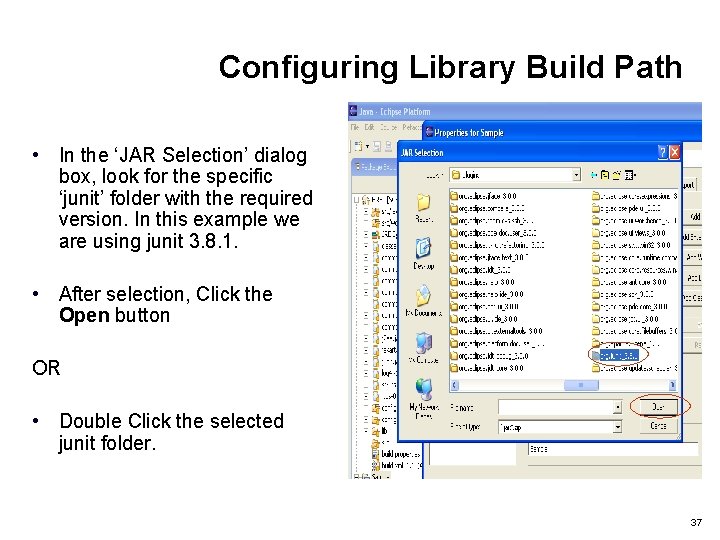
Configuring Library Build Path • In the ‘JAR Selection’ dialog box, look for the specific ‘junit’ folder with the required version. In this example we are using junit 3. 8. 1. • After selection, Click the Open button OR • Double Click the selected junit folder. 37
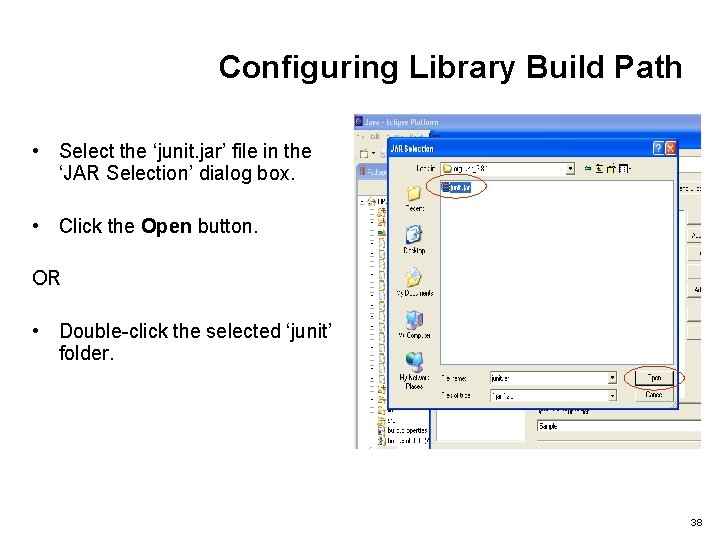
Configuring Library Build Path • Select the ‘junit. jar’ file in the ‘JAR Selection’ dialog box. • Click the Open button. OR • Double-click the selected ‘junit’ folder. 38
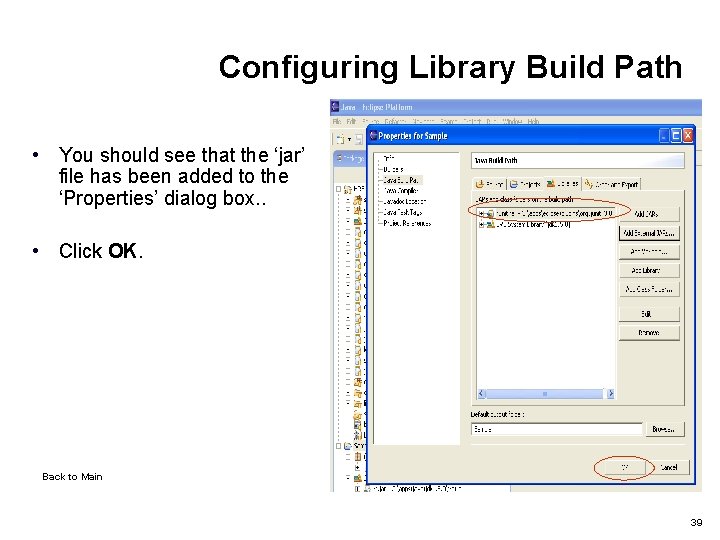
Configuring Library Build Path • You should see that the ‘jar’ file has been added to the ‘Properties’ dialog box. . • Click OK. Back to Main 39
Resources • Eclipse Website http: //www. eclipse. org/ • Eclipse Documentation http: //www. eclipse. org/documentation/main. html Debug Documentation • http: //www. linuxdevices. com/articles/AT 6046208714. html 40