
02 Install and Configure Team Foundation Server Part

- Slides: 31
02 | Install and Configure Team Foundation Server Part 2 of 2 Anthony Borton | ALM Consultant, Enhance ALM Steven Borg | Co-founder & Strategist, Northwest Cadence
Module Overview • Install Team Foundation Server • Configure the application tier • Migrate and upgrade Team Foundation Server • Install and configure Lab Management • Install and configure multiple build agents and controllers
Microsoft Virtual Academy Migrate and upgrade Team Foundation Server
What the Study Guide says… • Migrate and upgrade Team Foundation Server. – upgrading to Team Foundation Server 2012 in-place or moving to new hardware – importing a source base from a non–Team Foundation Server system – upgrading a Team Project
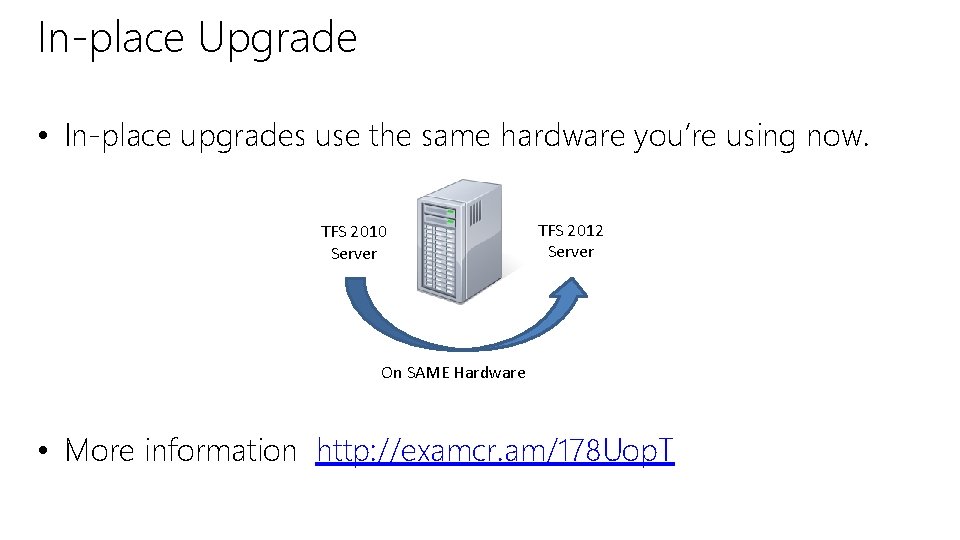
In-place Upgrade • In-place upgrades use the same hardware you’re using now. TFS 2010 Server TFS 2012 Server On SAME Hardware • More information http: //examcr. am/178 Uop. T
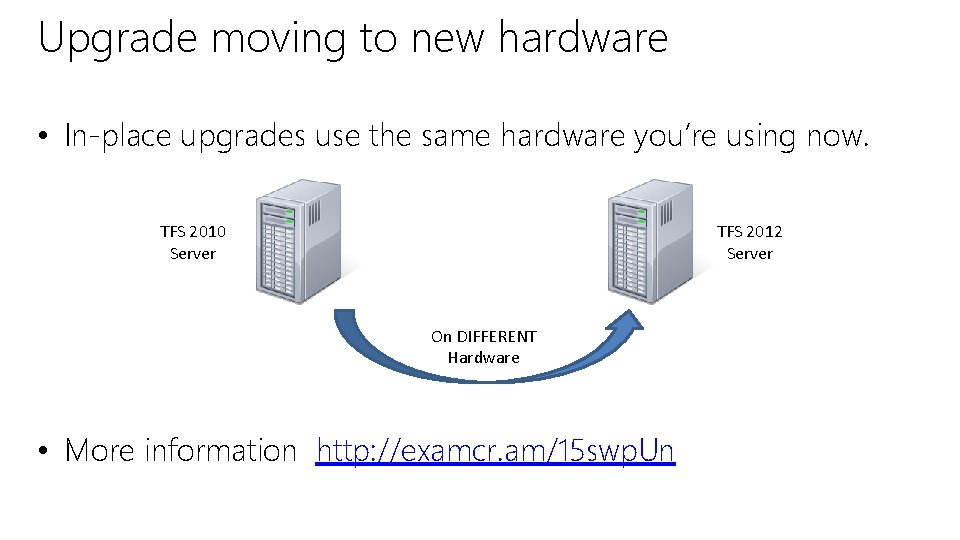
Upgrade moving to new hardware • In-place upgrades use the same hardware you’re using now. TFS 2010 Server TFS 2012 Server On DIFFERENT Hardware • More information http: //examcr. am/15 swp. Un
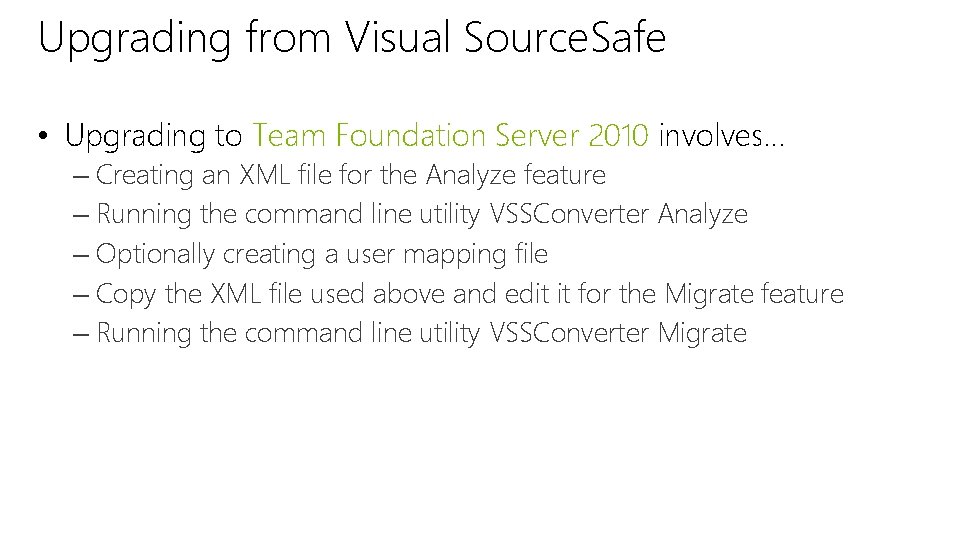
Upgrading from Visual Source. Safe • Upgrading to Team Foundation Server 2010 involves… – Creating an XML file for the Analyze feature – Running the command line utility VSSConverter Analyze – Optionally creating a user mapping file – Copy the XML file used above and edit it for the Migrate feature – Running the command line utility VSSConverter Migrate
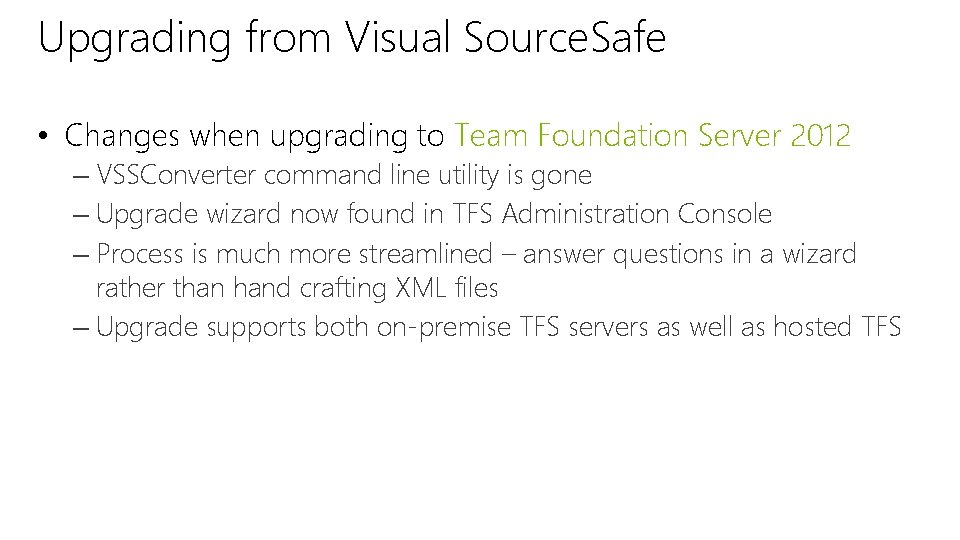
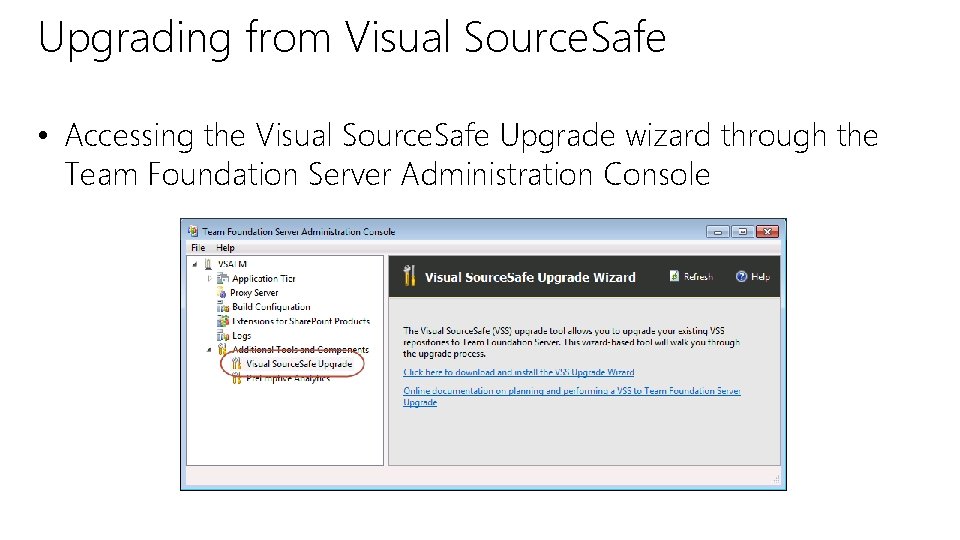
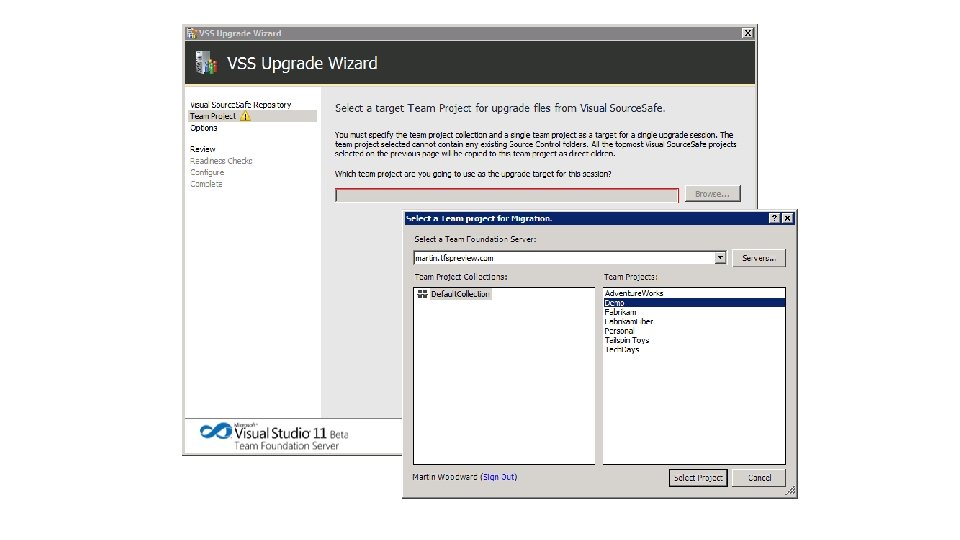
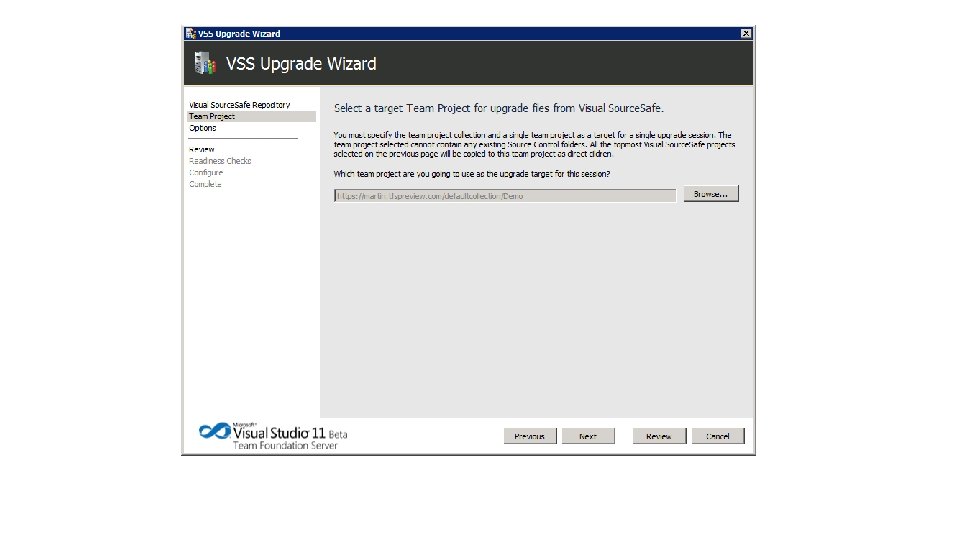
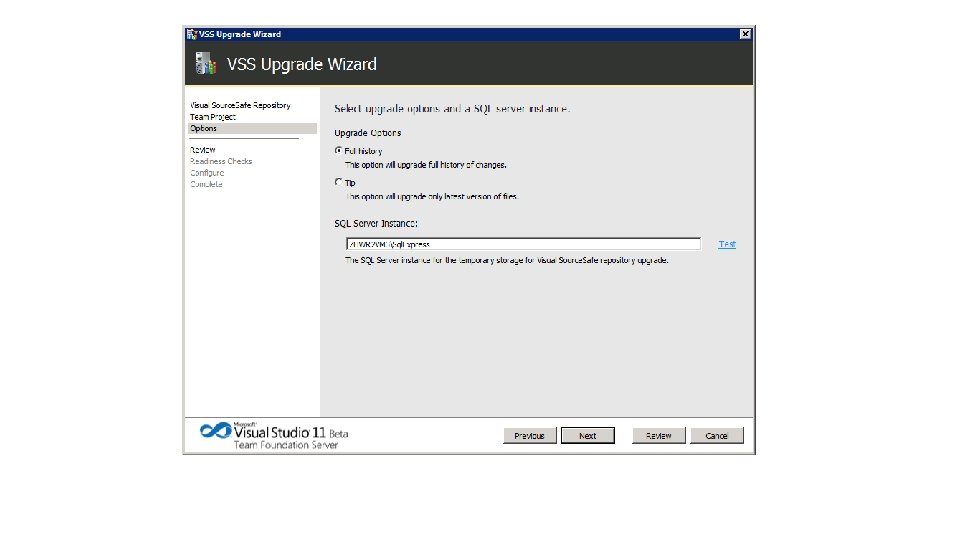
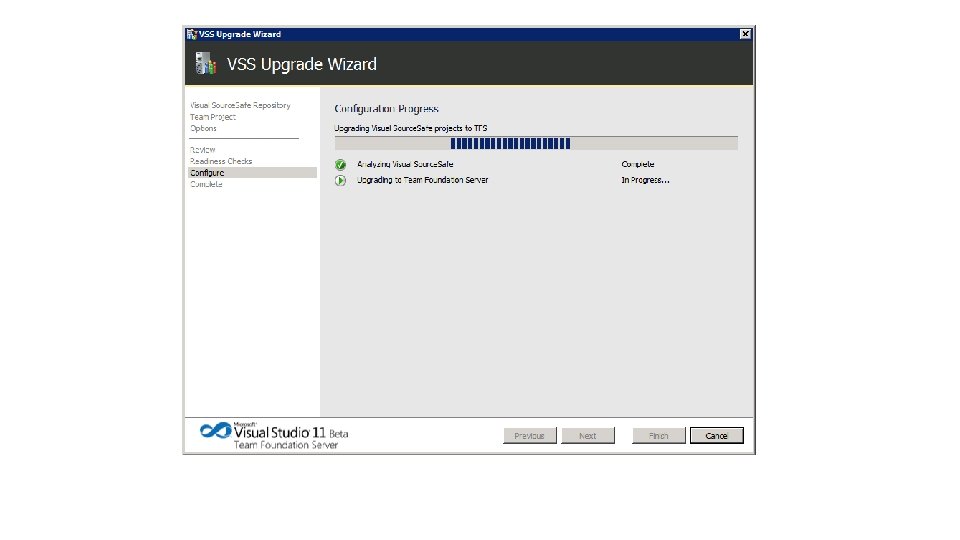
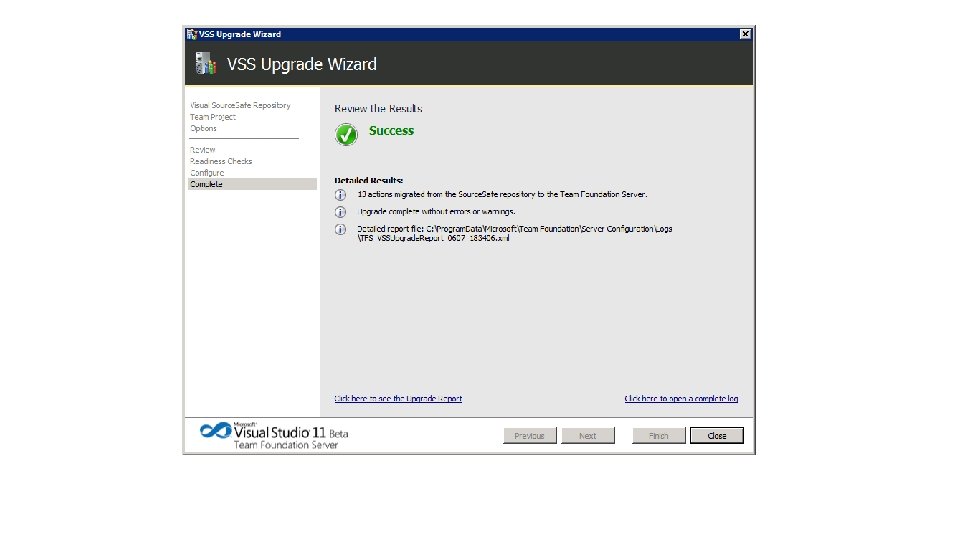
Upgrading from Visual Source. Safe • Changes when upgrading to Team Foundation Server 2012 – VSSConverter command line utility is gone – Upgrade wizard now found in TFS Administration Console – Process is much more streamlined – answer questions in a wizard rather than hand crafting XML files – Upgrade supports both on-premise TFS servers as well as hosted TFS
Upgrading from Visual Source. Safe • Accessing the Visual Source. Safe Upgrade wizard through the Team Foundation Server Administration Console
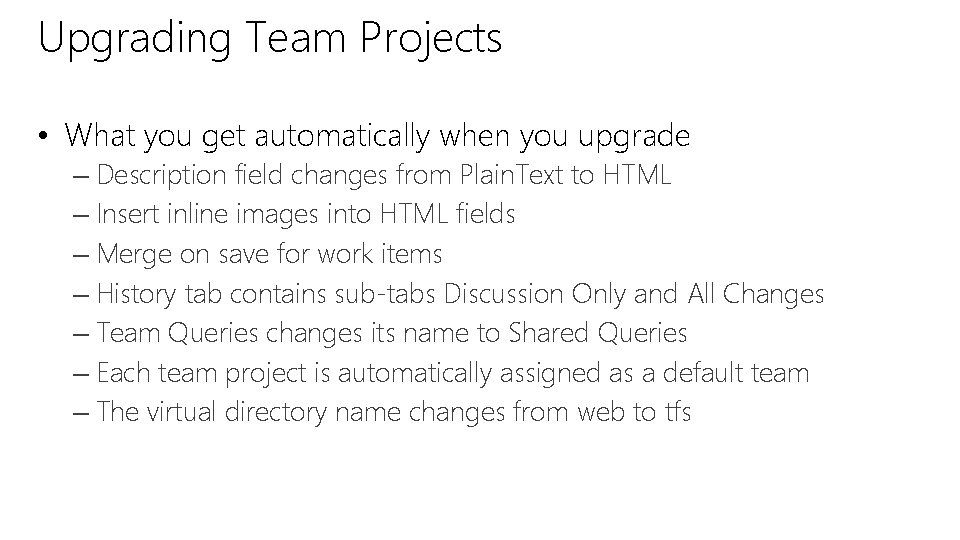
Upgrading Team Projects • What you get automatically when you upgrade – Description field changes from Plain. Text to HTML – Insert inline images into HTML fields – Merge on save for work items – History tab contains sub-tabs Discussion Only and All Changes – Team Queries changes its name to Shared Queries – Each team project is automatically assigned as a default team – The virtual directory name changes from web to tfs
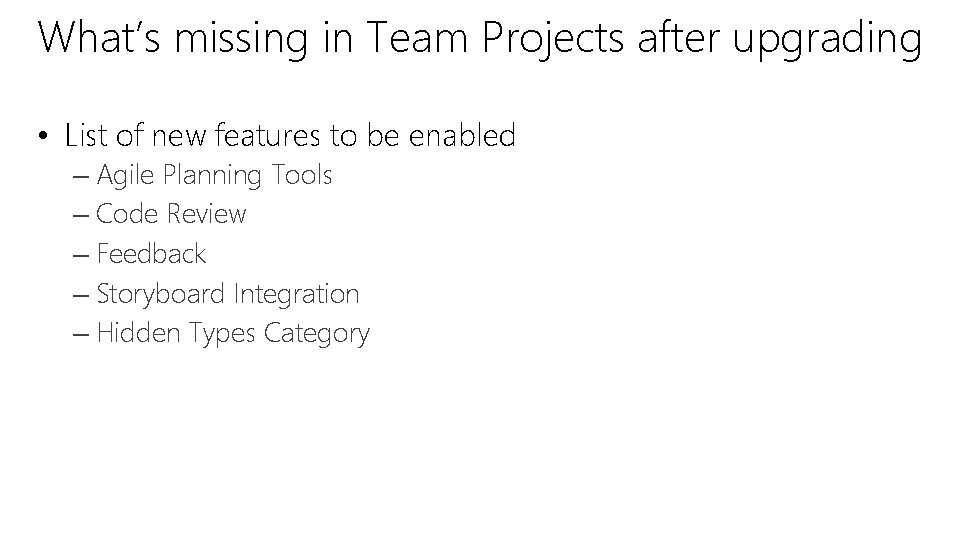
What’s missing in Team Projects after upgrading • List of new features to be enabled – Agile Planning Tools – Code Review – Feedback – Storyboard Integration – Hidden Types Category
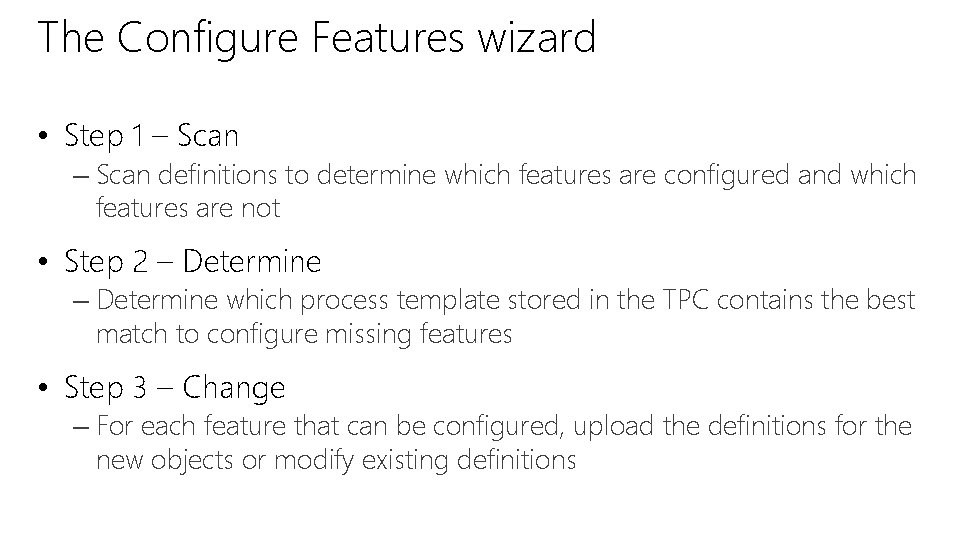
The Configure Features wizard • Step 1 – Scan definitions to determine which features are configured and which features are not • Step 2 – Determine which process template stored in the TPC contains the best match to configure missing features • Step 3 – Change – For each feature that can be configured, upload the definitions for the new objects or modify existing definitions
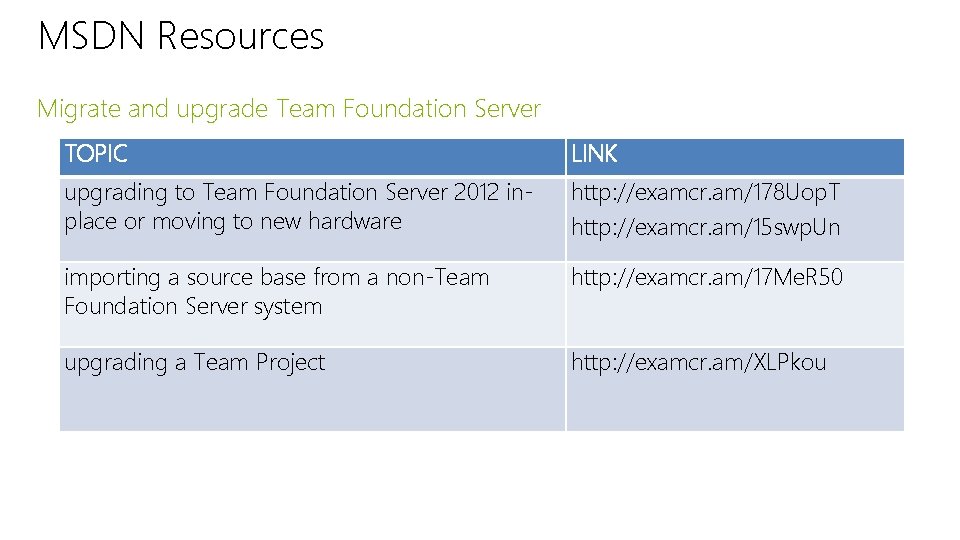
MSDN Resources Migrate and upgrade Team Foundation Server TOPIC LINK upgrading to Team Foundation Server 2012 inplace or moving to new hardware http: //examcr. am/178 Uop. T http: //examcr. am/15 swp. Un importing a source base from a non-Team Foundation Server system http: //examcr. am/17 Me. R 50 upgrading a Team Project http: //examcr. am/XLPkou
Microsoft Virtual Academy Install and configure Lab Management
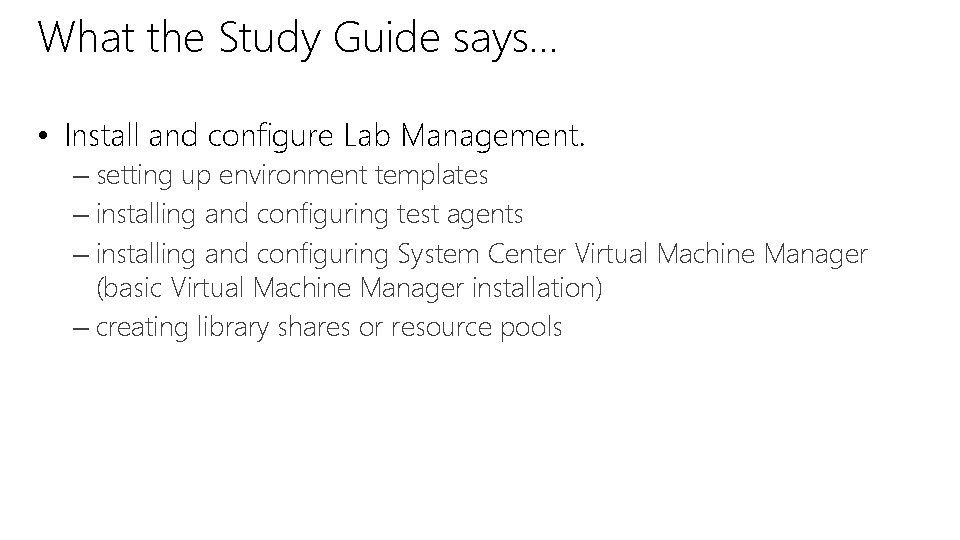
What the Study Guide says… • Install and configure Lab Management. – setting up environment templates – installing and configuring test agents – installing and configuring System Center Virtual Machine Manager (basic Virtual Machine Manager installation) – creating library shares or resource pools
Setting up environment templates • If you are a system administrator, you might have to regularly create new golden virtual machines to satisfy the needs of various team projects. • Detailed instructions can be found in the article “How to: Create and Store Virtual Machines and Templates Ready for Lab Management” at http: //examcr. am/1452 Ket
Installing and configuring test agents • Lab agents and test agents from previous versions of Lab Management have been combined into one type of agent – the test agent. • Detailed instructions can be found in the article “Installing and Configuring Test Agents and Test Controllers” at http: //examcr. am/11 pcal 8
Installing and configuring System Center Virtual Machine Manager • To access the virtual machines that you create with Hyper-V from Lab Management, you must install and configure SCVMM. • SCVMM is a tool for managing your Hyper-V host machines from a central console. • Lab Management communicates with SCVMM to be able to use the virtual machines and templates to create environments • Detailed steps can be found at http: //examcr. am/ZCTOv 3
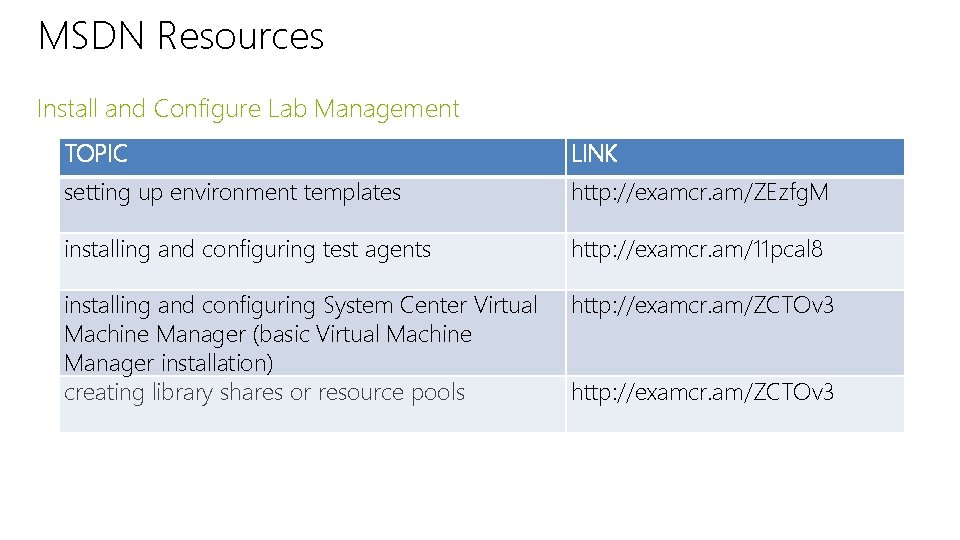
MSDN Resources Install and Configure Lab Management TOPIC LINK setting up environment templates http: //examcr. am/ZEzfg. M installing and configuring test agents http: //examcr. am/11 pcal 8 installing and configuring System Center Virtual Machine Manager (basic Virtual Machine Manager installation) creating library shares or resource pools http: //examcr. am/ZCTOv 3
Microsoft Virtual Academy Install and configure multiple build agents and controllers
What the Study Guide says… • Install and configure multiple build agents and controllers. – tagging and binding a controller to a project collection – adding a build agent
Microsoft Virtual Academy DEMO Installing and configuring Build Agents and Controllers
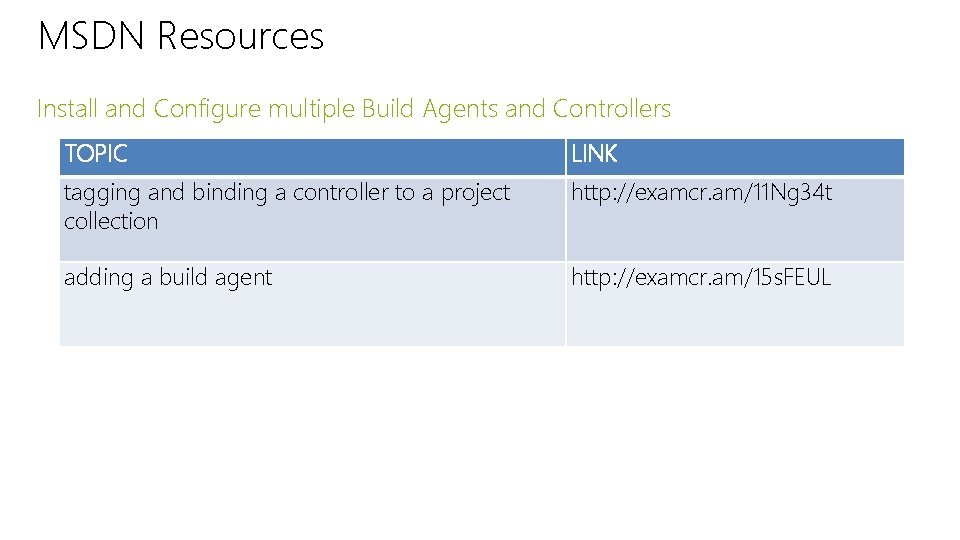
MSDN Resources Install and Configure multiple Build Agents and Controllers TOPIC LINK tagging and binding a controller to a project collection http: //examcr. am/11 Ng 34 t adding a build agent http: //examcr. am/15 s. FEUL
• There is plenty of content in this module. Use the provided hyperlinks and do your reading. • Where you have the resources, practice and many of the procedures as you can. • While you may have done upgrades a while ago, make sure the knowledge is refreshed.
© 2013 Microsoft Corporation. All rights reserved. Microsoft, Windows, Office, Azure, System Center, Dynamics and other product names are or may be registered trademarks and/or trademarks in the U. S. and/or other countries. The information herein is for informational purposes only and represents the current view of Microsoft Corporation as of the date of this presentation. Because Microsoft must respond to changing market conditions, it should not be interpreted to be a commitment on the part of Microsoft, and Microsoft cannot guarantee the accuracy of any information provided after the date of this presentation. MICROSOFT MAKES NO WARRANTIES, EXPRESS, IMPLIED OR STATUTORY, AS TO THE INFORMATION IN THIS PRESENTATION.